Monday, August 10GNOME IT SOLUTIONS LLC

Tag: vzdump

Proxmox Scheduled Backup Jobs (vzdump) Step by Step

Proxmox Scheduled Backup Jobs (vzdump) Step by Step

Proxmox
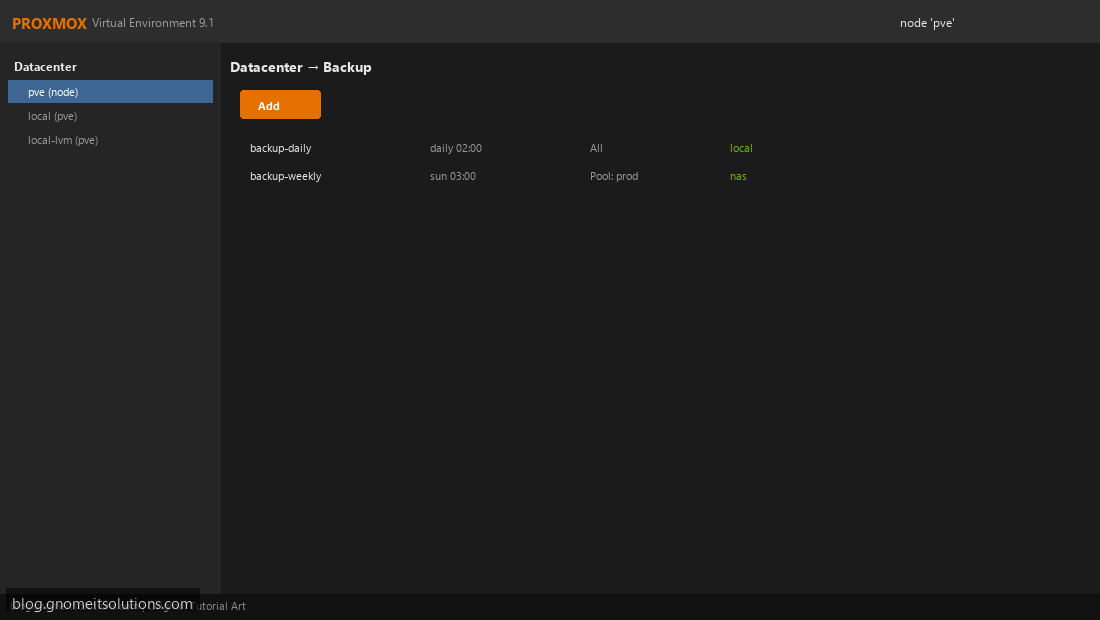
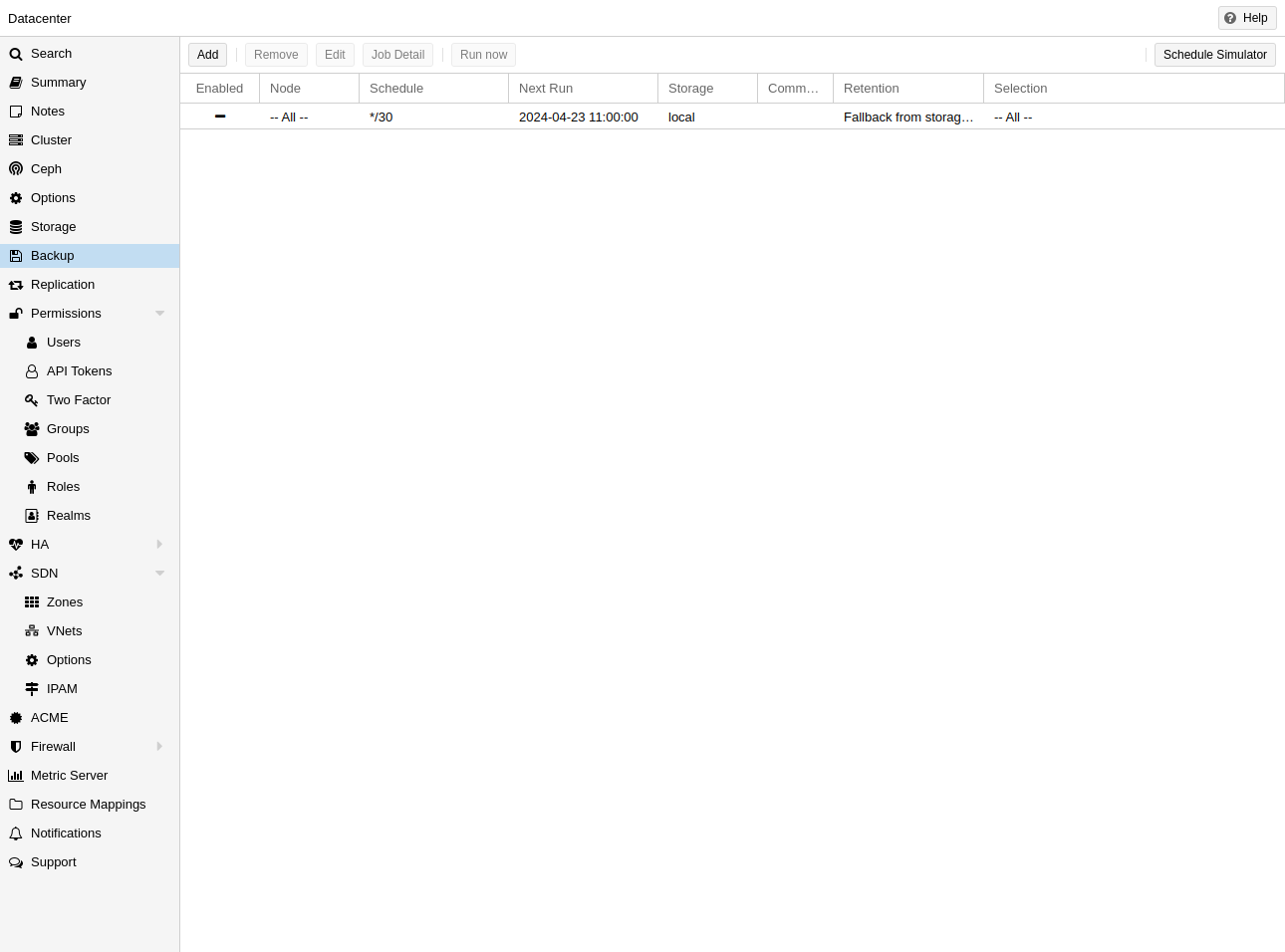
Automate VM protection with Proxmox scheduled backup jobs from Datacenter → Backup. Step 1: Open Backup Job Overview Datacenter → Backup. View existing jobs or click Add. Backup job overview Step 2: General Backup Job Settings Set schedule, VM selection, backup mode (snapshot/stop), and storage. General backup settings Step 3: Configure Retention Policy Set keep daily, weekly, monthly, and keep-last values. Retention policy Step 4: Advanced Options and Notifications Configure compression, pigz threads, and email on failure. Advanced backup options vzdump 101 --storage local --mode snapshot --compress zstd Image credits: All screenshots are original Proxmox VE 9.1-style illustrations created for Gnome IT Solutions. Each image matches its tutorial step. Not copied from third-party sourc...
How to Restore a Proxmox VM from Backup (NAS / Local Storage)

How to Restore a Proxmox VM from Backup (NAS / Local Storage)

Proxmox
Learn how to restore a Proxmox backup from NAS or local storage using the official Proxmox backup interface. Prerequisites Valid vzdump backup on configured storageFree space on target storage poolSys.Modify permission on Proxmox Step 1: Open Backup Storage Go to Datacenter → Storage or node storage. Select backup storage (NAS, local, PBS). Storage with backup files Step 2: View Scheduled Backup Jobs Review existing backup jobs that created your vzdump files. Backup job overview Step 3: Configure Backup Job Settings Understand backup job options (mode, retention, storage) used for your restore files. Backup job configuration Restore a Backup (GUI) Select backup storage → Backups content Select vzdump file → click Restore Choose target VM ID and storage → confirm CLI Restore qmr...