When a major CVE drops in a widely used library (the kind of disclosure that makes security news), the first real question every team has to answer is: are we even using this? Without an inventory, that means grepping through every project’s dependency files by hand under time pressure. A Software Bill of Materials (SBOM) — a structured list of every package inside an image or project — turns that into a search. Syft generates SBOMs; Grype scans them against vulnerability databases.
Step 1: What an SBOM Is and Why It Matters
An SBOM is essentially an ingredient list for software — every OS package, language dependency, and library baked into an image or codebase, with exact versions. It’s increasingly a compliance requirement in some industries and government contracts, but the practical day-to-day value is simpler: instant answers to “do we use package X” without re-scanning everything from scratch every time a new vulnerability is disclosed.
Step 2: Install Syft
Install via the official script: curl -sSfL https://raw.githubusercontent.com/anchore/syft/main/install.sh | sh -s -- -b /usr/local/bin. Confirm with syft version. Syft works against container images, directories, and archives without needing them to be running anywhere.
Step 3: Generate an SBOM From a Container Image
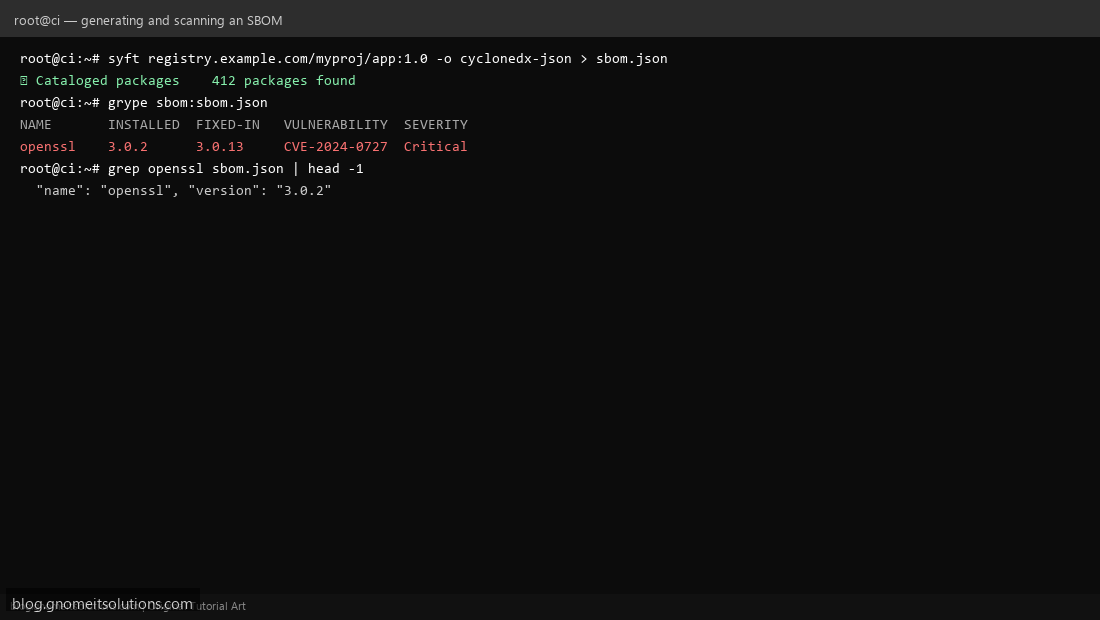
syft registry.example.com/myproj/app:1.0 -o cyclonedx-json > sbom.json produces a standard-format SBOM (CycloneDX is one common format; SPDX is another Syft also supports) listing every package Syft detected inside the image, with exact versions — often several hundred entries even for a modest application image, once OS packages and language dependencies are all counted.
Step 4: Generate an SBOM From a Project Directory
Syft also works directly against a source checkout, not just built images: syft dir:. -o cyclonedx-json > sbom.json catalogs dependency manifests (package.json, requirements.txt, go.mod, and similar) it finds in the project — useful for tracking dependencies even for projects that aren’t containerized.
Step 5: Scan the SBOM for Known Vulnerabilities With Grype
Install Grype the same way as Syft (official install script), then: grype sbom:sbom.json. Grype reads the SBOM and cross-references every listed package version against its vulnerability database, producing a table of matches with severity — functionally similar to what Trivy’s image scan does directly, but decoupled: the SBOM is generated once and can be re-scanned against updated vulnerability data anytime without re-analyzing the image itself.
Step 6: Automate SBOM Generation on Every Build
Add an SBOM generation step to your CI pipeline right after the image build step — generating one for every build, not just occasionally, means you always have an up-to-date inventory to check against the next disclosed CVE, rather than needing to regenerate one under time pressure when it’s actually needed.
Step 7: Store SBOMs Alongside Their Images
Attach the generated SBOM as an artifact of the build (uploaded to your CI system’s artifact storage, or pushed as an OCI artifact alongside the image in Harbor, which supports this natively) so the SBOM for any specific image version is always retrievable later, tied to exactly the version it describes.
Step 8: Respond Fast to a New CVE Disclosure
When a major vulnerability is disclosed in a specific package/version, search your stored SBOMs directly (grep packagename sbom.json across your archive, or re-run grype against each stored SBOM) to get an immediate, accurate list of every image actually affected — instead of guessing or re-scanning everything from scratch while the clock is running on a public disclosure.
Command reference
# Generate SBOM from an image
syft myapp:1.0 -o cyclonedx-json > sbom.json

# Generate SBOM from a project directory
syft dir:. -o cyclonedx-json > sbom.json

# Scan the SBOM for known vulnerabilities
grype sbom:sbom.json

# Quick check: is a package in this SBOM?
grep '"name": "openssl"' sbom.json
Related tutorials
- CI/CD Security Scanning with Trivy
- Self-Hosted Container Registry with Harbor
- Terraform Security Scanning
Terminal screenshots are original illustrations created for Gnome IT Solutions (blog.gnomeitsolutions.com).