Our Harbor guide enabled vulnerability scanning at the registry — after an image is already pushed. DevSecOps means catching the same problems earlier, in the pipeline, before a vulnerable image or misconfigured Terraform file ever reaches production. Trivy is a single, fast, open-source scanner that covers both: container image vulnerabilities and infrastructure-as-code misconfigurations, in one tool.
This guide scans an image locally, sets severity thresholds that fail a build, adds Trivy to a CI pipeline, scans Terraform for misconfigurations, and manages false positives without disabling the check entirely.
Step 1: What “Shift-Left” Security Actually Means
Catching a critical vulnerability after an image is deployed to production means an incident response process, an emergency patch, and possibly downtime. Catching the same vulnerability in a pull request means a comment on the PR and a rebuild before anything ships. “Shift-left” just means moving that detection as early in the pipeline as possible — Trivy’s speed (seconds, not minutes, for most images) is what makes running it on every single commit practical.
Step 2: Install Trivy
Install via your package manager or the official install script: curl -sfL https://raw.githubusercontent.com/aquasecurity/trivy/main/contrib/install.sh | sh. Confirm with trivy --version. Trivy needs no server or database setup — it downloads its vulnerability database on first run and caches it locally.
Step 3: Scan a Container Image
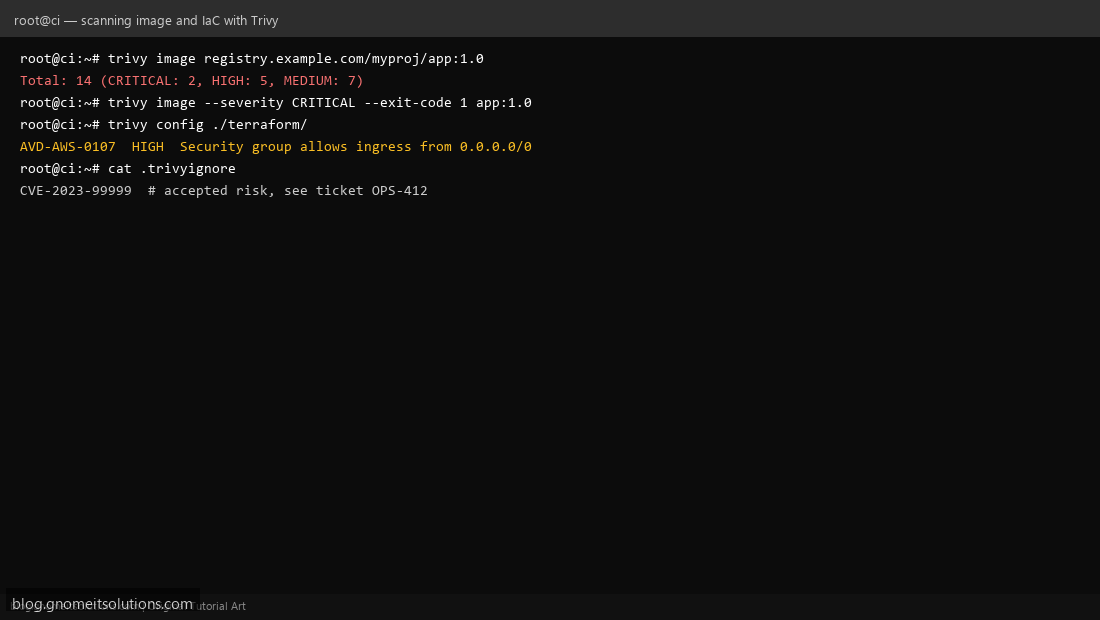
trivy image registry.example.com/myproj/app:1.0 scans every layer of the image against Trivy’s vulnerability database and prints a summary table by severity (CRITICAL, HIGH, MEDIUM, LOW). Run this against an image you already pushed to your Harbor registry to get a feel for typical findings before wiring it into automation.
Step 4: Set a Severity Threshold to Fail the Build
trivy image --severity CRITICAL --exit-code 1 app:1.0 only reports CRITICAL findings and exits non-zero if any are found — this exit code is what a CI pipeline actually checks to decide pass/fail. Starting with CRITICAL-only is a reasonable first gate; tightening to also fail on HIGH is a natural next step once the team is used to acting on scan results.
Step 5: Add Trivy to a CI Pipeline
In a GitLab CI or Jenkins pipeline (building on our GitLab Runner or Jenkins setup), add a stage that runs after the image build step: build the image, run trivy image --severity CRITICAL,HIGH --exit-code 1 $IMAGE_TAG, and only proceed to push/deploy stages if that step succeeds. This makes the scan a required gate, not an optional check someone has to remember to run.
Step 6: Scan Infrastructure as Code
Trivy also scans IaC for misconfigurations, not just container images: trivy config ./terraform/ against a Terraform project (like our Proxmox Terraform setup) flags issues like open security groups, unencrypted storage, or missing logging — the same category of misconfiguration tools like tfsec specialize in, covered in a companion guide on this blog.
Step 7: Manage False Positives With .trivyignore
Not every finding is actionable immediately — a CVE with no available fix yet, or an accepted risk documented elsewhere. Add specific CVE IDs to a .trivyignore file in the project root, one per line, ideally with a comment explaining why (CVE-2023-99999 # accepted risk, see ticket OPS-412) so the exception has a paper trail instead of silently suppressing findings forever.
Step 8: Avoid Duplicating Harbor’s Own Scanning
If your registry already scans on push (our Harbor guide enabled Trivy there too), running the identical scan again in CI is redundant work, not extra safety. A common pattern: run the fast CRITICAL-only gate in CI to fail fast before a push even happens, and rely on Harbor’s registry-side scan (with the full severity range) as the ongoing source of truth for what’s actually sitting in the registry.
Command reference
# Scan an image
trivy image myapp:1.0

# Fail build on critical findings
trivy image --severity CRITICAL --exit-code 1 myapp:1.0

# Scan Terraform/IaC
trivy config ./terraform/

# .trivyignore
echo 'CVE-2023-99999  # accepted risk, ticket OPS-412' >> .trivyignore
Related tutorials
- Self-Hosted Container Registry with Harbor
- Terraform Security Scanning with tfsec and Checkov
- SBOMs with Syft and Grype
Terminal screenshots are original illustrations created for Gnome IT Solutions (blog.gnomeitsolutions.com).