Create a virtual machine on ESXi is the first hands-on task after install — whether you are loading Ubuntu for a lab or Windows Server for AD. The embedded ESXi Host Client replaces the old Windows-only vSphere Client for single-host work.
Next steps: open-vm-tools on Linux,
Ubuntu server patching,
snapshot best practices.
Open Host Client Inventory
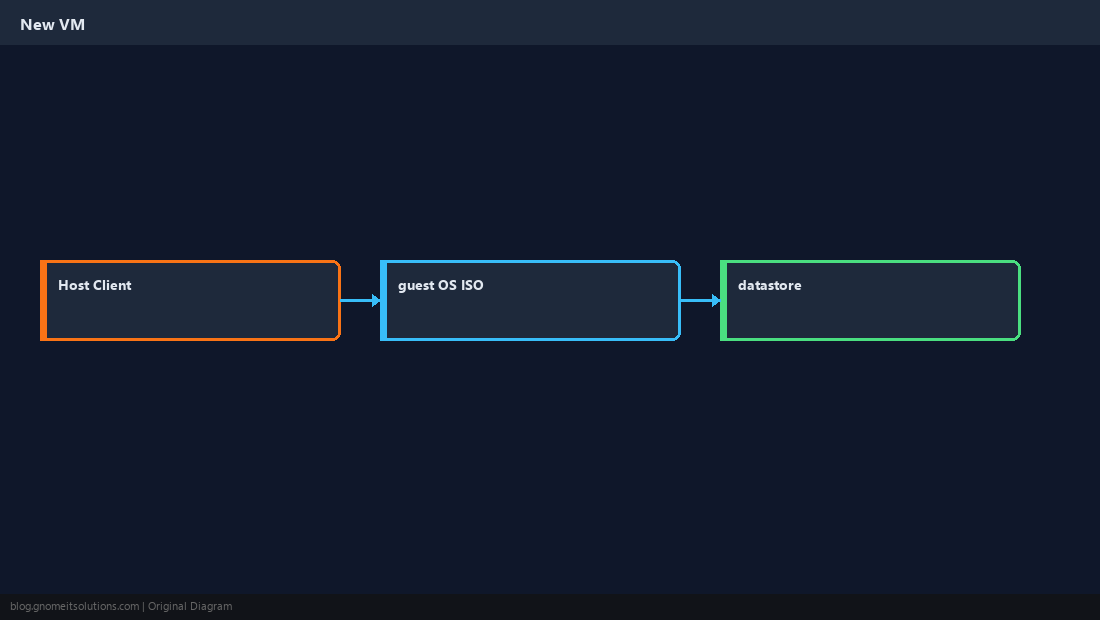
Log into https://your-esxi-ip → Virtual Machines → Create / Register VM.
Wizard: Name and Compatibility
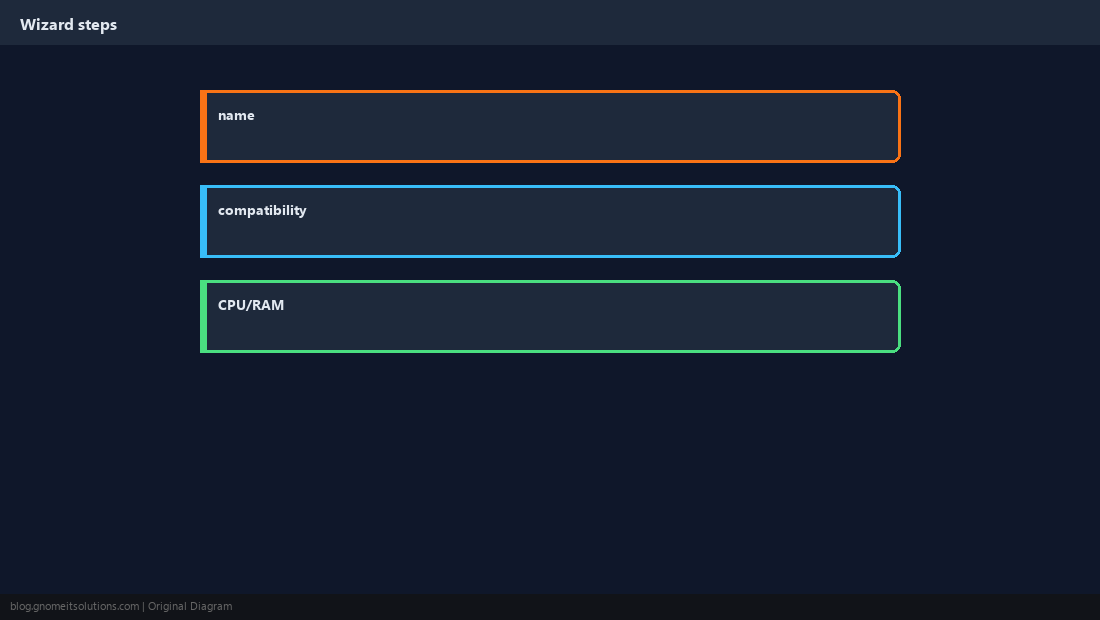
Pick a clear VM name; select ESXi 8.x virtual hardware compatibility unless you need older vMotion targets.
Guest OS Family
Choose Linux or Windows — this tunes defaults (SCSI, recommended drivers). You can still mount any supported ISO.
CPU, Memory, and Disk
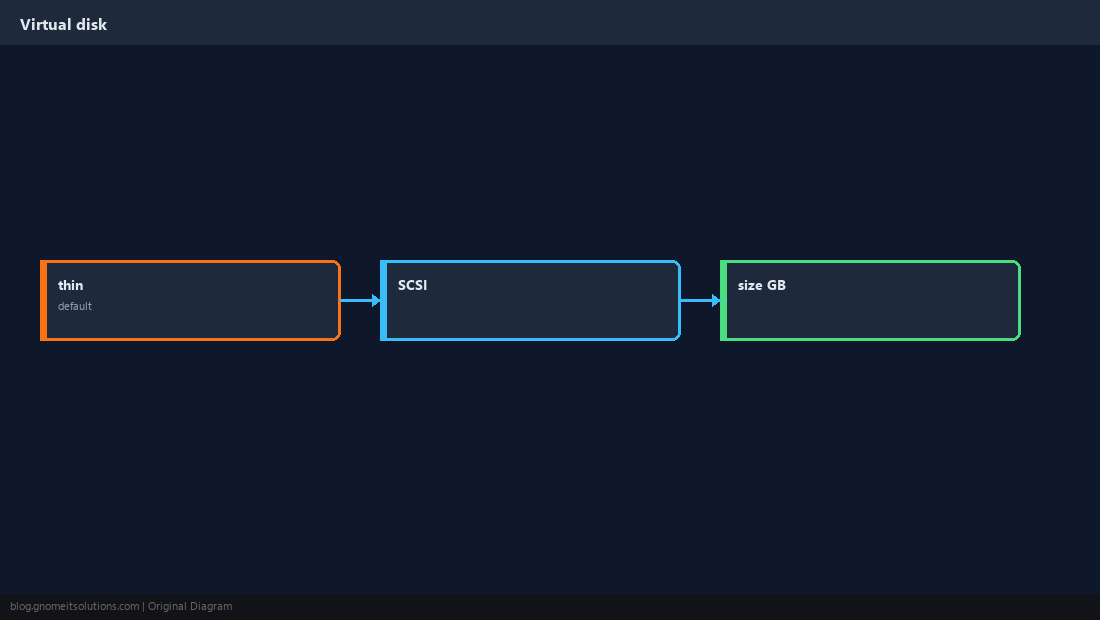
Start modest in labs (2 vCPU, 4–8 GB RAM). Use thin provisioning unless you need eager-zeroed thick for special workloads.
Mount Installation ISO
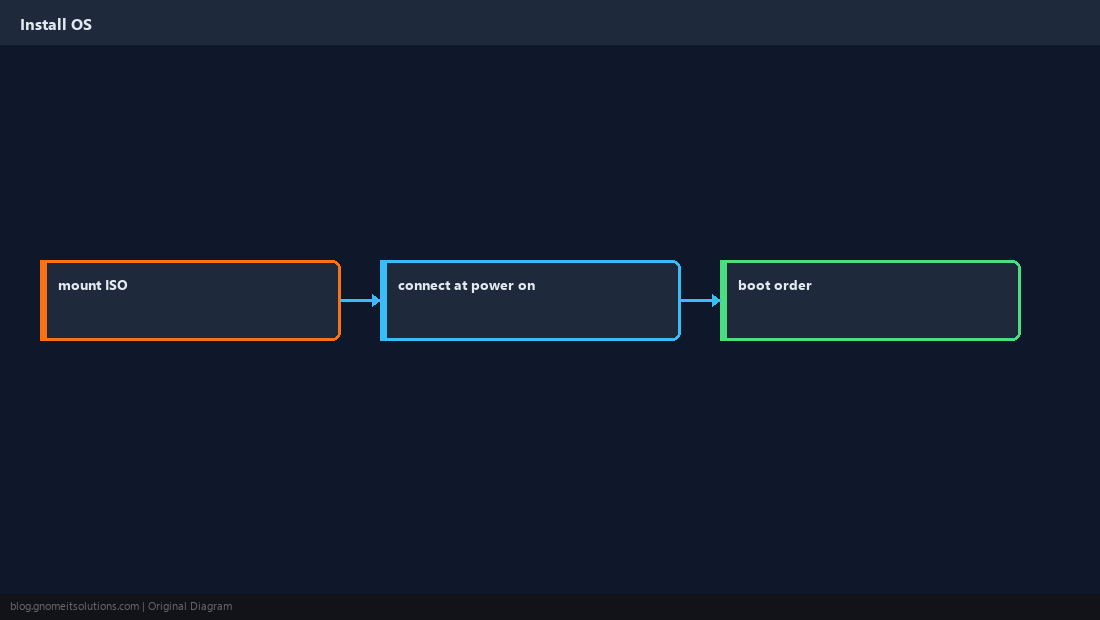
Datastore browser → upload ISO → CD/DVD drive → connect at power on; verify boot order puts CD-ROM first.
Network Adapter
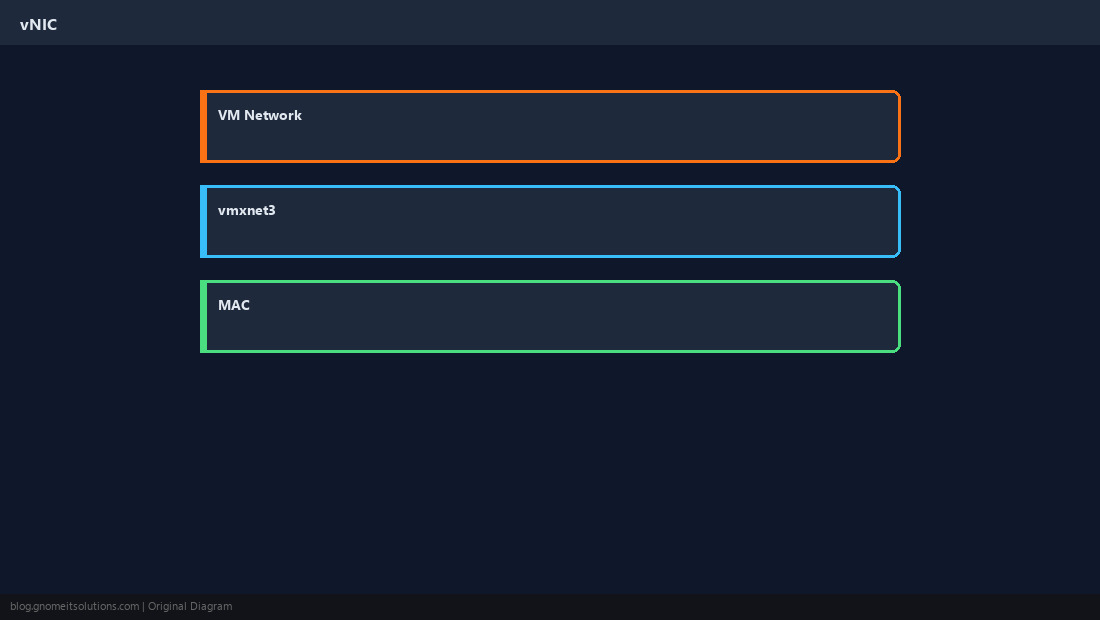
Attach to default VM Network port group (or a VLAN-specific group you created). Prefer VMXNET3 for Linux after tools install.
Power On and Baseline
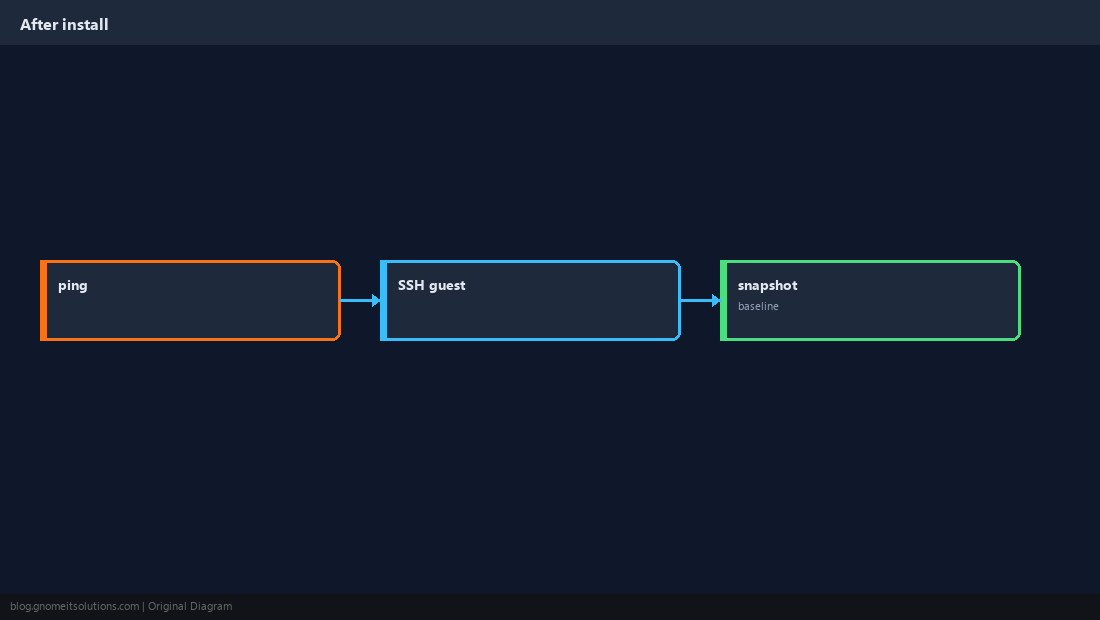
Open web console, install the OS, patch, then take a named snapshot before going to production.
Quick Reference
- Create / Register VM → guest OS → CPU/RAM/disk
- Mount ISO and Connect at power on
- Install guest OS, then open-vm-tools
Related tutorials
Diagrams are original illustrations by Gnome IT Solutions. Tutorial text © Gnome IT Solutions.