
df (disk free) is the first command to run when a server reports a full disk. It lists every mounted filesystem with its size, used and available space,
and how full it is. It answers which filesystem is full; to find which directory is using the space, follow up with du or ncdu from our
df, du and ncdu guide.
Quick answer: df -h for readable sizes, df -hT to add the filesystem type, df -i when a disk “has space” but files cannot be created.
Read the df Output
Each row is one mounted filesystem. Size, Used and Avail are space figures; Use% is how full it is; Mounted on tells you where it lives in the directory tree.
Filesystem      Size  Used Avail Use% Mounted on
/dev/sda2        50G   41G  6.6G  87% /
/dev/sdb1       500G  120G  355G  26% /data
tmpfs           3.9G     0  3.9G   0% /dev/shm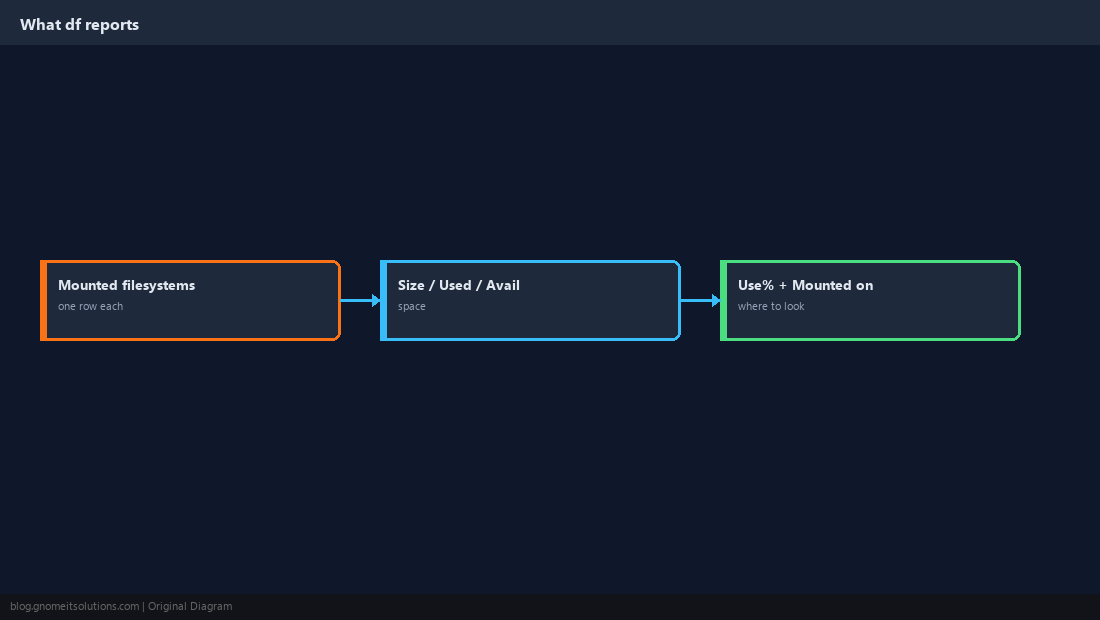
Human-Readable Sizes: -h and -H
Plain df prints 1K blocks, which are hard to read. -h uses powers of 1024 (K, M, G); -H uses powers of 1000, matching how disk vendors quote capacity.
df -h
df -H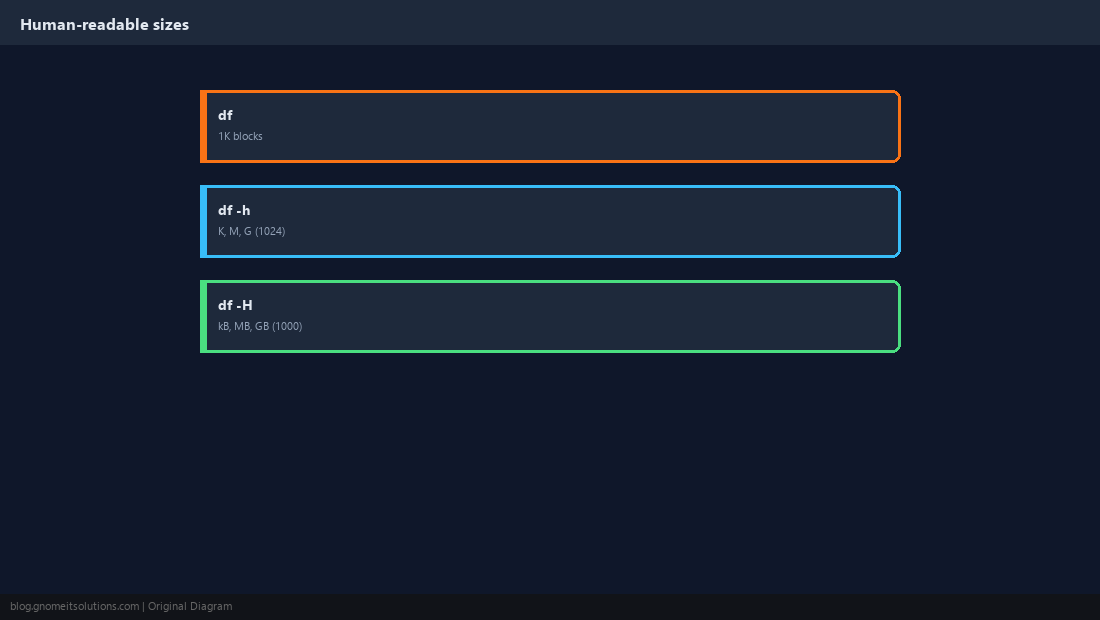
Show and Filter Filesystem Types
-T adds a Type column (ext4, xfs, tmpfs, nfs4 …). Use -t to include only certain types or -x to hide noise such as tmpfs and overlay filesystems.
df -hT
df -h -t ext4 -t xfs
df -h -x tmpfs -x devtmpfs -x overlay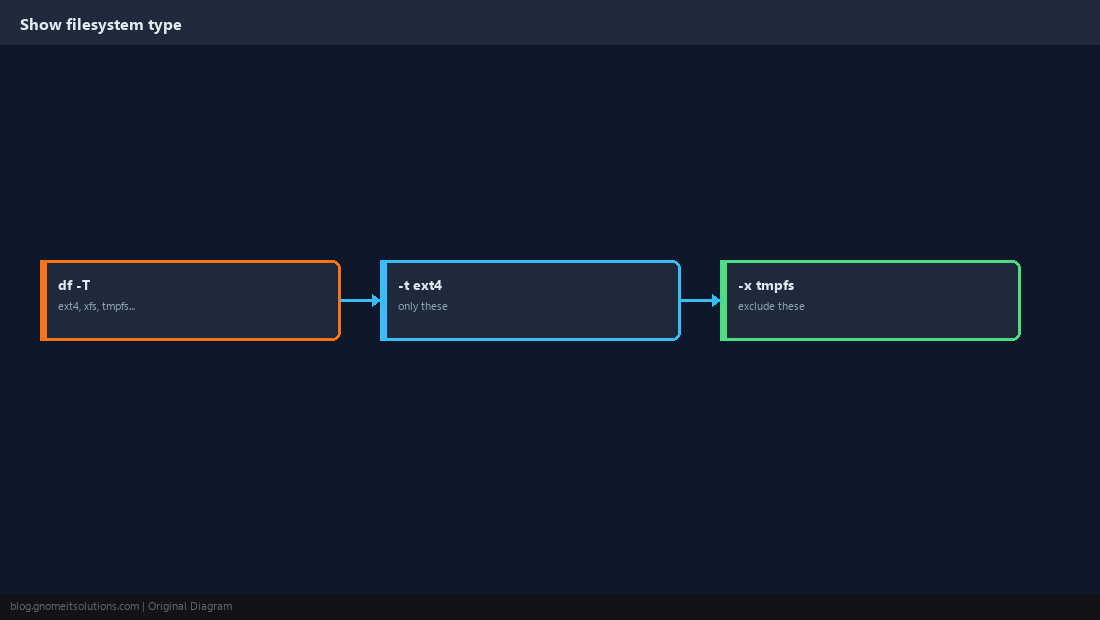
Check Inodes With -i
Every file uses one inode, and a filesystem has a fixed number. A disk can show free space yet refuse new files with No space left on device because inodes ran out, usually from millions of tiny files such as sessions or cache entries.
df -i
df -ih /varfind /var -xdev -type f | cut -d/ -f1-3 | sort | uniq -c | sort -rn | head.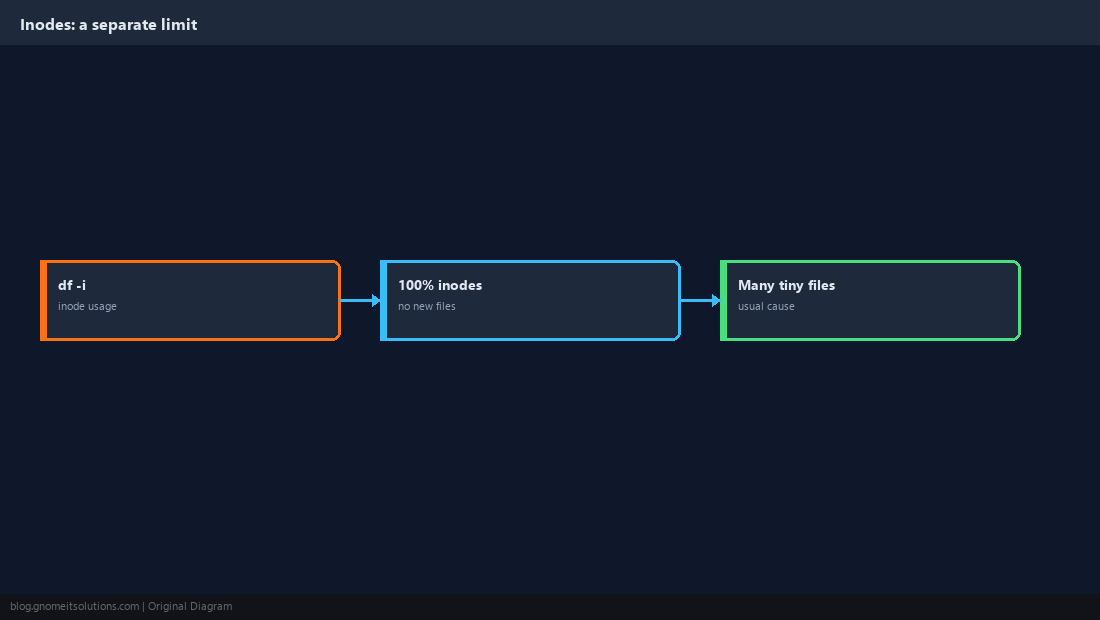
Check the Filesystem Behind One Path
Give df a path and it shows only the filesystem that holds it. This is how you confirm whether /var/log lives on the root disk or a separate volume before cleaning anything.
df -h /var/log
df -h /home /tmp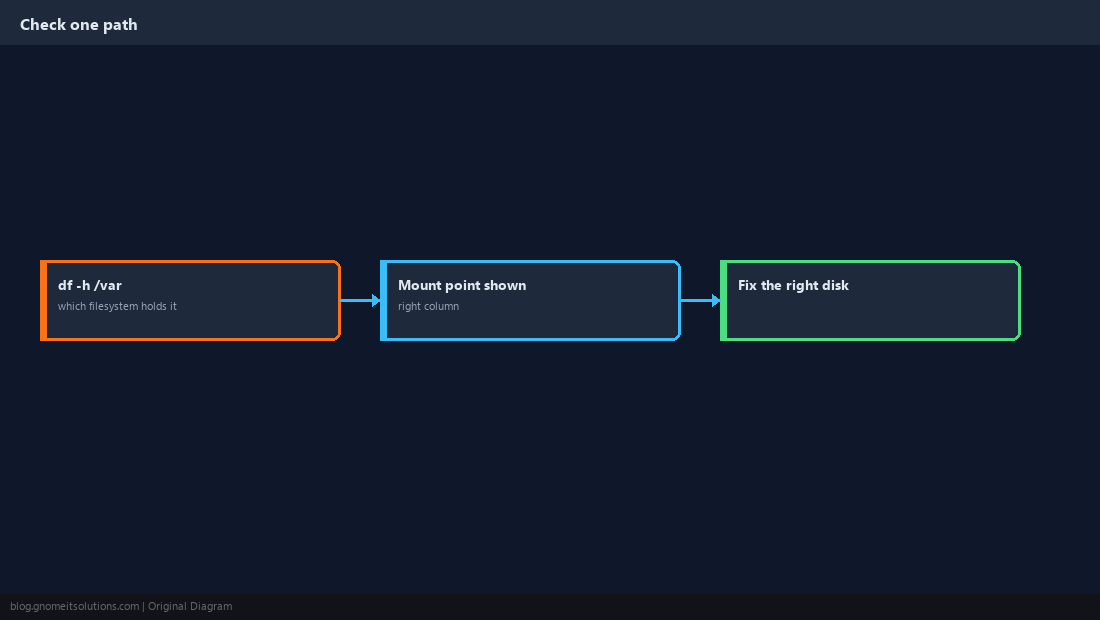
Choose Columns and Totals for Scripts
--output selects exactly the fields you want, and --total adds a summary row. This makes df easy to parse in monitoring scripts.
df -h --output=source,fstype,size,used,avail,pcent,target
df -h --total -x tmpfs | tail -1USE=$(df --output=pcent / | tail -1 | tr -dc '0-9')
[ "$USE" -ge 85 ] && echo "Root filesystem at ${USE}% on $(hostname)"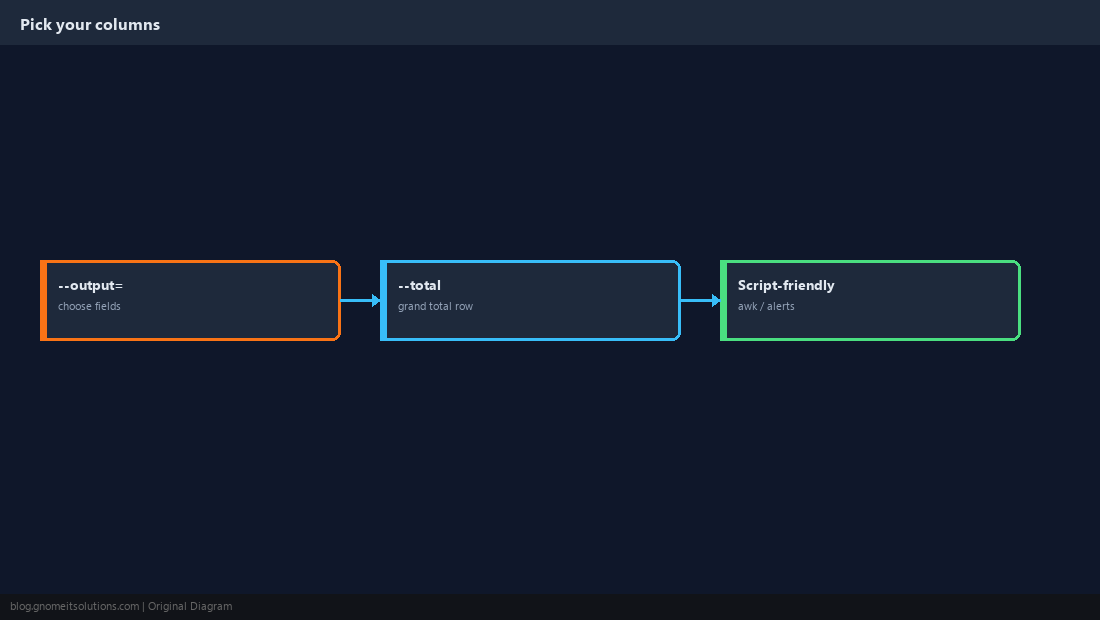
Why Used + Avail Is Less Than Size
ext4 reserves about 5% of blocks for root by default, so root-owned services keep working when users fill the disk. Avail excludes that reserve. On large data-only disks you can reduce it.
sudo tune2fs -l /dev/sdb1 | grep -i 'reserved block count'
sudo tune2fs -m 1 /dev/sdb1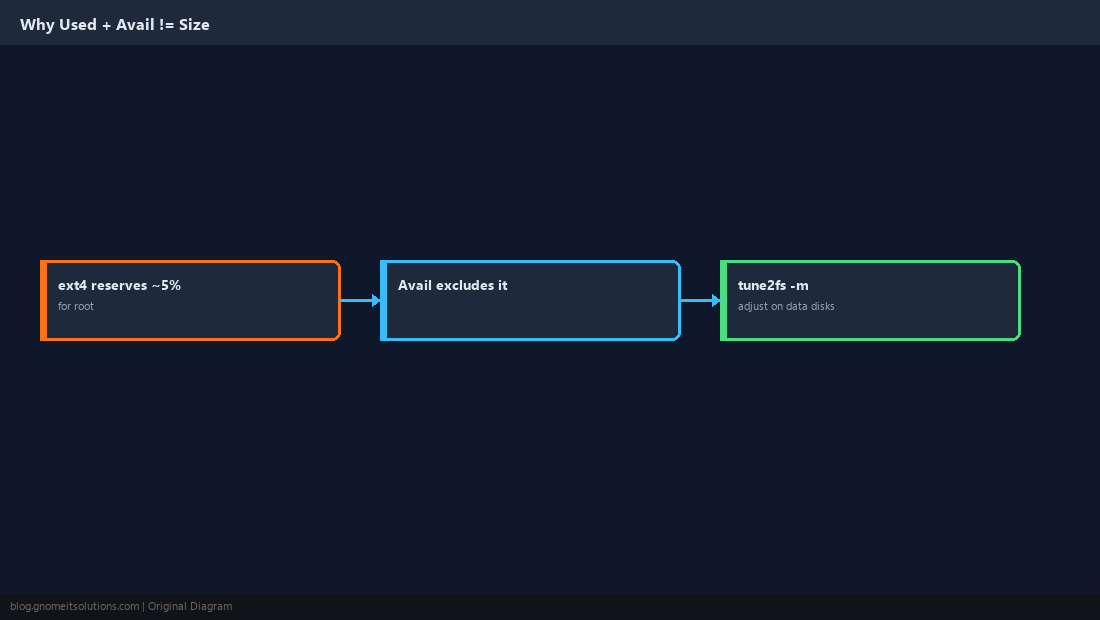
When df and du Disagree
If df says a filesystem is full but du totals far less, a process is usually holding a deleted file open. The space returns only when that process closes the file or restarts.
sudo lsof +L1 2>/dev/null | grep -i deleted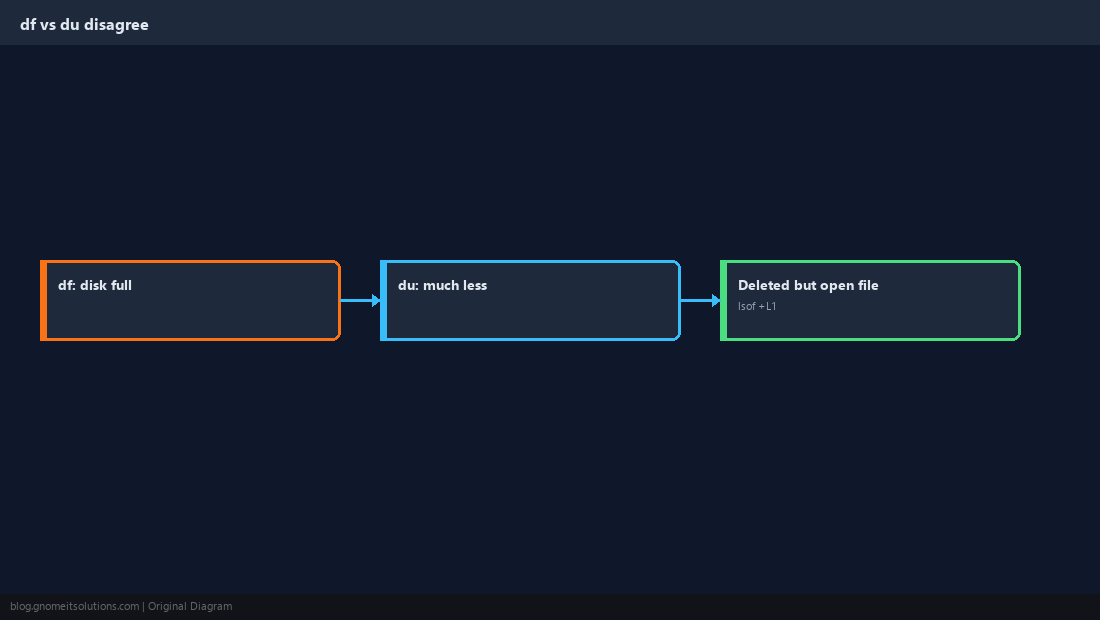
Quick Reference
What does the df command do in Linux?
df shows the size, used space, available space and percentage used for every mounted filesystem, along with where each one is mounted.
What is the difference between df -h and df -H?
df -h shows sizes in powers of 1024 (K, M, G). df -H uses powers of 1000, matching the decimal units disk manufacturers use.
How do I check inode usage in Linux?
Run df -i. If IUse% is 100% on a filesystem, no new files can be created there even if free space remains.
What is the difference between df and du?
df reports space at the filesystem level; du adds up the size of files in a directory. Use df to find the full filesystem and du to find what is using it.
Why does df show less available space than expected?
ext4 reserves about 5% of blocks for root by default, and df’s Avail column excludes that reserve.
Cheat Sheet
df -h,df -hT,df -i,df -h /pathdf -h -x tmpfs,df --output=...,df --total
Related tutorials
Diagrams are original illustrations by Gnome IT Solutions. Tutorial text © Gnome IT Solutions.