Linux keeps time in more than one place, and the commands that show it are easy to confuse. The system clock is what programs see; the
hardware clock (RTC) keeps time while the machine is off; the timezone only changes how time is displayed. This guide covers each command and when to use it.
For keeping the clock accurate over a network, continue with the chrony NTP guide; if sync fails, see the
troubleshooting checklist.
Understand the Three Concepts
System clock, hardware clock and timezone are separate. Changing the timezone never changes the actual moment in time; it only changes the label.
  hardware clock (RTC) --boot--> system clock --display--> timezone --> what you read
  NTP (chrony) disciplines the system clock; rtcsync keeps the RTC aligned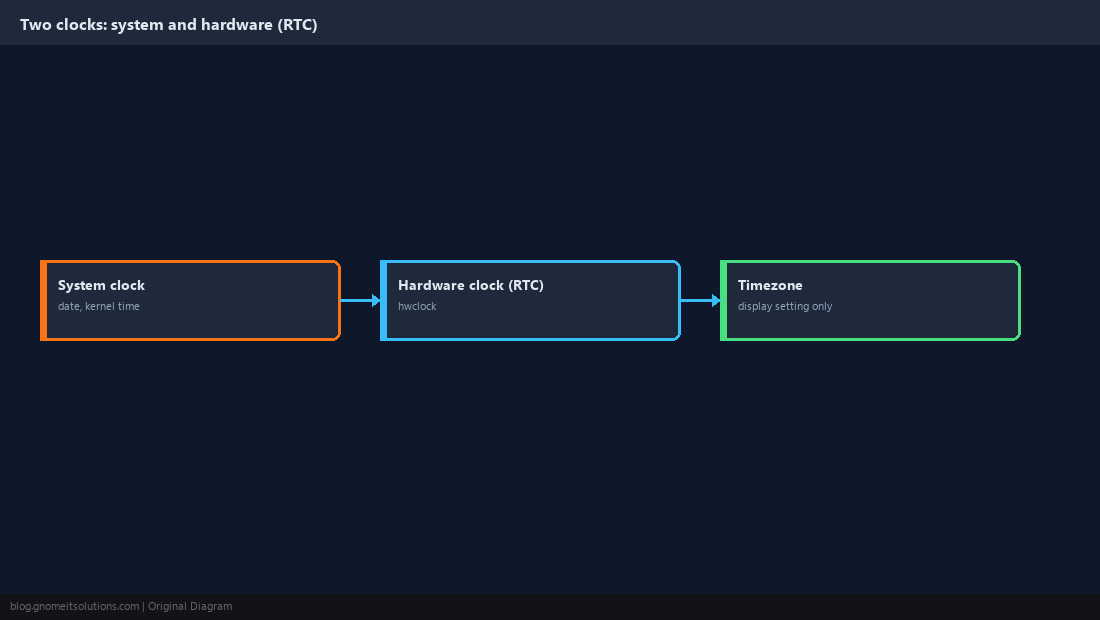
Read Everything with timedatectl
One command summarises local time, UTC, RTC time, timezone and sync state.
timedatectl
timedatectl show --property=Timezone --property=NTPSynchronized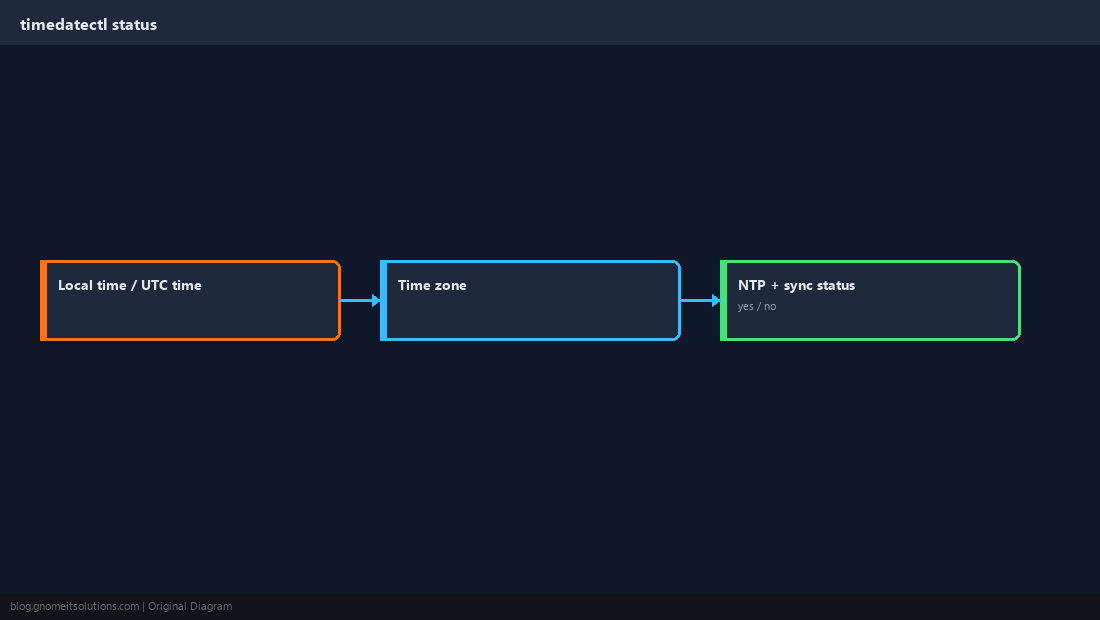
Set the Timezone
Find the exact name, then set it. Names follow the Region/City pattern.
timedatectl list-timezones | grep -i kolkata
sudo timedatectl set-timezone Asia/Kolkata
date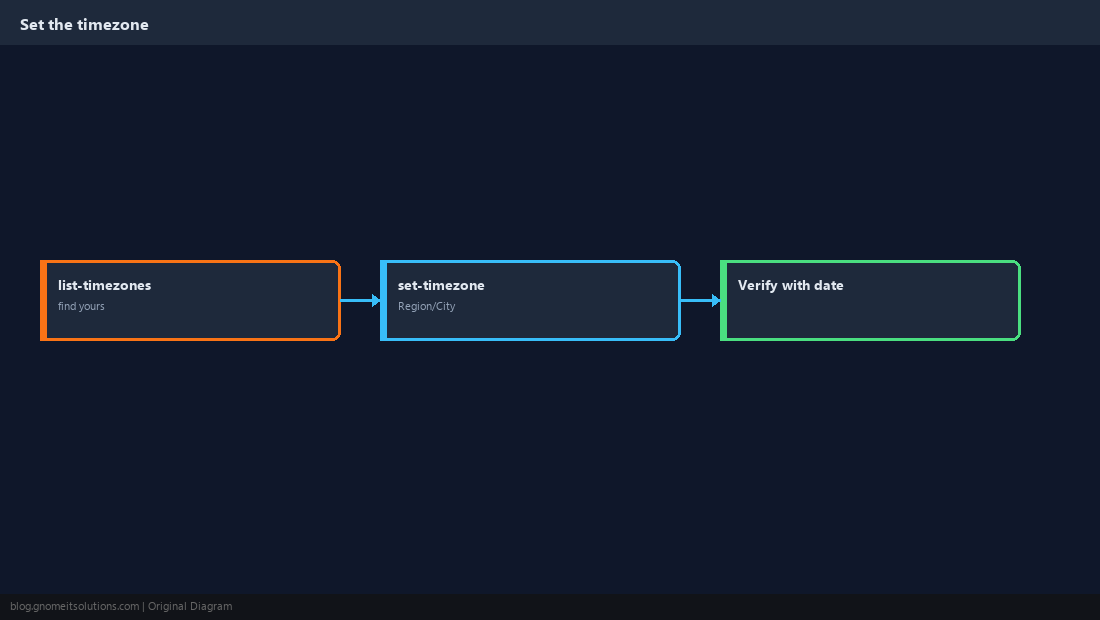
Turn On Network Time
set-ntp true enables network time synchronisation through the configured time service. It needs a service to do the work, such as chrony or systemd-timesyncd.
sudo timedatectl set-ntp true
timedatectl | grep -E 'NTP|synchronized'chronyc tracking) give the authoritative picture.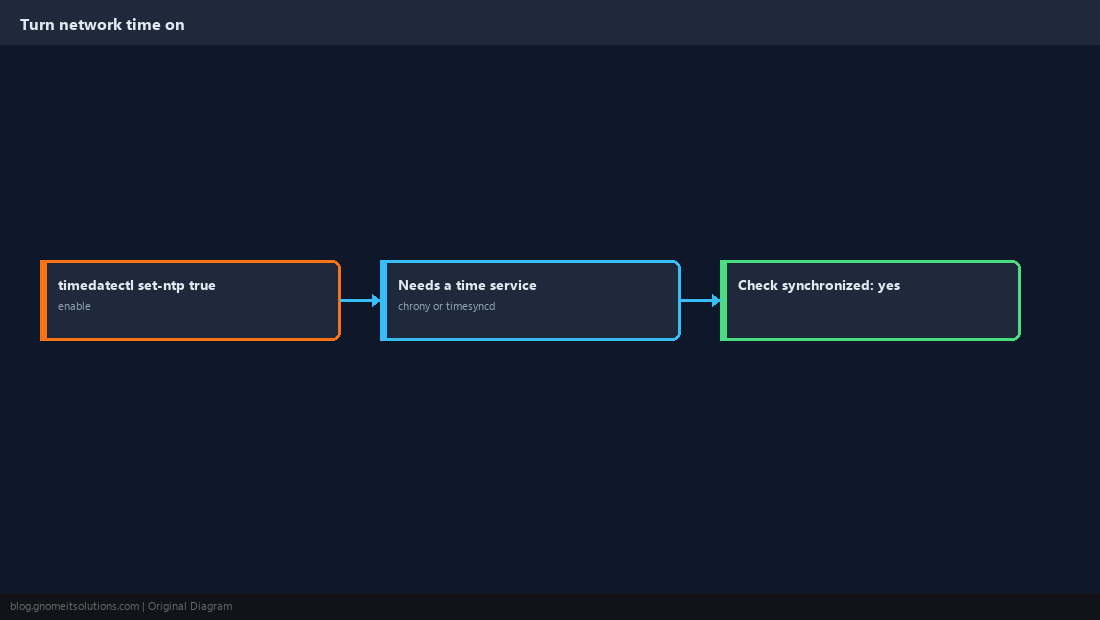
Set the Time by Hand
Manual time is only accepted while NTP is off, so turn it off, set the time, and turn it back on.
sudo timedatectl set-ntp false
sudo timedatectl set-time '2026-09-21 14:30:00'
sudo timedatectl set-ntp true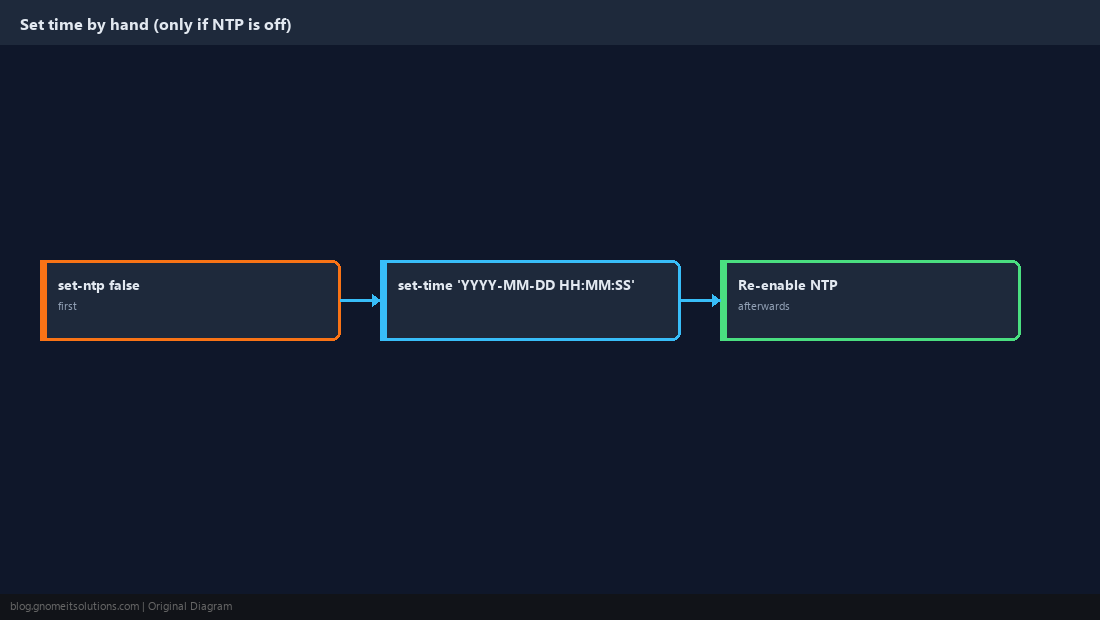
Sync the Hardware Clock with hwclock
hwclock reads and writes the RTC. Use --systohc after fixing the system clock, and --hctosys to load the RTC into the system clock.
sudo hwclock --show
sudo hwclock --systohc
sudo hwclock --hctosys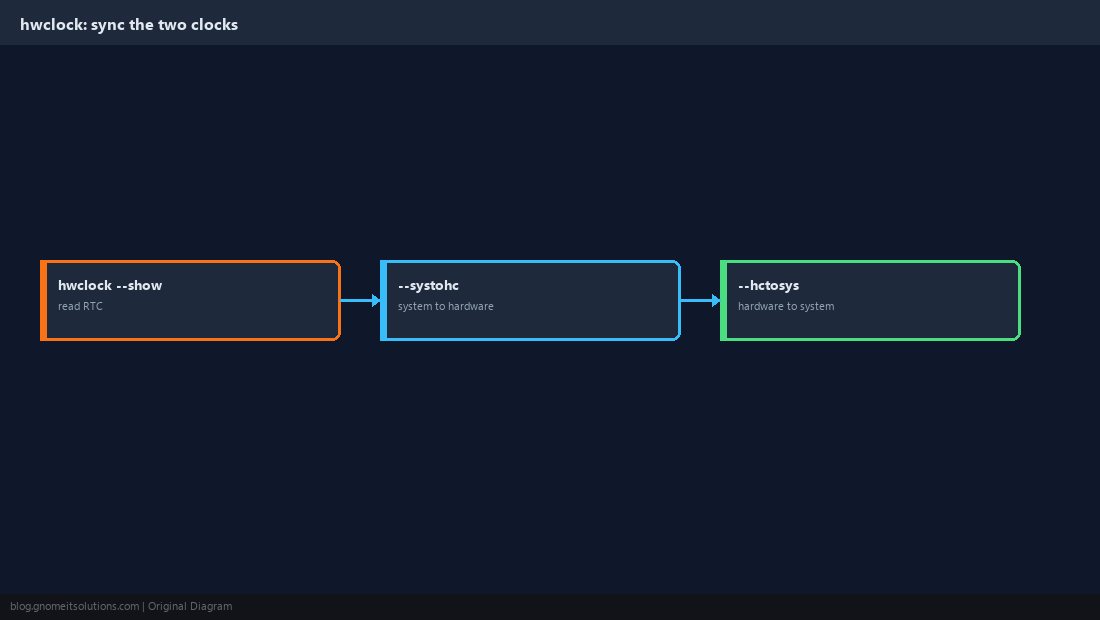
Keep the RTC in UTC (Usually)
Linux normally stores UTC in the RTC. Windows expects local time, which causes wrong clocks on dual-boot machines. Choose one convention; UTC is the better default for servers.
timedatectl | grep 'RTC in local TZ'
sudo timedatectl set-local-rtc 0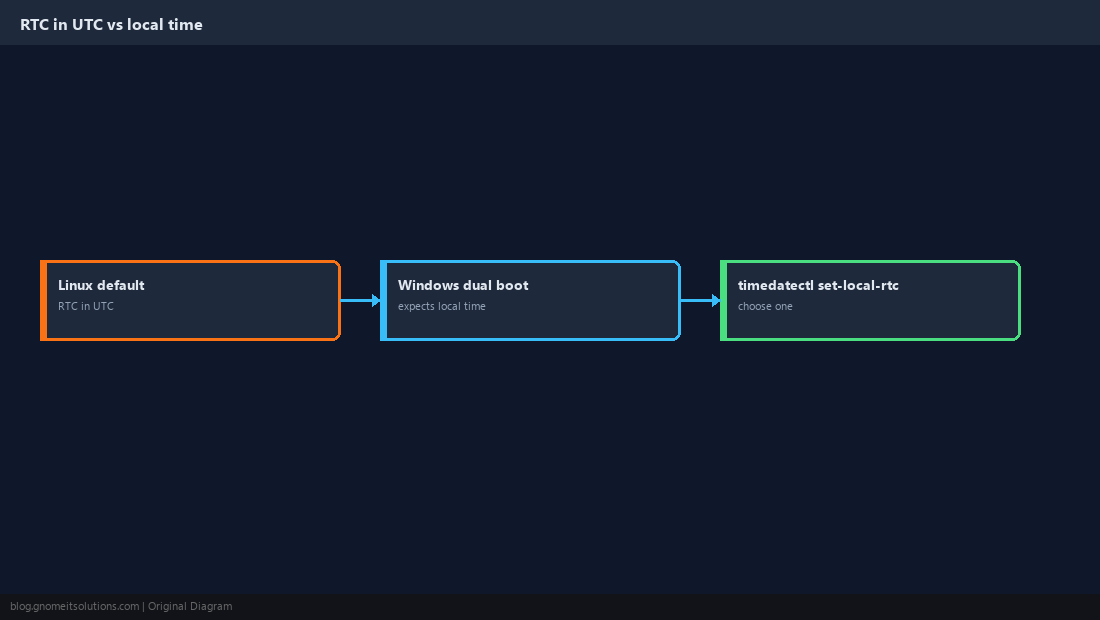
Format Dates for Scripts
date formats are the everyday tool for log lines, file names and backups (see our shell scripting guide).
date -u +%Y-%m-%dT%H:%M:%SZ
date +%F_%H%M
date -d 'yesterday' +%F
date -d '2 hours ago' +%T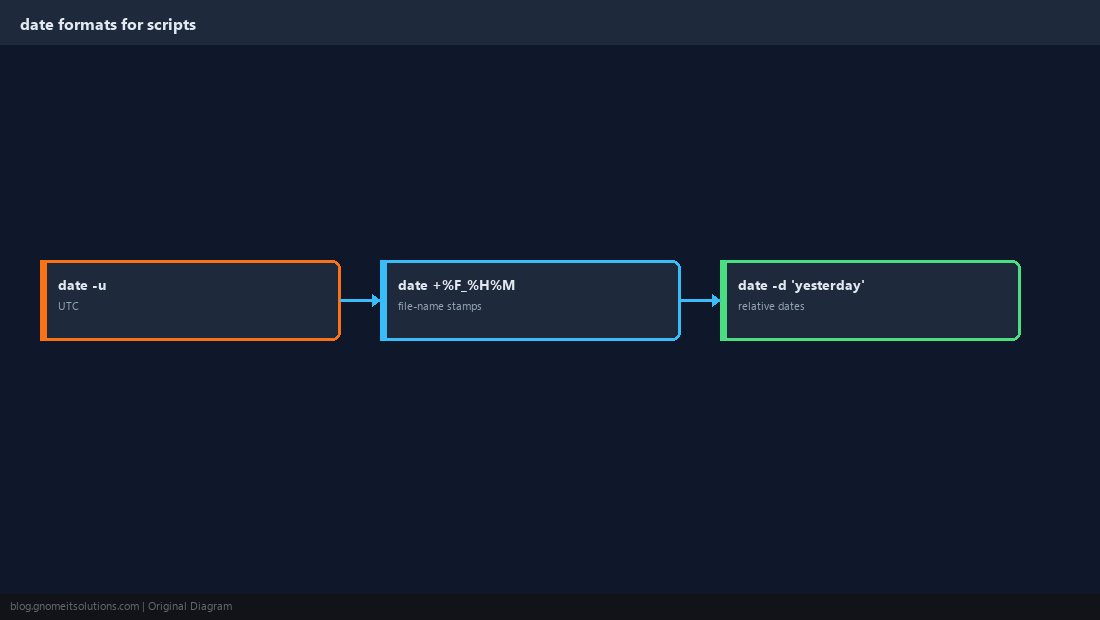
Quick Reference
timedatectlto read/set zone and NTP;hwclock --systohcafter fixing the clock- Keep the RTC in UTC on servers; use
date -uin scripts
Related tutorials
- Chrony and NTP Time Sync on Linux Servers
- chrony Not Syncing? Troubleshooting
- Linux Shell Scripting Guide
- Cron Jobs and Crontab
Diagrams are original illustrations by Gnome IT Solutions. Tutorial text © Gnome IT Solutions.