The Docker package your distribution ships (often called docker.io or bundled through podman-docker) tends to lag behind Docker’s own
releases. Installing from Docker’s official repository gets you current Engine and Compose versions and keeps them updated the same way as any other package.
This guide removes conflicting old packages first, adds the official repository correctly, verifies the engine actually works, and covers the sudo-free
group setup along with the security tradeoff that comes with it. For running containers afterward, see our
Docker Compose production stack guide.
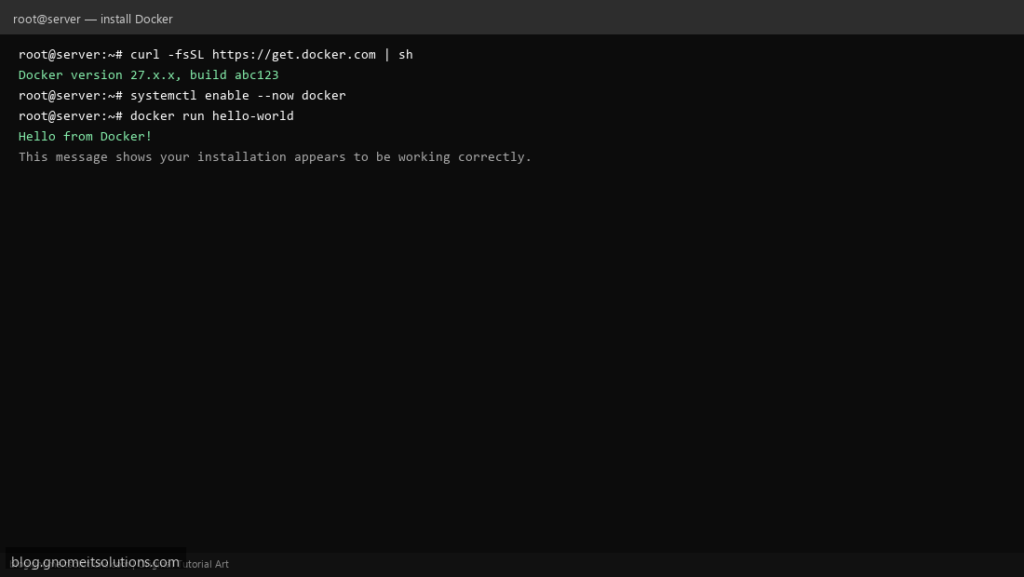
Quick answer: remove old packages, add Docker’s official repo, install docker-ce docker-ce-cli containerd.io docker-compose-plugin, then docker run hello-world.
What the Install Actually Sets Up
Docker Engine is the daemon (dockerd) plus the docker CLI. Underneath it, containerd and runc do the actual work of running containers. The docker group exists so trusted users can run containers without sudo.
docker CLI --> dockerd --> containerd --> runc --> running container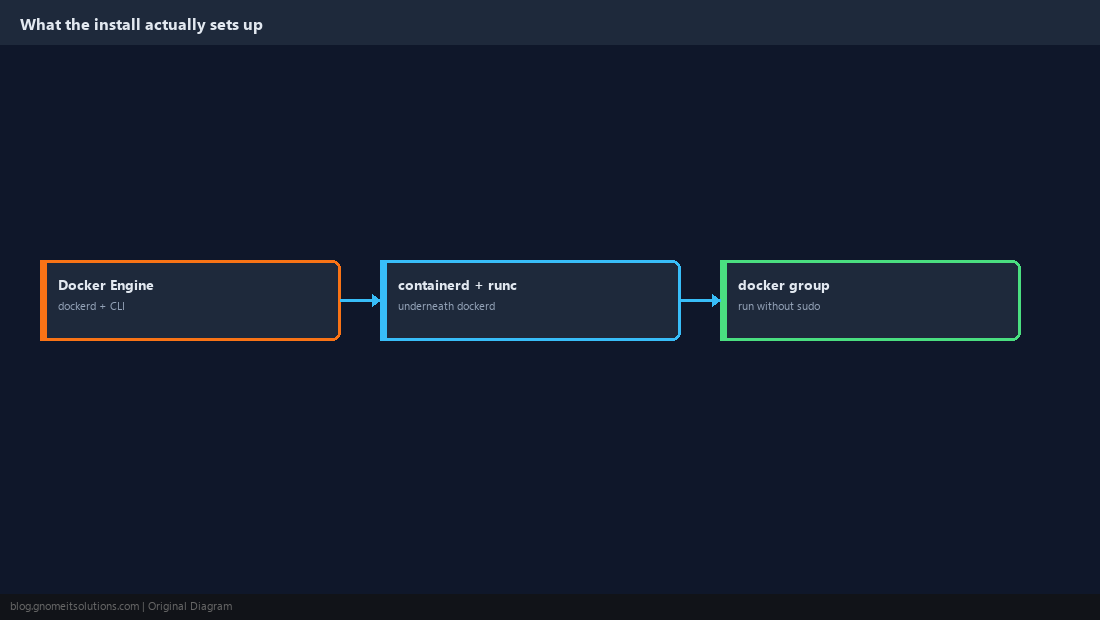
Remove Conflicting Old Packages First
Distro-packaged Docker or Podman’s Docker-compatibility layer can conflict with the official packages. Remove them before adding Docker’s repository; your existing data volumes are typically unaffected.
sudo apt remove -y docker docker-engine docker.io containerd runc 2>/dev/null || truesudo dnf remove -y docker docker-client docker-common podman-docker 2>/dev/null || true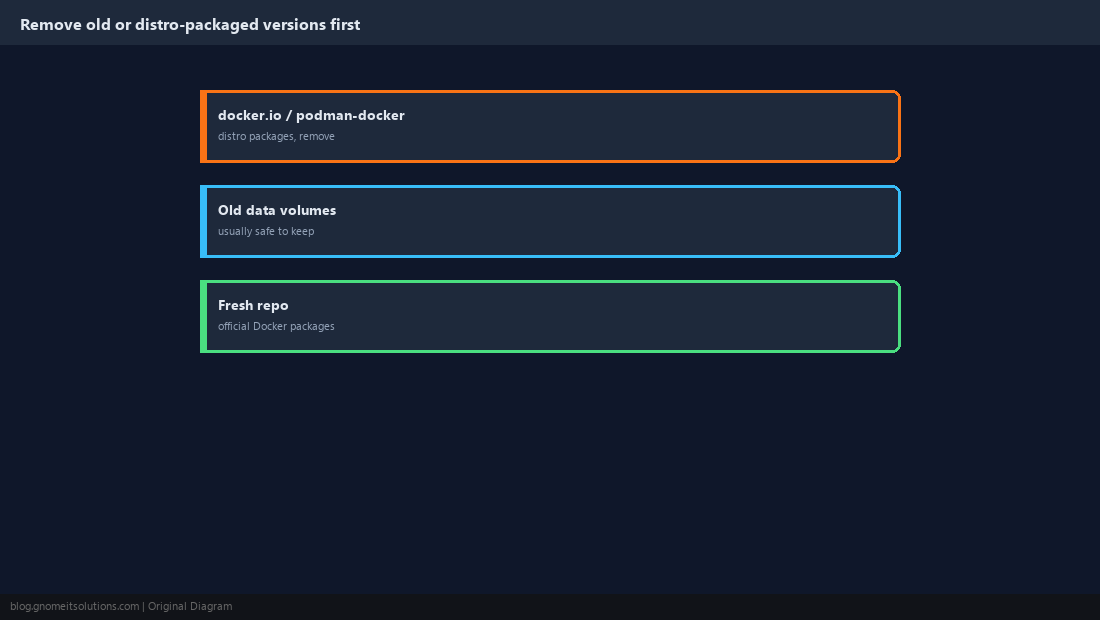
Add Docker’s Official Repository
The GPG key confirms packages actually came from Docker before you trust the repository.
sudo apt update && sudo apt install -y ca-certificates curl
sudo install -m 0755 -d /etc/apt/keyrings
sudo curl -fsSL https://download.docker.com/linux/ubuntu/gpg -o /etc/apt/keyrings/docker.asc
sudo chmod a+r /etc/apt/keyrings/docker.asc
echo \
  "deb [arch=$(dpkg --print-architecture) signed-by=/etc/apt/keyrings/docker.asc] https://download.docker.com/linux/ubuntu \
  $(. /etc/os-release && echo "$VERSION_CODENAME") stable" | sudo tee /etc/apt/sources.list.d/docker.list > /dev/null
sudo apt updatesudo dnf install -y dnf-plugins-core
sudo dnf config-manager --add-repo https://download.docker.com/linux/rhel/docker-ce.repo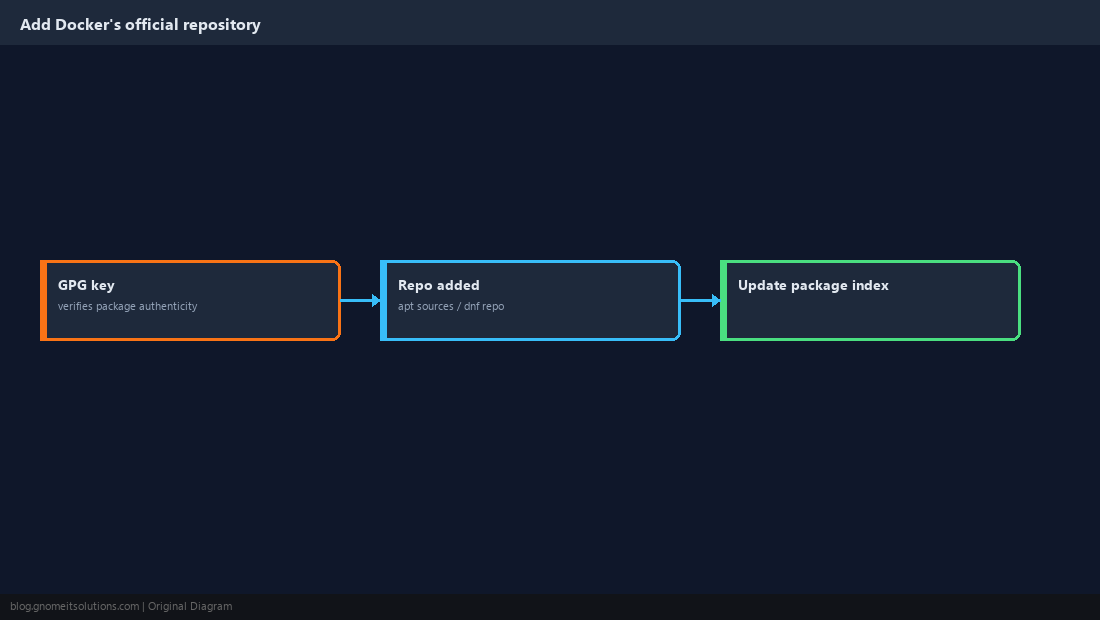
Install the Packages
Install the engine, CLI, containerd, and the Compose v2 plugin together.
sudo apt install -y docker-ce docker-ce-cli containerd.io docker-buildx-plugin docker-compose-pluginsudo dnf install -y docker-ce docker-ce-cli containerd.io docker-buildx-plugin docker-compose-plugin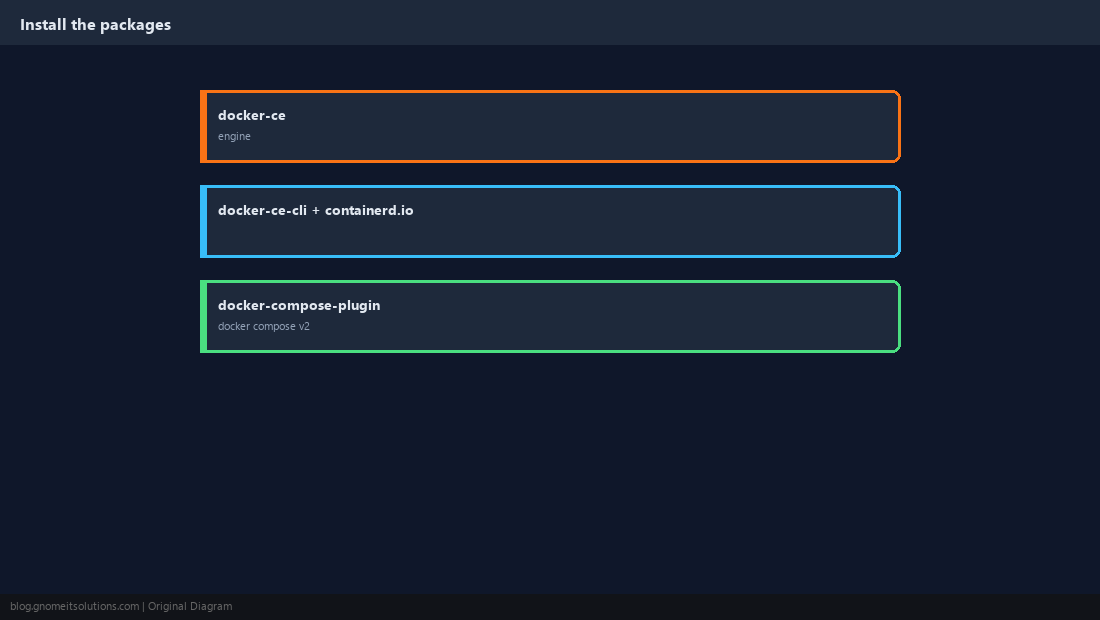
Enable the Service and Run a Real Test
Starting the daemon is not the same as confirming it works end to end. hello-world exercises image pulling, container creation and networking in one command.
sudo systemctl enable --now docker
sudo docker run hello-world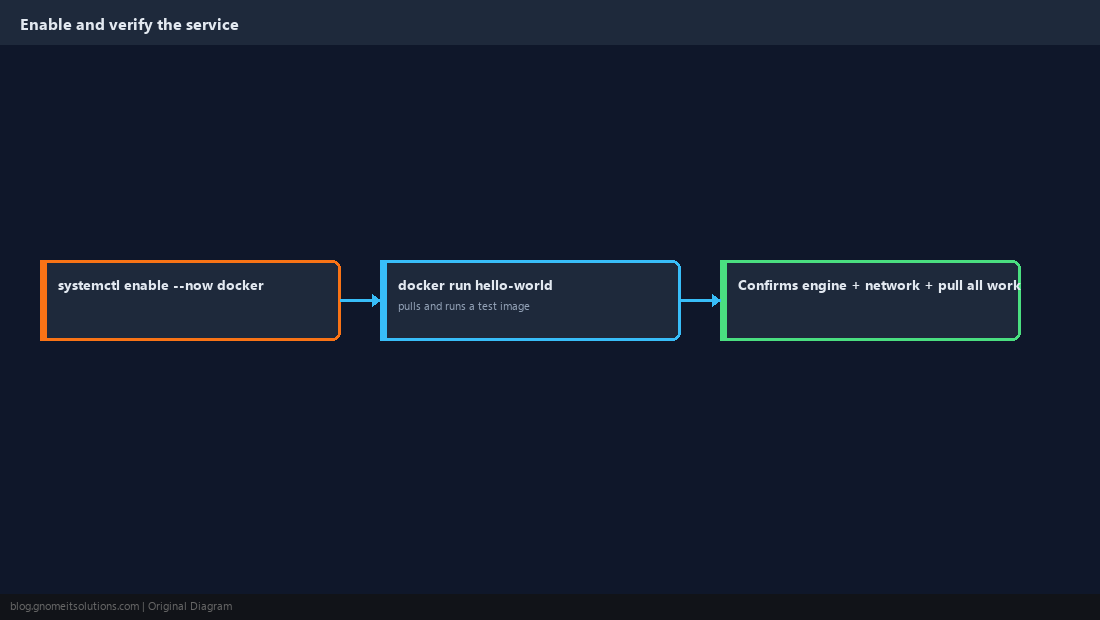
Run Docker Without sudo (Optional)
Adding a user to the docker group avoids typing sudo for every command, but understand the tradeoff: membership in that group is effectively root-equivalent, since a container can mount the host filesystem.
sudo usermod -aG docker $USER
# log out and back in, then:
docker run hello-world # no sudo neededdocker group that you would also trust with root on this host.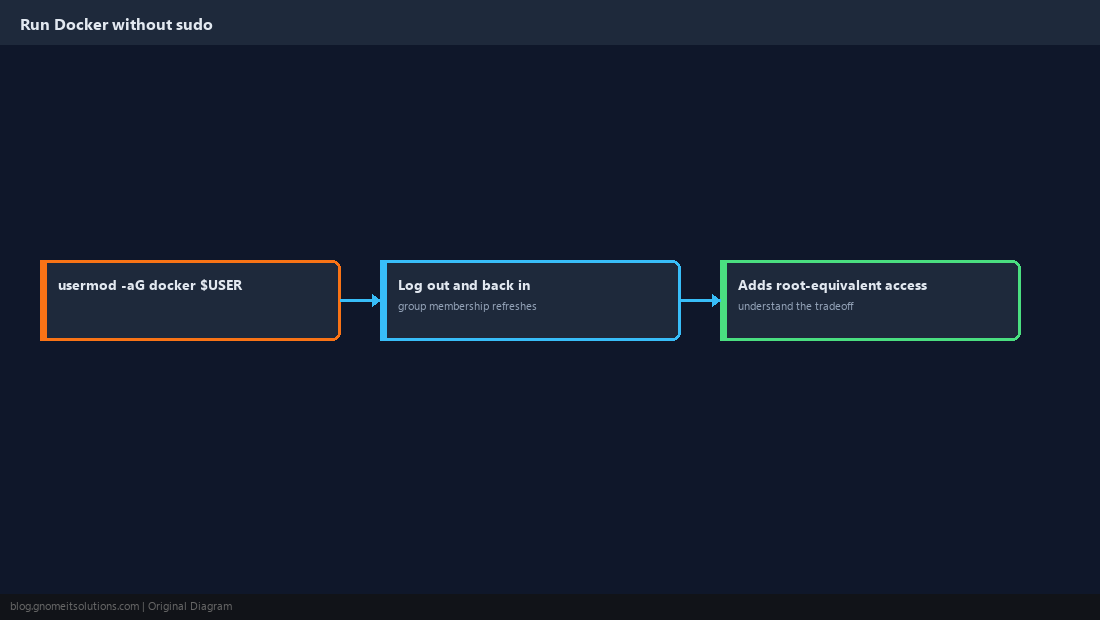
Confirm Compose v2 Works
Compose is now a docker subcommand (docker compose, no hyphen), not the old standalone docker-compose binary. Both may coexist during a transition, but write new files against v2.
docker compose version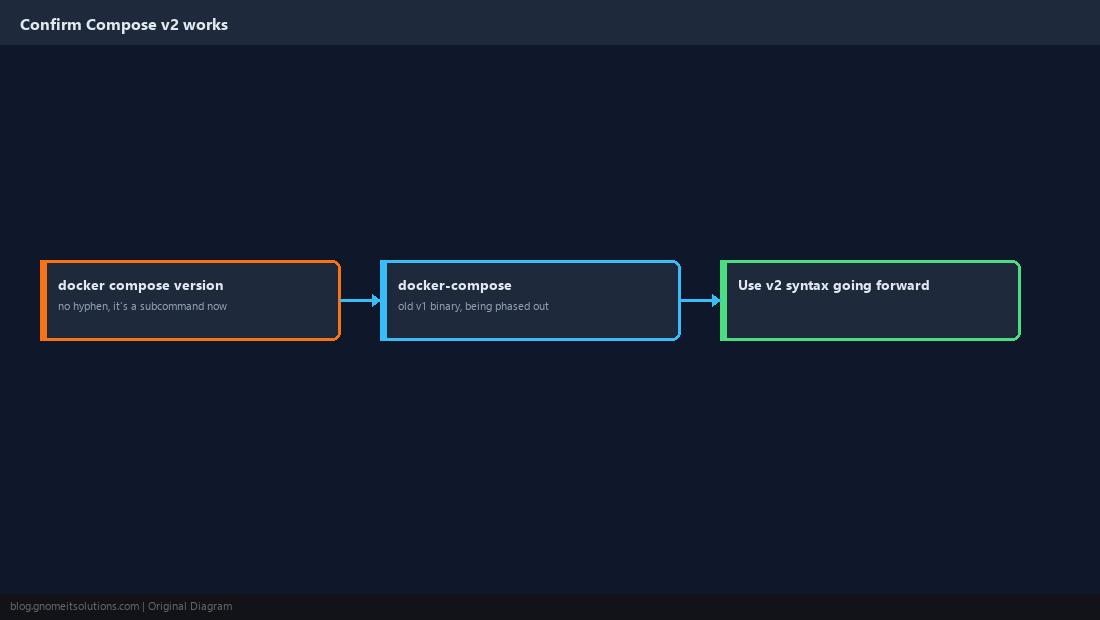
Finish With a Short Post-Install Checklist
A few settings are worth reviewing right after install rather than discovering later.
systemctl is-enabled docker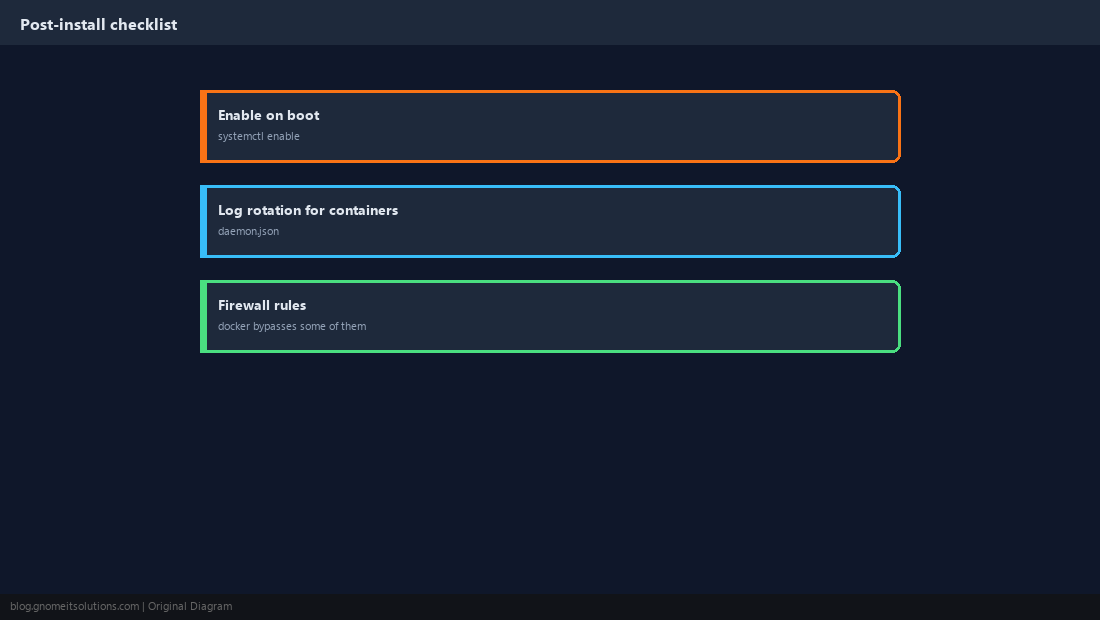
Why not just install docker.io from the distro repository?
Distro-packaged versions typically lag well behind Docker’s own releases and can be missing recent features or Compose v2 support. The official repository stays current and updates through your normal package manager.
How do I run Docker without typing sudo every time?
Add your user to the docker group with sudo usermod -aG docker $USER, then log out and back in. Understand that this grants effectively root-equivalent access to the host.
What is the difference between docker-compose and docker compose?
docker-compose (with a hyphen) is the older standalone v1 tool. docker compose (a space, no hyphen) is the current v2 plugin built into the Docker CLI, and is the one to use for anything new.
How do I verify Docker actually works after installing it?
Run docker run hello-world. It pulls a small image, runs it, and prints a success message, which confirms the daemon, image pulling and container execution are all working.
Does Docker work with UFW?
Not cleanly by default. Docker manages its own iptables rules to publish container ports, which can make a container reachable even when UFW’s rules would suggest otherwise.
Cheat Sheet
- Remove old packages → add official repo → install
docker-ce docker-ce-cli containerd.io docker-compose-plugin docker run hello-worldto verify;usermod -aG docker $USERfor sudo-free use (root-equivalent)
Related tutorials
Diagrams are original illustrations by Gnome IT Solutions. Tutorial text © Gnome IT Solutions.