
Our Ansible playbook basics guide used plain variables for everything — fine for a hostname or a package list, not fine for a database password committed to git in plaintext. Ansible Vault encrypts sensitive variables and files at rest, so the encrypted version is what actually ends up in your repository, decrypted only in memory at the moment a playbook runs.
Step 1: Understand What Vault Actually Protects
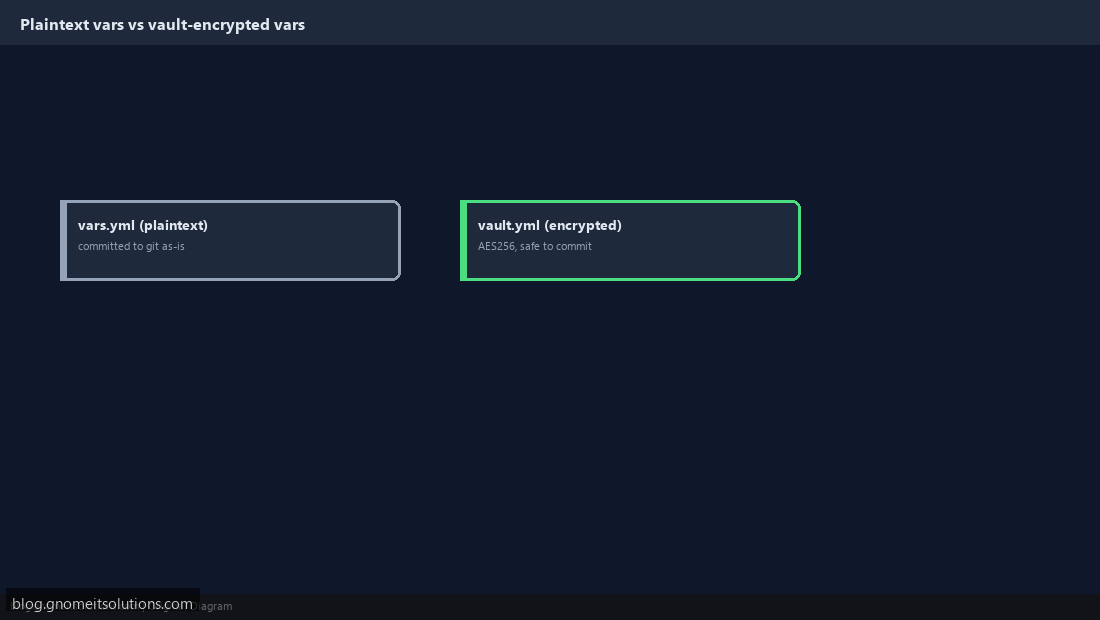
A plaintext vars.yml committed to git means every clone, fork, and CI log that ever touches the repo has the secret forever — the same problem our gitleaks guide covers from the detection side. Ansible Vault encrypts the file with AES256 before it’s ever written to disk, so the version in your repo is genuinely safe to commit — the protection lives in Ansible’s own tooling, not in hoping nobody looks.
Step 2: Create an Encrypted Vault File
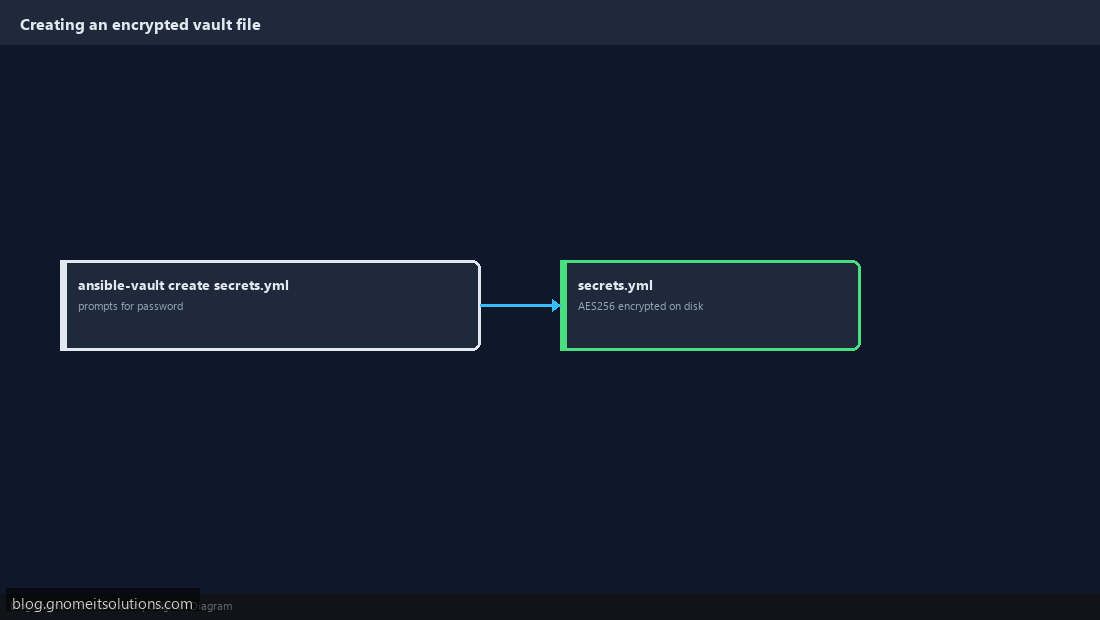
ansible-vault create secrets.yml prompts for a vault password, then opens your default editor with a blank file — write normal YAML variables as you would anywhere else. On save, Ansible encrypts the entire file with AES256 before writing it to disk; opening it in a plain text editor afterward shows only unreadable ciphertext with an $ANSIBLE_VAULT header.
Step 3: Edit an Existing Vault File
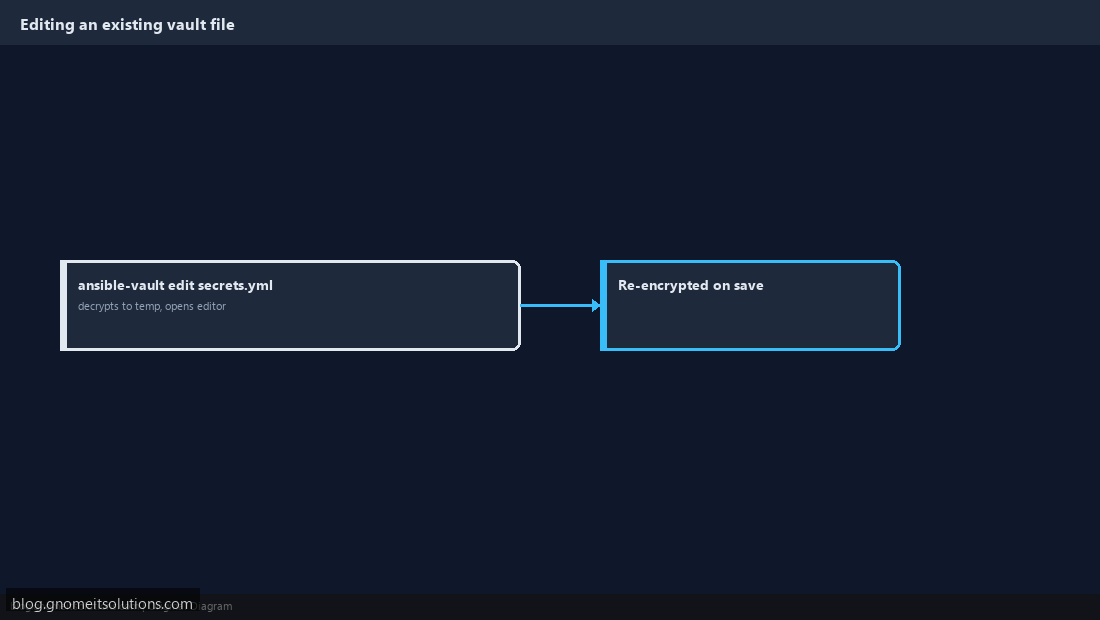
Never open an encrypted vault file directly in a text editor — use ansible-vault edit secrets.yml instead, which decrypts it to a temporary file, opens your editor, and re-encrypts it automatically on save. This avoids ever writing decrypted plaintext to disk yourself where a backup tool or editor swap file might accidentally capture it.
Step 4: Encrypt a Single Variable Inline
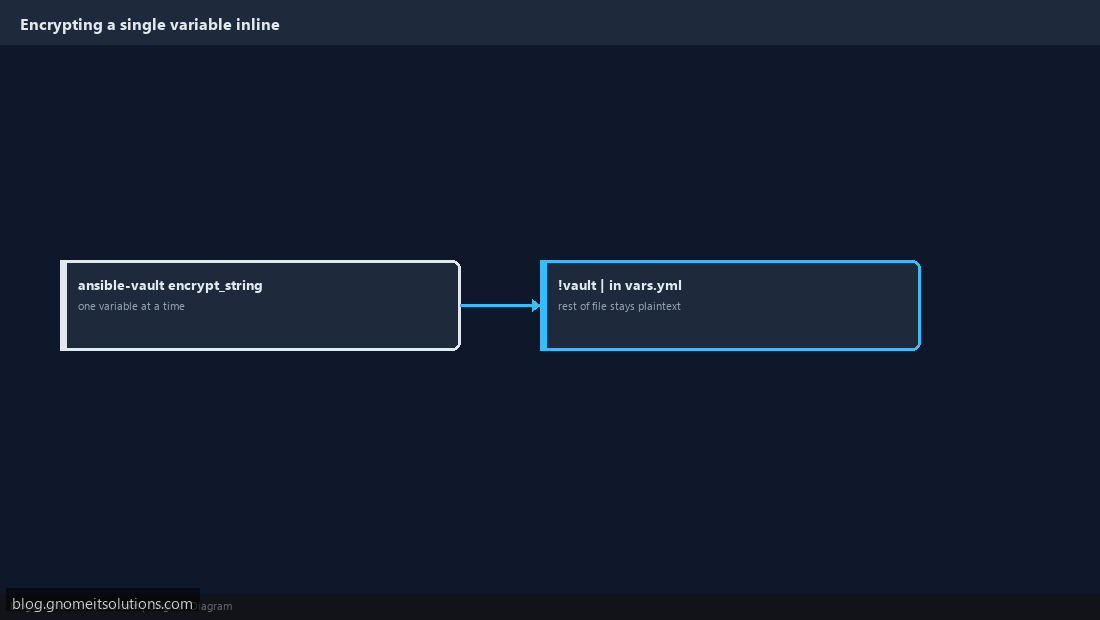
Encrypting a whole file is overkill when only one variable in an otherwise-public vars.yml is actually sensitive. ansible-vault encrypt_string 'supersecret' --name 'db_password' outputs a !vault block you paste directly into a normal, otherwise-plaintext YAML file — the rest of the file stays readable, only that one value is encrypted.
Step 5: Reference Vault Variables in a Playbook
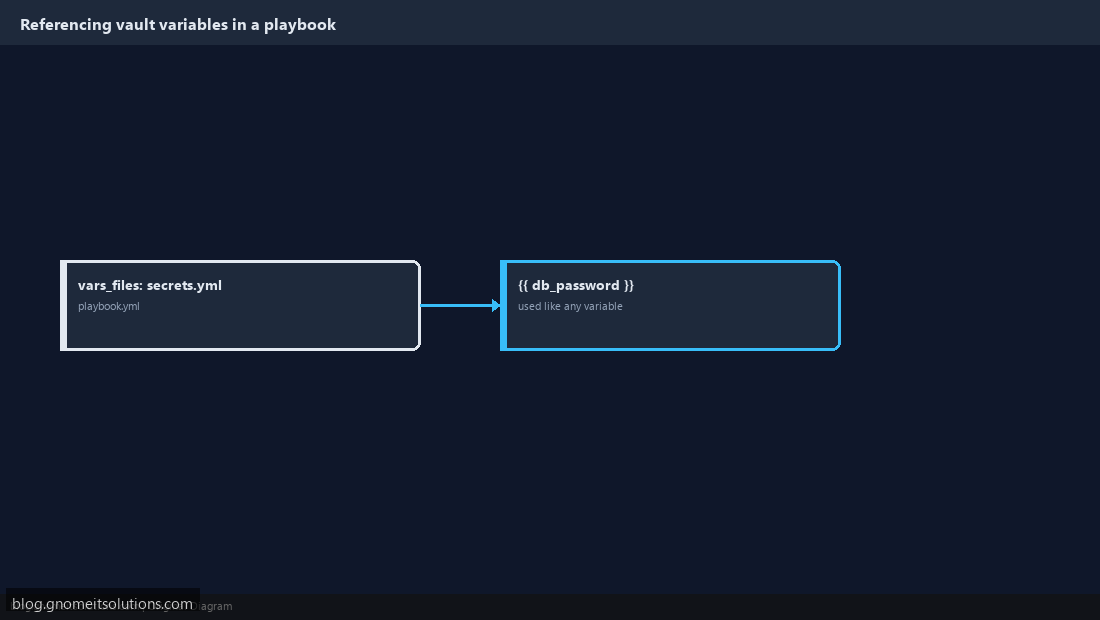
Vault-encrypted variables are used exactly like any other Ansible variable once loaded — add vars_files: secrets.yml to your playbook, then reference {{ db_password }} anywhere a task needs it. Ansible handles decryption transparently at run time; your task definitions never need to know or care that a particular variable came from an encrypted source.
Step 6: Run the Playbook With the Vault Password
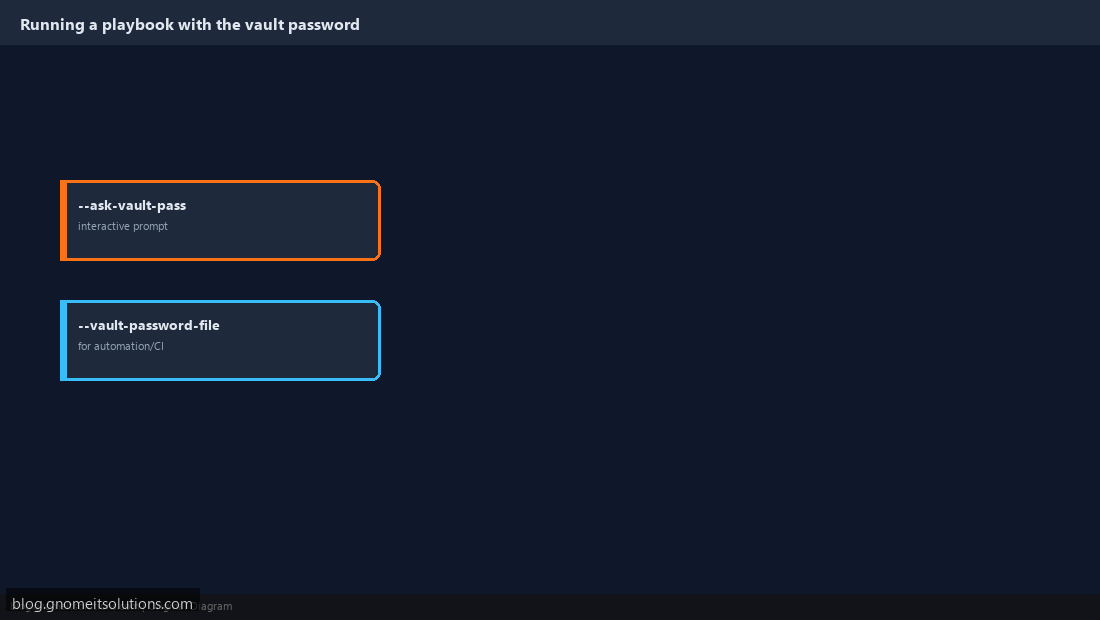
ansible-playbook site.yml --ask-vault-pass prompts interactively — fine for manual runs. For CI/automation where nobody’s watching to type a password, use --vault-password-file /path/to/password/file instead, pointing at a file containing just the password (or a script that fetches it from a real secrets backend like HashiCorp Vault — note this is a completely different tool despite the shared name). Never commit the password file itself to the same repository as the encrypted secrets it protects.
Step 7: Manage Multiple Vault IDs for Different Environments
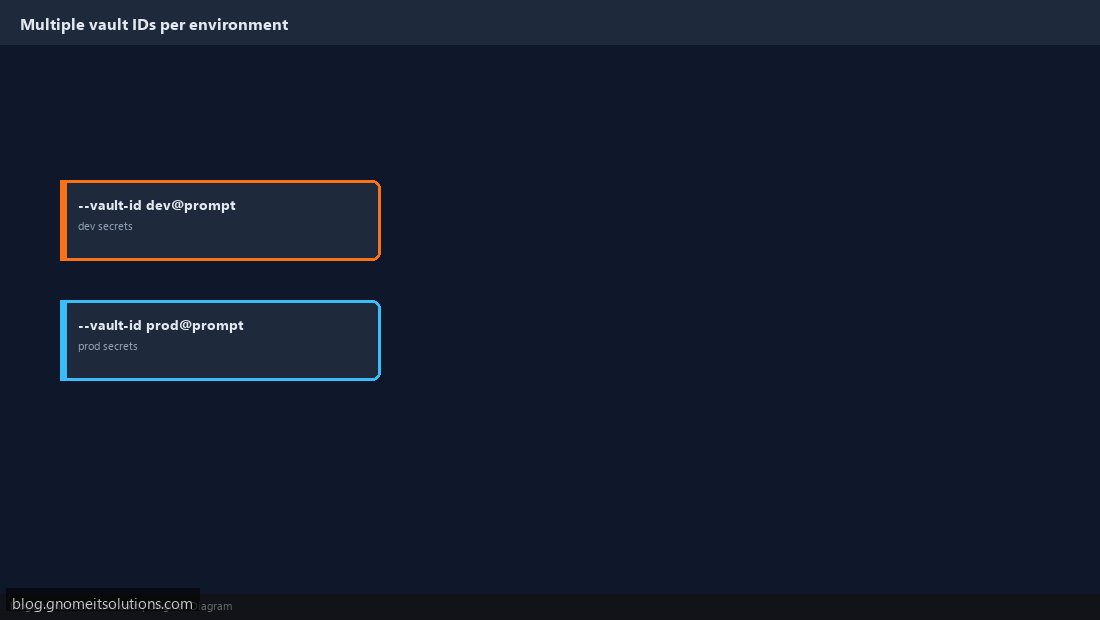
A single vault password for every environment means anyone who can deploy to staging can also decrypt production secrets. Use vault IDs to keep them separate: ansible-vault encrypt --vault-id prod@prompt prod_secrets.yml ties that file to a distinctly named password, and running the playbook with --vault-id dev@prompt --vault-id prod@prompt lets Ansible decrypt files from both sources using their respective passwords in one run.
Step 8: Follow Basic Vault Hygiene
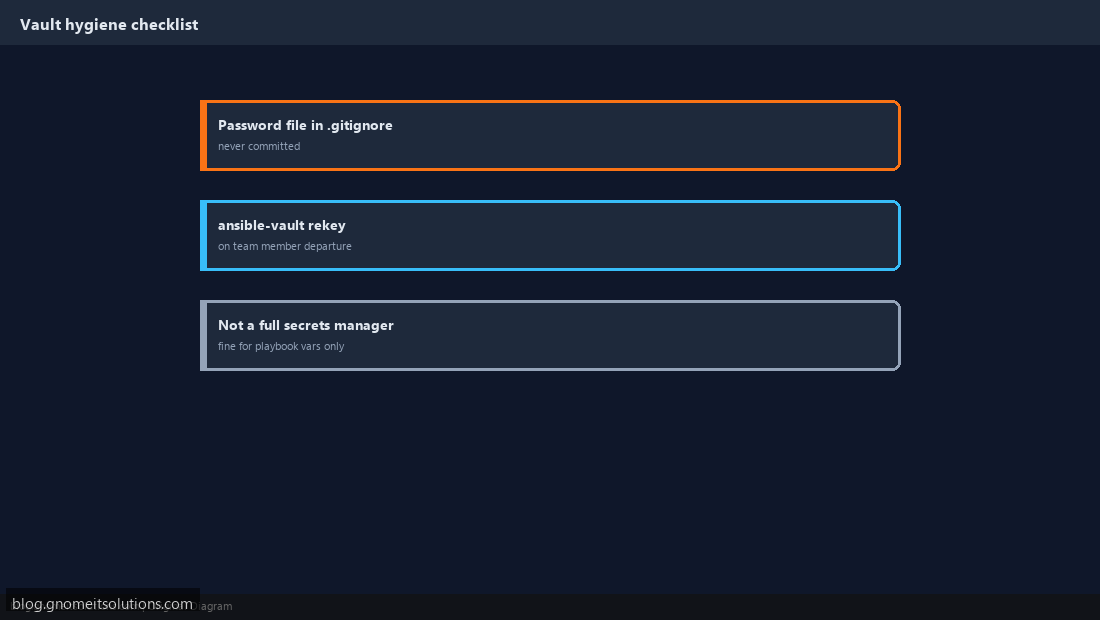
Add any password file to .gitignore immediately — committing the password alongside the encrypted secrets it unlocks defeats the entire point. Rotate the vault password (ansible-vault rekey secrets.yml) whenever someone with access leaves the team, the same way you’d rotate any other credential. And don’t treat Vault as a substitute for a real secrets manager at scale — for a handful of playbook variables it’s exactly the right tool; for dynamic, frequently-rotated production credentials across many services, pairing Ansible with a dedicated secrets backend is the better long-term architecture.
Command reference
# Create / edit
ansible-vault create secrets.yml
ansible-vault edit secrets.yml

# Encrypt a single variable
ansible-vault encrypt_string 'supersecret' --name 'db_password'

# Run with a vault password
ansible-playbook site.yml --ask-vault-pass
ansible-playbook site.yml --vault-password-file ~/.vault_pass

# Multiple vault IDs
ansible-vault encrypt --vault-id prod@prompt prod_secrets.yml
ansible-playbook site.yml --vault-id dev@prompt --vault-id prod@prompt

# Rotate the password
ansible-vault rekey secrets.yml
Related tutorials
Terminal screenshots are original illustrations created for Gnome IT Solutions (blog.gnomeitsolutions.com).