Our Nginx reverse proxy and HAProxy load balancer guides both need you to manually edit a config file and manually run Certbot every time you add a new service. Traefik takes a different approach: it watches Docker directly and picks up routing rules from container labels — add a labeled container, Traefik routes to it and requests a certificate automatically, no config file edit or manual Certbot run required.
This guide runs Traefik via Docker Compose, configures HTTP/HTTPS entrypoints, sets up the Let’s Encrypt ACME resolver, and adds a real service that gets HTTPS automatically the moment it starts.
Step 1: Why Traefik’s Label-Driven Model
With Nginx or HAProxy, adding a new backend means editing a central config file and reloading the proxy. With Traefik, the routing rule lives on the service’s own docker-compose.yml as labels — Traefik watches the Docker socket and updates its routing table live as containers start and stop. This fits well when you’re running many small services and don’t want a single shared proxy config to edit for every deploy.
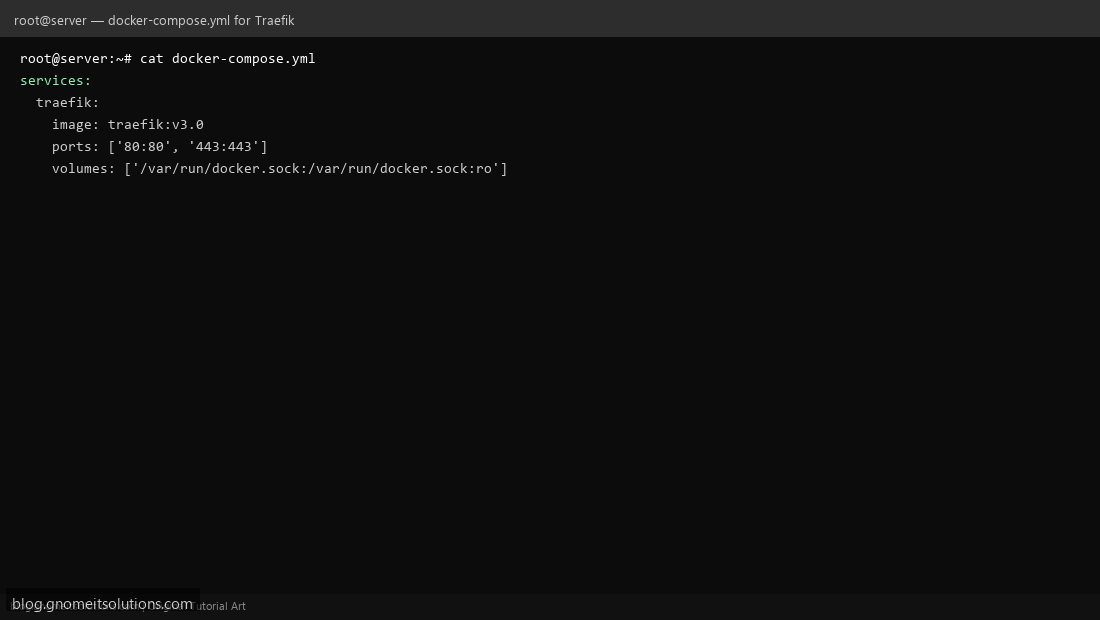
Step 2: Set Up Traefik via Docker Compose
Create a docker-compose.yml with a traefik service using image traefik:v3.0, publishing ports 80 and 443, and mounting /var/run/docker.sock read-only so Traefik can watch container events (docker.sock access is powerful — only expose it to a proxy you trust).
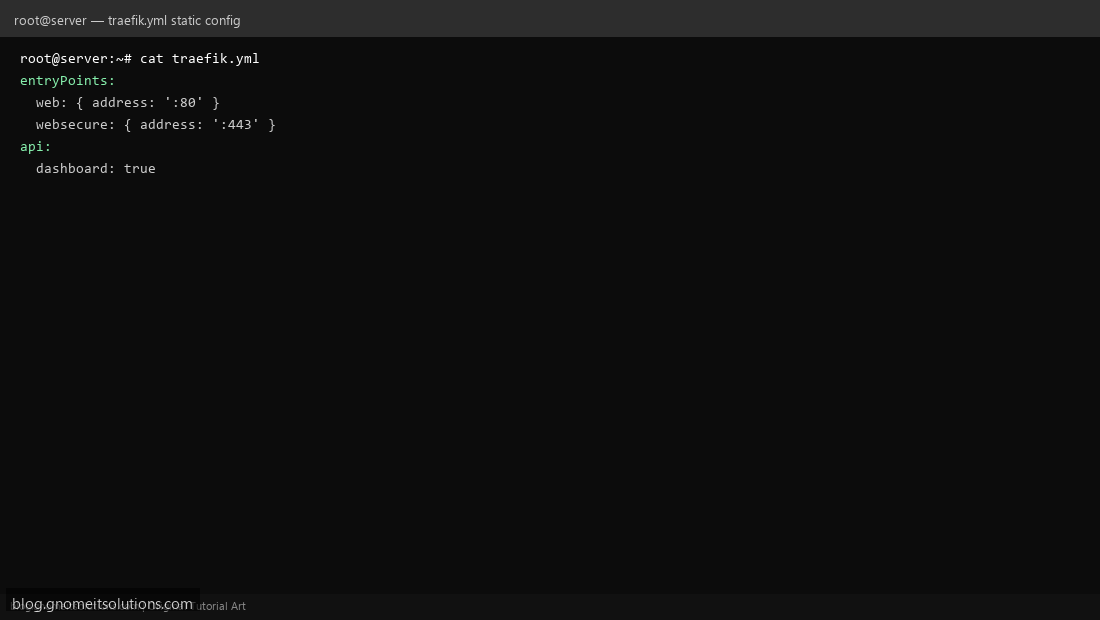
Step 3: Configure Entrypoints and the Dashboard
In traefik.yml, define entryPoints named web (port 80) and websecure (port 443) — these are the named ports every routing rule attaches to. Enable api.dashboard: true to get Traefik’s built-in web UI, which shows every discovered router and service live — invaluable for debugging routing issues without grepping logs.
Step 4: Set Up the Let’s Encrypt ACME Resolver
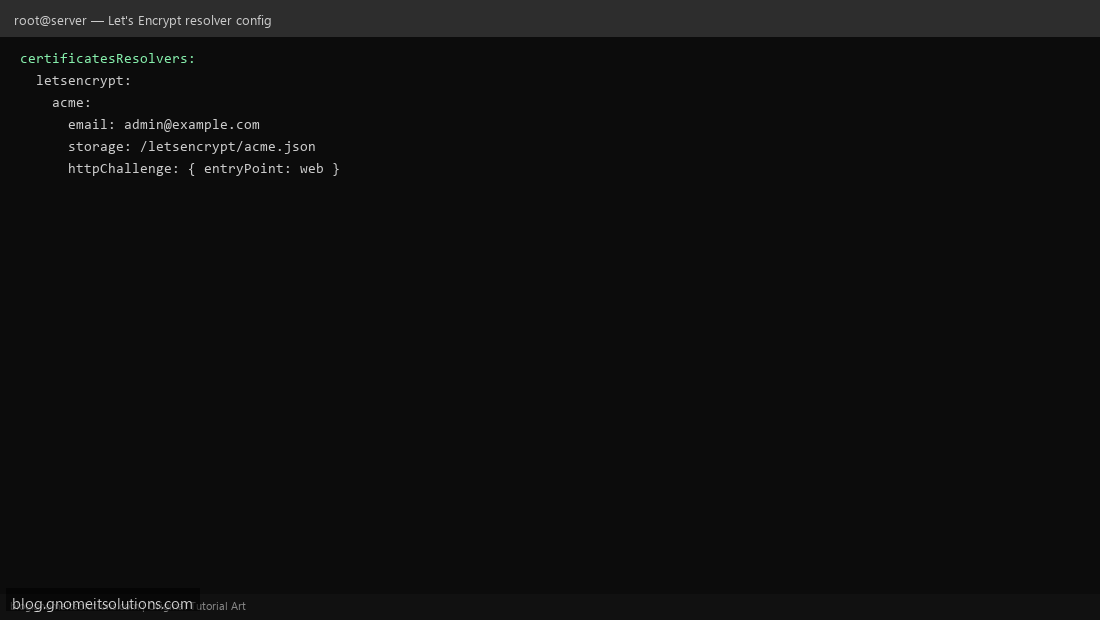
Add a certificatesResolvers.letsencrypt.acme block with your contact email, a storage path for the certificate (/letsencrypt/acme.json, mount as a volume so it survives container restarts), and httpChallenge.entryPoint: web — Traefik proves domain ownership by briefly serving a token over plain HTTP before issuing the real certificate.
Step 5: Route a Real Service With Labels
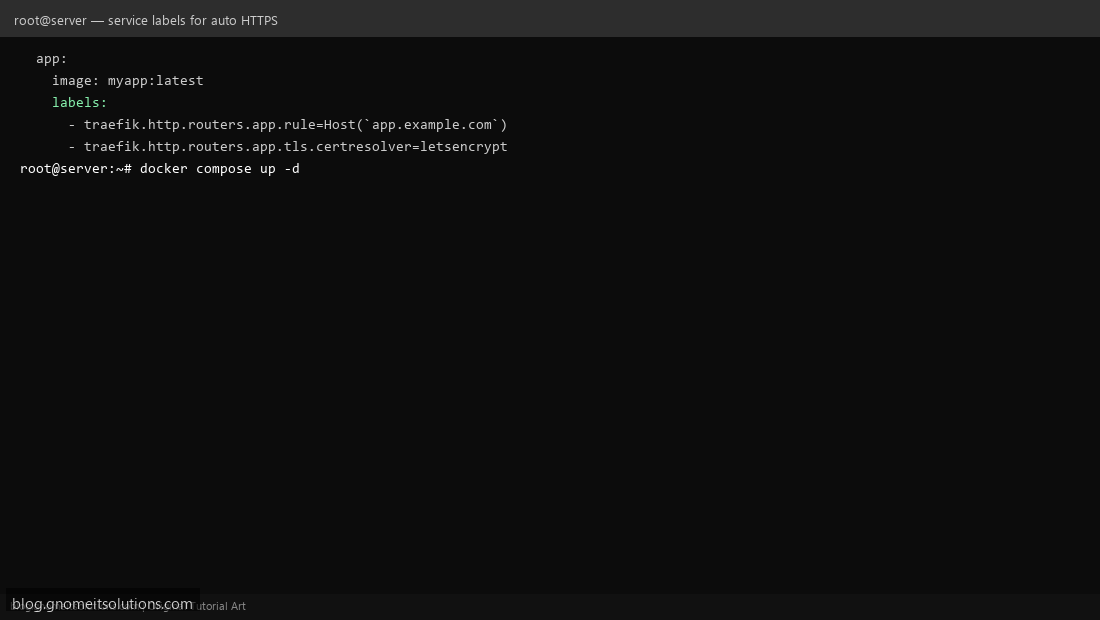
On any other service’s docker-compose.yml, add labels: traefik.http.routers.app.rule=Host(`app.example.com`) and traefik.http.routers.app.tls.certresolver=letsencrypt. Run docker compose up -d — within seconds, Traefik detects the new container, creates the route, and requests a Let’s Encrypt certificate for that domain automatically.
Step 6: Verify the Certificate and Auto-Renewal
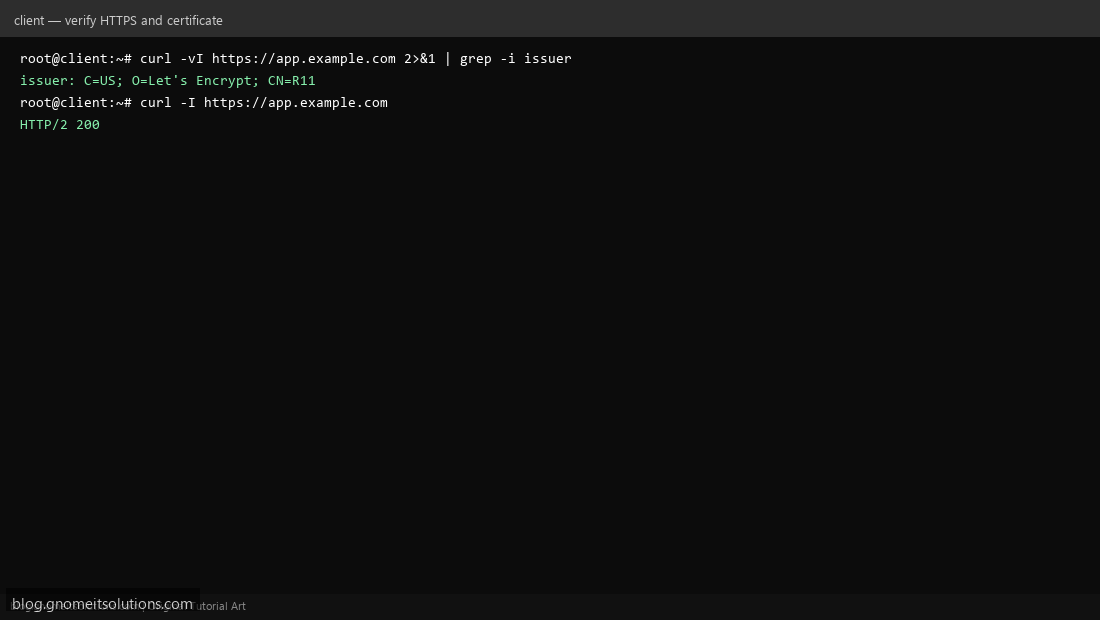
Confirm the real Let’s Encrypt cert is in use: curl -vI https://app.example.com 2>&1 | grep -i issuer should show Let’s Encrypt, not a self-signed fallback. Traefik renews automatically well before the 90-day expiry — no cron job or manual certbot renew needed, unlike our Certbot-based Nginx setup.
Step 7: Secure the Traefik Dashboard
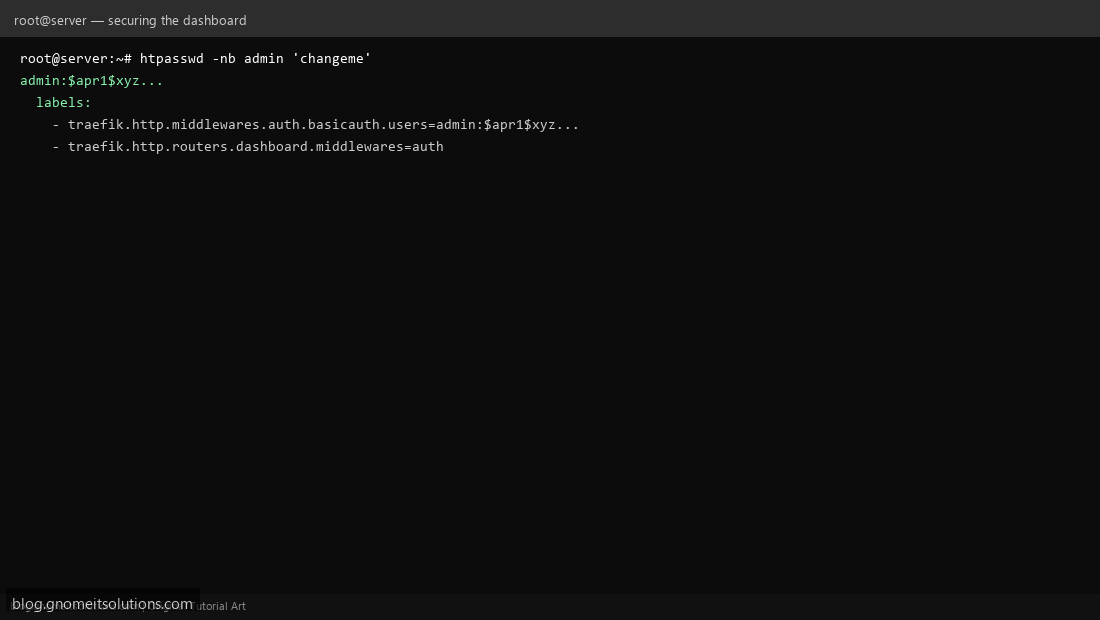
The dashboard shouldn’t be open to the internet without auth. Generate a bcrypt hash (htpasswd -nb admin 'changeme') and add a basicauth middleware label to the dashboard’s own router — Traefik applies auth middleware the same label-driven way it applies routing rules.
Example docker-compose.yml
services:
  traefik:
    image: traefik:v3.0
    ports: ['80:80', '443:443']
    volumes:
      - /var/run/docker.sock:/var/run/docker.sock:ro
      - ./traefik.yml:/etc/traefik/traefik.yml:ro
      - ./letsencrypt:/letsencrypt

  app:
    image: myapp:latest
    labels:
      - traefik.http.routers.app.rule=Host(`app.example.com`)
      - traefik.http.routers.app.tls.certresolver=letsencrypt
      - traefik.http.routers.app.entrypoints=websecure
Traefik vs Nginx/HAProxy — pick the right tool
- Nginx/HAProxy: mature, predictable, good when config changes are rare (see our Nginx and HAProxy guides)
- Traefik: better when you’re deploying many services often and want routing + HTTPS to be zero-touch on every deploy
Related tutorials
Terminal screenshots are original illustrations created for Gnome IT Solutions (blog.gnomeitsolutions.com).