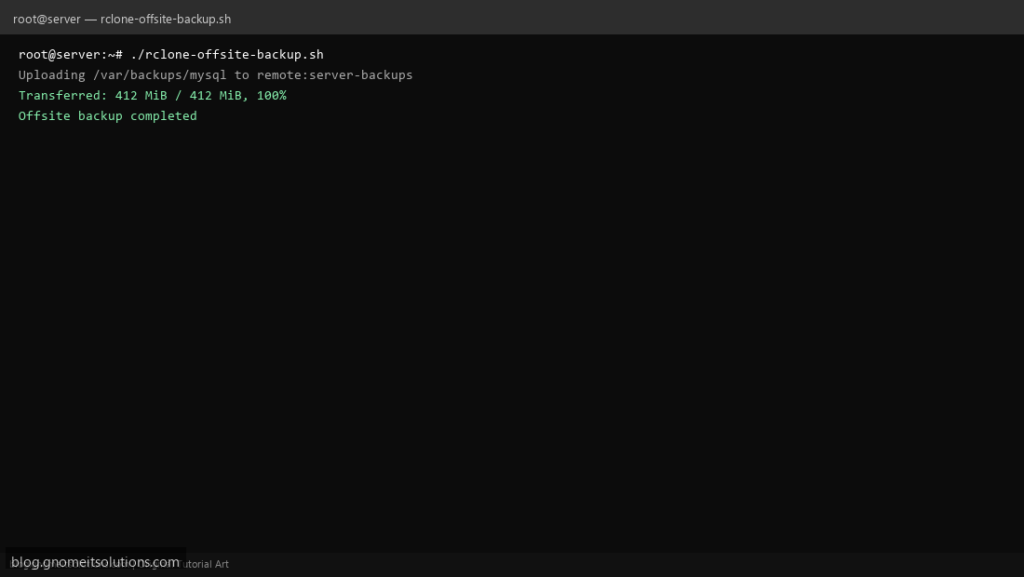
Local backups protect you from a bad deploy or a dropped table — they don’t protect you from the server itself dying. This script uses rclone to push your existing local backup folder to any cloud remote (S3, Backblaze B2, Google Drive, and 40+ others) on a schedule.
What this script does
- Syncs a local backup directory to any configured rclone remote
- Works with S3, Backblaze B2, Google Drive, or any rclone-supported storage
- Logs transfer summary (bytes transferred, errors) for each run
- Deletes remote copies older than N days to control storage cost
- Exits non-zero on failure so it’s safe to chain after your local backup job
Prerequisites
- rclone installed and a remote configured (`rclone config`)
- An existing local backup directory populated by another script or cron job
- Outbound network access to your chosen cloud provider
Step 1: Save the script
sudo nano /usr/local/bin/rclone-offsite-backup.sh
sudo chmod +x /usr/local/bin/rclone-offsite-backup.sh
Step 2: Full script (scroll to read)
rclone-offsite-backup.sh
#!/usr/bin/env bash
set -euo pipefail

LOCAL_DIR="/var/backups"
REMOTE="b2:server-backups"          # rclone remote:path — configure with `rclone config`
RETENTION_DAYS=30
LOG="/var/log/rclone-offsite-backup.log"

log(){ echo "[$(date '+%F %T')] $*" | tee -a "$LOG"; }

command -v rclone >/dev/null 2>&1 || { log "ERROR: rclone not installed"; exit 1; }

log "Uploading $LOCAL_DIR to $REMOTE"
if rclone sync "$LOCAL_DIR" "$REMOTE" --log-file="$LOG" --log-level INFO --stats 1m --stats-one-line; then
  log "Offsite sync completed successfully"
else
  log "ERROR: rclone sync failed"
  exit 1
fi

log "Removing remote files older than ${RETENTION_DAYS} days"
rclone delete "$REMOTE" --min-age "${RETENTION_DAYS}d" --log-file="$LOG" --log-level INFO

log "Offsite backup completed"
Scroll inside the box to read the full script.
Step 3: Configure settings
LOCAL_DIR— local backup folder to uploadREMOTE— rclone remote name and path, e.g.b2:server-backupsRETENTION_DAYS— delete remote files older than this- Run
rclone configonce interactively before first use to authenticate
Step 4: Test manually
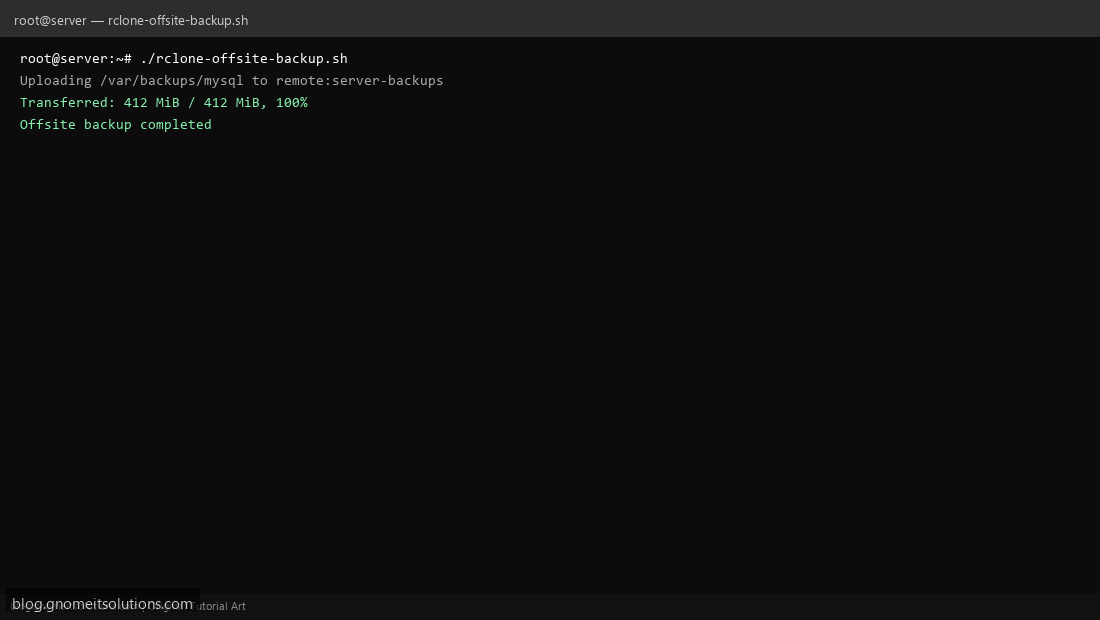
sudo /usr/local/bin/rclone-offsite-backup.shrclone ls b2:server-backupsSchedule with cron
sudo crontab -eAdd:
30 2 * * * /usr/local/bin/rclone-offsite-backup.sh >> /var/log/rclone-offsite-backup.log 2>&1Related tutorials
- Linux Backup Shell Script: Files & Database to Remote Server
- Cron Jobs in Linux: Schedule Tasks with crontab
- SSH Key Authentication on Linux Servers
Terminal screenshot is an original illustration created for Gnome IT Solutions (blog.gnomeitsolutions.com).