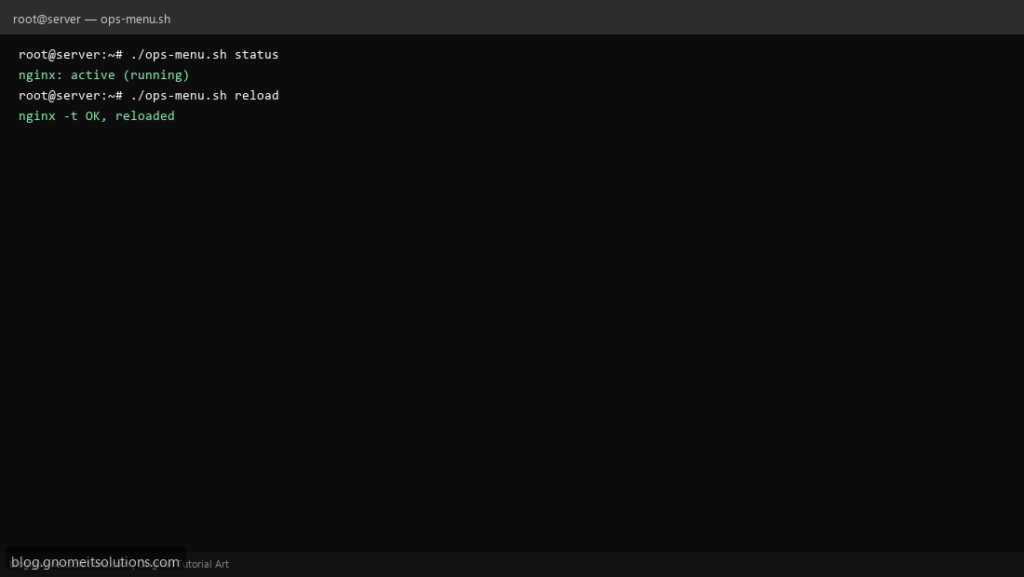
The bash case statement is how many teams expose ./ops.sh status|reload|logs without adopting a full CLI framework. This pattern is searchable, readable, and easy to drop on servers.
What this script does
- Single entrypoint with subcommands in
case "$1" - Includes
status,reload, andlogsexamples - Runs
nginx -tbefore reload - Default branch prints usage
- Uses
shiftfor extra args on subcommands
Prerequisites
- systemd-managed nginx example (adapt SERVICE name)
- sudo if reloading services as non-root
- Bash 4+
Step 1: Save the script
sudo nano /usr/local/bin/ops-menu.sh
sudo chmod +x /usr/local/bin/ops-menu.sh
Step 2: Full script (scroll to read)
ops-menu.sh
#!/usr/bin/env bash
set -euo pipefail

SERVICE="${SERVICE:-nginx}"
LOG_LINES="${LOG_LINES:-50}"

usage(){
  cat <<EOF
usage: $0 {status|reload|logs|help}
  status   show systemd unit state
  reload   test config and reload service
  logs     tail journal for unit
EOF
  exit "${1:-0}"
}

cmd_status(){
  systemctl status "$SERVICE" --no-pager -l | head -n 20
}

cmd_reload(){
  if command -v nginx >/dev/null 2>&1; then
    nginx -t
  fi
  systemctl reload "$SERVICE"
  echo "reloaded $SERVICE"
}

cmd_logs(){
  journalctl -u "$SERVICE" -n "$LOG_LINES" --no-pager
}

case "${1:-}" in
  status) cmd_status ;;
  reload) cmd_reload ;;
  logs)   cmd_logs ;;
  help|-h|--help) usage 0 ;;
  "") usage 1 ;;
  *) echo "unknown command: $1"; usage 1 ;;
esac
Scroll inside the box to read the full script.
Step 3: Configure settings
- For flags like
-duse getopts script - Functions style: bash functions post
- Safe reload: nginx test & reload script
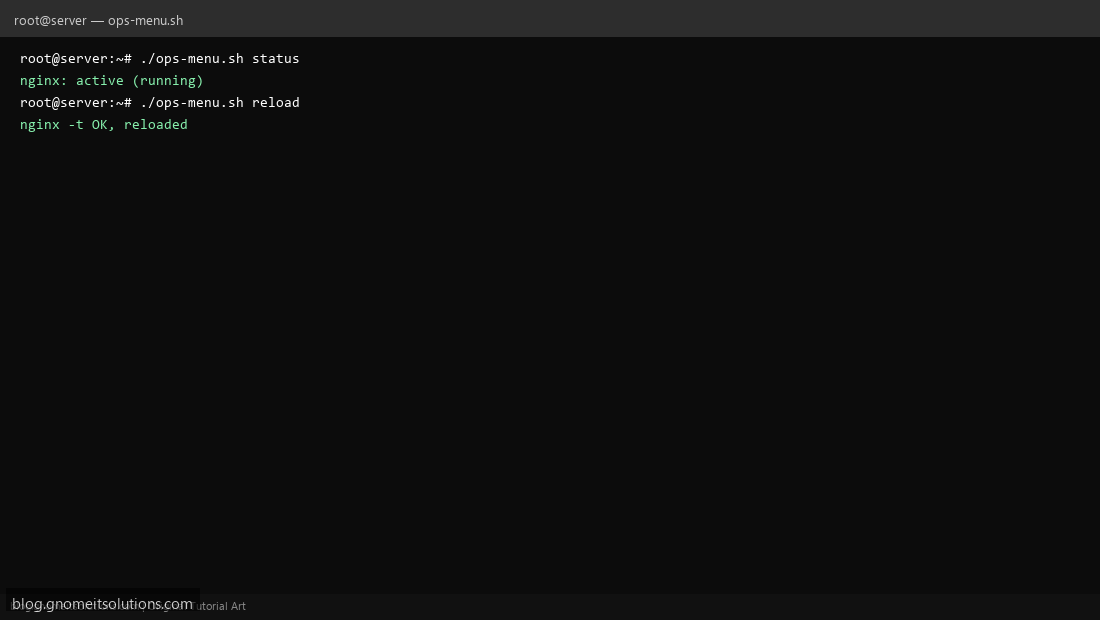
Step 4: Test manually
./ops-menu.sh./ops-menu.sh status./ops-menu.sh reloadRelated tutorials
- Linux Backup Shell Script: Files & Database to Remote Server
- Cron Jobs in Linux: Schedule Tasks with crontab
- SSH Key Authentication on Linux Servers
Terminal screenshot is an original illustration created for Gnome IT Solutions (blog.gnomeitsolutions.com).