When a container exits or a Compose stack “works on my machine,” operators search docker logs first. Logs show application stderr; docker exec lets you inspect files and run one-off commands without rebuilding the image.
Setup: Install Docker,
Docker Compose,
Docker cleanup script.
Three Commands for Incidents
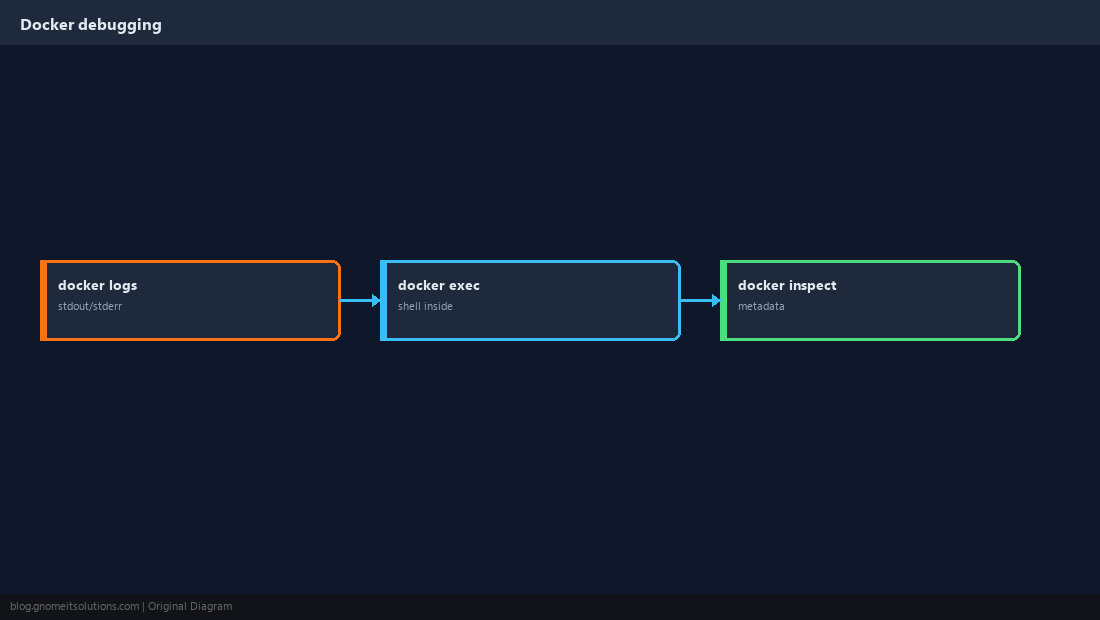
docker ps -a for state, docker logs for output, docker exec for live inspection.
docker logs Options
Tail recent lines, follow live output, or limit to the last hour during spikes.
docker logs --tail 100 mycontainer
docker logs -f --since 1h mycontainer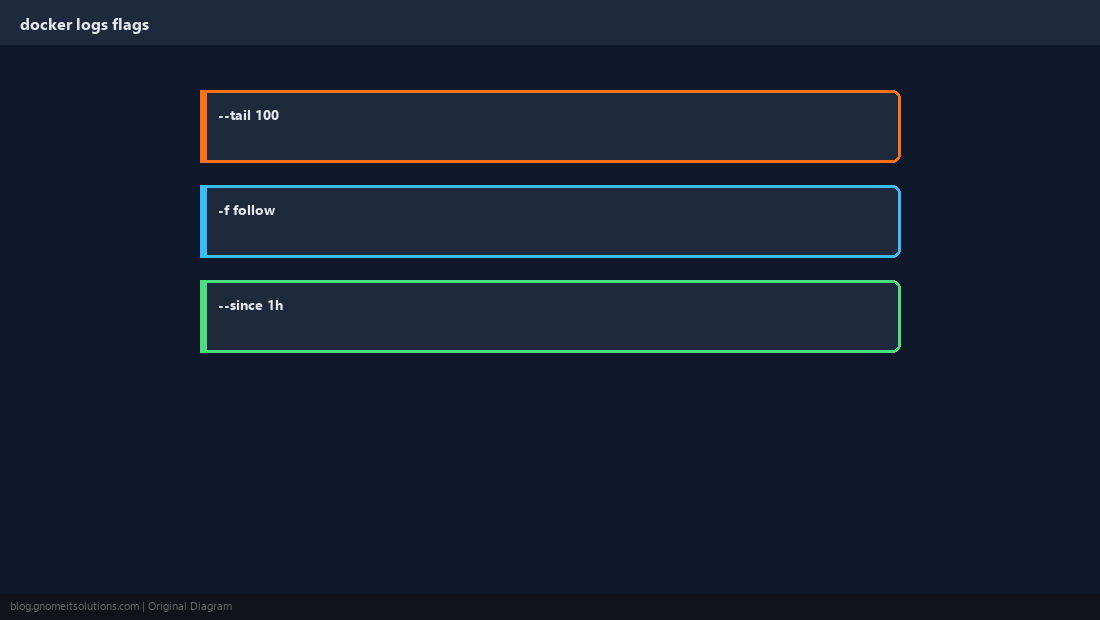
Read Container State
Exit code 1 with no logs often means the entrypoint failed before logging started.
docker ps -a --format 'table {{.Names}} {{.Status}} {{.Ports}}'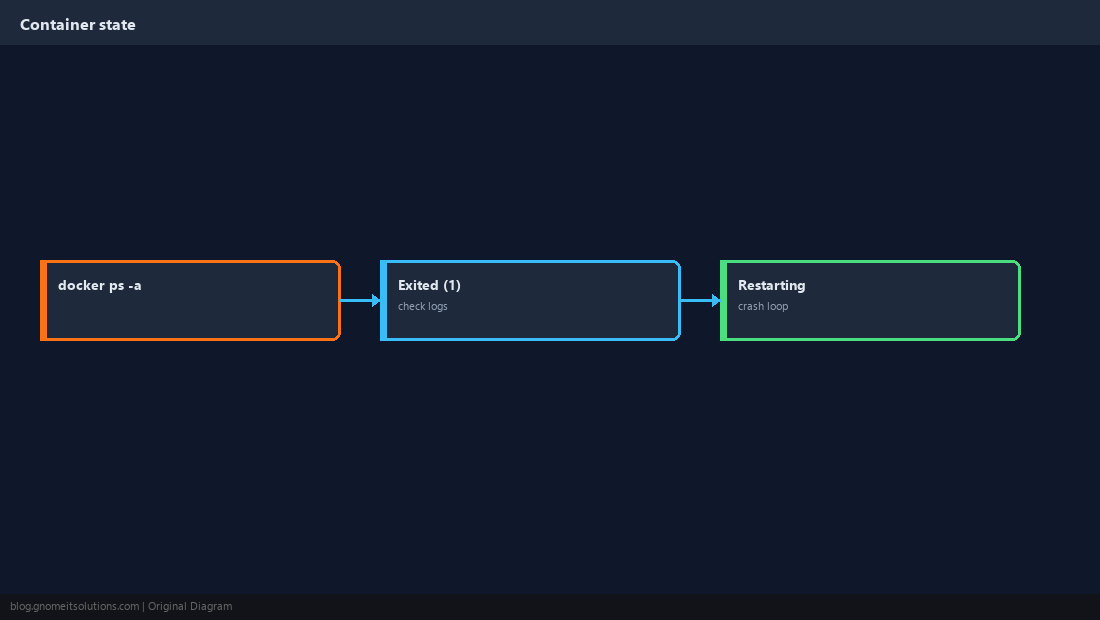
docker exec Into a Running Container
Get a shell as root or as the app user depending on image.
docker exec -it mycontainer sh # or bash if present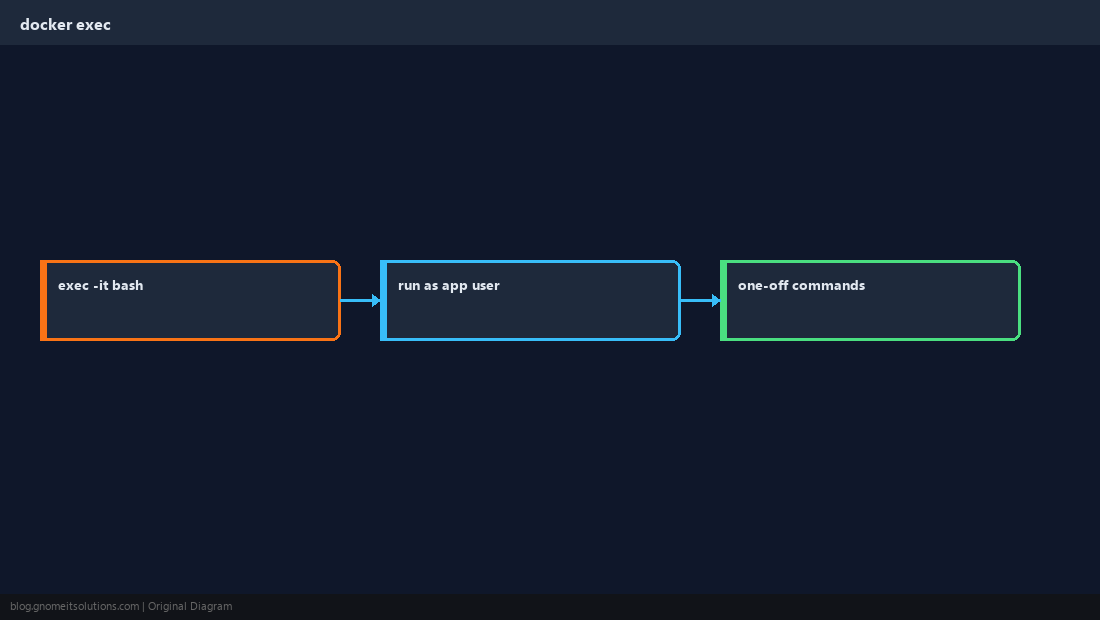
inspect for OOM and Restarts
docker inspect shows restart count and whether the kernel OOM-killed the container.
docker inspect mycontainer --format '{{.State.OOMKilled}} {{.RestartCount}}'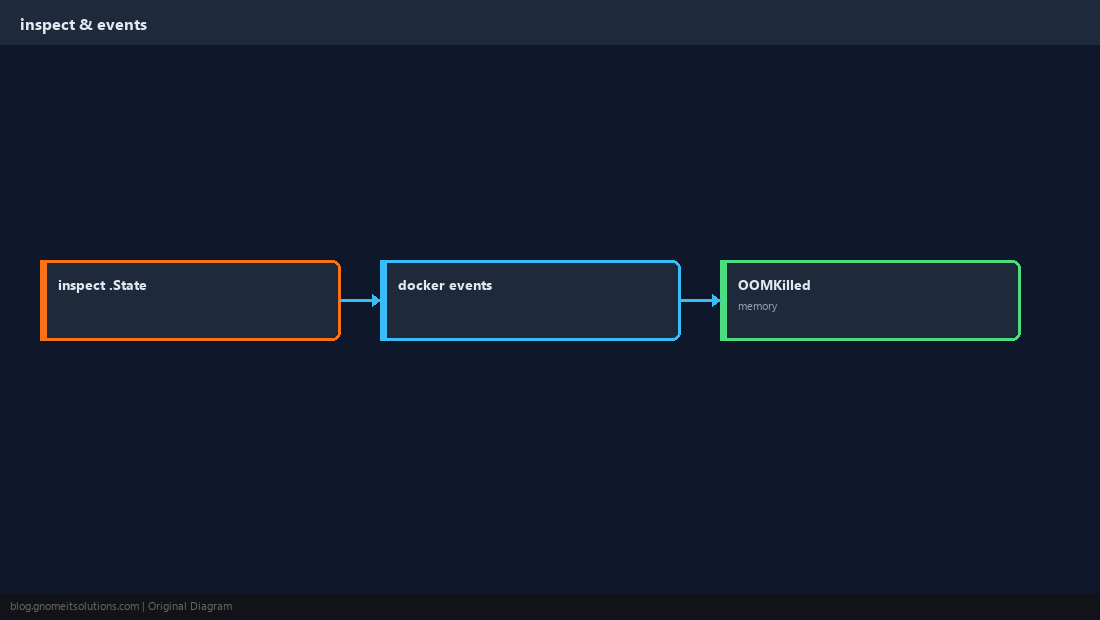
docker compose logs
Filter by service name when only one tier misbehaves.
docker compose logs -f --tail=50 web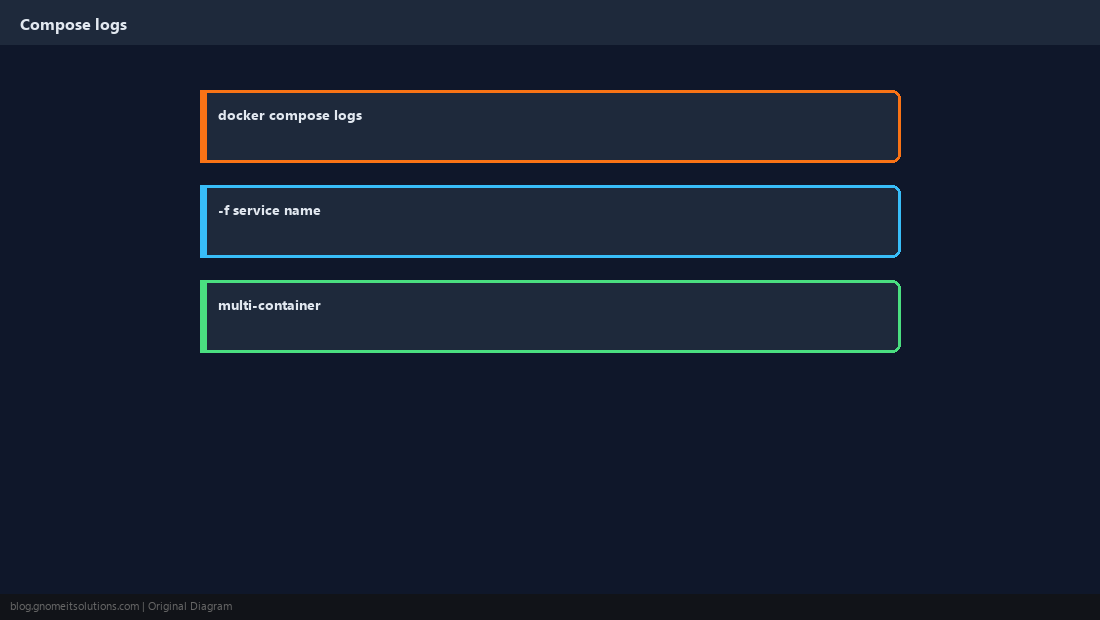
Close the Loop
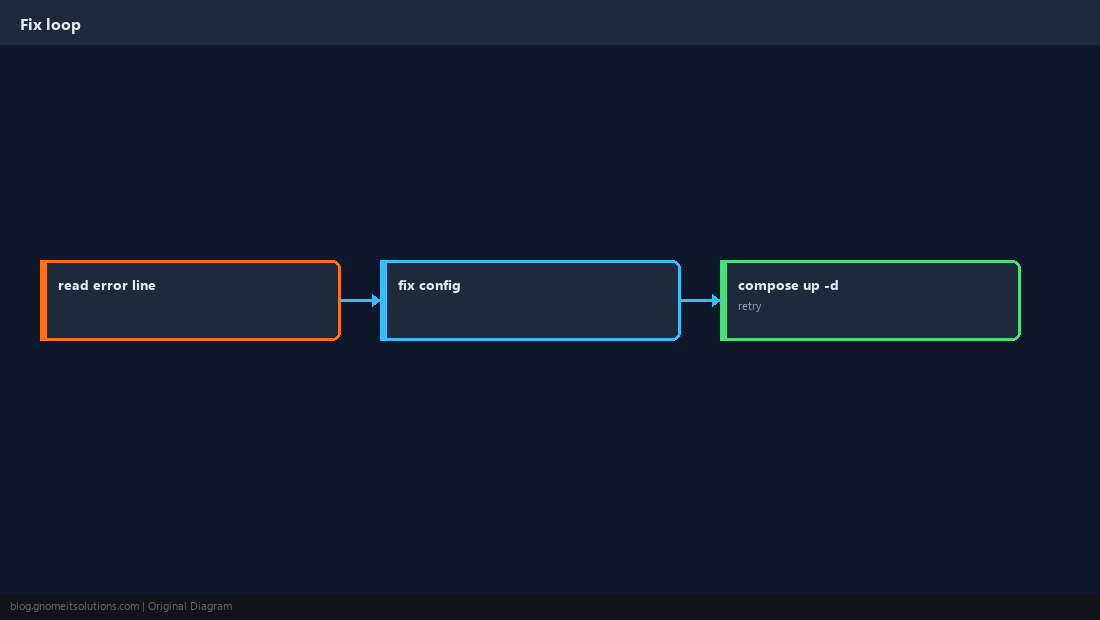
Fix config or env, recreate container, confirm healthy logs.
Quick Reference
docker logs -f --tail 100 NAMEdocker exec -it NAME shfor live debug- Compose:
docker compose logs -f SERVICE
Related tutorials
Diagrams are original illustrations by Gnome IT Solutions. Tutorial text © Gnome IT Solutions.