Install VMware ESXi 8 is still one of the top VMware searches — teams standing up a lab host, a branch office server, or a migration target before vCenter. ESXi is a thin hypervisor: you install it directly on hardware (or nested in a lab) and manage VMs through the browser-based Host Client.
Compare stacks: Proxmox vs ESXi,
ESXi to Proxmox migration,
Linux hostname basics (for naming hosts).
Plan Hardware and HCL
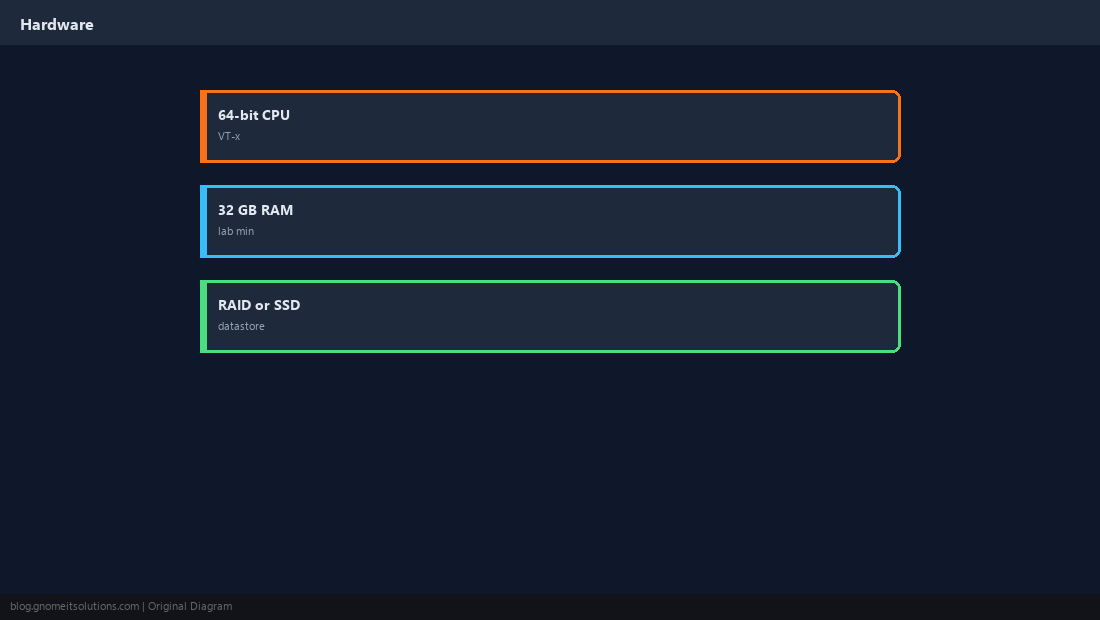
Before burning an ISO, confirm CPU virtualization (Intel VT-x / AMD-V), NICs on the VMware Compatibility Guide, and RAID or SSD layout for your first datastore.
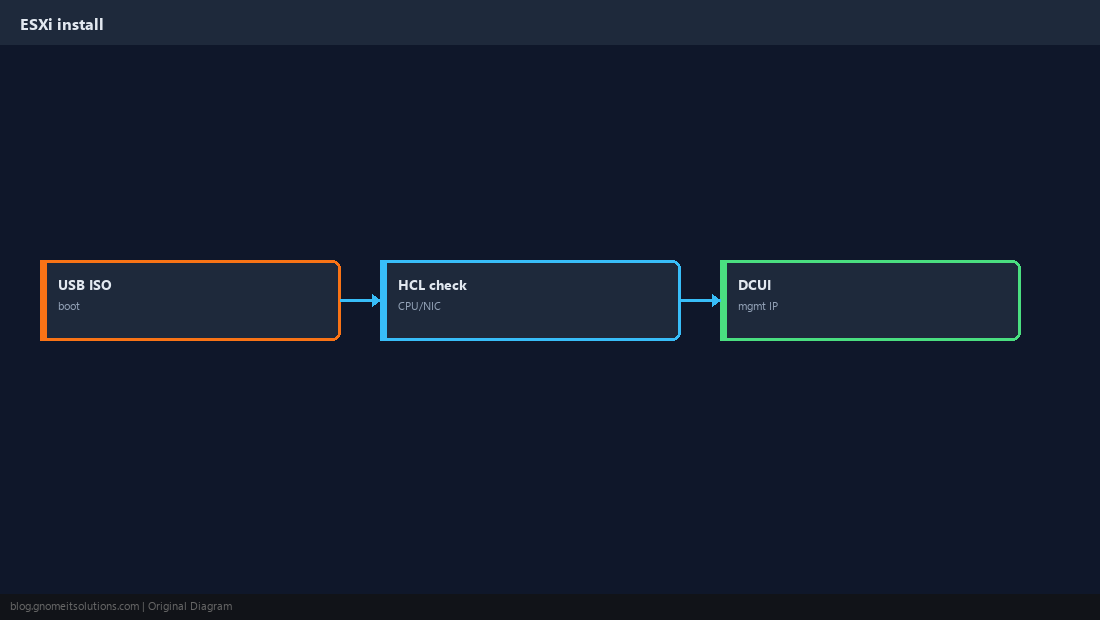
Download ESXi 8 ISO
Obtain the current ESXi image from the Broadcom support portal (license changes moved downloads — keep your entitlement handy).
Create Bootable USB
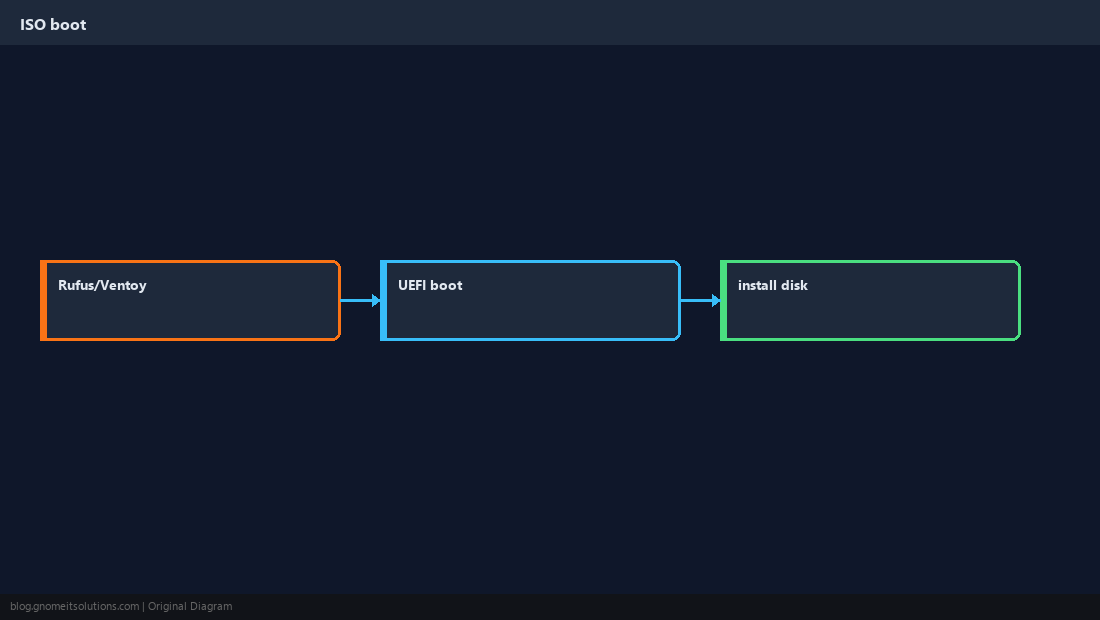
Use Rufus or Ventoy on Windows, or dd on Linux — boot UEFI when possible.
Run the Installer
Select the local disk for ESXi (this wipes the disk). Separate disks can later become VMFS datastores.
DCUI: Management Network
At the physical console (DCUI), set hostname, IPv4, subnet mask, gateway, and DNS for the management vmkernel (vmk0).
esxcli network ip interface ipv4 get
esxcli system hostname get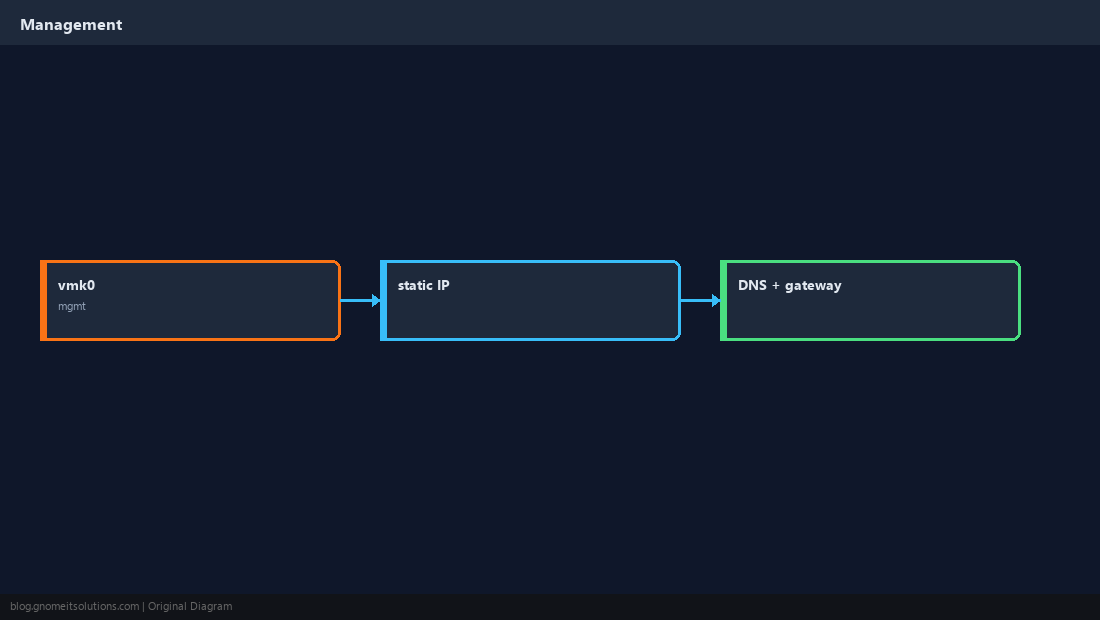
License and Security Baseline
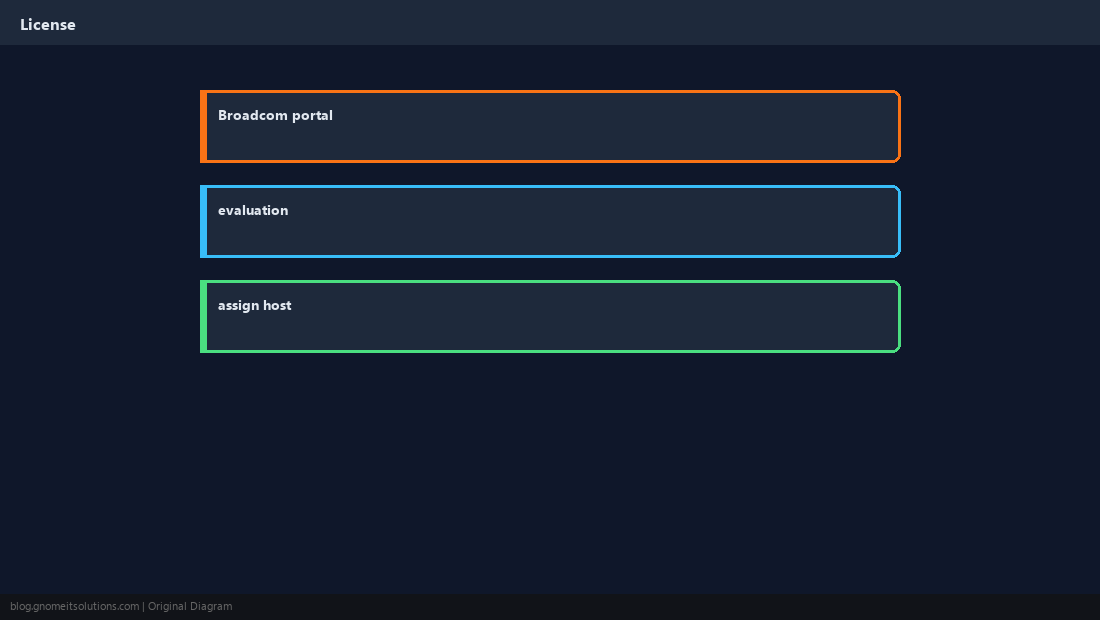
Assign evaluation or paid license; restrict management VLAN; enable lockdown in production when using vCenter.
Verify Host Client
Browse to https://ESXi-IP, log in as root, confirm datastore and capacity.
vmware -v
esxcli system version get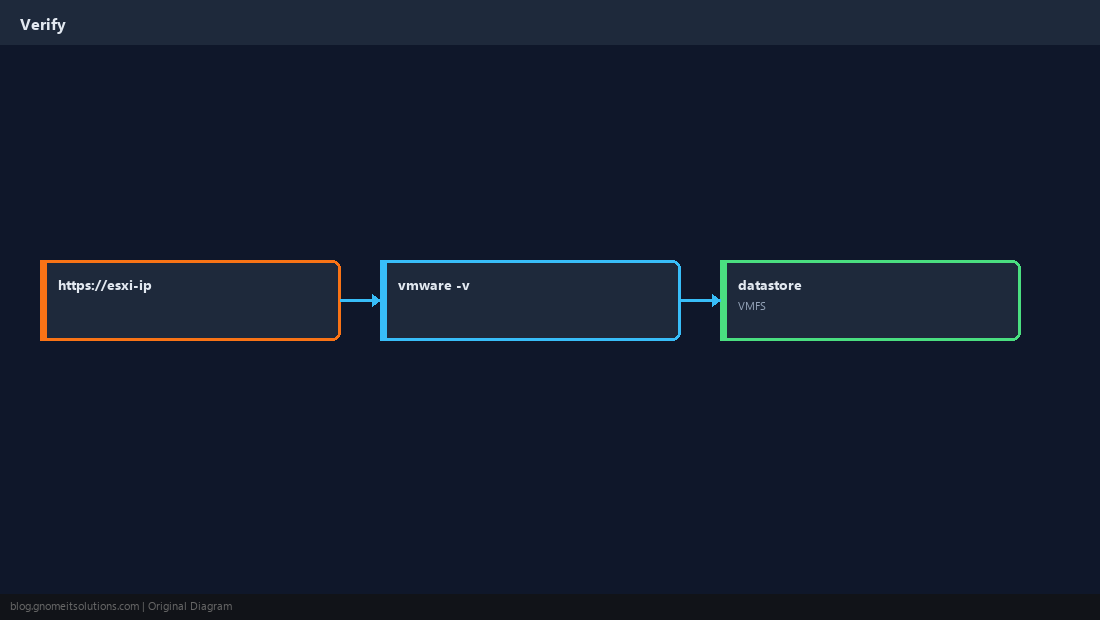
Quick Reference
- Install ESXi on a dedicated disk — it is not a dual-boot desktop OS
- Set static management IP in DCUI before remote work
- Confirm build with
vmware -v
Related tutorials
Diagrams are original illustrations by Gnome IT Solutions. Tutorial text © Gnome IT Solutions.