Linux reboot command searches spike after kernel updates, stuck services, and “it works until I restart it” debugging. On modern systemd distros, reboot and systemctl reboot are equivalent — but how you reboot still matters for databases and RAID arrays.
See also: apt upgrade & reboot,
systemctl,
fstab mounts.
Command Overview
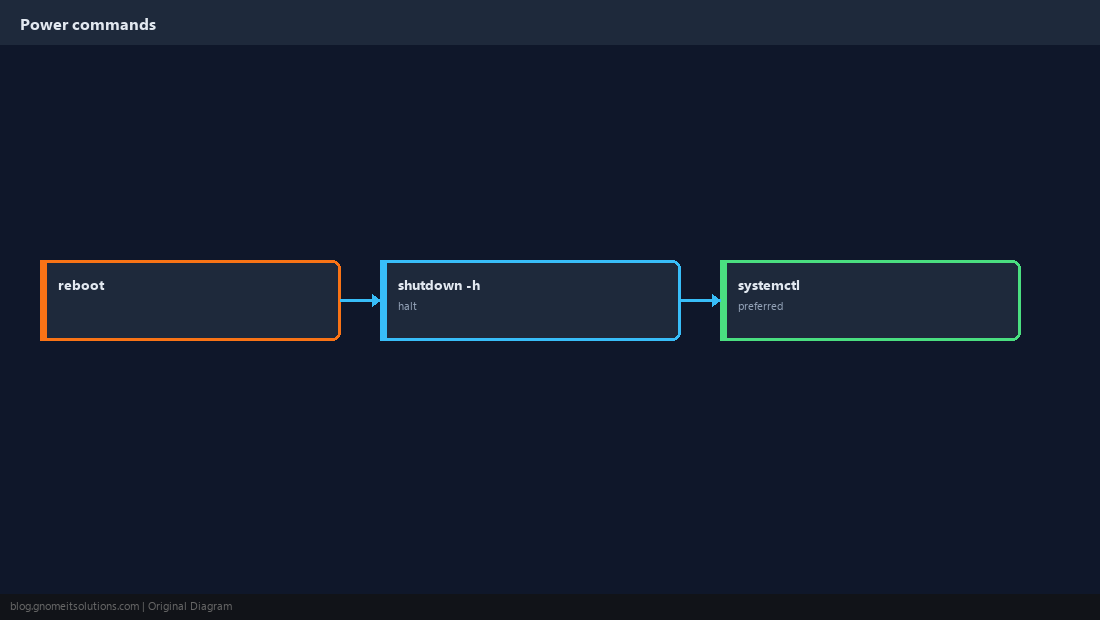
Reboot restarts the OS; shutdown halts or powers off — both need root or sudo.
Immediate Reboot
Use during maintenance windows; warn active users first.
sudo wall 'Reboot in 2 minutes for patching'
sleep 120
sudo systemctl reboot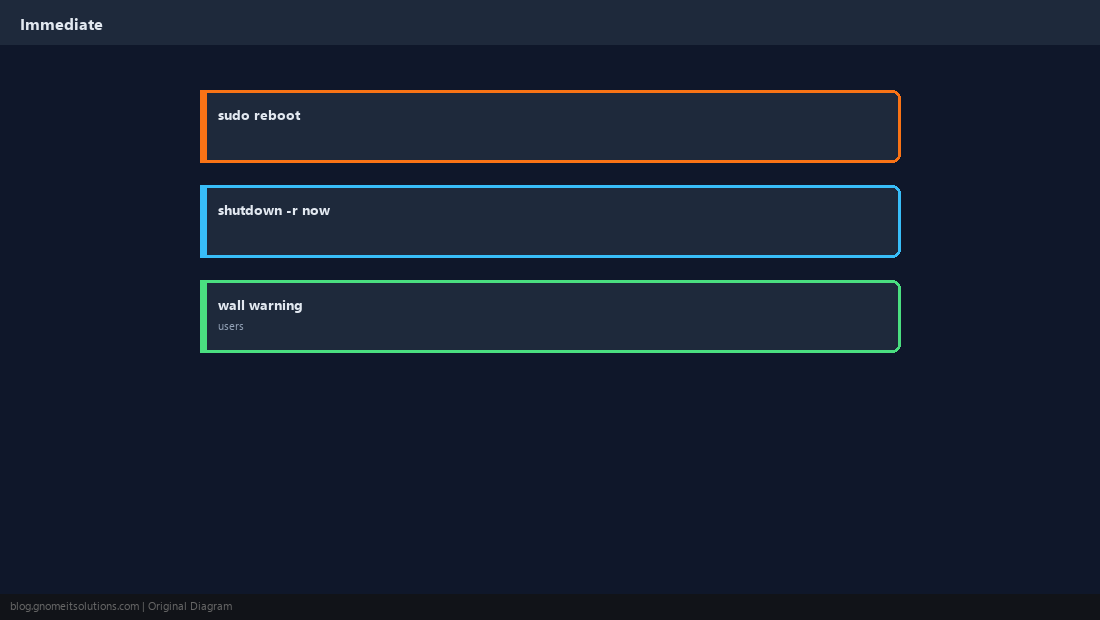
Scheduled Shutdown
Plan overnight work; cancel if deployment slips.
sudo shutdown -r 22:00 'Kernel security update'
# cancel: sudo shutdown -c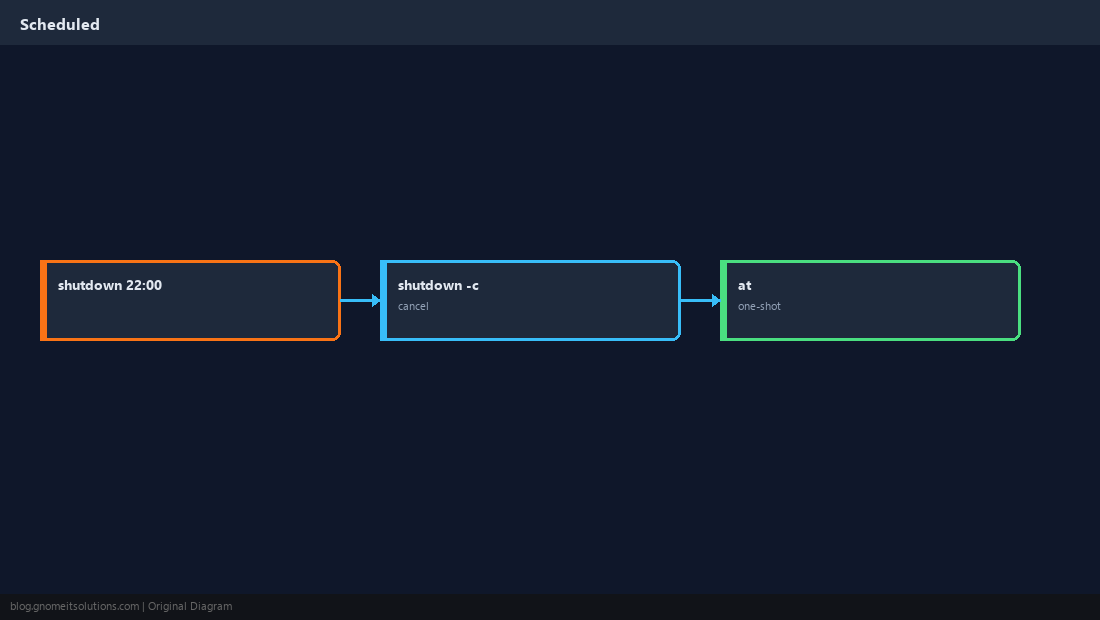
systemctl Targets
Prefer systemd verbs — they honor inhibitors and log to the journal.
sudo systemctl reboot
# maintenance: sudo systemctl isolate rescue.target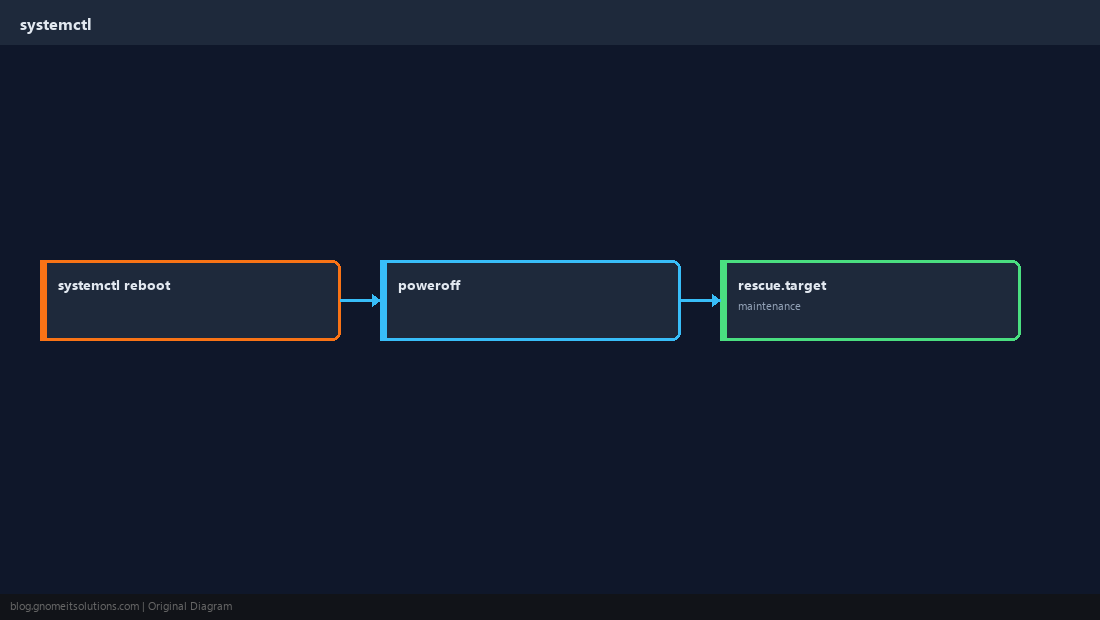
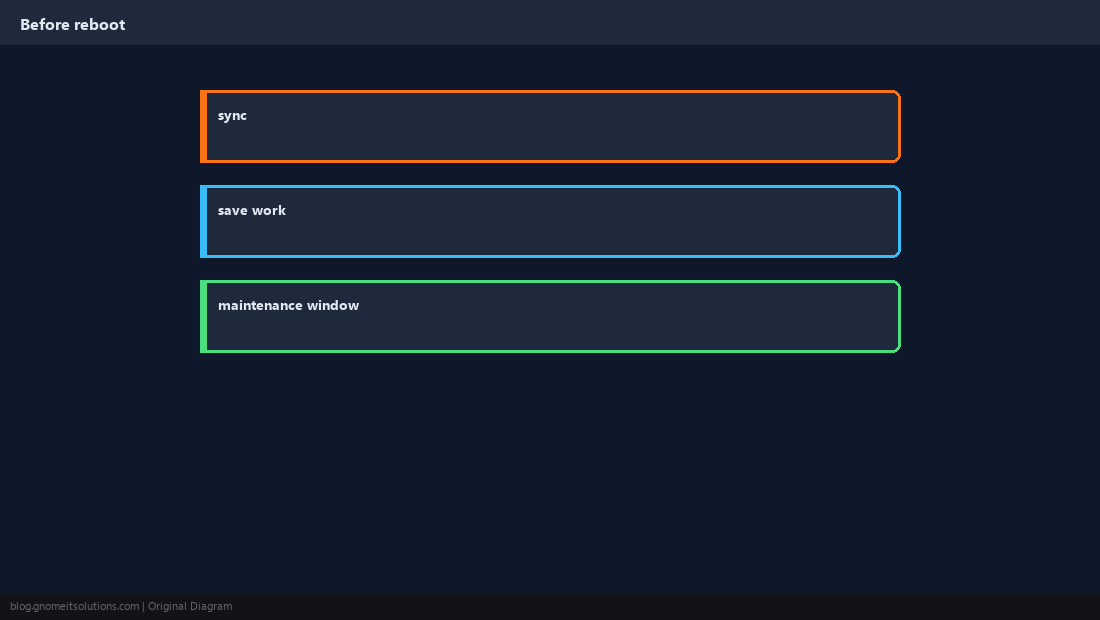
Before You Reboot
Flush disks, stop critical apps gracefully, confirm backups are not running.
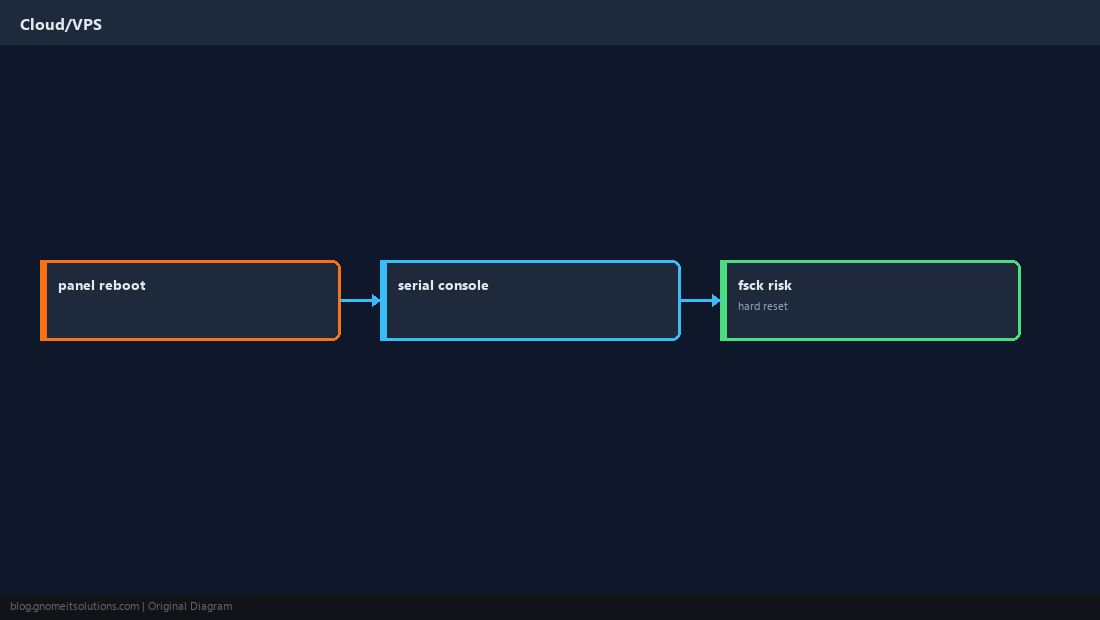
Cloud and VPS Panels
Hypervisor reboot vs OS reboot — serial console if the instance does not return.
After Boot Checklist
Failed units, mount errors, and listening ports should be verified before you declare victory.
uptime
sudo systemctl --failed
mount | grep 'on / '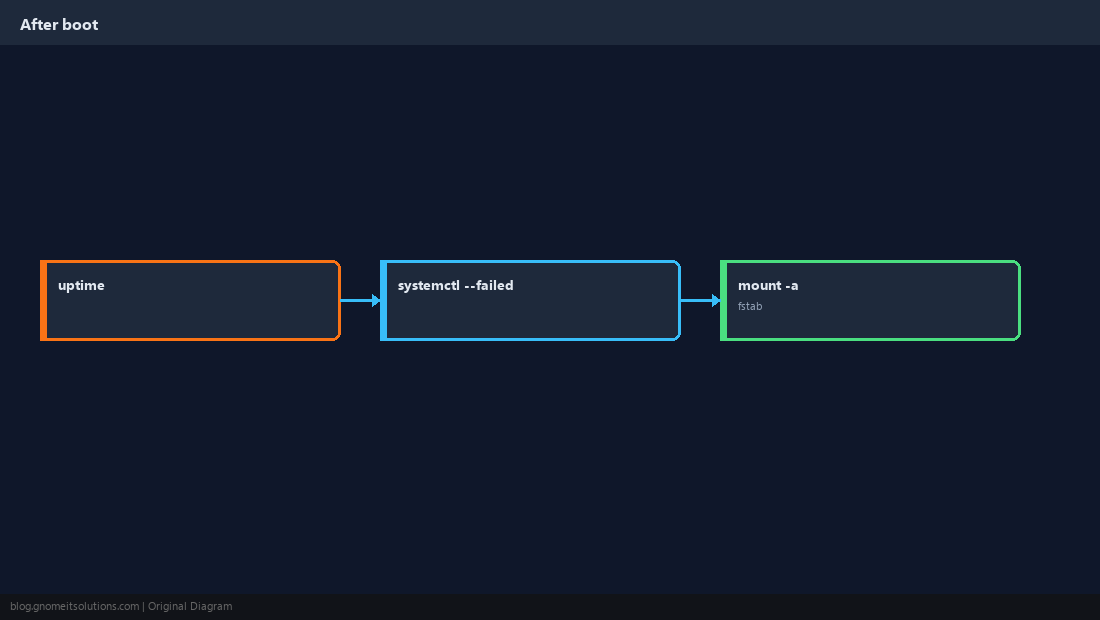
Quick Reference
- Quick reboot:
sudo systemctl reboot - Power off:
sudo systemctl poweroff - After boot:
systemctl --failedand check mounts
Related tutorials
Diagrams are original illustrations by Gnome IT Solutions. Tutorial text © Gnome IT Solutions.