A fresh Proxmox VE install can send mail — root@pam gets a local system mail account by
default — but that mail almost never leaves the server, because Postfix ships configured to deliver
locally, not to relay out through a real SMTP provider. The result is a host that looks like it’s
“configured for notifications” in the admin UI while backup-failure emails silently pile up in a local
mailbox nobody reads. Proxmox email and webhook notifications only work end to end once
the mail relay is wired up and the newer Datacenter → Notifications target/matcher system —
covering email, webhook, and Gotify targets — is actually configured to route the alerts you care about.
This guide covers configuring Postfix as an authenticated relay through an external SMTP provider,
verifying mail actually leaves the server, setting up a webhook notification target for a chat tool or
on-call system, and building match rules so a backup failure reaches the right target without also
flooding you with routine informational events.
Understand Why Default Mail Never Arrives
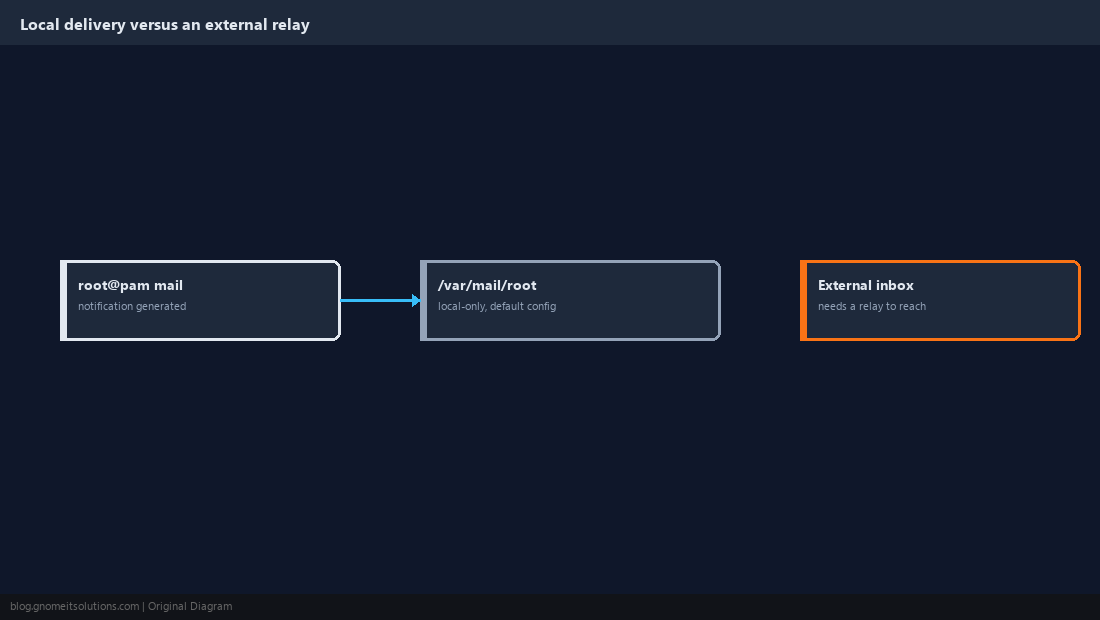
Proxmox VE’s base install configures Postfix in local-only mode, meaning root@pam‘s notification emails are delivered to /var/mail/root on the same host rather than out to a real inbox — this is intentional for a minimal appliance install, not a bug, but it means the notification system is non-functional from the outside until Postfix is reconfigured as a relay client. Confirm this is actually your situation before changing anything:
mail -s test root
cat /var/mail/root | tail -20
If the test message shows up in that local mailbox instead of an external inbox, Postfix is working correctly for local delivery and just needs a relay configured.
Configure Postfix as an Authenticated SMTP Relay
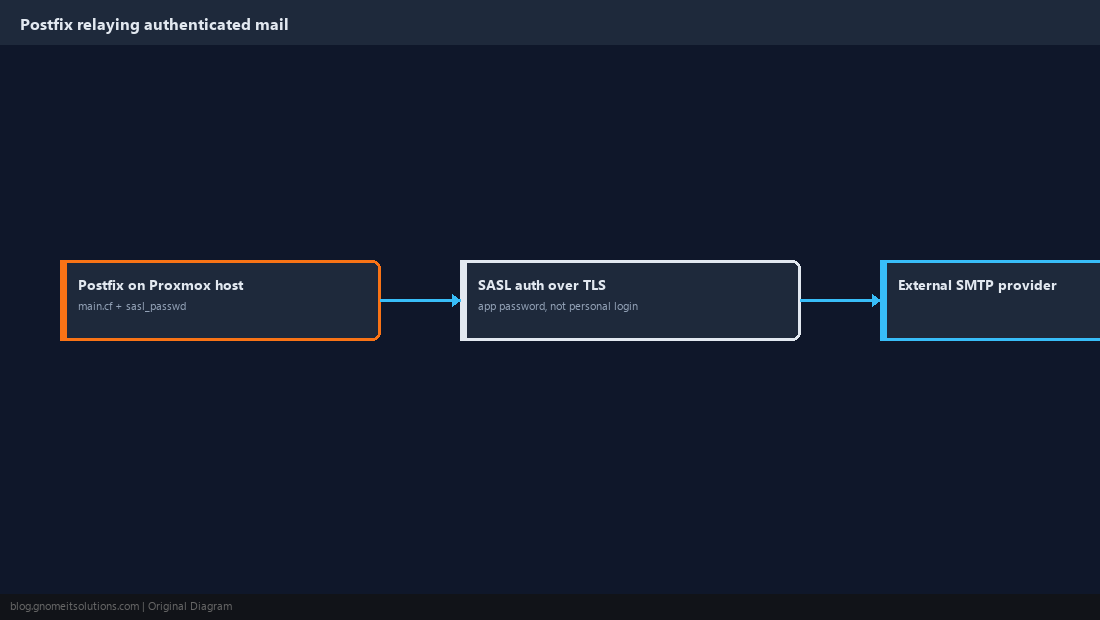
Point Postfix at an external SMTP provider — a transactional mail service or your organization’s own mail server — using SASL authentication over TLS rather than plain unauthenticated relay, which most providers reject outright:
# /etc/postfix/main.cf -- relay outbound mail through an external SMTP provider
relayhost = [smtp.your-provider.com]:587
smtp_sasl_auth_enable = yes
smtp_sasl_password_maps = hash:/etc/postfix/sasl_passwd
smtp_sasl_security_options = noanonymous
smtp_tls_security_level = encrypt
header_size_limit = 4096000
# /etc/postfix/sasl_passwd
[smtp.your-provider.com]:587  [email protected]:REPLACE_WITH_APP_PASSWORD
Hash the password file, lock its permissions down, and restart Postfix before sending a real test:
postmap /etc/postfix/sasl_passwd
chmod 600 /etc/postfix/sasl_passwd /etc/postfix/sasl_passwd.db
systemctl restart postfix
echo "Test message from Proxmox" | mail -s "Proxmox SMTP relay test" [email protected]
Use an app-specific password or a dedicated transactional-mail API key here rather than a personal account’s main password, since this credential sits in plaintext on the Proxmox host.
Set the Notification Email Address in Datacenter Options
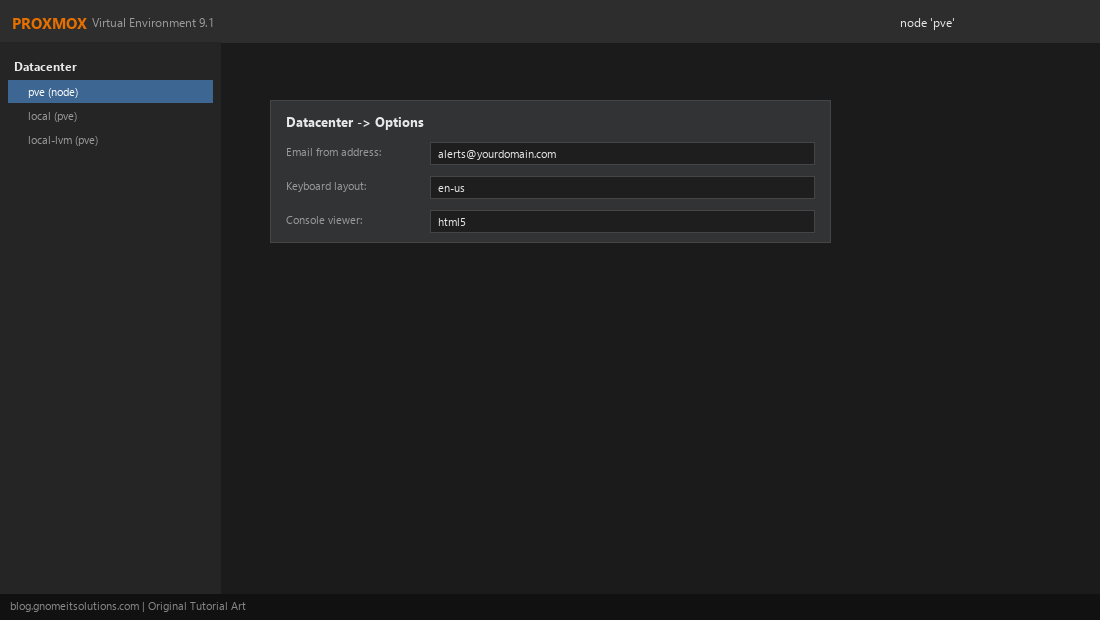
In the web UI, go to Datacenter → Options → Email from address and set a real, deliverable from-address matching the domain authenticated in Step 2 — many receiving mail providers silently spam-folder or reject messages whose from-address doesn’t align with the authenticated sending domain.
Add a Webhook or Gotify Notification Target
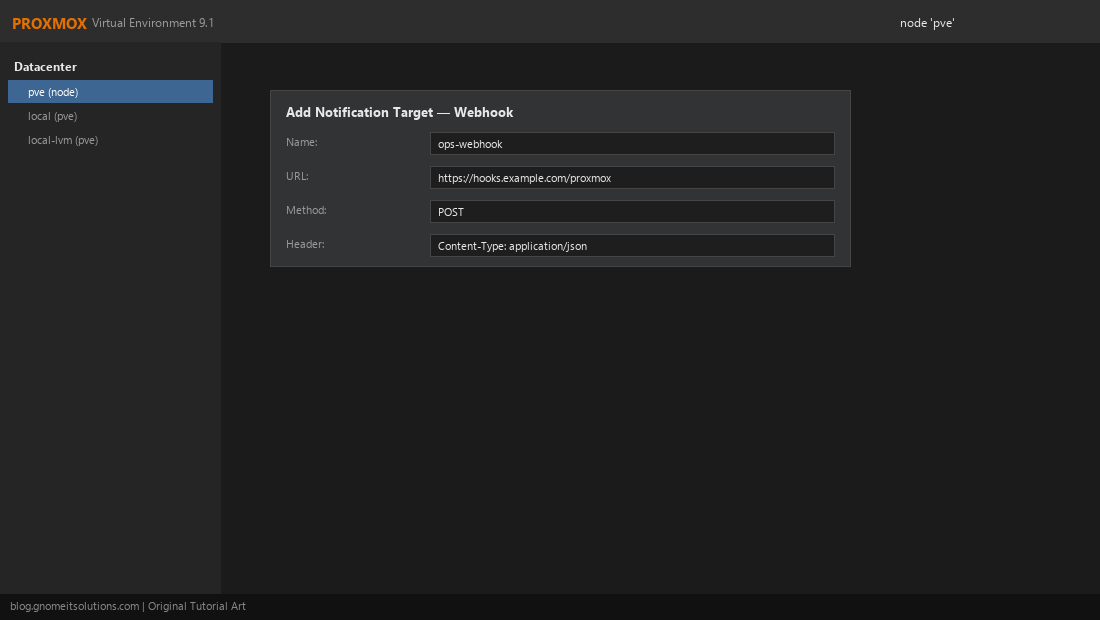
Beyond email, Datacenter → Notifications → Add supports a Webhook target that posts alert data as JSON to any URL your chat tool, incident system, or custom receiver can consume, plus a Gotify target for a dedicated self-hosted push notification server. A webhook target is often the faster path to a team channel than wiring up email distribution lists:
# Datacenter -> Notifications -> Add -> Webhook (fields shown, not raw config)
Name:            ops-webhook
URL:             https://hooks.example.com/proxmox-alerts
Method:          POST
Header:          Content-Type: application/json
Body template:   {"text": "{{ severity }}: {{ title }} - {{ message }}"}
Build Match Rules So Alerts Reach the Right Target
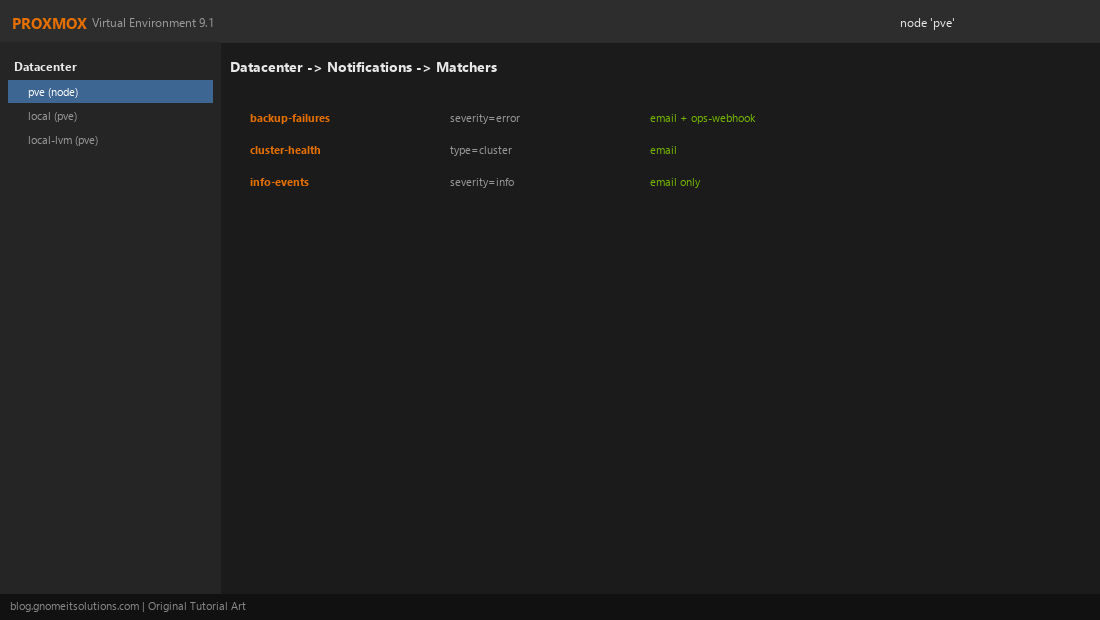
Under Datacenter → Notifications → Matchers, create rules that route specific event types to specific targets rather than sending every event to every target — a backup-failure event routed to both the on-call webhook and an email distribution list, while routine informational events only go to email, keeps the high-urgency channel from becoming noisy enough that people start ignoring it.
Confirm Backup Job Failure Emails Actually Trigger
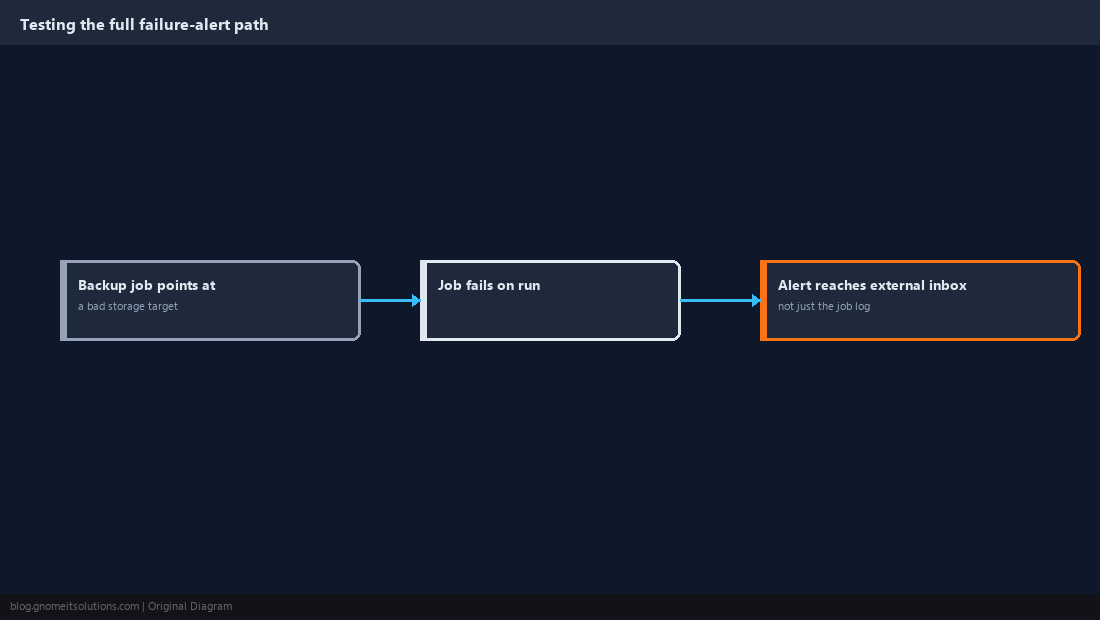
Our scheduled backup jobs guide covers setting Mail to and Mail on failure per job — with the relay from Step 2 now working, force a deliberate test failure (point a backup job at a storage target that doesn’t exist, run it once, then revert) and confirm the failure email actually lands in an external inbox rather than just checking the job’s own log for a failure status.
Route Cluster and Storage Alerts the Same Way
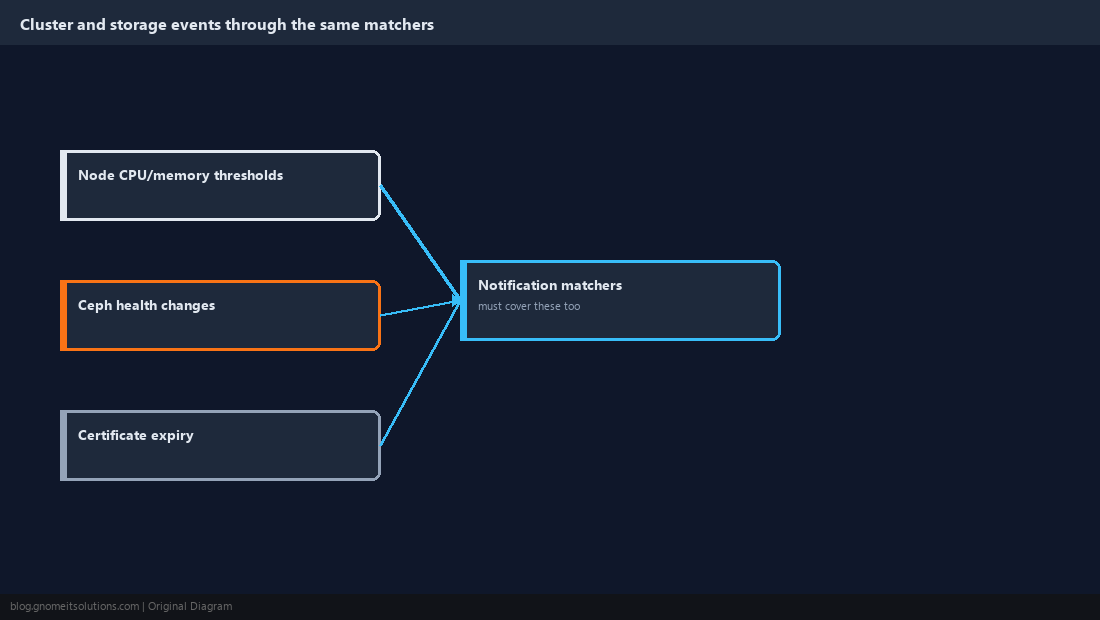
Beyond backups, Proxmox’s own health checks — node CPU/memory thresholds, Ceph health state changes if running our Ceph storage setup, and certificate expiry warnings — feed into the same notification system, so confirm the matcher rules from Step 5 cover these event types too, not just backup jobs. A common gap is a team that carefully wires up backup alerts and then never notices a Ceph cluster degrading because that event type was never matched to any target.
Review Notification Coverage After Any Infrastructure Change
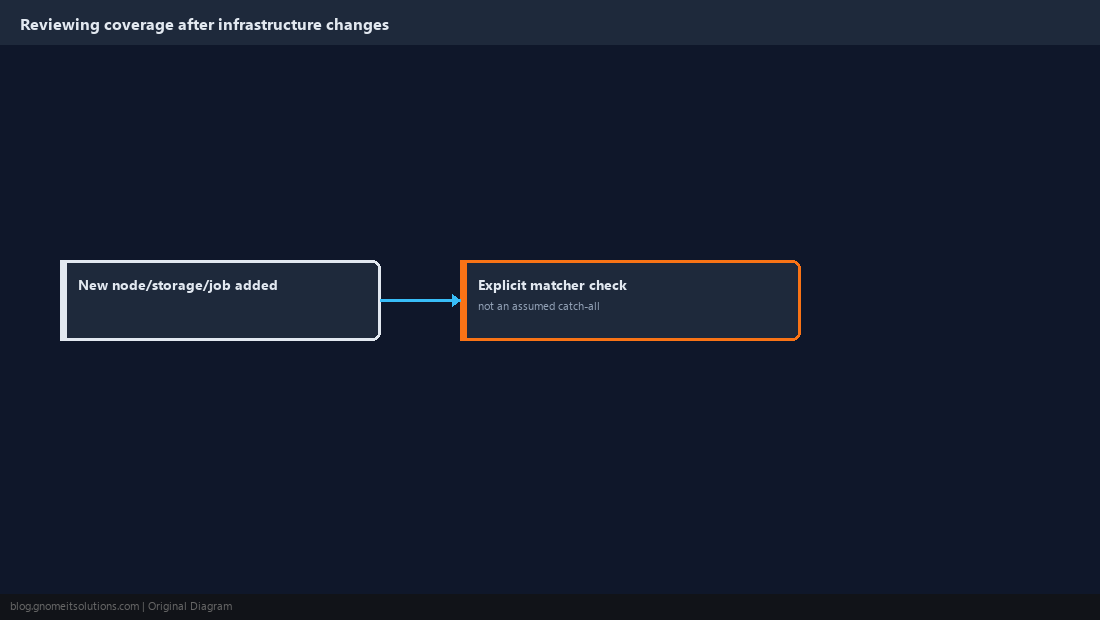
Whenever a new node joins the cluster, a new storage backend is added, or a new backup job is created, revisit the matcher rules to confirm the new resource is actually covered rather than assuming existing rules automatically apply to it — Proxmox’s matchers are explicit rules, not implicit catch-alls, so a new node added outside of an existing wildcard match can silently have no alerting at all until someone notices and fixes the gap, usually after something has already gone wrong on it.
Notification Setup Checklist
Postfix relay      authenticated SMTP, TLS, matches Datacenter from-address
Webhook/Gotify     added under Datacenter -> Notifications for faster team alerts
Matchers           route by event type/severity, not one rule for everything
Backup failures    tested with a deliberate failure, verified end to end
Cluster/storage    covered by matchers too, not just backup jobs
Review cadence      re-checked whenever nodes, storage, or jobs are added
Related tutorials
Image credits: Screenshots are from the official
Proxmox VE documentation
(Proxmox GmbH), used under open documentation terms for educational purposes.
Tutorial text and layout © Gnome IT Solutions.