scp and sftp ride on SSH: encrypted like your shell session, authenticated with keys or passwords, and available on virtually every Linux server.
Set up keys first with our SSH key guide. For repeated or large syncs, prefer
rsync over SSH after you are comfortable with one-off scp copies.
scp vs sftp vs rsync
scp is quick for single files or trees. sftp is interactive. rsync -e ssh resumes and sends only deltas.
local files --SSH channel--> remote path (encrypted)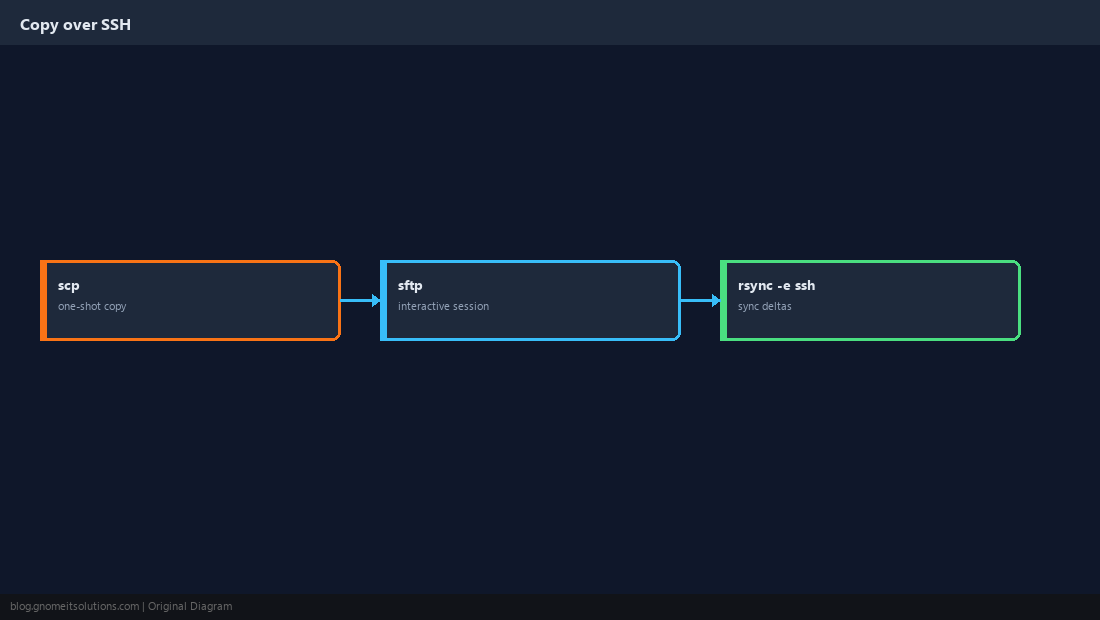
Upload (Push) to a Server
Syntax is scp local user@host:remote. Use -r for directories and quote paths with spaces.
scp ./build/app.tar.gz [email protected]:/var/releases/
scp -r ./config [email protected]:/etc/myapp/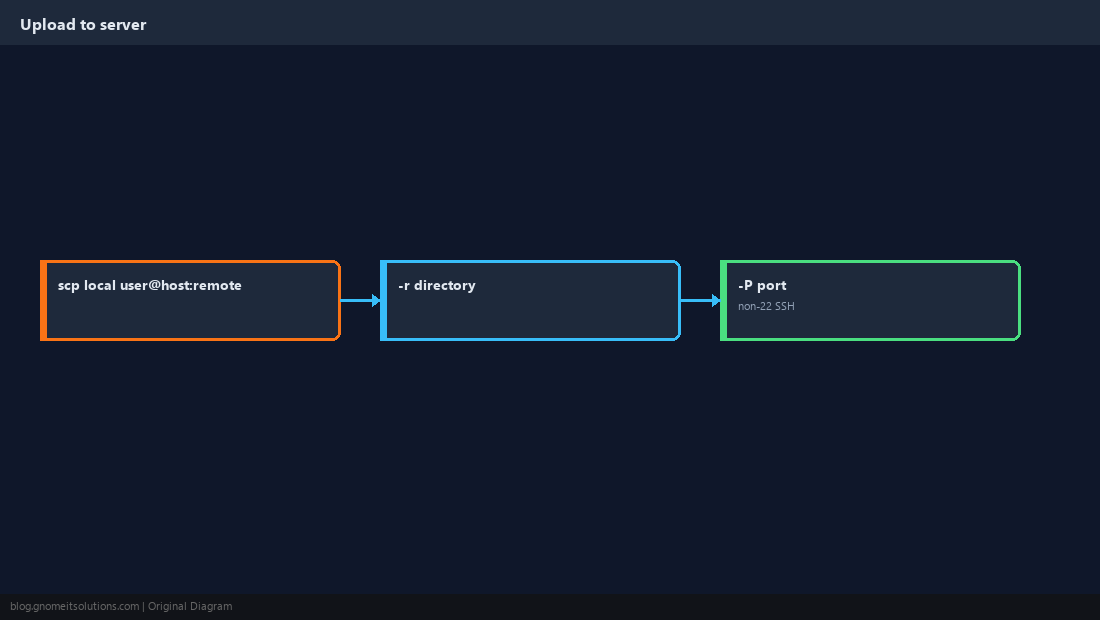
Download (Pull) From a Server
Reverse the order: scp user@host:remote local. -p preserves modification times.
scp -p [email protected]:/var/log/nginx/error.log ./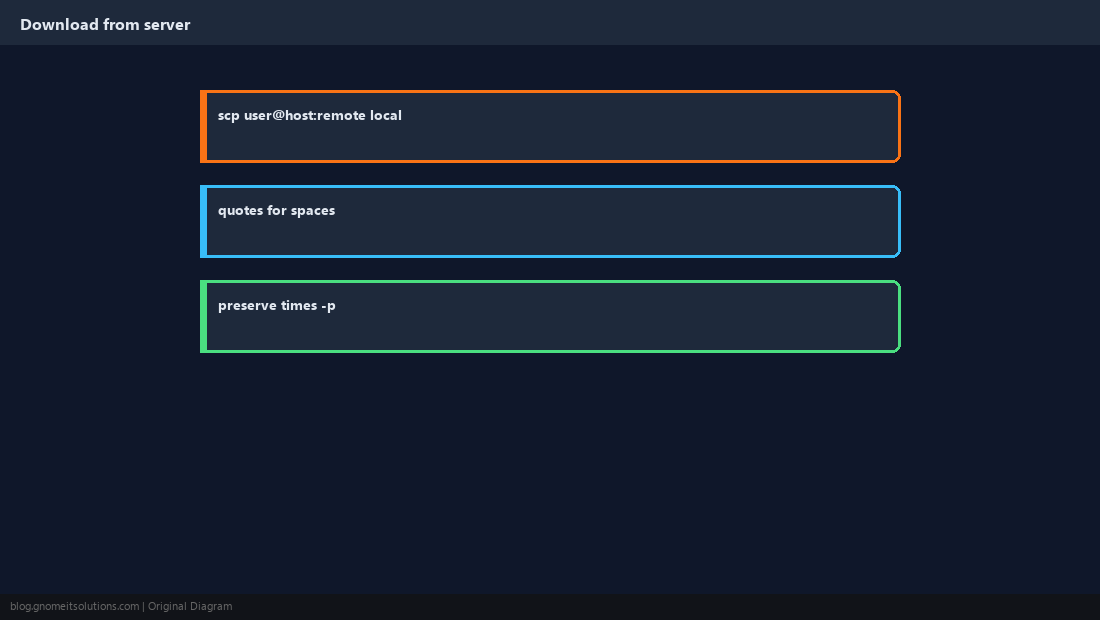
SSH Keys and Non-Default Ports
Scripts should use keys, not embedded passwords. -P (capital P) sets the SSH port for scp.
scp -P 2222 file.txt user@bastion:/tmp/scp -i ~/.ssh/deploy_ed25519 file.txt deploy@host:/tmp/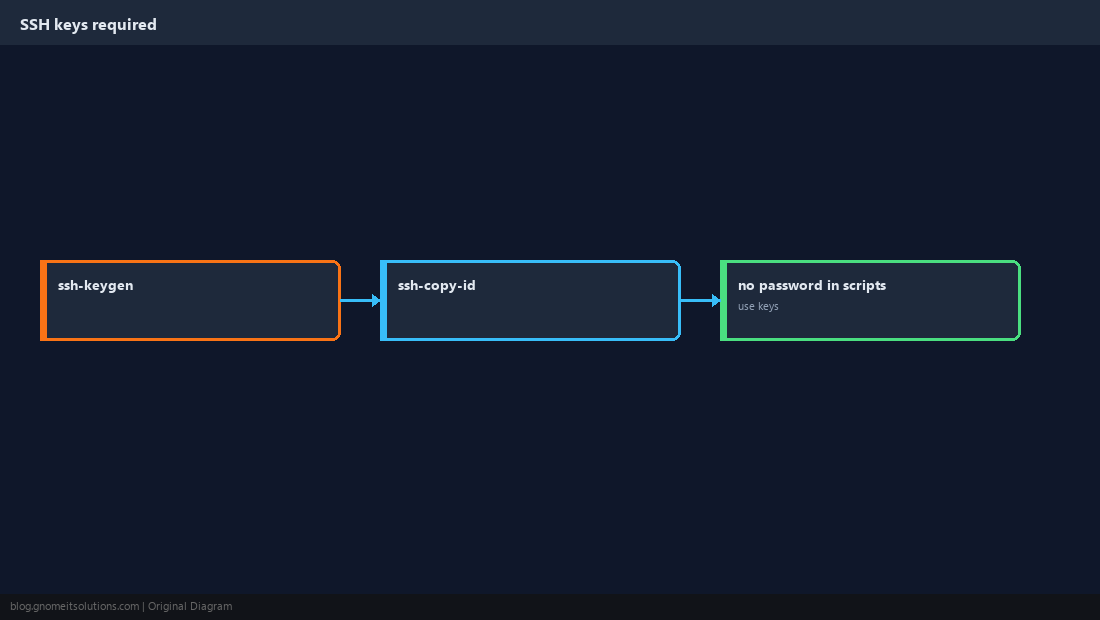
Interactive sftp
Use when you browse remote paths, test uploads, or let non-shell users transfer files (with ForceCommand internal-sftp on the server).
sftp [email protected]
# sftp> put local.txt
# sftp> get remote.log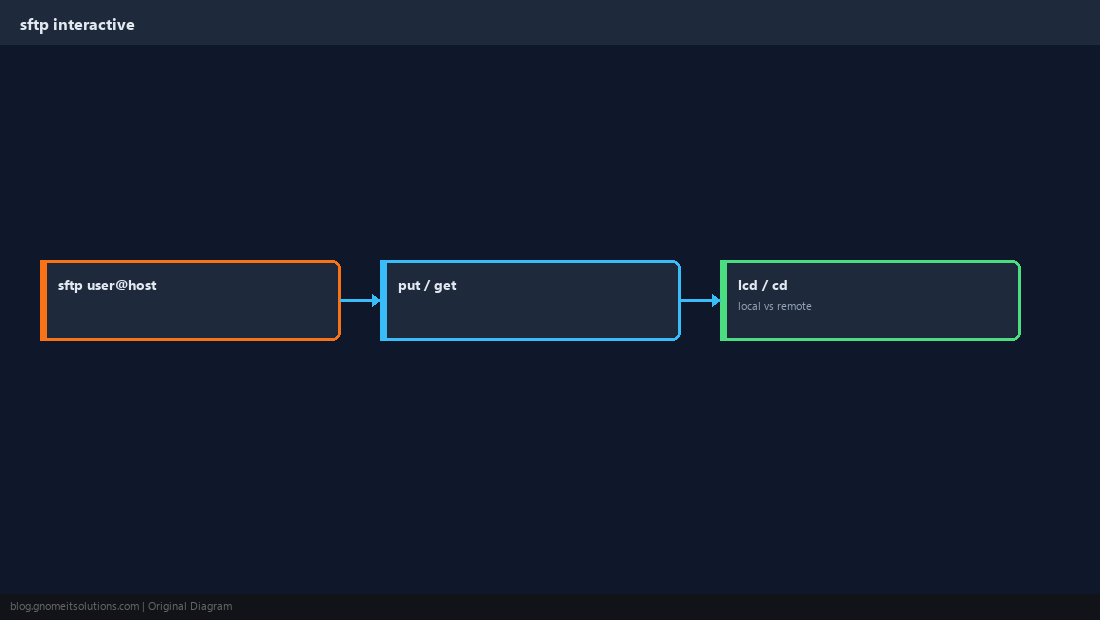
Large Transfers: rsync Over SSH
For backups and directory sync, rsync compresses and can resume partial transfers.
rsync -avz -e ssh /data/ [email protected]:/backups/data/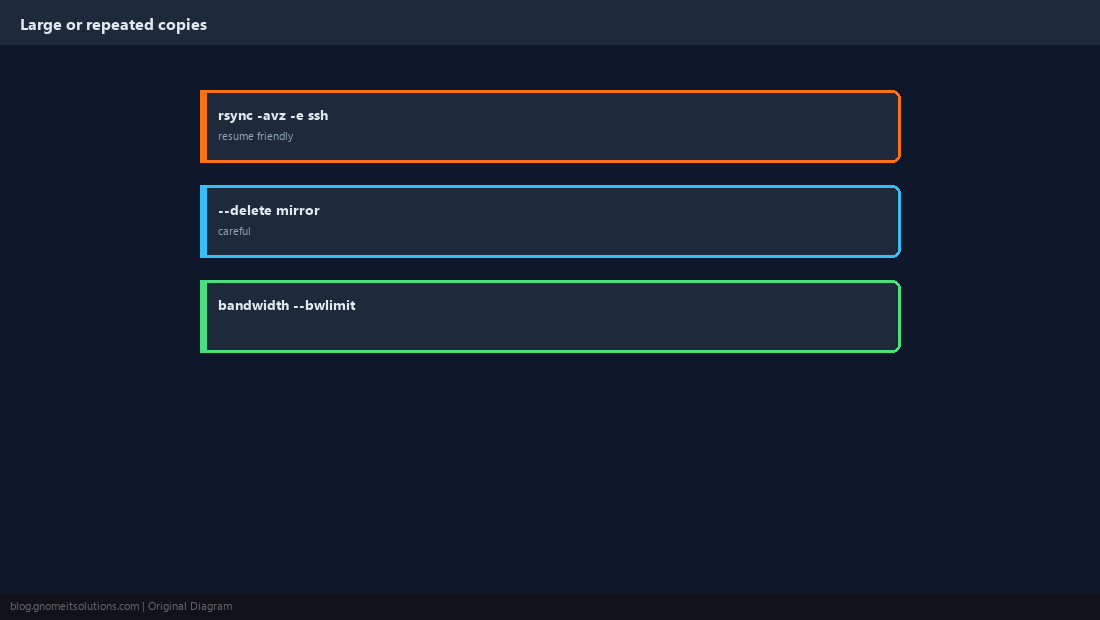
Verify After Copy
Compare checksums or at least file sizes before deleting the only copy.
sha256sum app.tar.gz
ssh [email protected] sha256sum /var/releases/app.tar.gz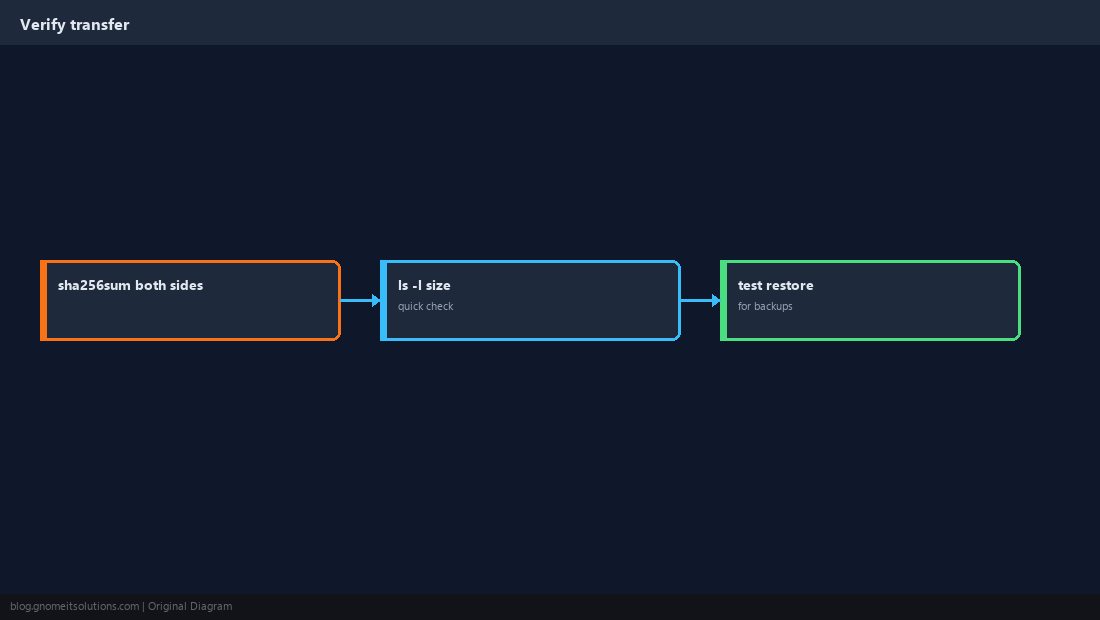
Quick Reference
- Push:
scp file user@host:/path; pull reverses order -rdirectories;-PSSH port- Big jobs:
rsync -avz -e ssh
Related tutorials
Diagrams are original illustrations by Gnome IT Solutions. Tutorial text © Gnome IT Solutions.