Our earlier cron jobs guide covers the classic way to schedule tasks on Linux. Most modern distros also ship systemd timers — a newer scheduling mechanism built into systemd itself. Both can run a script at 2 AM every day; the difference shows up once you need logging, dependency ordering, or handling a server that was powered off when the job should have run.
This guide compares the two side by side, builds a working systemd timer, and gives you a clear decision rule for which to reach for.
Step 1: The Core Difference
Cron is a single daemon reading a plain-text schedule — simple, universal, and has existed unchanged for decades. systemd timers are full systemd units — each timer pairs with a .service unit, which means you get systemd’s logging (journalctl), dependency ordering (After=network-online.target), and resource controls (CPU/memory limits) for free.
Step 2: Cron Syntax as a Baseline
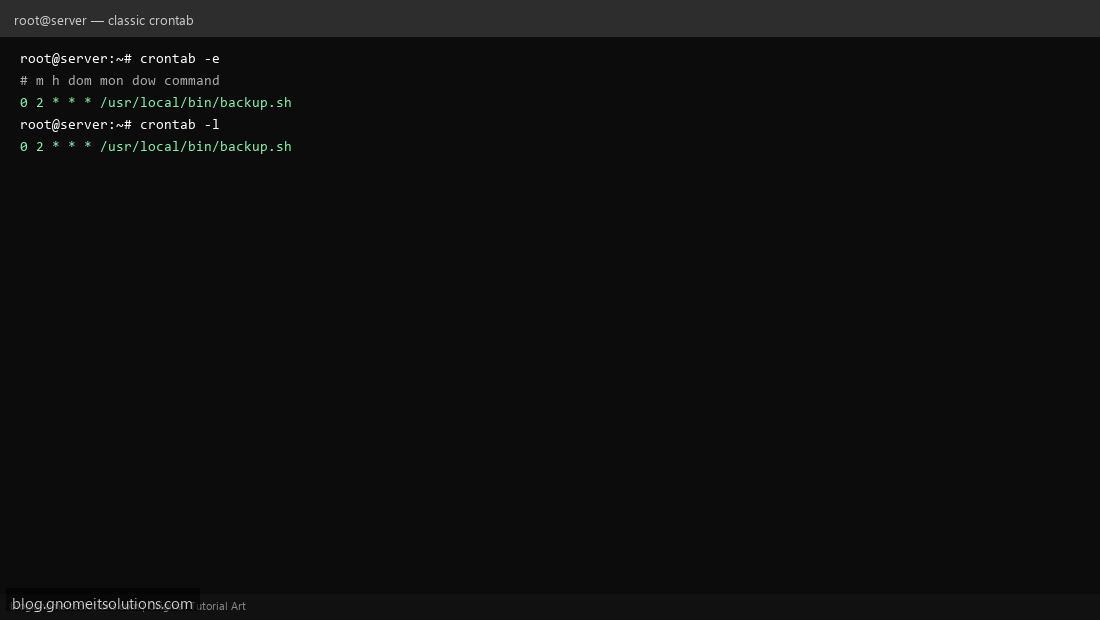
A quick refresher: crontab -e opens your user’s crontab, and a line like 0 2 * * * /usr/local/bin/backup.sh runs the script at 2:00 AM daily. Output isn’t captured anywhere by default — you have to redirect it yourself (>> /var/log/backup.log 2>&1), and there’s no built-in way to see when a job last ran successfully.
Step 3: Anatomy of a systemd Timer
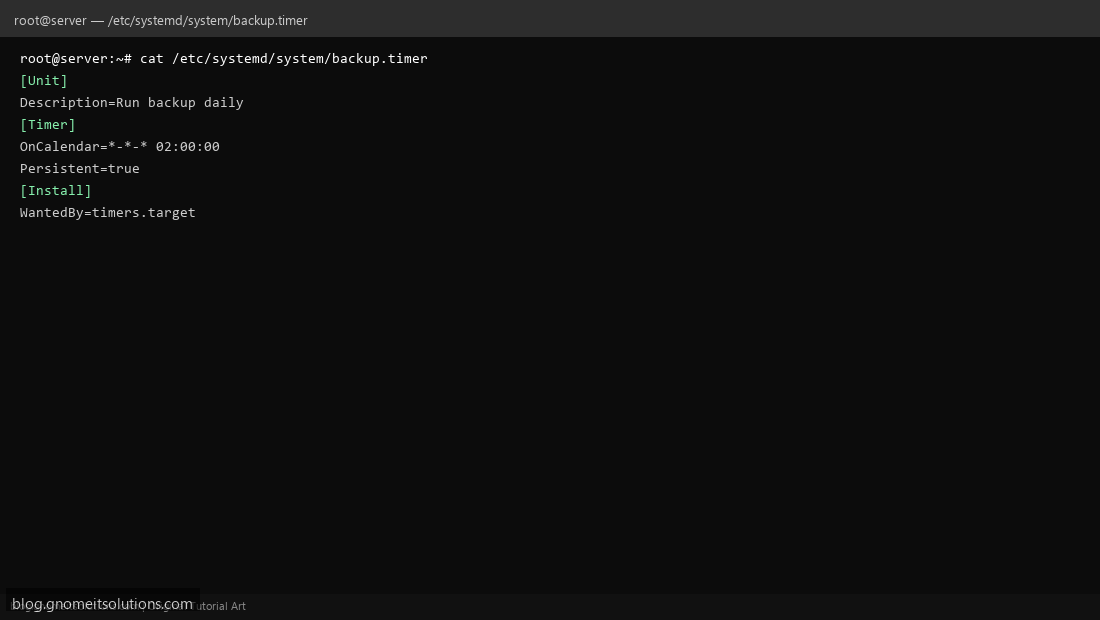
A systemd timer is always two files: a .timer unit defining the schedule, and a matching .service unit defining what to run. Create /etc/systemd/system/backup.timer with OnCalendar=*-*-* 02:00:00 (systemd’s own calendar syntax — more readable than cron’s five fields once you learn it) and Persistent=true.
Step 4: The Matching Service Unit
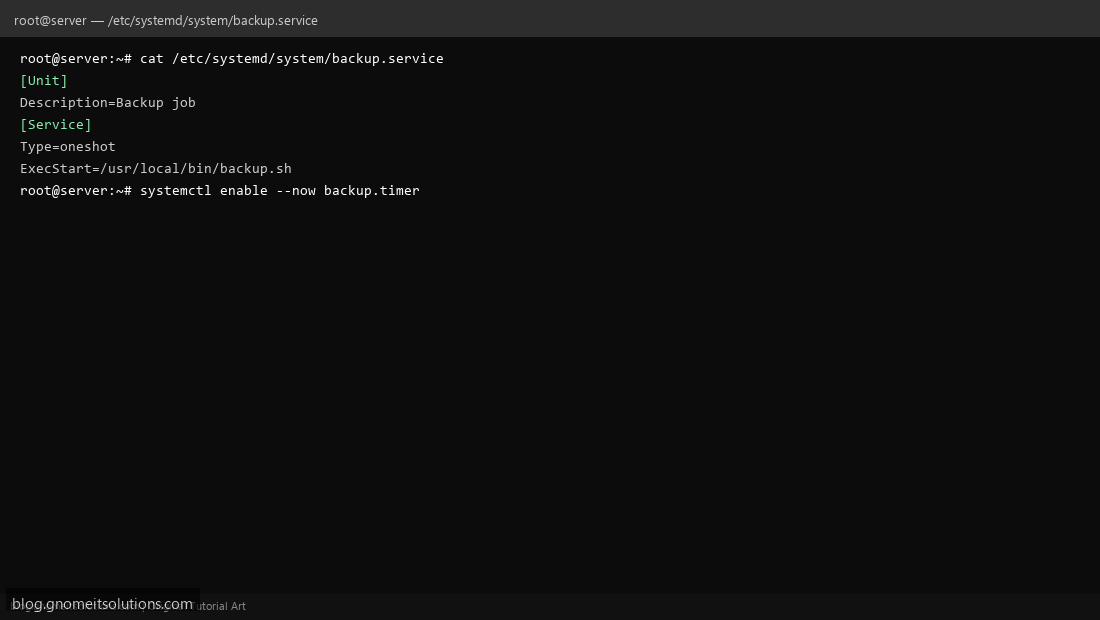
Create /etc/systemd/system/backup.service with Type=oneshot and ExecStart=/usr/local/bin/backup.sh — this is the actual command the timer triggers. Enable and start the timer, not the service directly: systemctl enable --now backup.timer.
Step 5: Check Status and Next Run Time
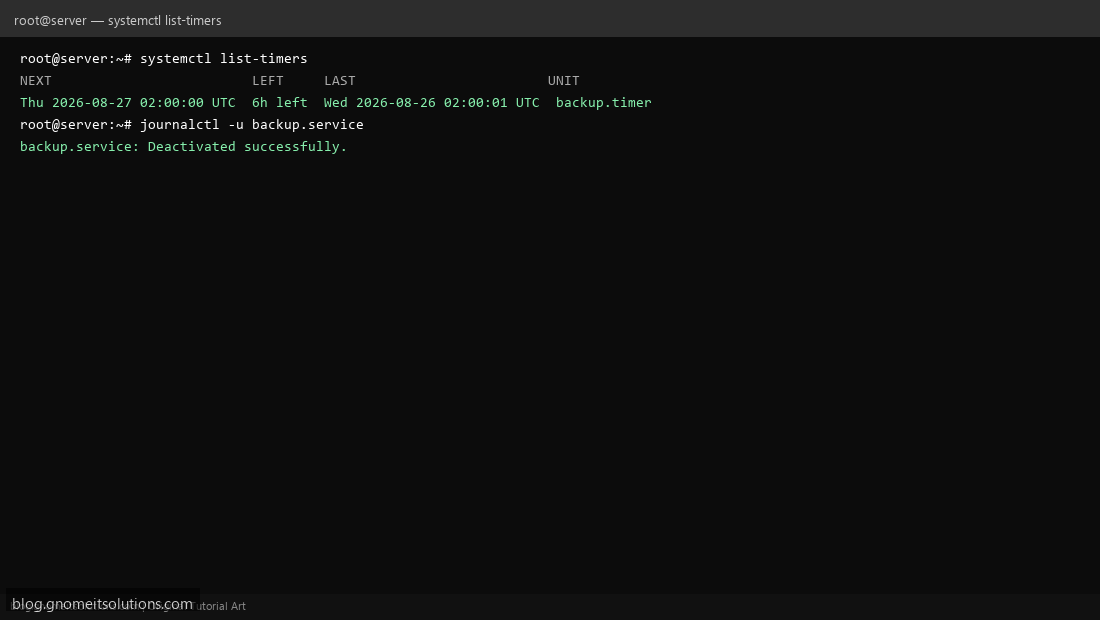
systemctl list-timers shows every active timer with its NEXT scheduled run, how much time is LEFT, and when it LAST ran — information cron simply doesn’t expose. For the actual job output, journalctl -u backup.service gives you full stdout/stderr and exit status with timestamps, no manual log redirection needed.
Step 6: Persistent Timers Catch Up on Missed Runs
This is the feature cron fundamentally can’t do: if the machine is powered off at 2:00 AM when backup.timer was due to fire, setting Persistent=true makes systemd run the missed job as soon as the system boots back up. Cron just silently skips the run entirely — useful to know if you’ve ever wondered why a laptop’s cron backup job “randomly” didn’t run.
Decision guide
- Use cron for simple, portable scripts you might copy to any Unix-like system, or when you’re already deep in an existing cron-based workflow
- Use a systemd timer when you want proper logging via journalctl, need the job to catch up after downtime (laptops, spot instances), need dependency ordering (wait for network/mount), or want to apply resource limits to the job
- Both coexist fine on the same system — there’s no need to migrate everything at once
Example: full timer + service pair
# /etc/systemd/system/backup.timer
[Unit]
Description=Run backup daily

[Timer]
OnCalendar=*-*-* 02:00:00
Persistent=true

[Install]
WantedBy=timers.target

# /etc/systemd/system/backup.service
[Unit]
Description=Backup job

[Service]
Type=oneshot
ExecStart=/usr/local/bin/backup.sh
Related tutorials
- Cron Jobs in Linux: crontab Basics
- journalctl: Read Linux System Logs
- systemd Journal Vacuum Shell Script
Terminal screenshots are original illustrations created for Gnome IT Solutions (blog.gnomeitsolutions.com).