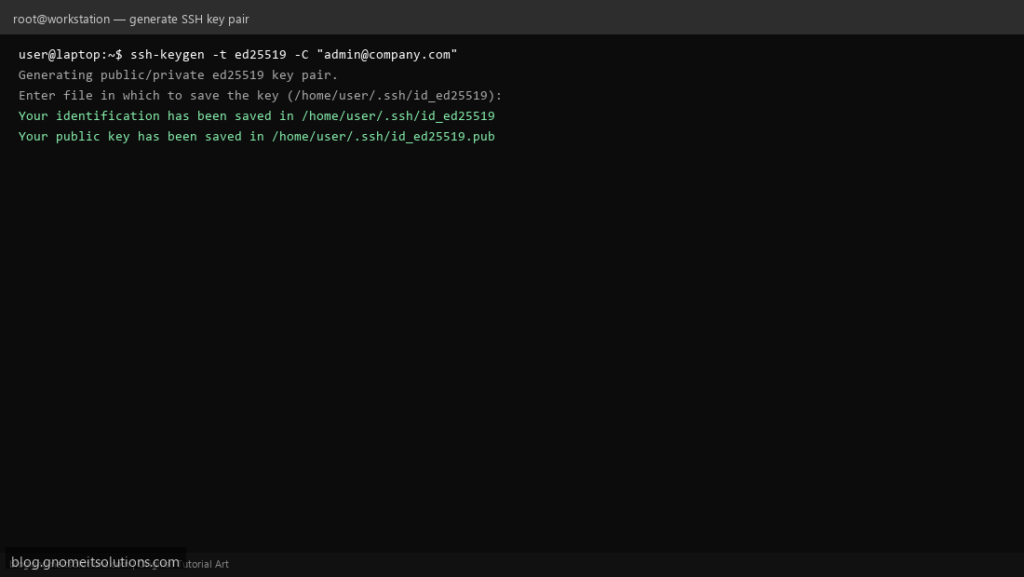
Typing a password every time you SSH into a server is slow and, on its own, weaker than it feels — passwords can be guessed, phished or brute-forced.
Key-based authentication replaces the password with a cryptographic key pair: a private key that never leaves your machine, and a public key
copied to every server you manage.
This guide generates a modern key, installs it correctly, and only then disables password login — in that order, so you cannot lock yourself out. It pairs
directly with hardening OpenSSH as the next step.
Quick answer: ssh-keygen -t ed25519, then ssh-copy-id user@server, then test a login before touching sshd_config.
How Key Authentication Works
The server never sees your private key. It sends a challenge, your SSH client signs it with the private key, and the server checks that signature against the public key already on file.
  client: has private key   -->  signs a challenge
  server: has public key    -->  verifies the signature, grants access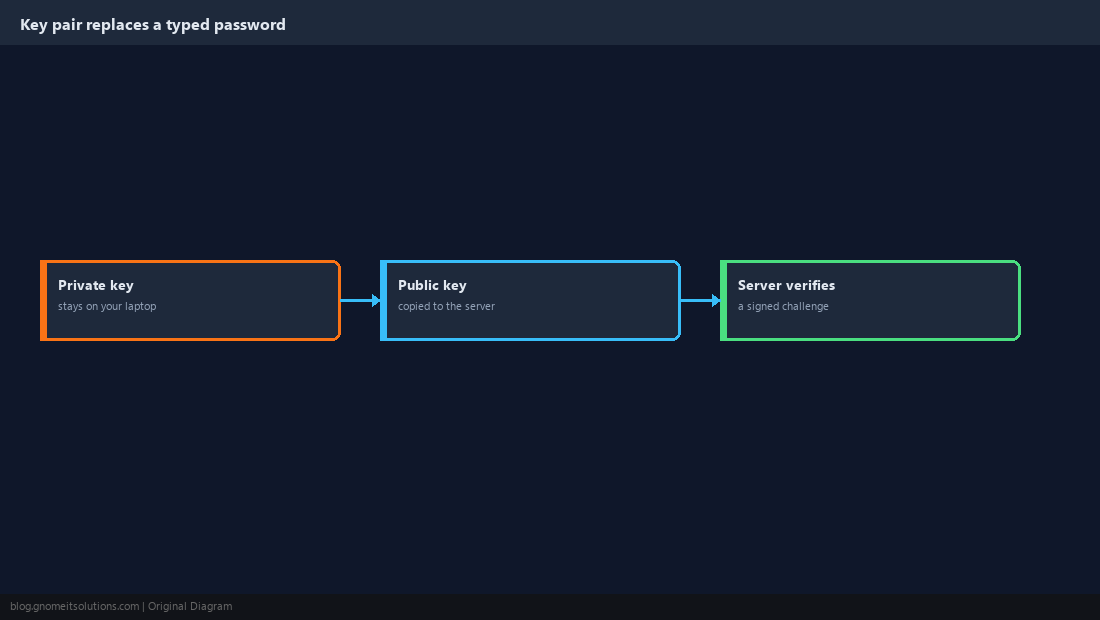
Generate a Modern Key Pair
ed25519 keys are short, fast and considered at least as strong as a 3072-bit RSA key for current use. Set a passphrase — it protects the private key if your laptop is ever stolen or copied.
ssh-keygen -t ed25519 -C "[email protected]"~/.ssh/id_ed25519 (private, never share) and ~/.ssh/id_ed25519.pub (public, safe to share).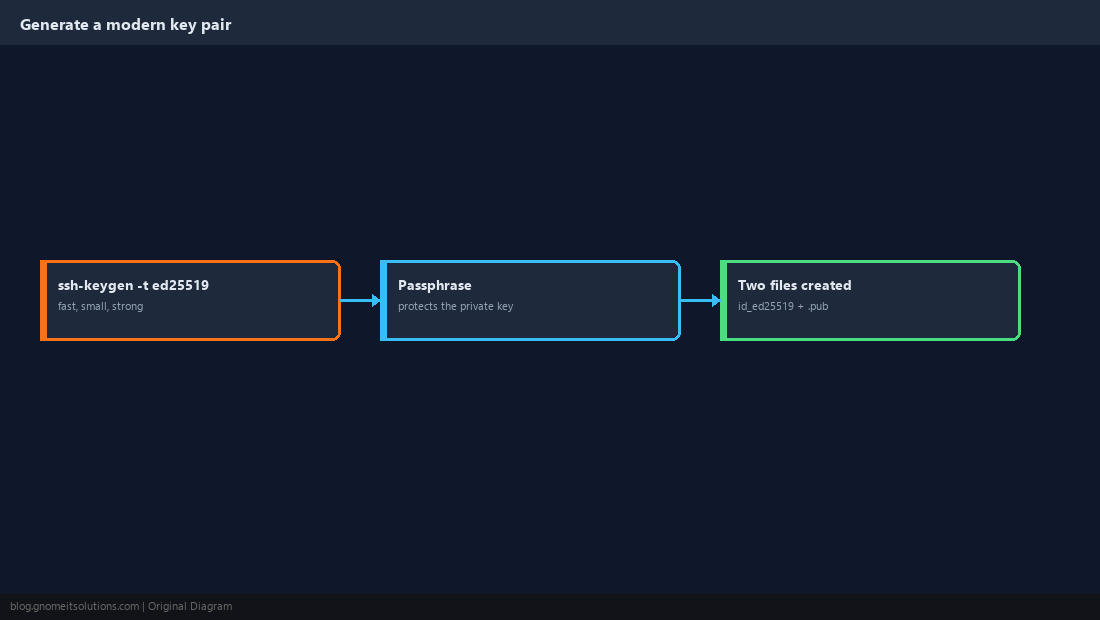
Install the Public Key on the Server
ssh-copy-id appends your public key to the right file on the server in one command. If it is unavailable, do the same thing by hand.
ssh-copy-id [email protected]cat ~/.ssh/id_ed25519.pub | ssh [email protected] "mkdir -p ~/.ssh && cat >> ~/.ssh/authorized_keys"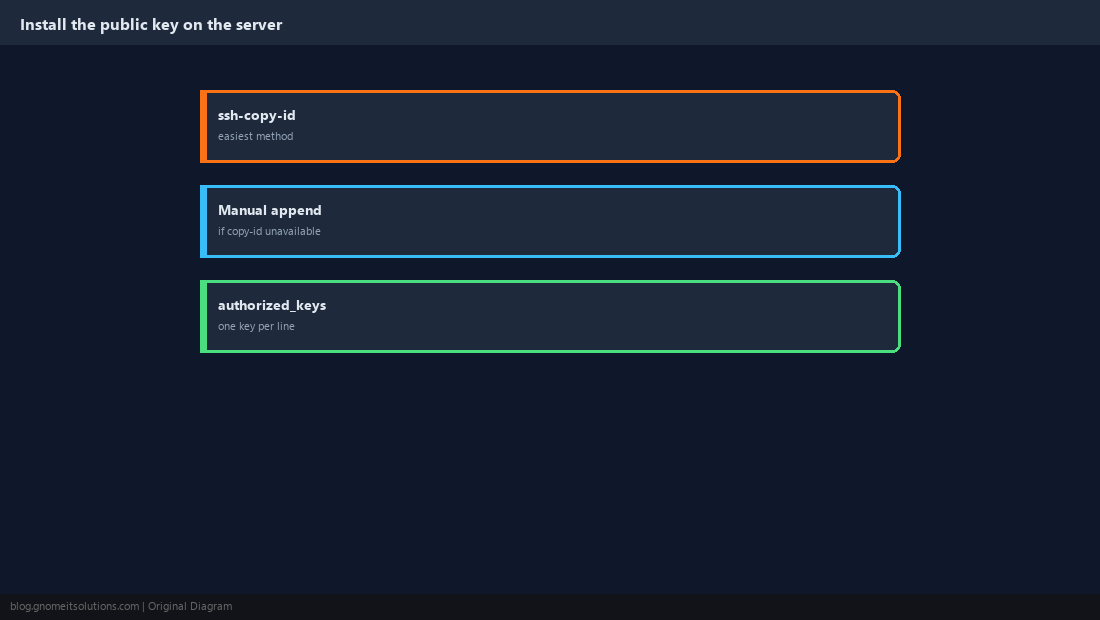
Get the Permissions Right
OpenSSH silently ignores authorized_keys if the surrounding permissions are too open — this is the most common reason key auth “doesn’t work” with no error message.
chmod 700 ~/.ssh
chmod 600 ~/.ssh/authorized_keys~/.ssh or home directory can also cause sshd to reject key auth, depending on StrictModes.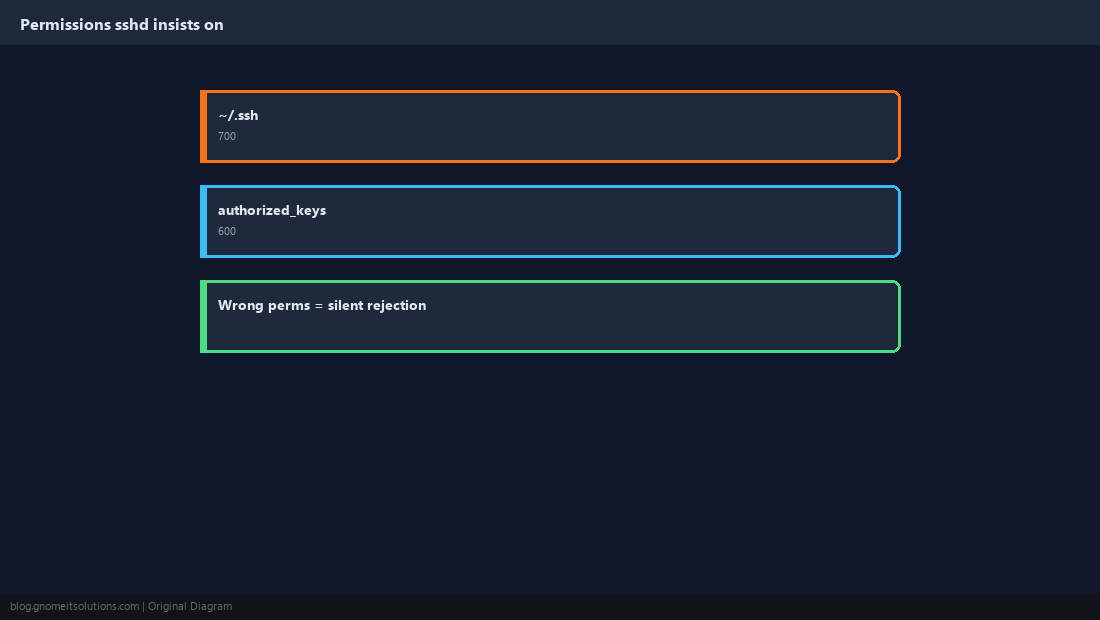
Test the Key Before Changing Anything Else
Log in with the key and confirm you are not prompted for a password. Keep your current session open as a safety net until this succeeds.
ssh -v [email protected] 2>&1 | grep -i 'offering\|accepted'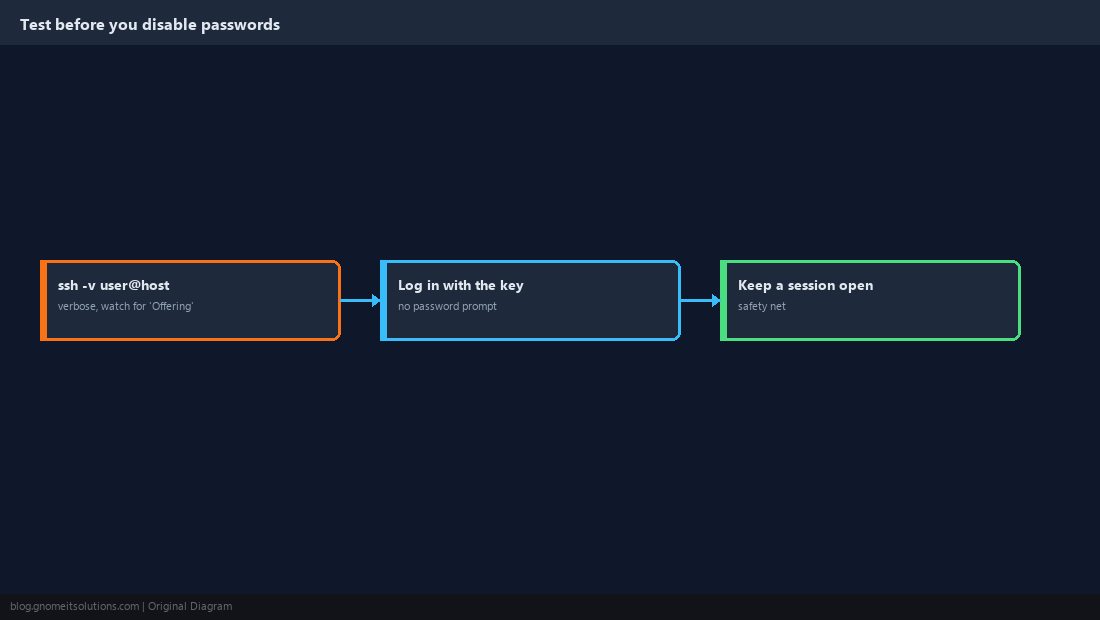
Use ssh-agent So You Only Unlock the Key Once
With a passphrase set, typing it for every connection gets old fast. ssh-agent holds the decrypted key in memory for the session so you unlock it once.
eval "$(ssh-agent -s)"
ssh-add ~/.ssh/id_ed25519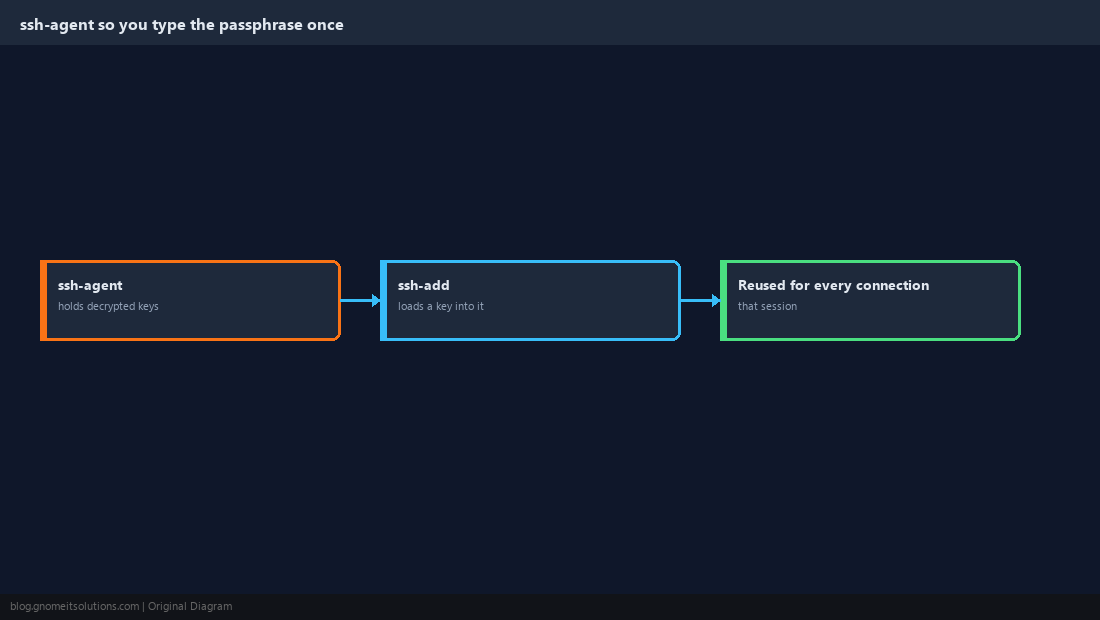
Disable Password Login on the Server
Only after Step 5 succeeds: turn off password authentication so brute-force login attempts against passwords stop working entirely.
PasswordAuthentication no
KbdInteractiveAuthentication no
PubkeyAuthentication yessudo sshd -t && sudo systemctl reload sshd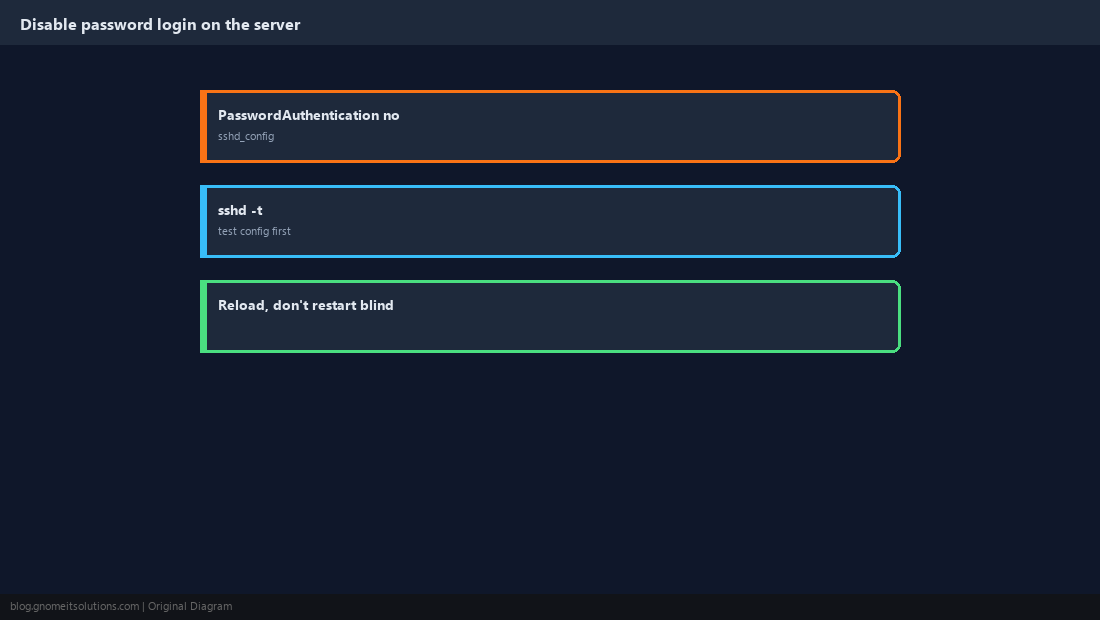
Manage Keys Across Several Servers
Use ~/.ssh/config to give each server a short alias with its own key, and use separate keys for personal login versus automation so one can be revoked without affecting the other.
Host web1
    HostName web1.example.com
    User admin
    IdentityFile ~/.ssh/id_ed25519

Host deploy-bot
    HostName ci.example.com
    User deploy
IdentityFile ~/.ssh/id_ed25519_deployauthorized_keys on the server — no password to rotate everywhere.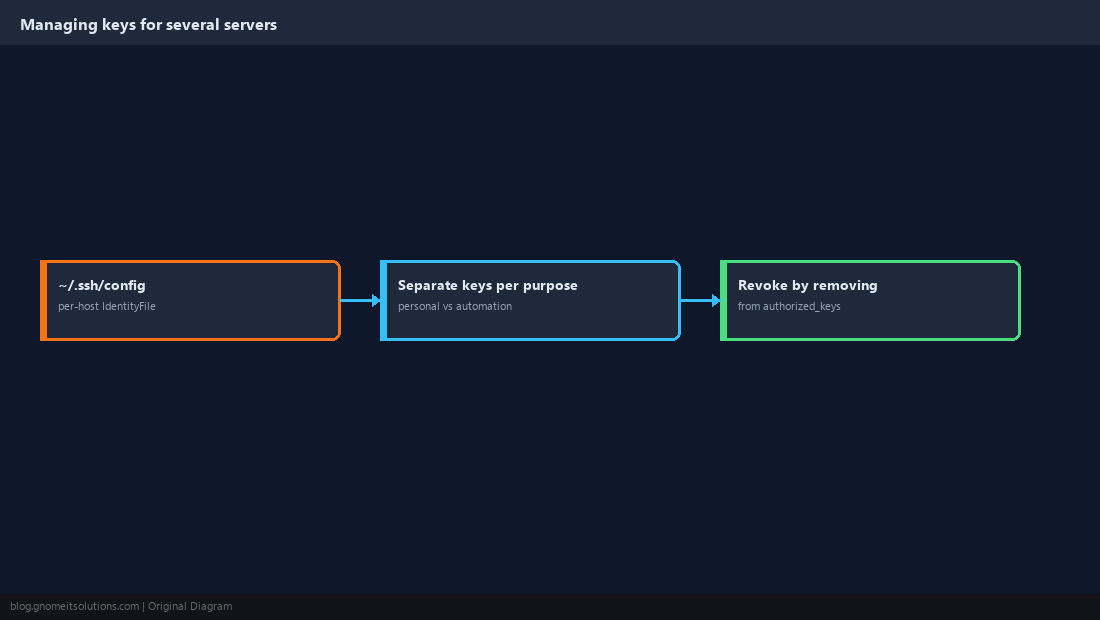
Is SSH key authentication more secure than a password?
Yes, when set up correctly. A key cannot be guessed or brute-forced the way a password can, and a passphrase-protected private key still requires the passphrase even if the key file is copied.
Why does ssh still ask for a password after I added my key?
Almost always permissions: ~/.ssh must be 700 and authorized_keys must be 600 on the server. Also confirm the public key was appended to the correct user’s authorized_keys file.
What is the difference between id_ed25519 and id_ed25519.pub?
The file without .pub is your private key and must never be shared. The .pub file is the public key, safe to copy to any server you want to access.
Should I remove my old RSA key?
Not necessarily. Existing RSA keys of 3072 bits or more remain acceptable; generate new keys as ed25519 going forward.
Can I use one SSH key for multiple servers?
Yes, technically. For anything beyond a personal lab, separate keys per purpose (personal login vs. an automation account) make it possible to revoke one without affecting the other.
Cheat Sheet
ssh-keygen -t ed25519→ssh-copy-id user@host→ test → disable passwords- Permissions:
~/.ssh700,authorized_keys600
Related tutorials
Diagrams are original illustrations by Gnome IT Solutions. Tutorial text © Gnome IT Solutions.