tail -f is one of the most searched Linux commands — operators use it during deploys, incidents, and “why is login failing?” sessions. It streams new lines appended to a file until you press Ctrl+C.
Broader logging: journalctl,
nginx log analysis,
Docker logs.
When to Use tail -f
You already know the log path and need to see errors as they happen — not a full-text search across history.
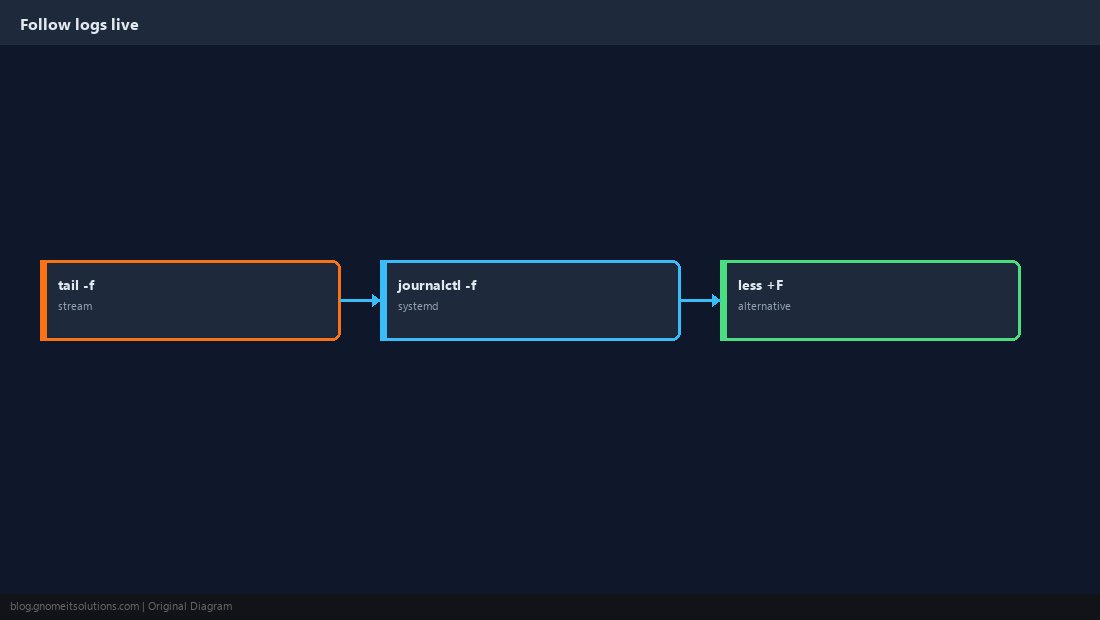
Follow a Classic Log File
Start with the last N lines so you are not flooded.
sudo tail -n 100 -f /var/log/nginx/error.log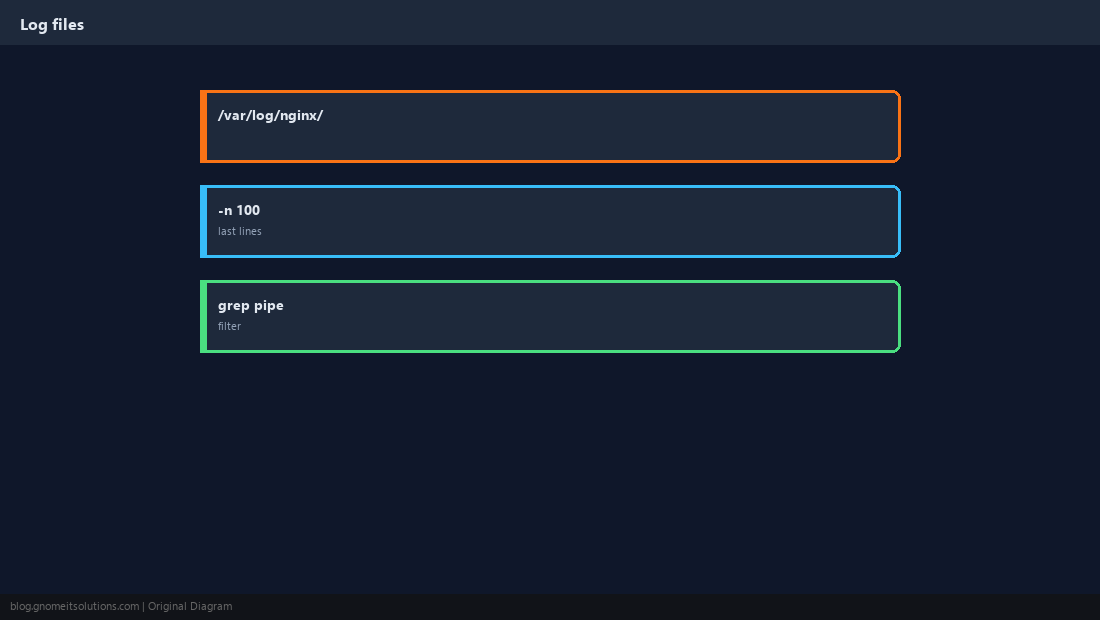
systemd: journalctl -f
When you do not know the file path — filter by unit.
sudo journalctl -u nginx -f --since today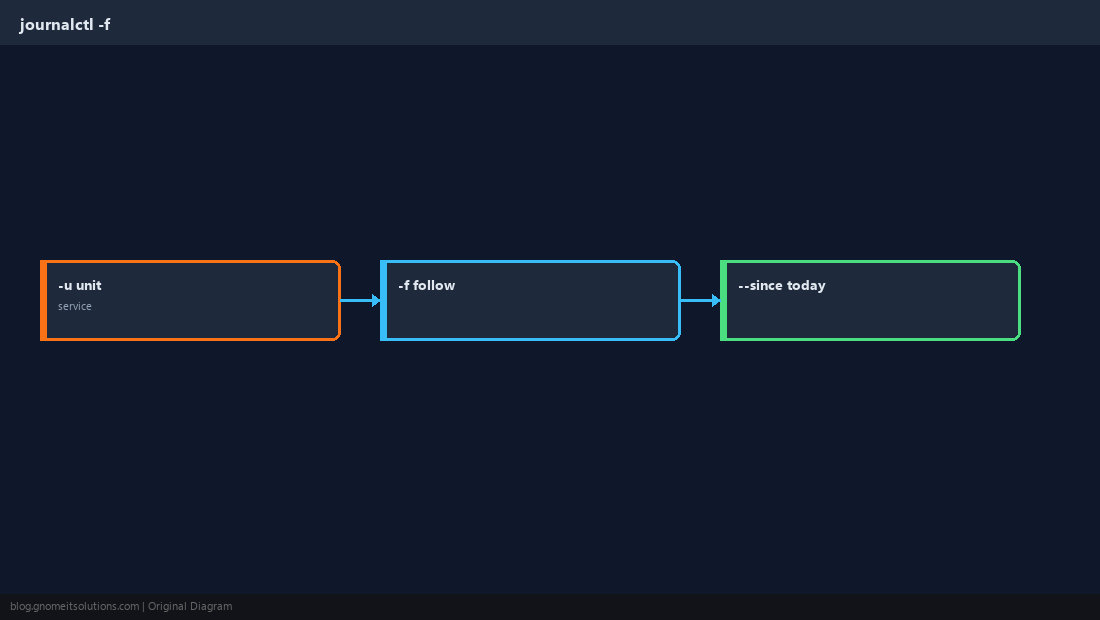
Rotated and Compressed Logs
logrotate may move files; search archives with zgrep or tail the current file only.
sudo zgrep 'error' /var/log/nginx/error.log.1.gz | tail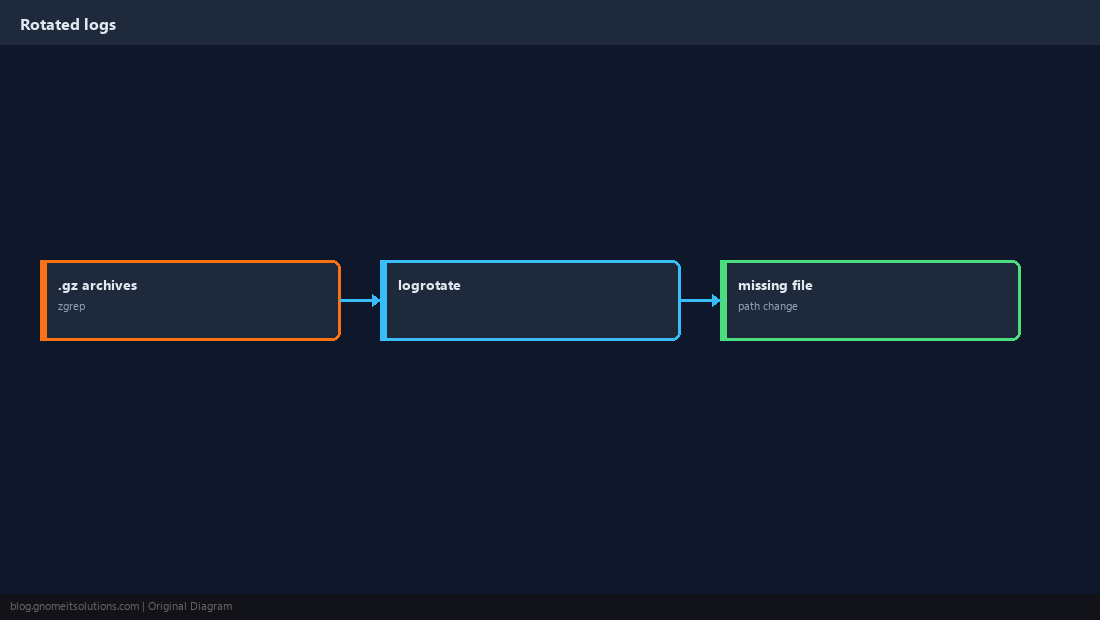
Multiple Sources
Compose stacks and multitail for several files at once.
docker compose logs -f --tail=50 web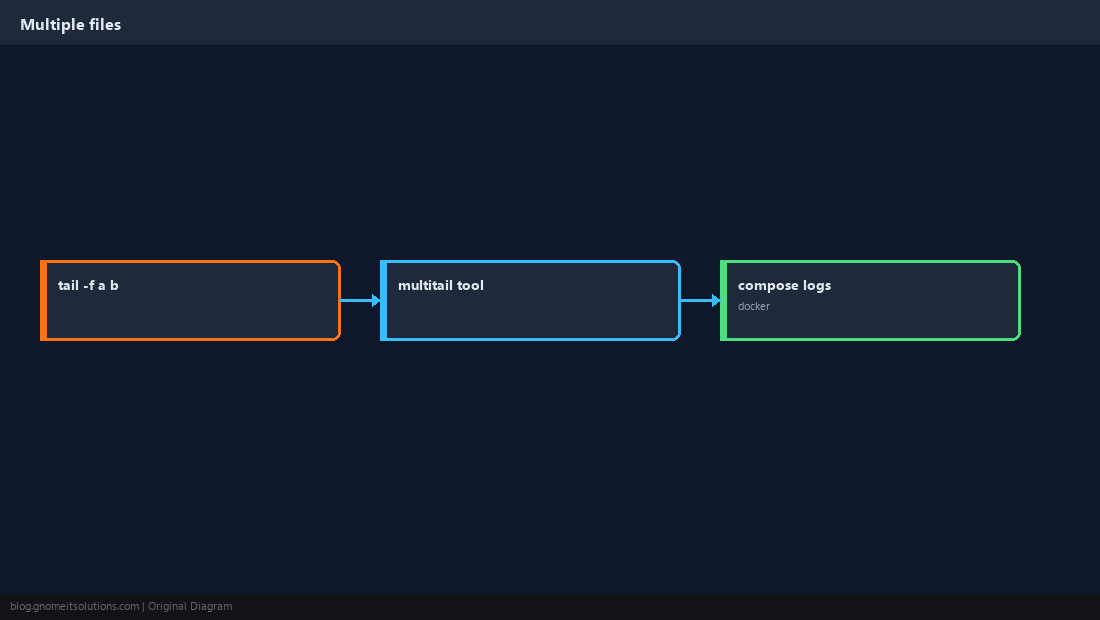
Production Habits
On busy servers, narrow with grep; ship logs to central storage for long retention.
sudo tail -f /var/log/auth.log | grep --line-buffered 'Failed password'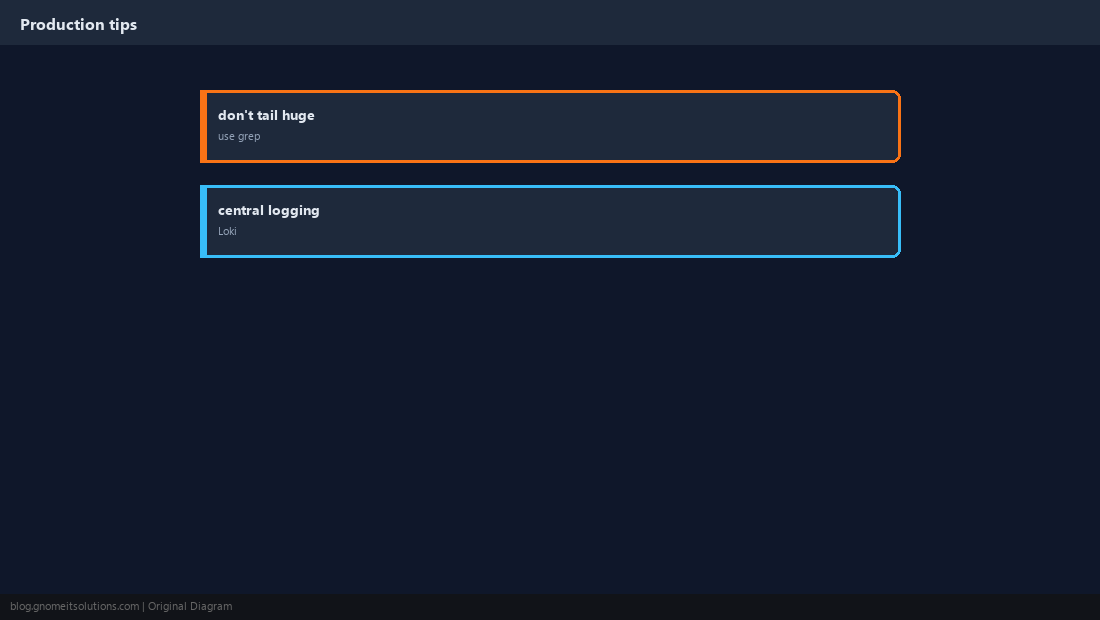
Confirm You See Events
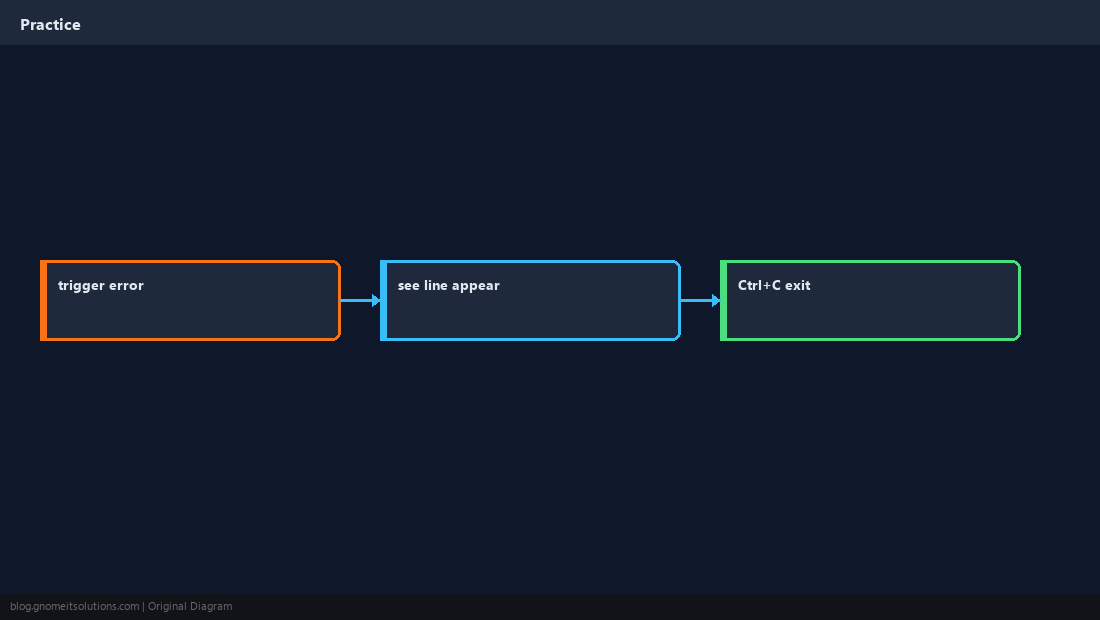
Reproduce the issue in another terminal while tail runs.
Quick Reference
tail -n 100 -f FILEto follow with context- systemd:
journalctl -u UNIT -f - Filter: pipe to
grep --line-buffered
Related tutorials
Diagrams are original illustrations by Gnome IT Solutions. Tutorial text © Gnome IT Solutions.