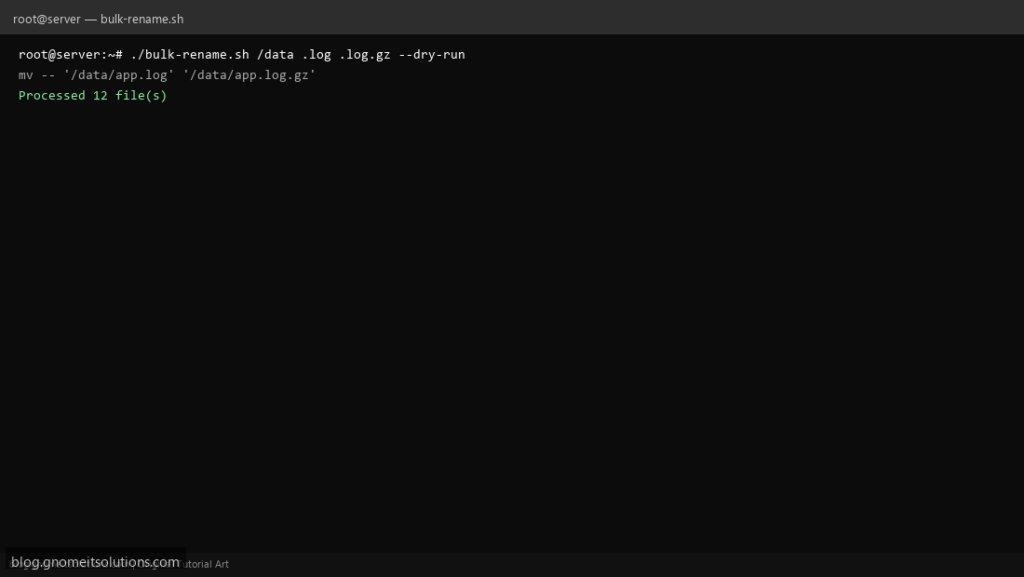
Bulk photo exports and log archives drive searches for bash rename files in a loop — a script with --dry-run prevents the classic mistake of wiping half the extensions wrong.
What this script does
- Renames
*.OLD_EXTto*.NEW_EXTin a directory - Optional prefix (e.g.
2026-) before basename --dry-runprints plannedmvcommands- Skips when target already exists
- Works from explicit directory argument
Prerequisites
- bash 4+
- Write permission in target directory
- Backup before mass rename on production data
Step 1: Save the script
sudo nano /usr/local/bin/bulk-rename.sh
sudo chmod +x /usr/local/bin/bulk-rename.sh
Step 2: Full script (scroll to read)
bulk-rename.sh
#!/usr/bin/env bash
set -euo pipefail

DRY=0
DIR="."
FROM_EXT=""
TO_EXT=""
PREFIX=""

usage(){
  echo "usage: bulk-rename.sh [DIR] FROM_EXT TO_EXT [--dry-run] [--prefix PREFIX]"
  echo "example: bulk-rename.sh /data/logs .log .log.gz --prefix archive-"
  exit 2
}

args=()
while [[ $# -gt 0 ]]; do
  case "$1" in
    --dry-run) DRY=1; shift ;;
    --prefix) PREFIX="$2"; shift 2 ;;
    -h|--help) usage ;;
    *) args+=("$1"); shift ;;
  esac
done

if [[ ${#args[@]} -ge 3 ]]; then
  DIR="${args[0]}"
  FROM_EXT="${args[1]}"
  TO_EXT="${args[2]}"
elif [[ ${#args[@]} -eq 2 ]]; then
  FROM_EXT="${args[0]}"
  TO_EXT="${args[1]}"
else
  usage
fi

[[ -d "$DIR" ]] || { echo "Not a directory: $DIR"; exit 1; }
[[ "$FROM_EXT" == .* ]] || FROM_EXT=".$FROM_EXT"
[[ "$TO_EXT" == .* ]] || TO_EXT=".$TO_EXT"

shopt -s nullglob
count=0
for f in "$DIR"/*"$FROM_EXT"; do
  base=$(basename "$f" "$FROM_EXT")
  dest="$DIR/${PREFIX}${base}${TO_EXT}"
  if [[ -e "$dest" ]]; then
    echo "SKIP exists: $dest"
    continue
  fi
  if (( DRY )); then
    echo "mv -- '$f' '$dest'"
  else
    mv -- "$f" "$dest"
    echo "OK: $f -> $dest"
  fi
  ((count++)) || true
done

echo "Processed $count file(s)"
Scroll inside the box to read the full script.
Step 3: Configure settings
- For complex rules use
rename(perl) ormmvif installed - Pair with find delete old files after archiving
- Test on a copy of the folder first
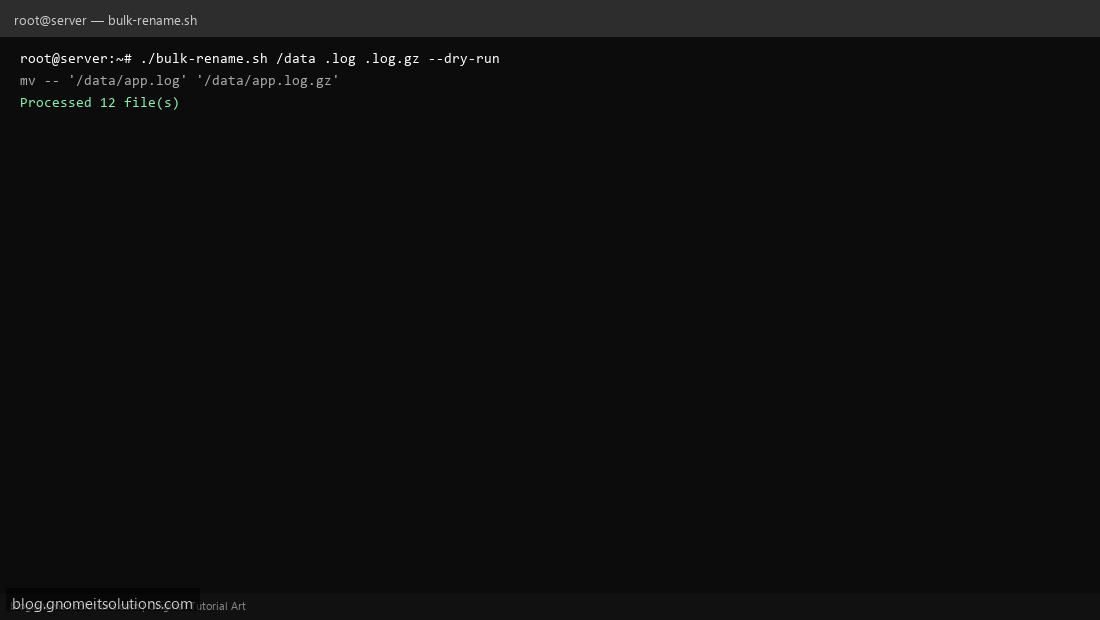
Step 4: Test manually
mkdir -p /tmp/rename-test && touch /tmp/rename-test/a.txt /tmp/rename-test/b.txt./bulk-rename.sh /tmp/rename-test .txt .bak --dry-runRelated tutorials
- Linux Backup Shell Script: Files & Database to Remote Server
- Cron Jobs in Linux: Schedule Tasks with crontab
- SSH Key Authentication on Linux Servers
Terminal screenshot is an original illustration created for Gnome IT Solutions (blog.gnomeitsolutions.com).