cp copies files and directories; mv moves them, and renaming in Linux is simply moving a file to a new name in the same place.
Both are simple, but a couple of options decide whether you keep permissions and whether you silently overwrite something important.
Quick answer: cp -a src/ dest/ copies a directory exactly; cp -i and mv -i ask before overwriting; mv old new renames.
Copy a File
Give cp a source and a destination. If the destination is a directory, the file keeps its name inside it.
cp nginx.conf nginx.conf.bak
cp report.pdf /home/anil/
cp a.txt b.txt c.txt /tmp/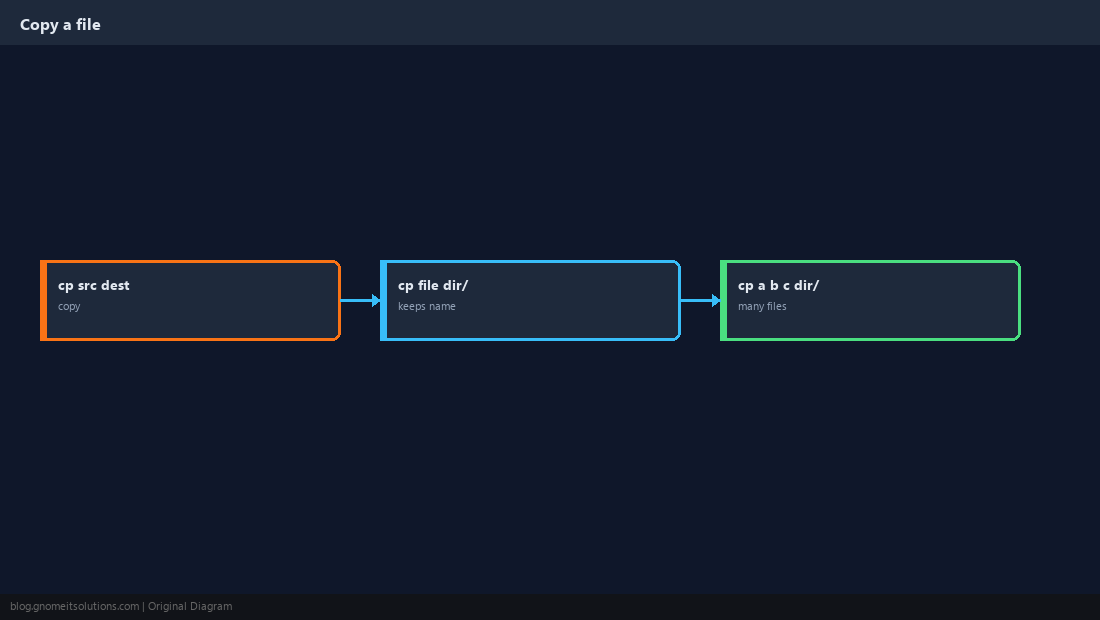
Copy a Directory With -r or -a
Directories need -r. -a (archive) is usually better: it copies recursively and preserves permissions, ownership, timestamps and symlinks.
cp -r site/ site-copy/
sudo cp -a /var/www/html /var/www/html.bak-$(date +%F)cp -a. It is the quickest rollback there is.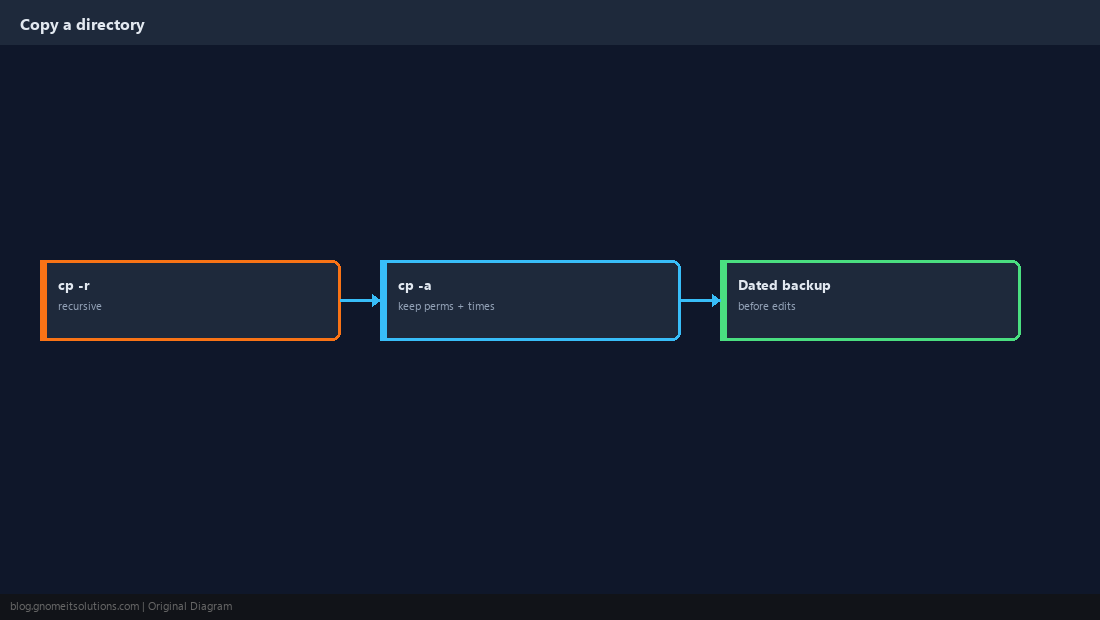
Avoid Overwriting Files
By default cp and mv overwrite existing files without asking. -i prompts, -n never overwrites, and --backup keeps the old file with a ~ suffix.
cp -i new.conf app.conf
cp -n *.jpg /photos/
cp --backup=numbered app.conf /etc/app/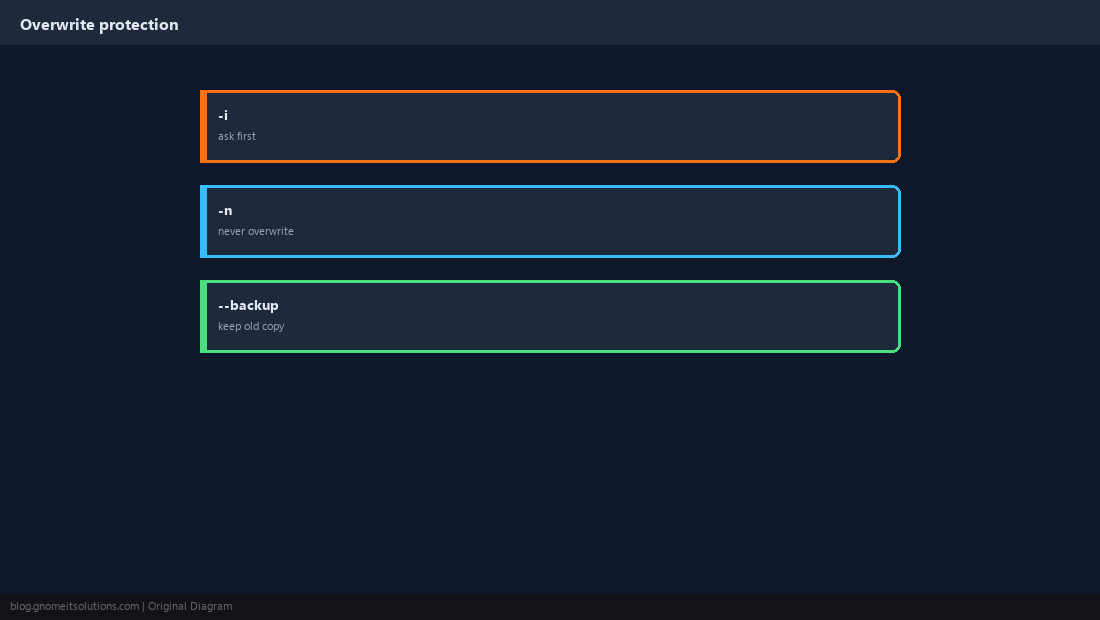
Show Progress and Copy Only Newer Files
-v prints each file; -u copies only when the source is newer than the destination, which is a quick way to refresh a copy.
cp -av src/ dest/
cp -ru src/* dest/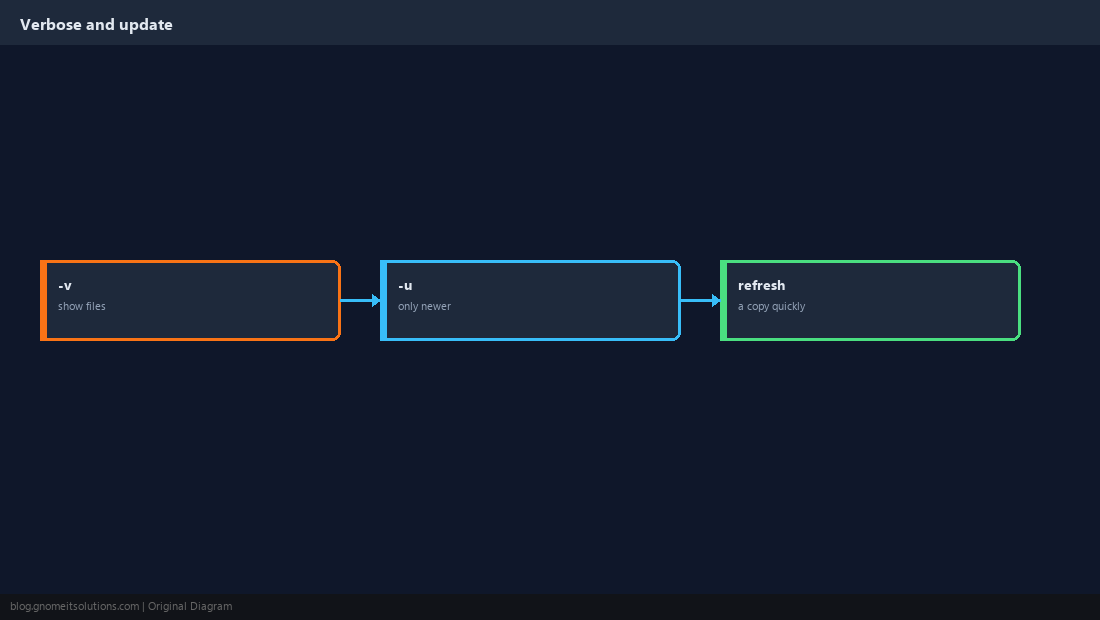
Move Files and Directories With mv
mv moves files and whole directories; no -r is needed. Within the same filesystem it is instant because only the name changes.
mv report.pdf ~/Documents/
mv /var/www/old-site /var/www/archive/
mv *.log /var/log/archive/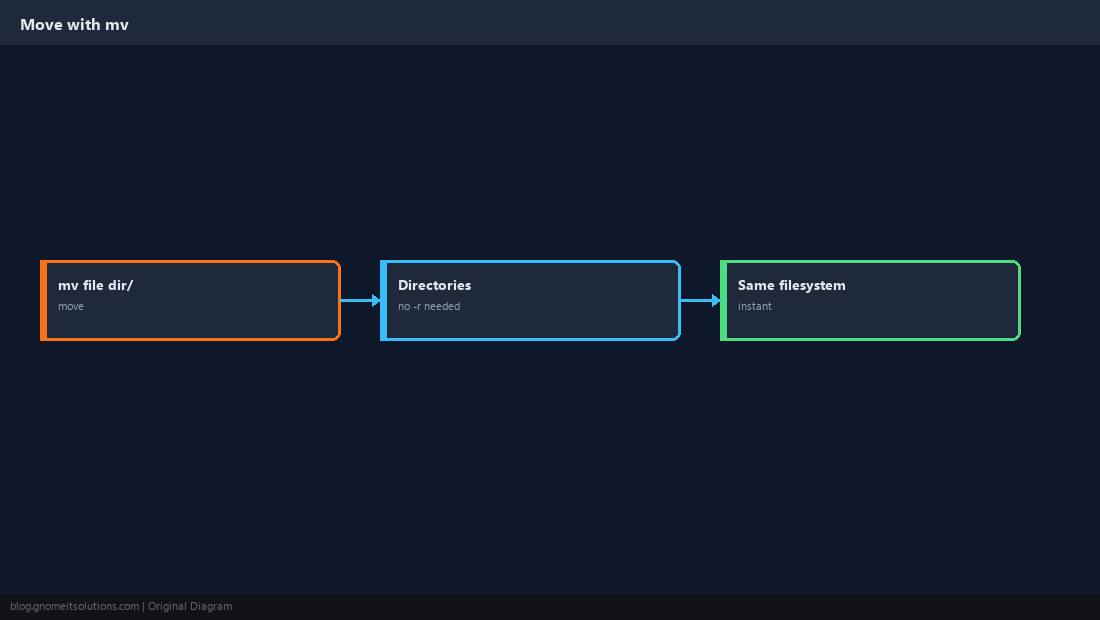
Rename Files
Renaming is a move to a new name. Use -i to avoid replacing an existing file. For many files, use a loop or the rename tool.
mv draft.txt final.txt
mv -i config.yml config.yml.oldfor f in *.jpeg; do mv -i -- "$f" "${f%.jpeg}.jpg"; done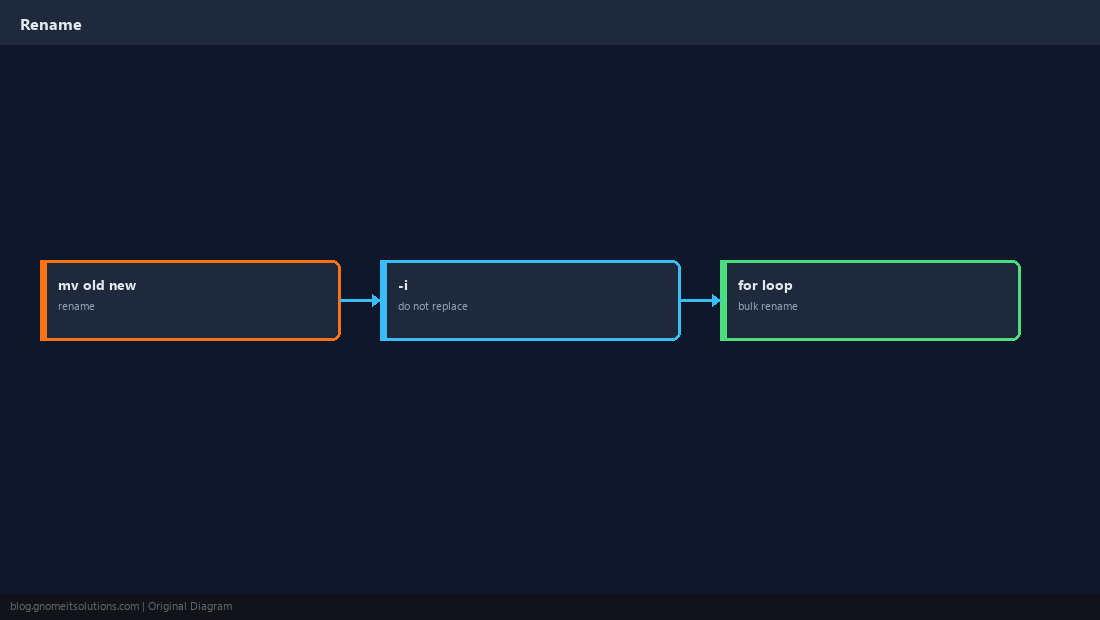
Copy Between Servers
cp and mv work on one machine. To copy to another server use scp or rsync over SSH.
scp backup.tar.gz user@server:/backups/
rsync -avz /var/www/ user@server:/var/www/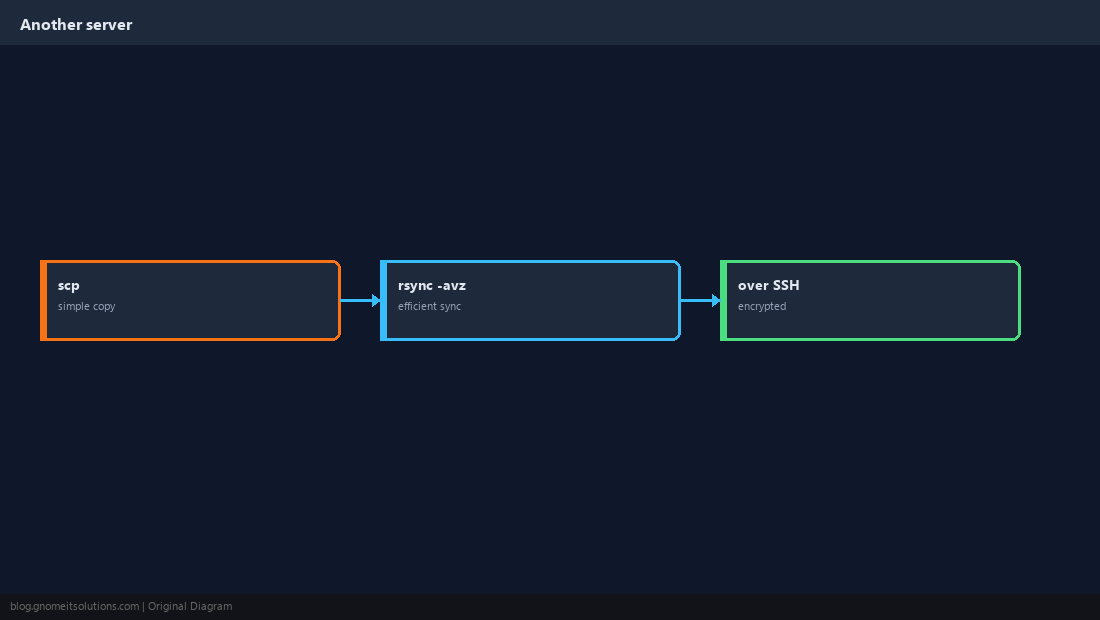
When to Use rsync Instead of cp
For large directories, rsync can resume, show progress and copy only what changed, which makes it better than cp for big or repeated copies.
rsync -a --info=progress2 /data/ /mnt/backup/data/
rsync -a --delete /data/ /mnt/backup/data/    # mirror, removes extras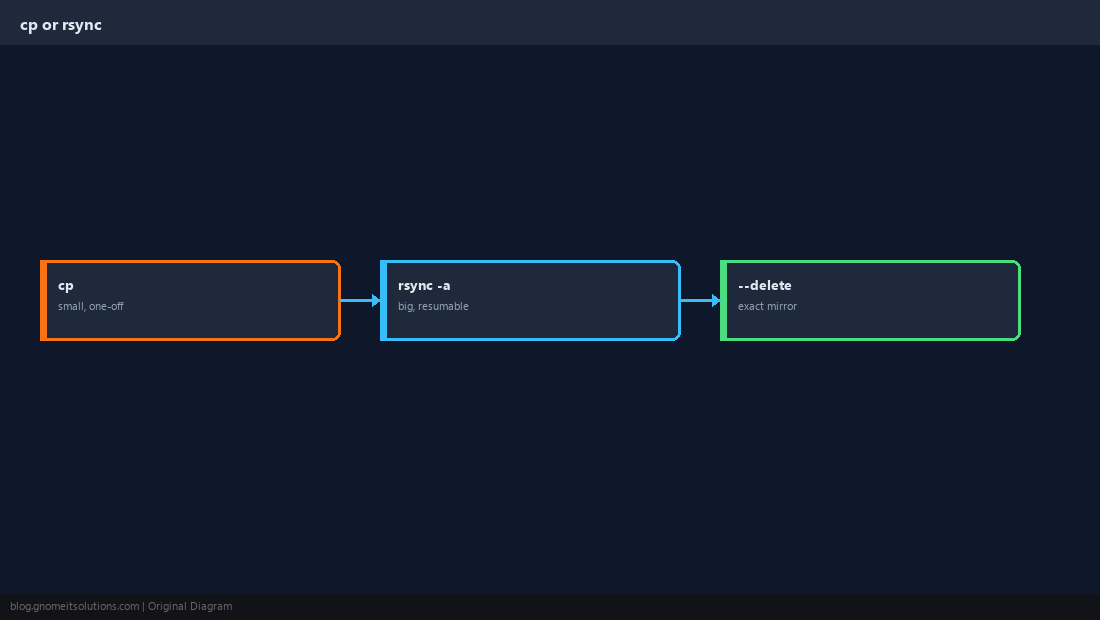
Quick Reference
How do I copy a directory in Linux?
Use cp -r source dest, or cp -a source dest to also keep permissions, ownership and timestamps.
How do I rename a file in Linux?
Use mv: mv oldname newname. Add -i to be asked before replacing an existing file.
How do I stop cp from overwriting files?
Use cp -i to be prompted, cp -n to never overwrite, or --backup to keep the old copy.
What is the difference between cp and mv?
cp makes a copy and leaves the original; mv moves or renames, so the original name no longer exists.
Does mv need -r for directories?
No. mv moves directories with all their contents without any extra option.
Cheat Sheet
cp file dest,cp -a dir/ dest/,cp -i,cp -nmv old new,mv -i,rsync -a src/ dest/
Related tutorials
Diagrams are original illustrations by Gnome IT Solutions. Tutorial text © Gnome IT Solutions.