
Deleting a directory in Linux is one command, but it is also the command most likely to cause a bad day: there is no recycle bin on the command line.
This guide shows the right command for each situation and the habits that stop an accidental rm -rf from deleting the wrong thing.
Quick answer: rmdir dir removes an empty directory; rm -r dir removes a directory and everything in it; add -i to confirm each file.
Remove an Empty Directory With rmdir
rmdir only deletes empty directories, which makes it the safest option. -p removes empty parent directories too.
rmdir old-folder
rmdir -p a/b/c # removes c, then b, then a if emptyrmdir: failed to remove 'old-folder': Directory not empty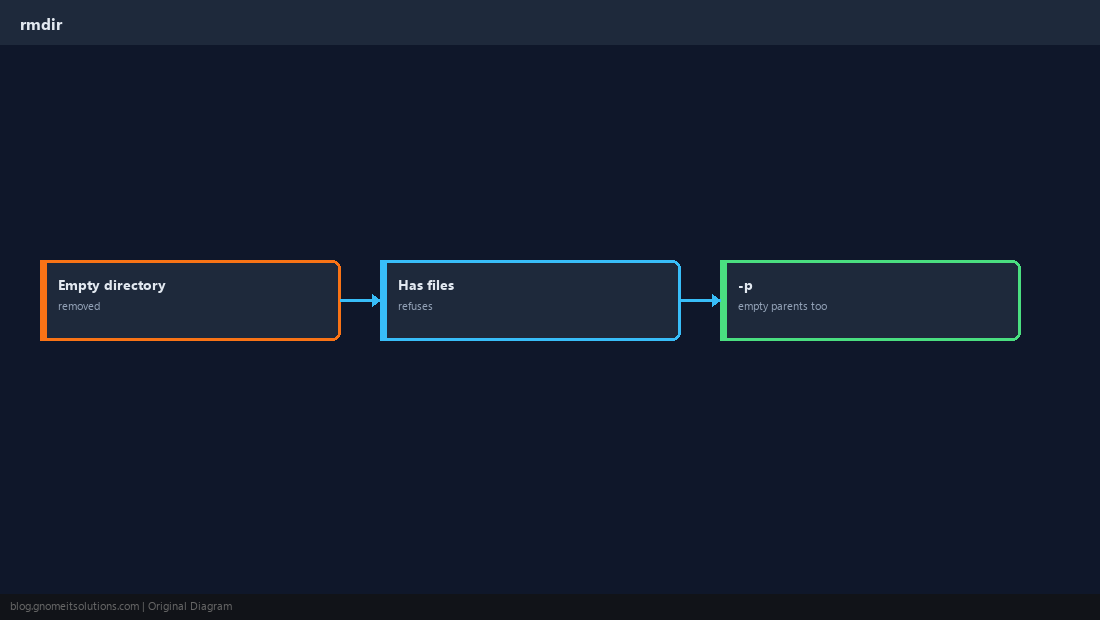
Delete a Directory and Its Contents With rm -r
-r (recursive) deletes the directory and everything below it. Without -f you are still asked about write-protected files.
rm -r old-project
rm -r dir1 dir2 dir3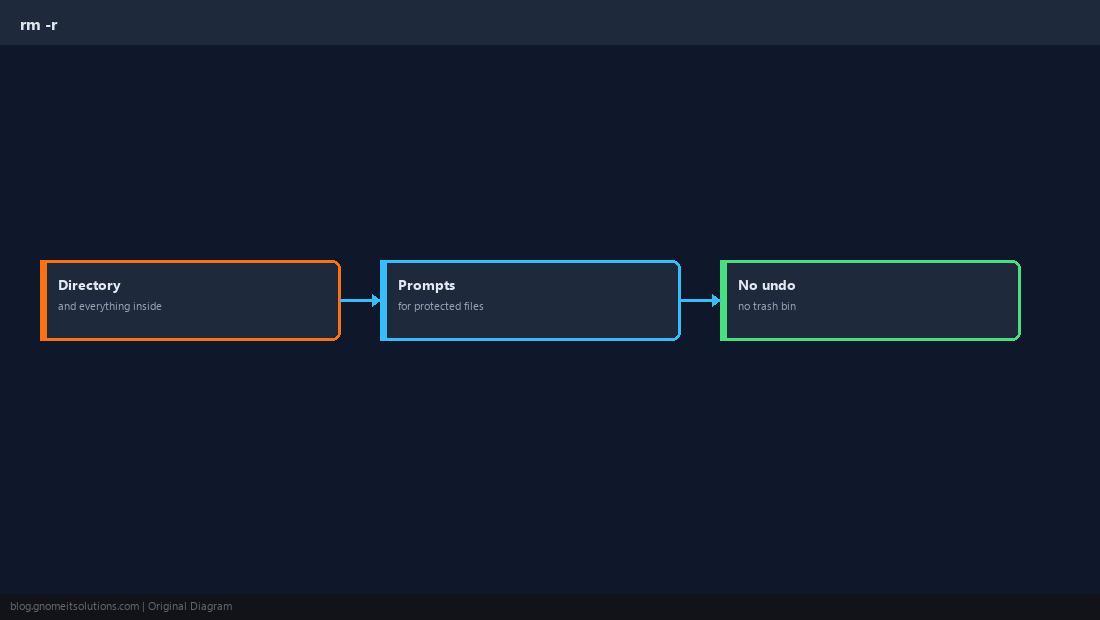
Force Delete With rm -rf (Carefully)
-f skips all prompts and ignores missing files. It is useful in scripts but removes every safety net, so check the path first.
ls -ld /var/www/old-site      # look first
rm -rf /var/www/old-siterm -rf with a variable that might be empty, such as rm -rf "$DIR"/*. If $DIR is empty this targets /*. Use ${DIR:?} so the shell stops when it is unset.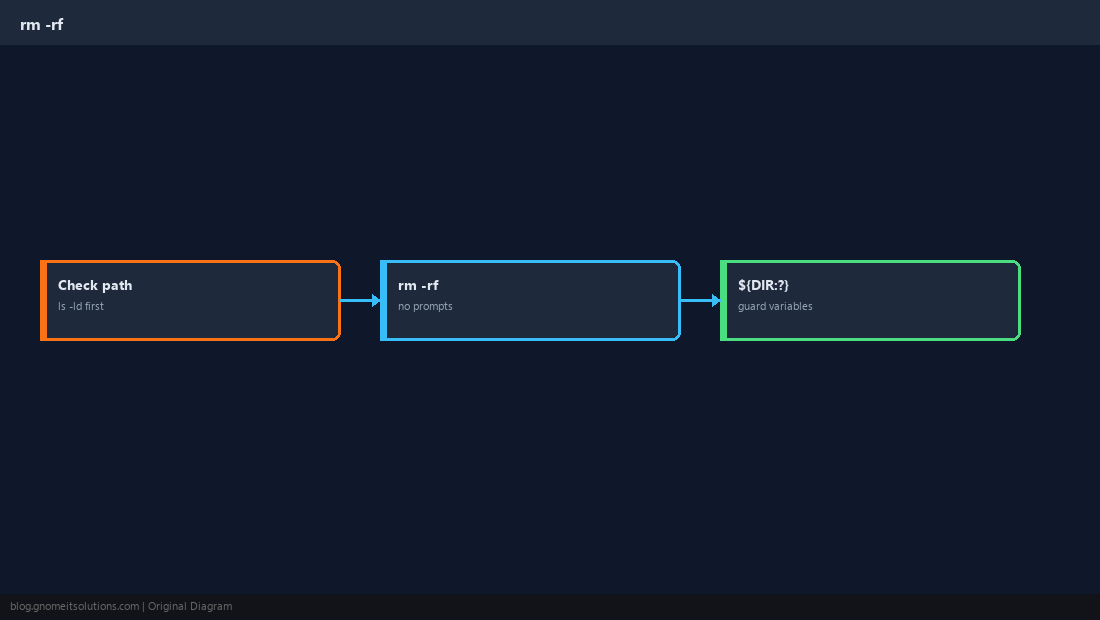
Confirm Each File With -i or -I
-i asks before every file; -I asks once before deleting more than three files or recursing. -v prints each file as it is removed.
rm -ri old-folder
rm -rI logs/
rm -rv build/
Delete Only Contents, Keep the Directory
To empty a folder but keep it (with its permissions and ownership), delete what is inside instead of the folder itself.
rm -rf /var/cache/app/*                 # does not remove hidden files
find /var/cache/app -mindepth 1 -delete  # removes hidden files too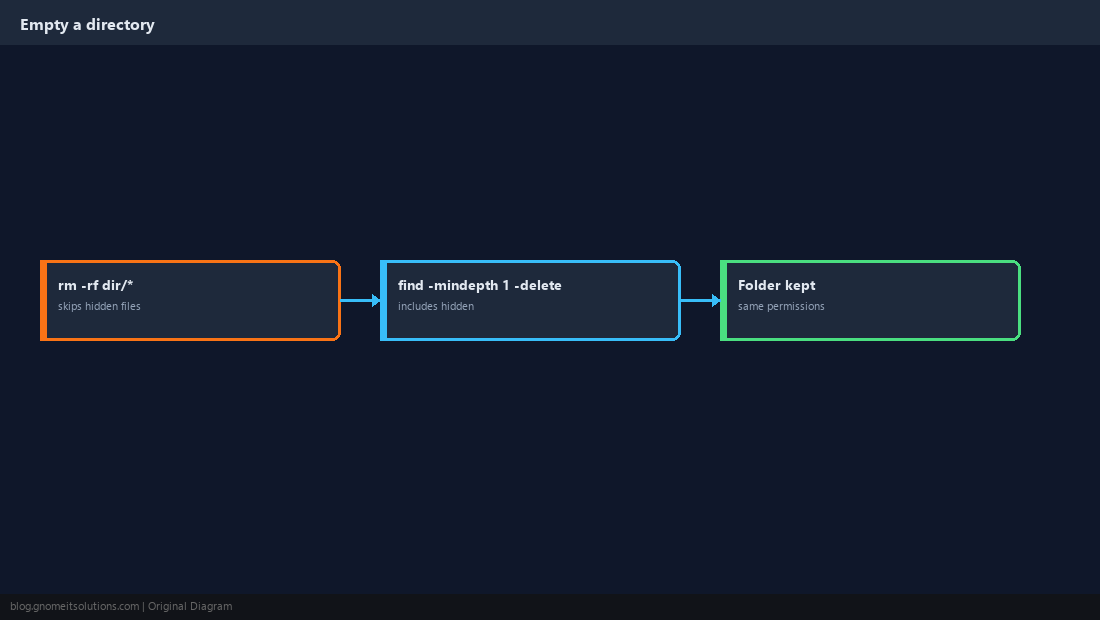
Delete by Pattern or Age With find
find selects exactly what to remove, such as directories older than 30 days or empty directories, and lets you preview the list first.
find /backups -maxdepth 1 -type d -mtime +30 -print          # preview
find /backups -maxdepth 1 -type d -mtime +30 -exec rm -rf {} +
find /data -type d -empty -delete                              # empty dirs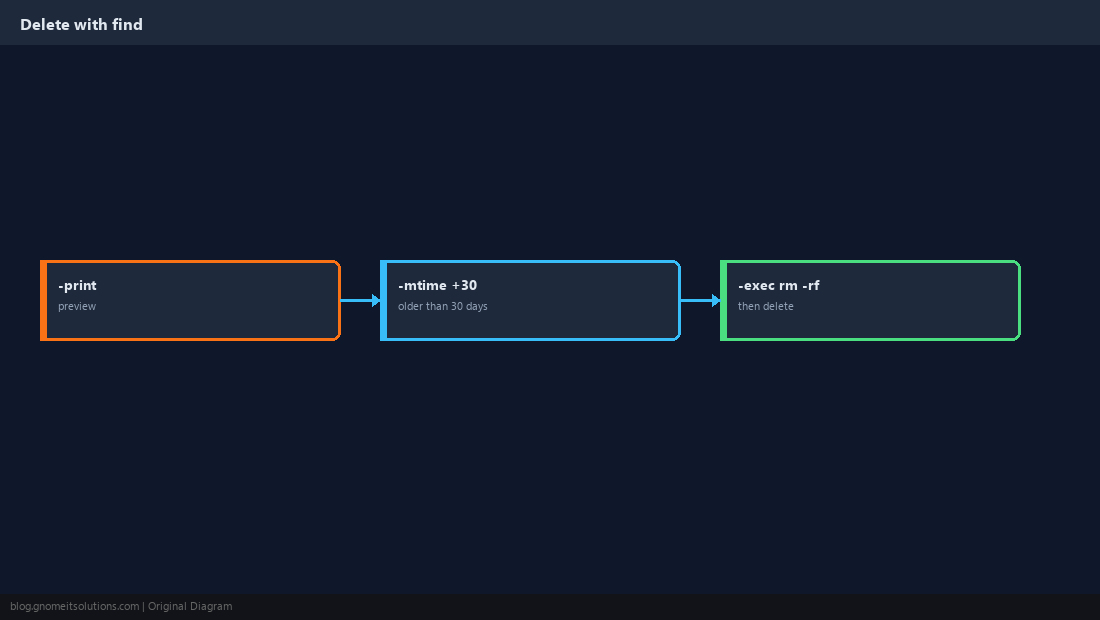
Fix Permission Denied and Busy Errors
Permission denied means you need write permission on the parent directory, often via sudo. Device or resource busy usually means something is mounted there or a process is using it.
ls -ld /path/parent
sudo rm -r /path/parent/dir
mount | grep /path/dir
sudo lsof +D /path/dir | headsudo chattr -i file.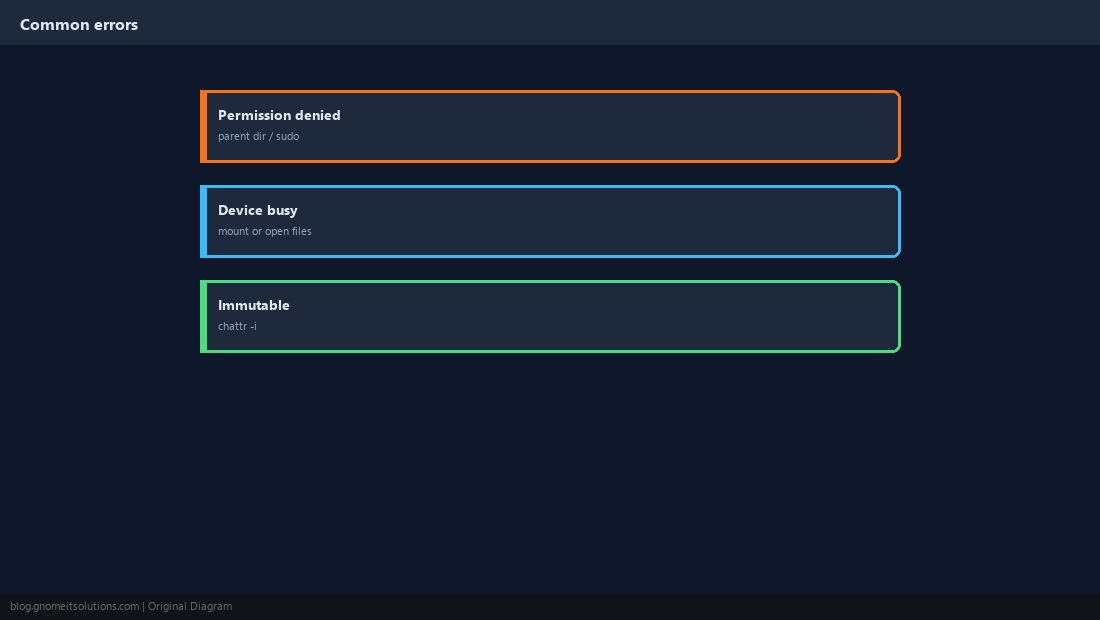
Safe Deletion Habits
Most disasters come from a typo or the wrong working directory. A few habits remove most of the risk.
pwd && ls                         # know where you are
rm -rI dir                        # one confirmation for big deletes
mv dir /tmp/trash-$(date +%F)/    # move instead of delete when unsure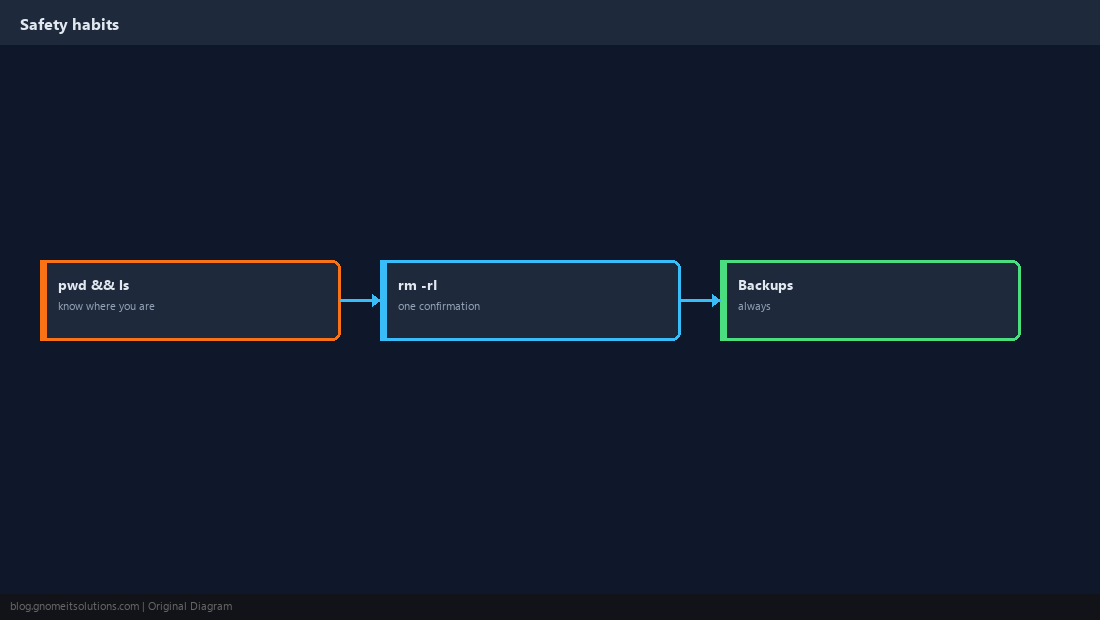
Quick Reference
How do I delete a directory that is not empty in Linux?
Use rm -r directory. Add -f to skip prompts or -i to confirm each file.
What is the difference between rm -r and rmdir?
rmdir deletes only empty directories. rm -r deletes a directory together with all files and subdirectories inside it.
Is rm -rf dangerous?
It deletes without asking and cannot be undone. Always check the path with ls first, and never use it with a variable that could be empty.
How do I delete all files in a directory but keep the directory?
Run find dir -mindepth 1 -delete, which also removes hidden files, or rm -rf dir/* for non-hidden files.
Can I recover files deleted with rm?
Not reliably. rm does not use a trash folder, so restore from a backup.
Cheat Sheet
rmdir dir,rm -r dir,rm -rf dir,rm -rI dirfind dir -mindepth 1 -delete,find /path -type d -empty -delete
Related tutorials
Diagrams are original illustrations by Gnome IT Solutions. Tutorial text © Gnome IT Solutions.