Proxmox VE ships with two container stories that confuse newcomers: native LXC containers (CTs)
managed directly in the Proxmox UI, and Docker — which is not built into Proxmox but runs inside
a VM or a nested LXC. Picking the wrong one leads to backup gaps, performance surprises, or unsupported nesting configs.
This guide explains when to use Proxmox LXC, when to run Docker in a dedicated VM, and when nested Docker inside
LXC is acceptable — with decision criteria for homelab and production.
Quick answer
- Use LXC for lightweight Linux services (DNS, VPN, monitoring agents, small APIs)
- Use Docker in a VM for Compose stacks, CI runners, and production parity with cloud
- Use nested Docker in LXC only for homelab/K3s experiments — not ideal for critical prod
Step 1: Understand What Proxmox LXC Actually Is
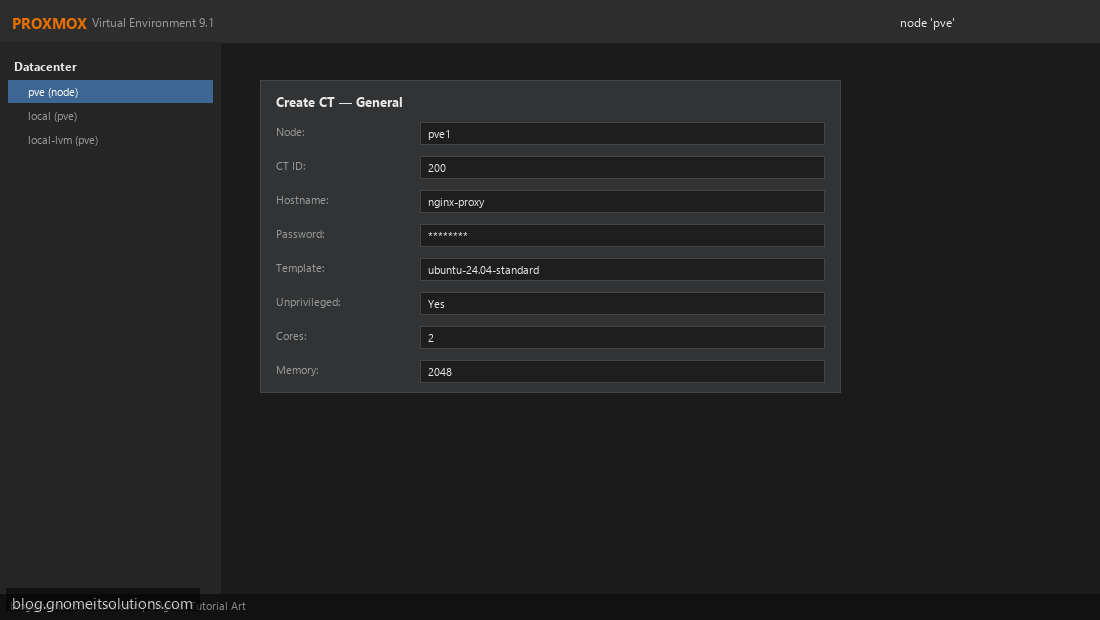
Proxmox LXC containers are Linux system containers — they share the host kernel but have isolated process trees, network namespaces, and filesystems. Proxmox creates, snapshots, backs up, and migrates CTs like lightweight VMs. There is no Docker daemon involved unless you install one inside the CT. CTs start in seconds and typically use 50–200 MB RAM before your application loads.
Step 2: Understand Docker’s Role on Proxmox
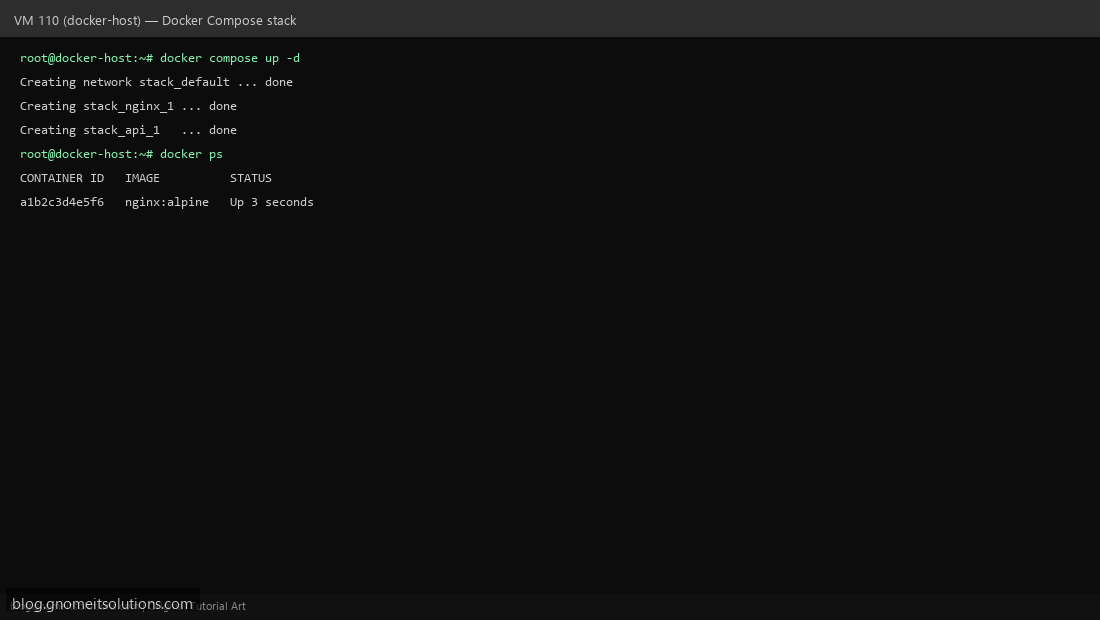
Docker is an application container runtime. On Proxmox, Docker almost always runs inside a guest — either a full VM (cleanest isolation) or an LXC with nesting enabled (Docker-in-LXC). Proxmox does not manage individual Docker containers; it manages the VM or CT that hosts Docker. Backup the whole VM/CT with vzdump or PBS to capture Docker volumes consistently.
Step 3: Side-by-Side Comparison
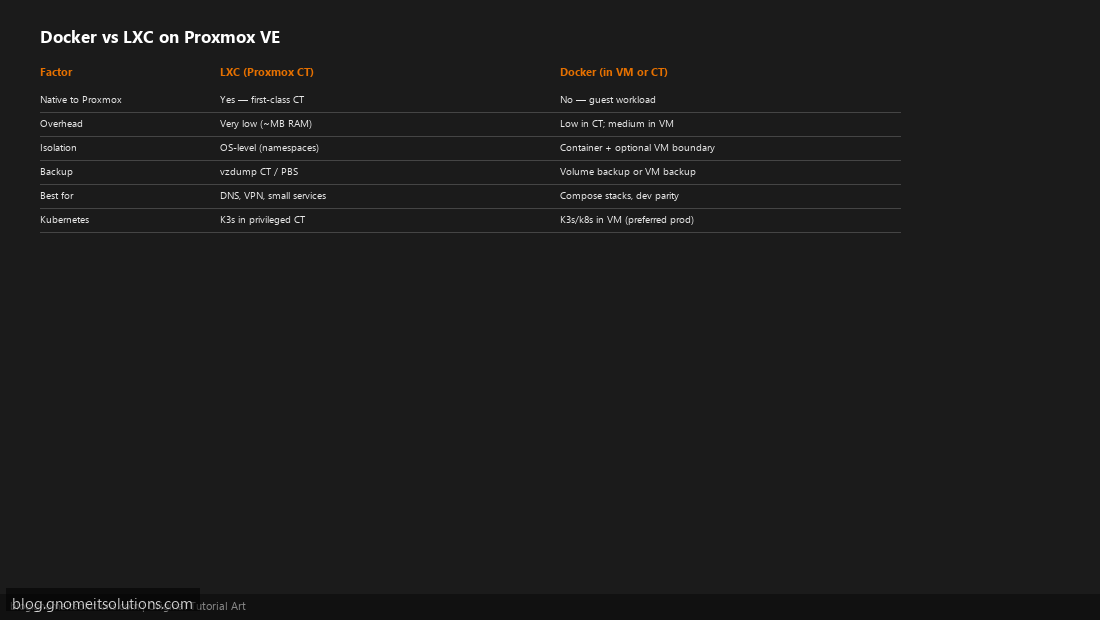
Use this table when planning a new service. LXC wins on efficiency and Proxmox integration; Docker wins on ecosystem (Compose, registries, developer workflow).
Step 4: When to Choose Proxmox LXC
Choose LXC when: running a single-purpose Linux daemon (Pi-hole, WireGuard, Tailscale subnet router, Prometheus node exporter), you want Proxmox snapshot/backup per service without VM overhead, RAM is limited, or you need fast clone/restore. Use unprivileged CTs by default for security. Map storage with bind mounts or dedicated CT disks on ZFS for easy rollback.
Step 5: When to Choose Docker (in a VM)
Choose Docker in a dedicated VM when: deploying multi-container Compose stacks, you need kernel modules Docker depends on, running rootless or complex volume driver setups, matching production that also uses Docker/Kubernetes, or isolating dev teams from the hypervisor. Size the VM with 2–4 vCPU, 8+ GB RAM, and a large thin-provisioned disk on ZFS or local-lvm.
Step 6: Nested Docker in LXC (Homelab Only)
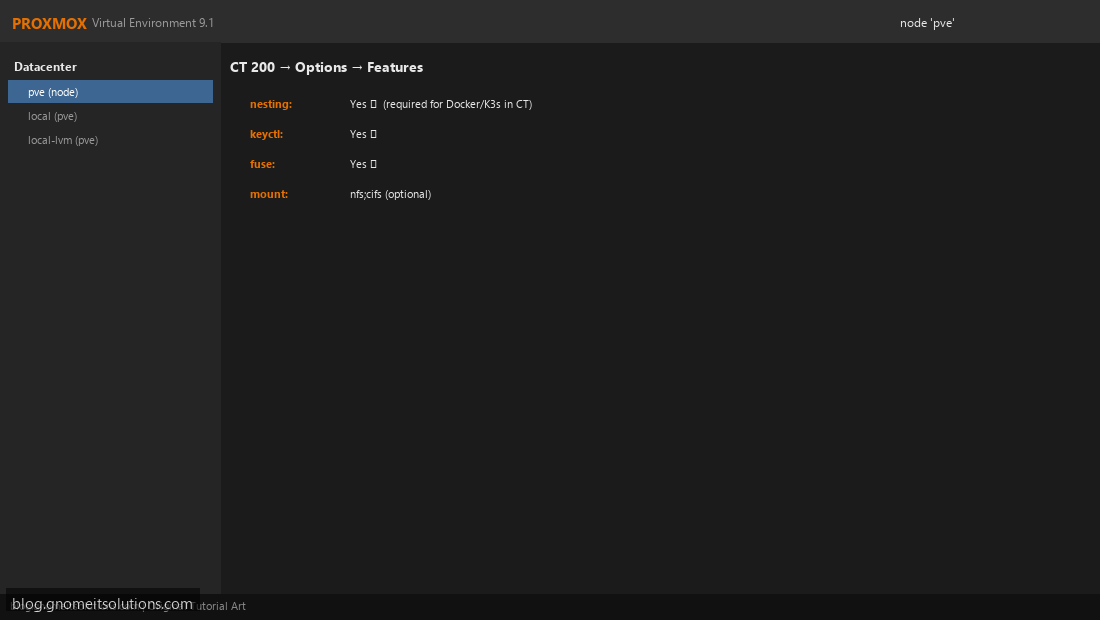
To run Docker inside LXC, enable CT Features → nesting, keyctl, fuse. Some guides use privileged CTs for K3s/Docker — simpler but weaker isolation. Acceptable for homelab and learning; for production prefer a VM or bare-metal K8s node. Expect Proxmox support forums to recommend VMs when things break with nested cgroups.
Decision flowchart (text)
- Single Linux service, minimal RAM? → LXC
- Multi-container app with docker-compose.yml? → VM + Docker
- Need Kubernetes? → K3s on LXC (lab) or K3s/RKE2 on VMs (prod)
- Windows container? → VM only (no LXC on Proxmox for Windows)
Backup reminder
LXC: native Proxmox backup job. Docker in VM: backup the VM; for consistent volume snapshots consider ”
“stopping containers or using Velero/restic inside the guest.
Related tutorials
Image credits: All illustrations use original Proxmox VE branded artwork created
for Gnome IT Solutions — not copied from vendor marketing assets or third-party screenshots.
Tutorial text © Gnome IT Solutions.
Image credits: Screenshots are from the official
Proxmox VE documentation
(Proxmox GmbH), used under open documentation terms for educational purposes.
Tutorial text and layout © Gnome IT Solutions.