Our API tokens guide covered scoping access for
scripts calling the Proxmox API. This guide covers the same underlying permission system from the
other side — the GUI-driven model you use to control what your human team members (ops
staff, junior admins, read-only auditors) can see and do when they log into Proxmox directly.
Proxmox’s access control has four moving parts that all click together: Users (who),
Groups (collections of users), Roles (named bundles of privileges), and
ACLs (which bind a role to a user/group at a specific path in the resource
tree). This guide builds a real example: an ops team member who can manage exactly one VM’s power state and
console, and nothing else.
Step 1: Understand the Permission Model
The chain is: a User belongs to one or more Groups; a Role is a named bundle of low-level Privileges (like VM.PowerMgmt or Datastore.Allocate); an ACL entry ties a Role to a User or Group at a specific Path in Proxmox’s resource tree (like /vms/100 or /storage). Nothing is permitted by default — access exists only where an ACL entry explicitly grants it.
Step 2: Create a User
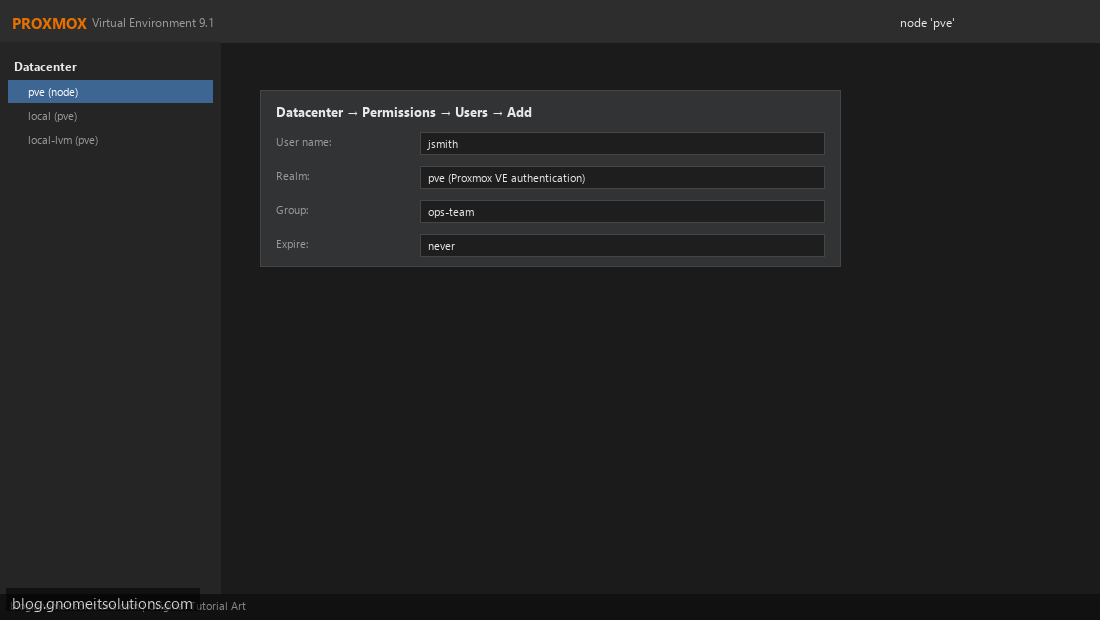
Datacenter → Permissions → Users → Add. Choose the Realm: pve creates a Proxmox-local account with its own password; pam ties the account to an existing Linux system user on the host. Most teams use pve realm accounts for admin staff so credentials aren’t tied to actual shell access on the hypervisor.
Step 3: Explore the Built-In Roles
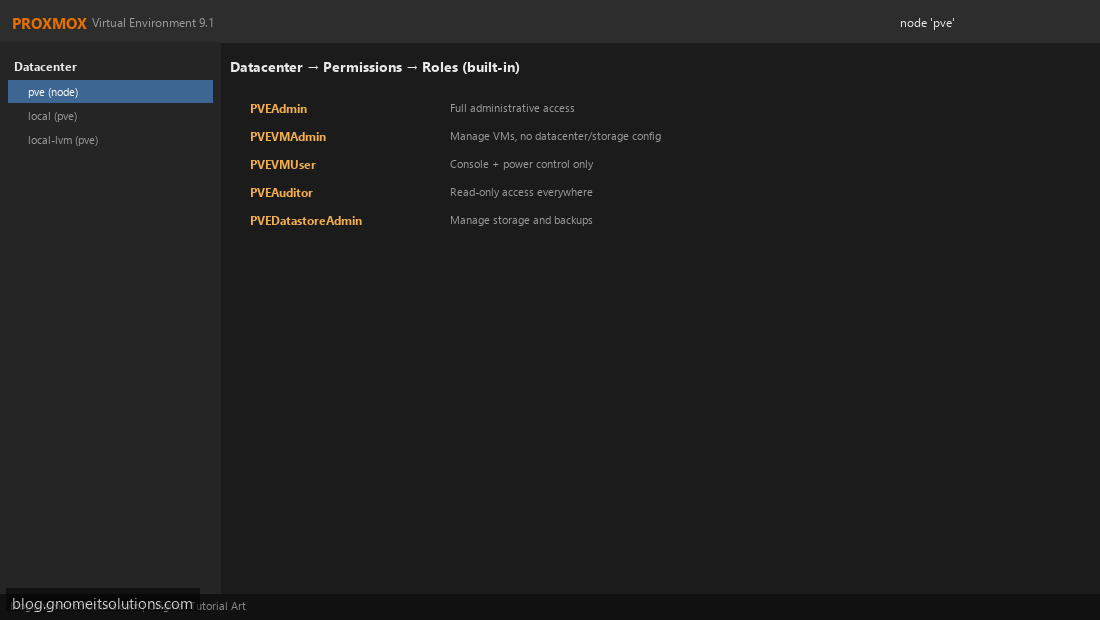
Proxmox ships several ready-made roles: PVEAdmin (full control), PVEVMAdmin (manage VMs, but not datacenter/storage config), PVEVMUser (console access and power control only, no VM settings), PVEAuditor (read-only everywhere — great for monitoring integrations or a manager who wants visibility without change access), and PVEDatastoreAdmin (manage storage and backups). Check Datacenter → Permissions → Roles to see the full list with their exact privilege sets.
Step 4: Create a Custom Role When Built-Ins Don’t Fit
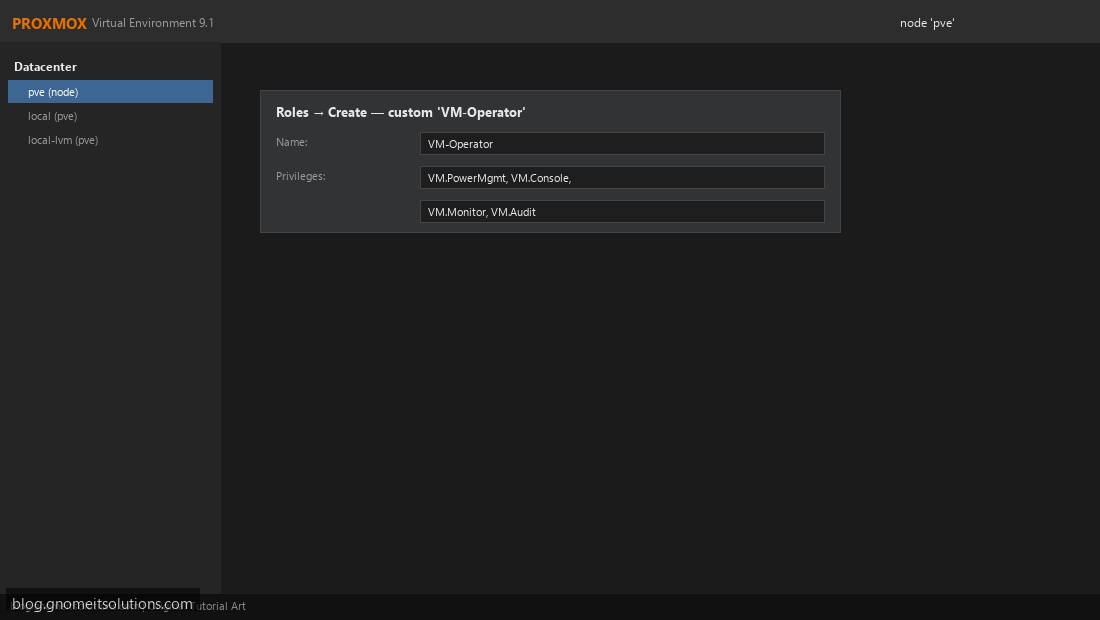
None of the built-in roles exactly match “can start/stop and view one VM’s console, nothing else”? Roles → Create. Name it (e.g. VM-Operator) and hand-pick privileges from the list: VM.PowerMgmt, VM.Console, VM.Monitor, VM.Audit — deliberately excluding VM.Config.* privileges that would let them change hardware or delete the VM.
Step 5: Understand ACL Path Granularity
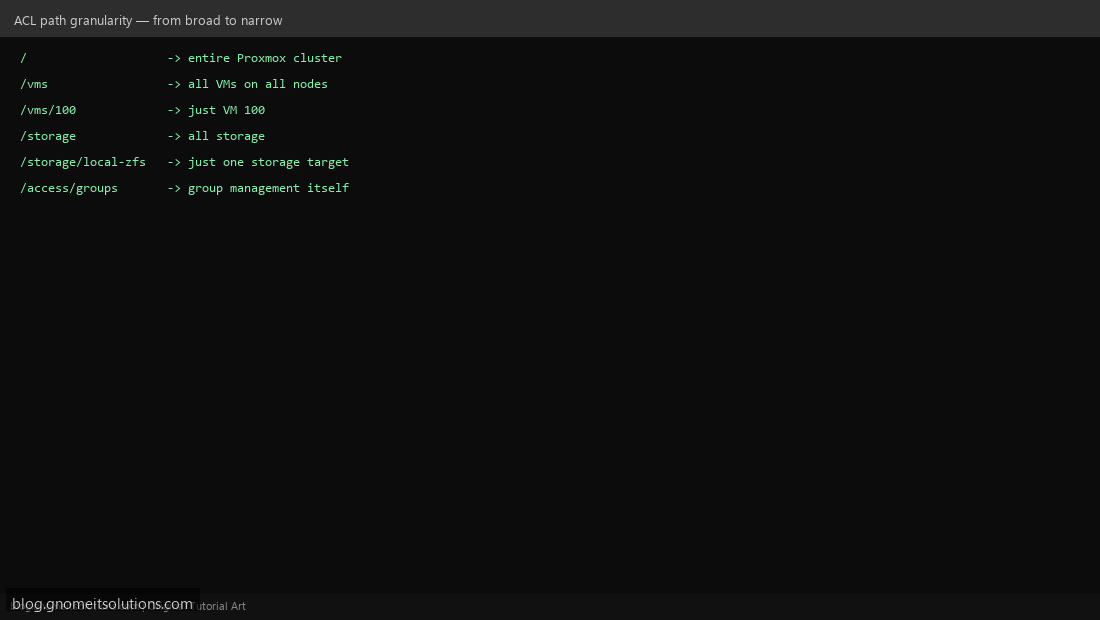
A role means nothing until it’s applied at a path — and the path is what controls scope. / applies cluster-wide; /vms applies to every VM on every node; /vms/100 applies to exactly one VM; /storage/local-zfs scopes to one storage target. The same role granted at different paths has very different real-world impact — always grant at the narrowest path that satisfies the actual need.
Step 6: Apply the ACL
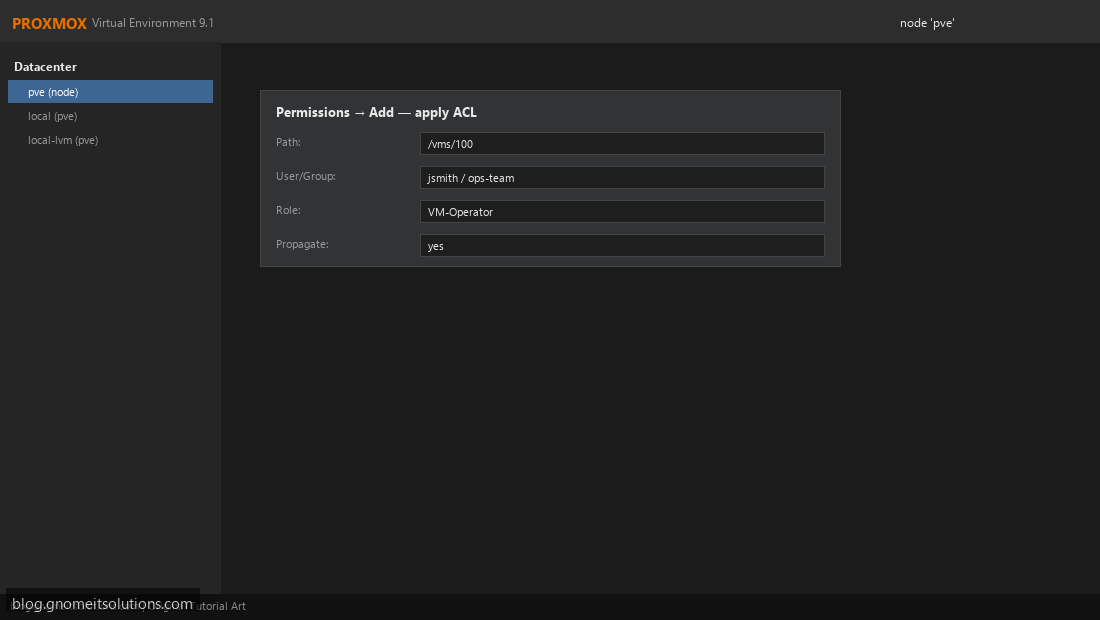
Datacenter → Permissions → Add. Set Path to /vms/100, select the user (or better, a group — see next step), choose the VM-Operator role, and leave Propagate enabled if this path might later have child resources that should inherit the same access.
Step 7: Use Groups Instead of Per-User ACLs
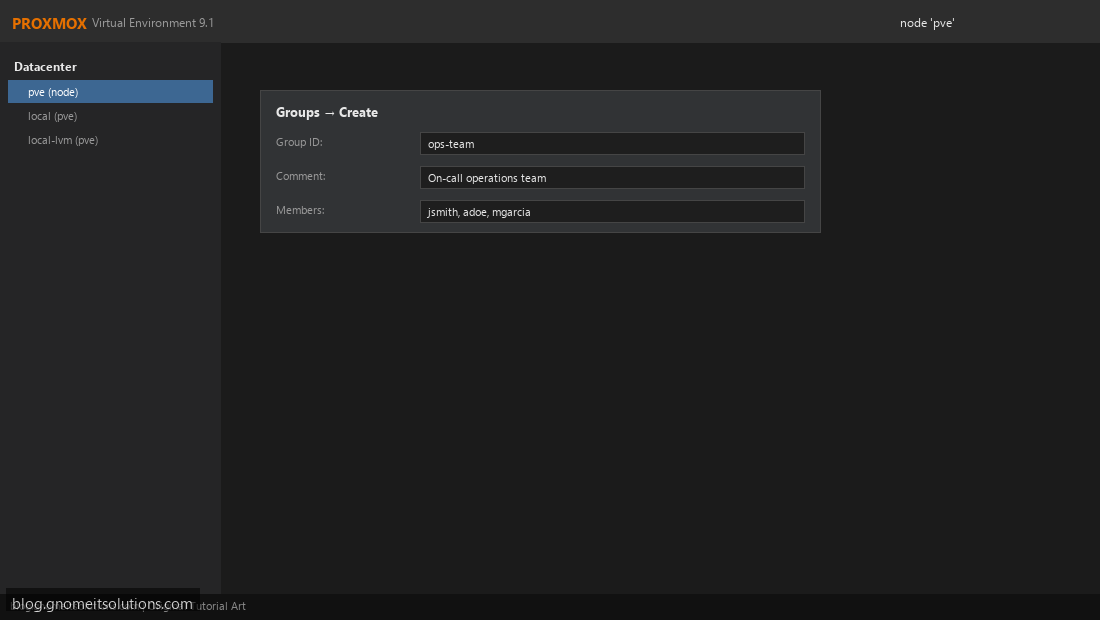
For a team rather than one person, create a Group (Permissions → Groups → Create, e.g. ops-team) and add members to it. Apply the ACL to the group instead of individual users — when someone joins or leaves the team, you add/remove group membership once instead of hunting down every ACL entry that referenced them individually.
Step 8: Test as the New User and Audit Regularly
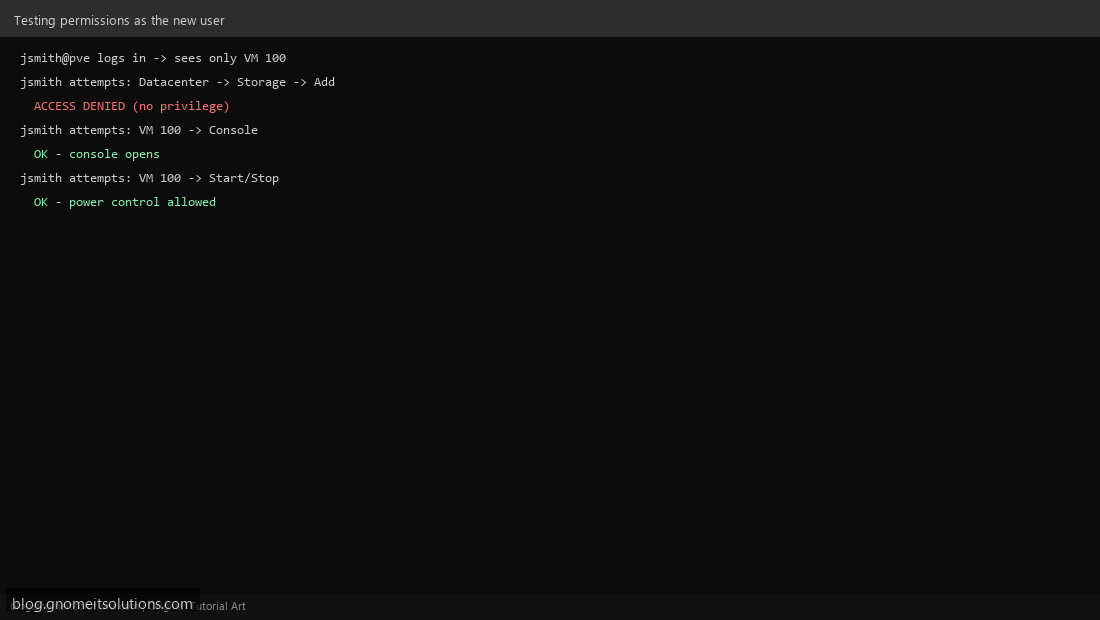
Log in as the new user (or ask them to) and confirm the boundary actually holds: they should see and control VM 100 but get Access Denied touching storage or datacenter settings. Periodically review Datacenter → Permissions → Permissions (the flat view of every ACL entry) — it’s the fastest way to spot overly broad grants that accumulated over time and should be tightened.
CLI reference (pveum)
# Create a user
pveum user add jsmith@pve

# Create a group and add the user
pveum group add ops-team
pveum user modify jsmith@pve -groups ops-team

# Create a custom role
pveum role add VM-Operator -privs "VM.PowerMgmt,VM.Console,VM.Monitor,VM.Audit"

# Apply an ACL: group, role, path
pveum aclmod /vms/100 -group ops-team -role VM-Operator

# List all ACL entries (audit)
pveum acl list
Common mistakes
- Granting
PVEAdminat/to everyone because it’s easier — defeats the entire ”
“purpose of role-based access and turns every account into a full admin - Applying an ACL to a user directly instead of a group — works fine for one person, becomes unmaintainable ”
“once a team grows - Forgetting that a broader path (like
/vms) silently covers VMs created later too — review ”
“scope, not just the role name, when auditing
Related tutorials
Image credits: All illustrations use original Proxmox VE branded artwork created
for Gnome IT Solutions — not copied from vendor marketing assets or third-party screenshots.
Tutorial text © Gnome IT Solutions.
Image credits: Screenshots are from the official
Proxmox VE documentation
(Proxmox GmbH), used under open documentation terms for educational purposes.
Tutorial text and layout © Gnome IT Solutions.