tcpdump on Linux is still the default answer for “is traffic reaching this NIC?” — faster than changing firewall rules blindly. You capture packets, filter by IP or port, and save a .pcap for Wireshark when you need protocol detail.
Related: ss command,
ping & traceroute,
dig DNS.
Capture Basics
Pick an interface, avoid reverse DNS lookups with -n, stop with Ctrl+C.
sudo tcpdump -i any -n -w /tmp/cap.pcap 'tcp port 443'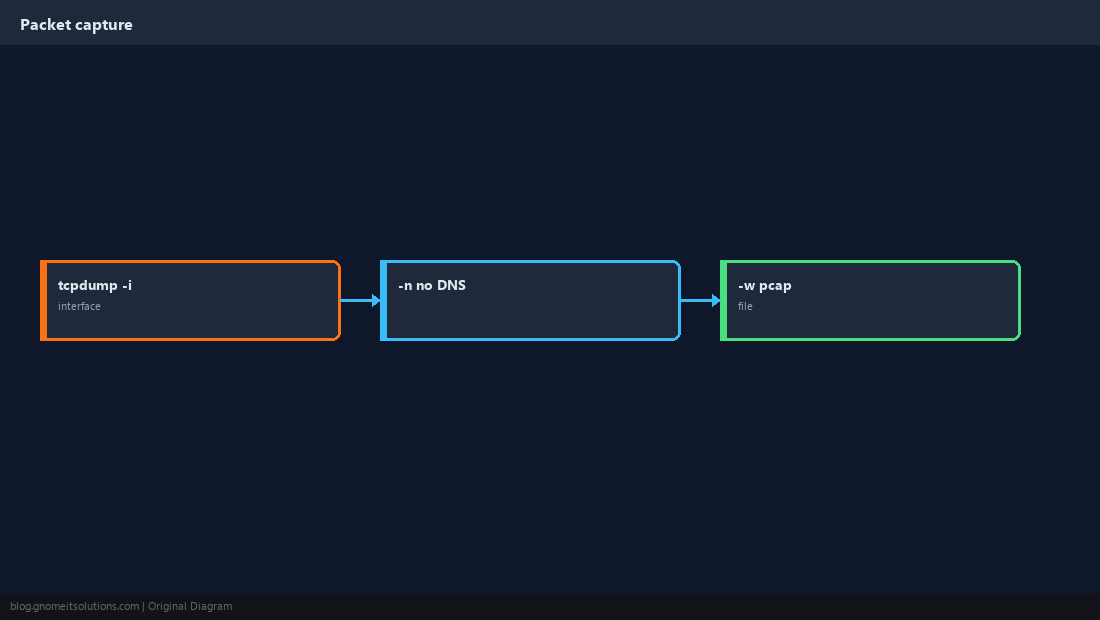
BPF Filter Syntax
Combine host, port, and protocol — filters run in the kernel so you drop noise early.
sudo tcpdump -i eth0 -n 'host 203.0.113.10 and tcp port 80'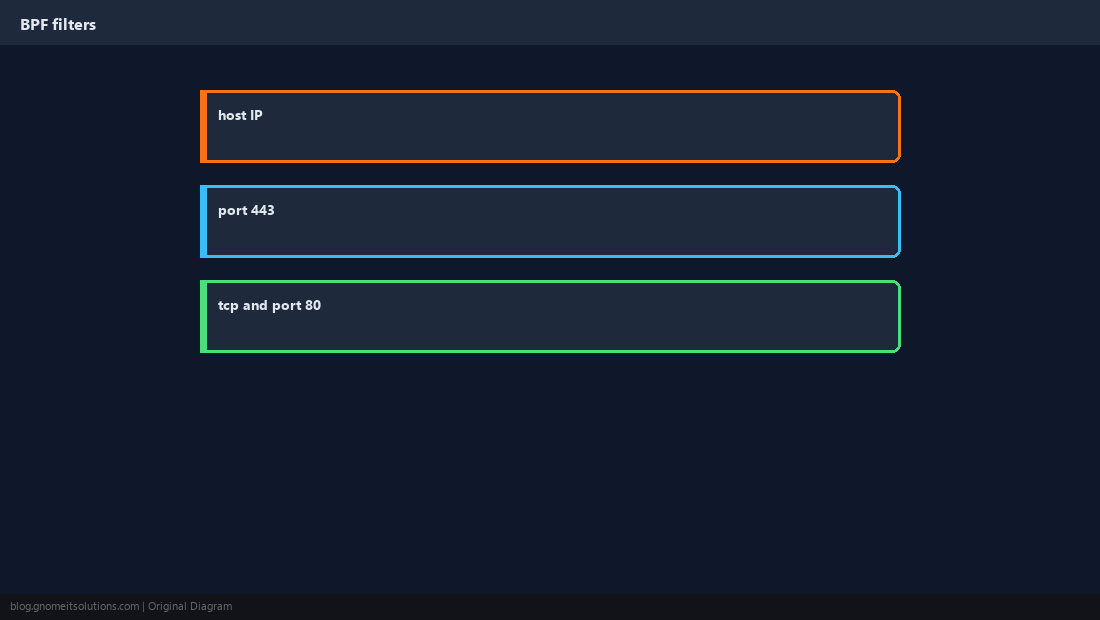
Find the Right Interface
Cloud VMs often use predictable names; any is fine for quick tests.
ip -br link
sudo tcpdump -i lo -n icmp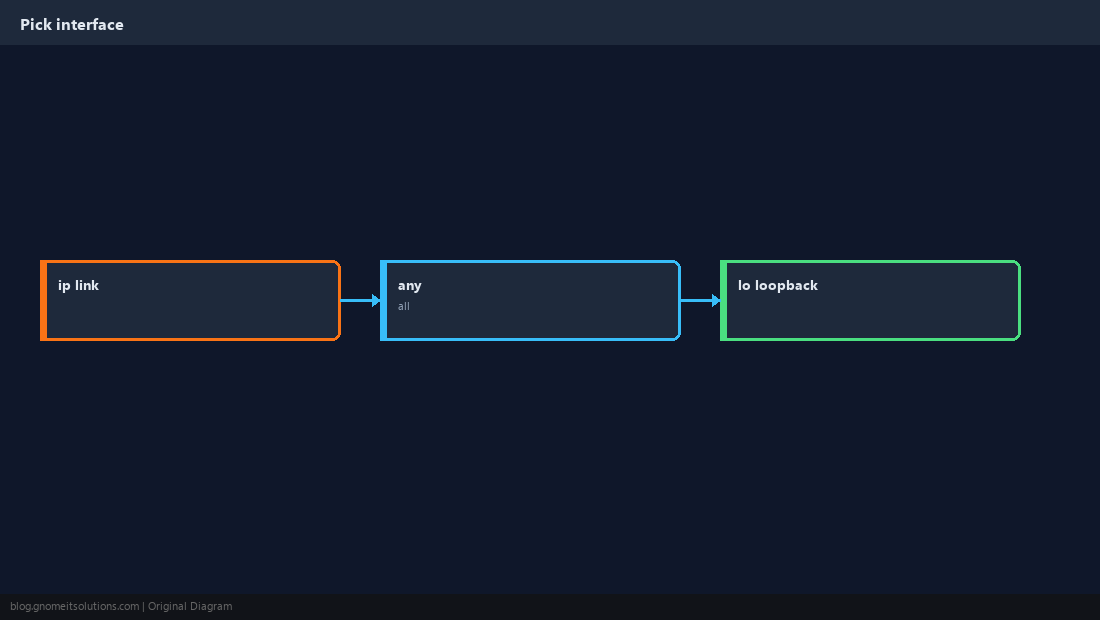
Read Saved Captures
Replay on the server or copy the pcap to your laptop for Wireshark.
tcpdump -r /tmp/cap.pcap -n | head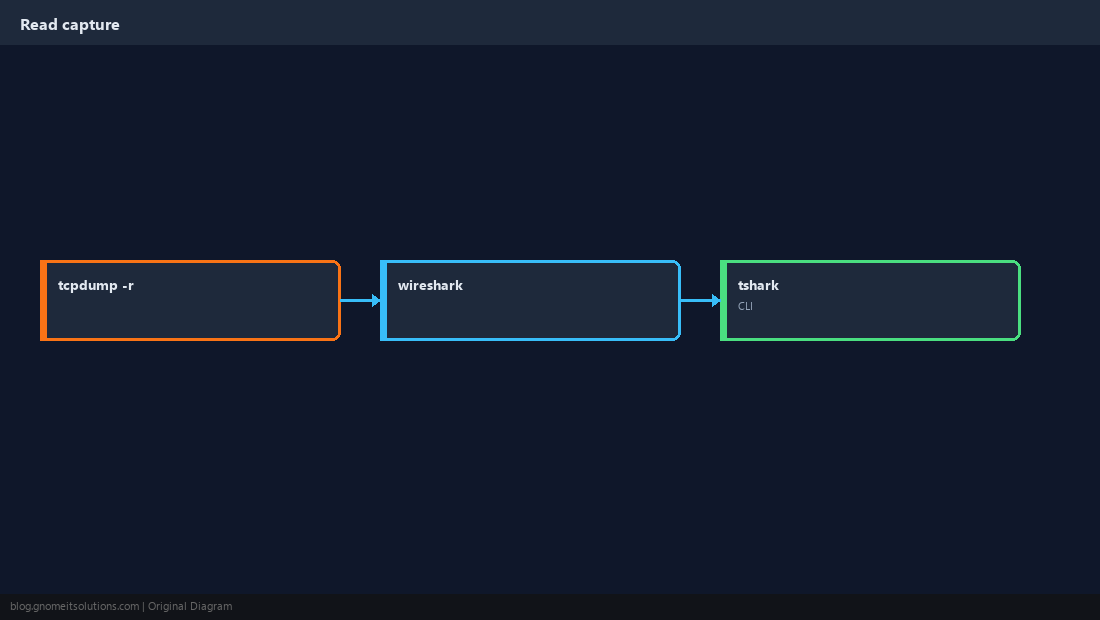
HTTPS and Encrypted Traffic
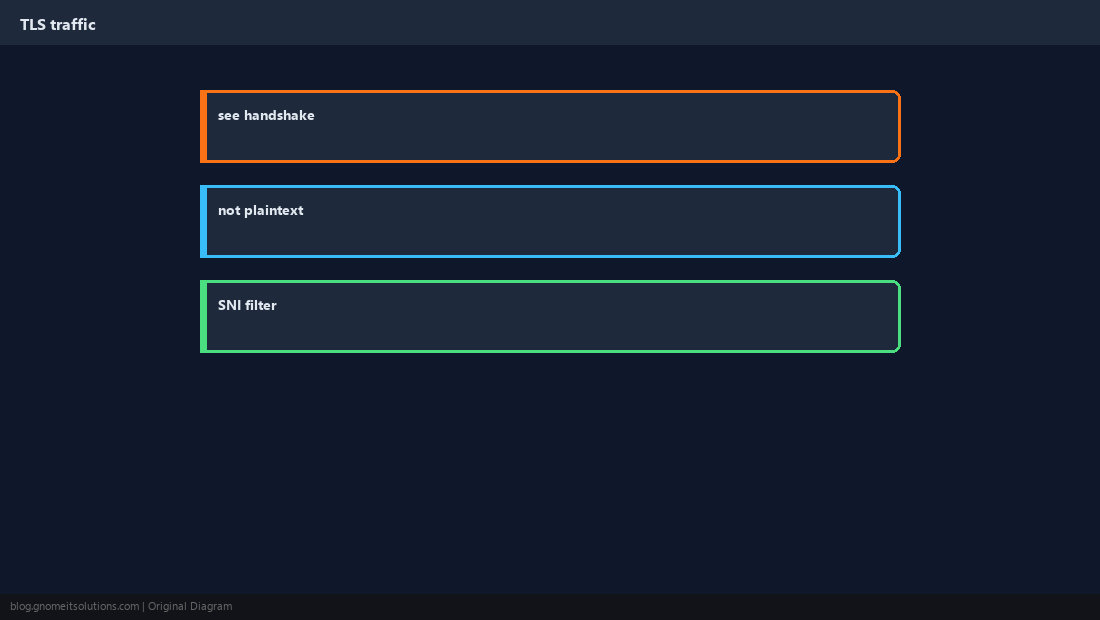
You still see IPs, ports, and TLS handshakes — not HTTP bodies without keys.
Limit Size and Duration
Full captures on 10G links fill disks — use -c packet count or narrow filters.
tcpdump -G 60 -W 5 (rotate files every 60s, keep 5) on supported builds.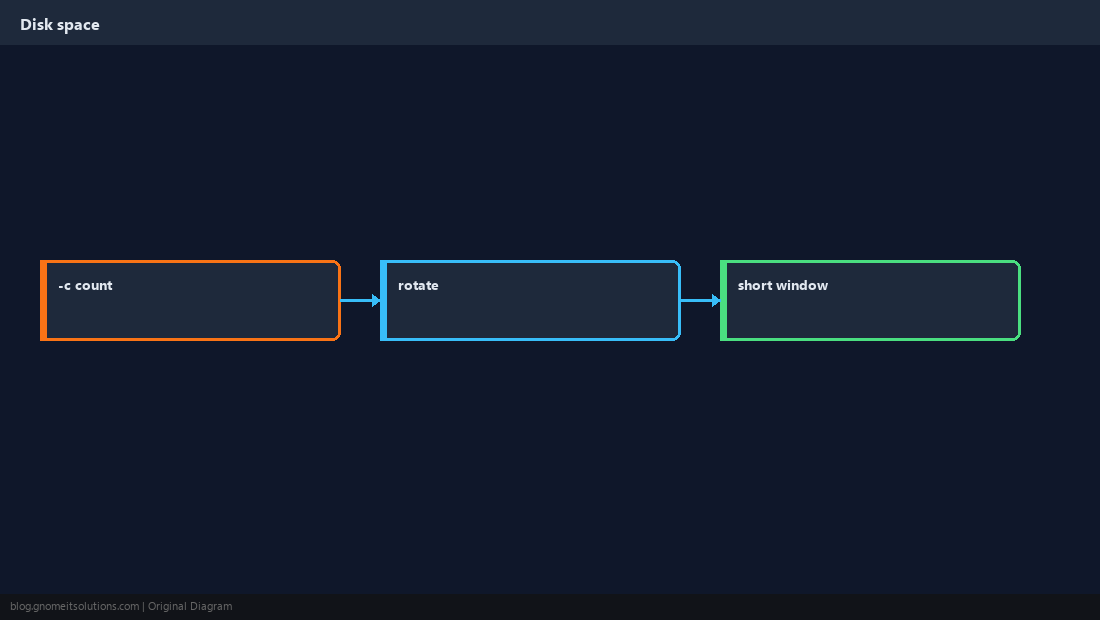
Verify You See Traffic
Generate ping or curl while tcpdump runs; confirm packet count increases.
sudo tcpdump -i any -n -c 5 'icmp' &
ping -c 3 127.0.0.1
wait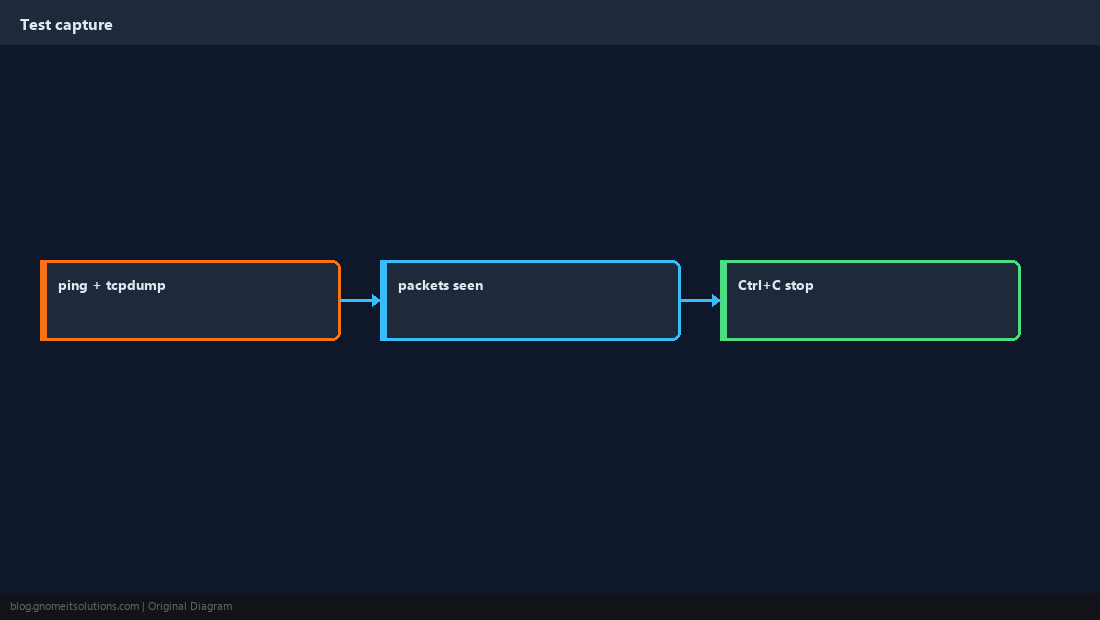
Quick Reference
- Quick:
sudo tcpdump -i any -n port 443 - Save:
-w file.pcap→ open in Wireshark - Always filter — do not capture everything on busy links
Related tutorials
Diagrams are original illustrations by Gnome IT Solutions. Tutorial text © Gnome IT Solutions.