A recorded call tells you what an agent did wrong after the damage is done. Call barging and
live monitoring let a supervisor hear — and when needed, step into — a call while it’s still
happening, which is the only way to actually coach an agent through a bad moment instead of writing it up
afterward. ViciDial ships this capability natively on top of Asterisk, but the feature is easy to misuse if
you don’t know the difference between its silent Monitor mode, its whisper-style
Barge mode, and a true three-way conference, or if the account trying to use it was never
granted the right User Level.
This guide walks through the whole operational workflow a QA team needs: granting monitor/barge rights
to the right accounts without over-provisioning access, pulling a live agent’s current extension from the
Real-Time Reports screen,
running silent monitor and whisper-coach sessions from the agent interface, escalating into a full
three-way when coaching alone isn’t enough, and scripting the same behavior through the Asterisk Manager
Interface for a QA dashboard — a natural extension of the techniques in our
AMI
commands guide. It also covers the specific errors and dead-air scenarios you’ll hit in production and
how to tell a stale extension from an actual permissions problem.
Step 1: Learn What Monitor, Barge, and Conference Actually Do Under the Hood
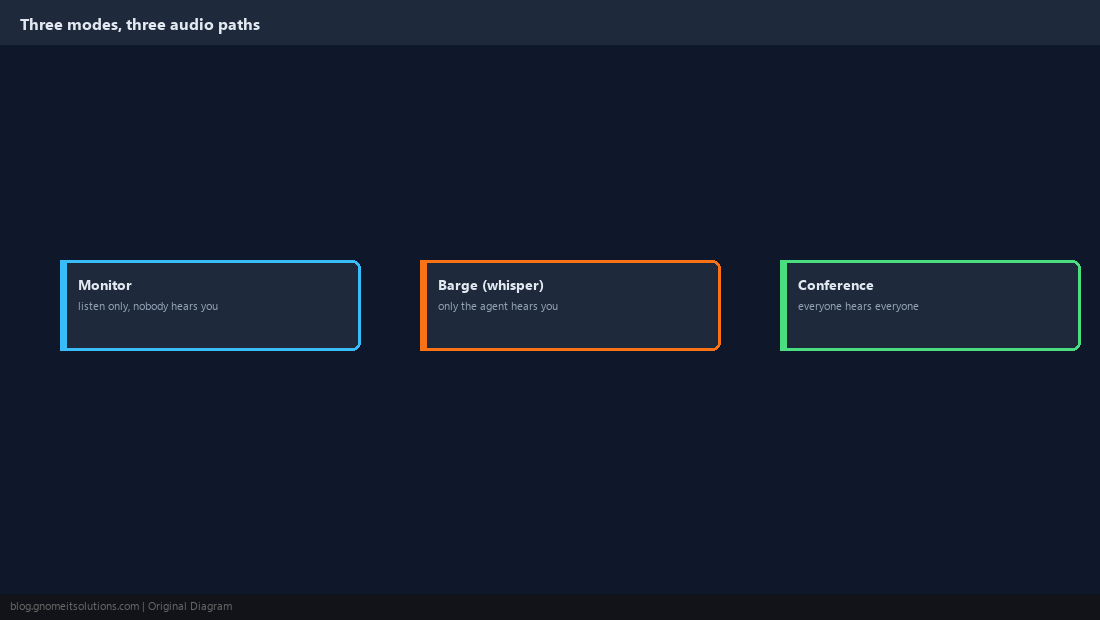
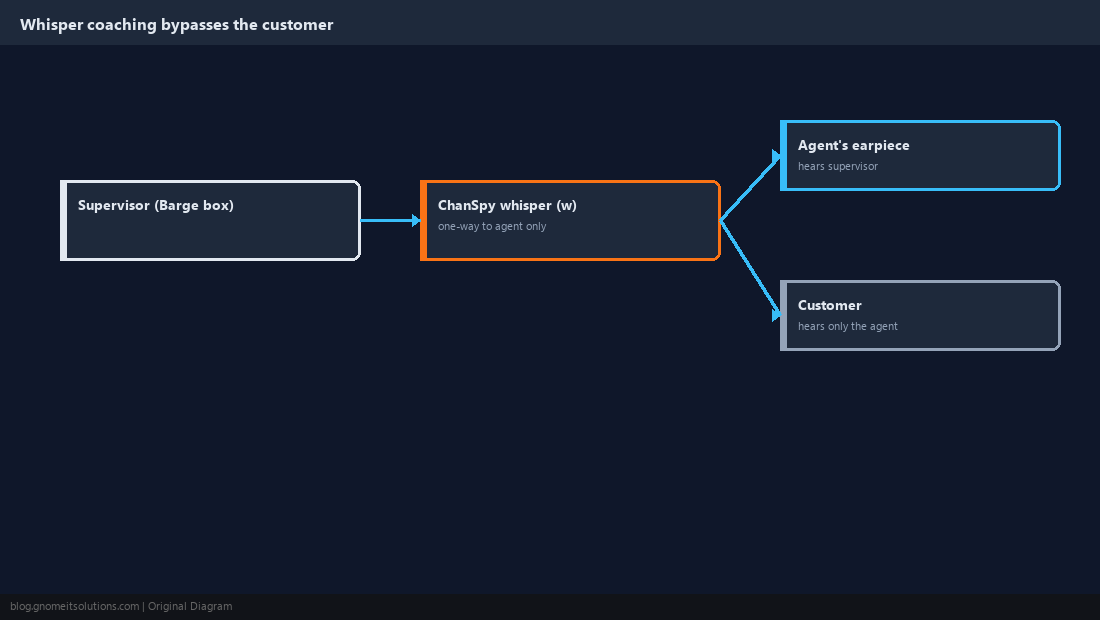
ViciDial’s own labels don’t quite match generic telephony jargon, so get the definitions straight before you touch anything. Monitor is a silent, one-way audio path — you hear the agent and customer mixed together, and neither of them hears you — implemented with Asterisk’s ChanSpy application in its default mode, which is listen-only unless you pass a whisper or barge flag; ViciDial typically also adds the q option, which only suppresses ChanSpy’s spoken channel-name announcement so you don’t hear an audible beep and name before the live audio starts — it is not what makes the mode listen-only. Barge, in ViciDial’s vocabulary, is actually whisper coaching: your microphone reaches only the agent’s ear via ChanSpy’s w option, and the customer never hears a second voice on the line. A true three-way conference where all three parties hear each other is a separate mechanism entirely, covered later, because ChanSpy’s barge/whisper mode was never designed to let the customer hear you. Confirm which mode a ticket or Slack request actually means before you act — “barge in and listen” and “barge in and talk to the customer” are very different clicks.
Step 2: Grant Monitor/Barge Rights to the Right User Accounts
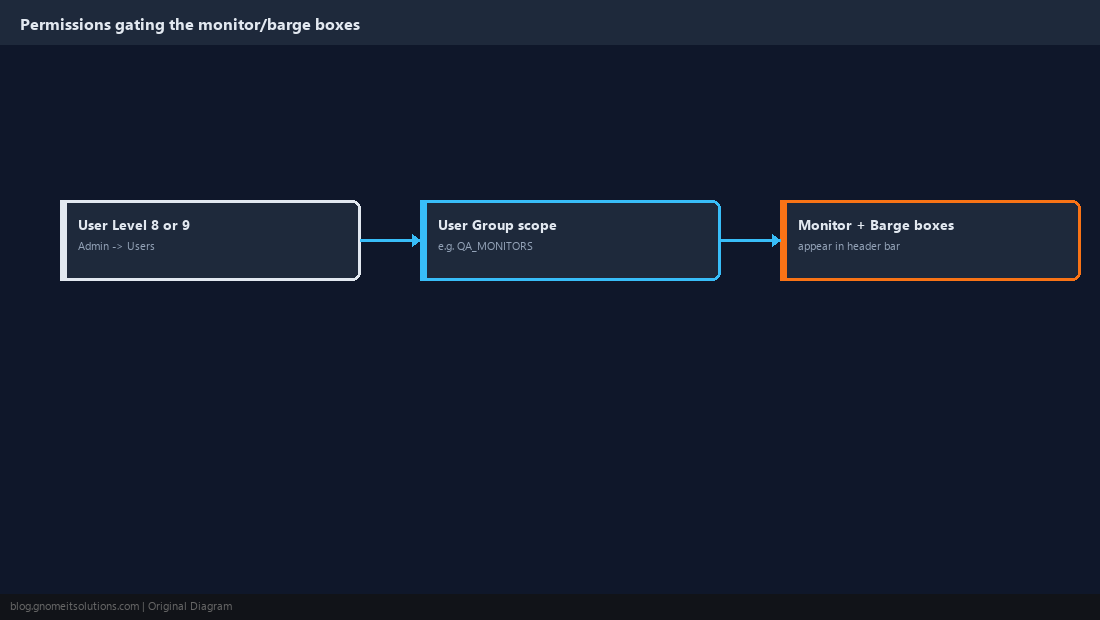
The Monitor and Barge input boxes only render for accounts with enough privilege, so start in Admin → Users, open the QA lead’s account, and check the User Level field — a value of 8 or 9 is what unlocks these extension-entry boxes on both the agent screen and the Real-Time Reports screen. Resist the urge to bump every QA rep to level 9; instead build a dedicated group under Admin → User Groups (for example group_name = QA_MONITORS) scoped only to the campaigns that team actually covers, so someone monitoring an outbound collections campaign can’t casually listen in on a healthcare campaign. Save the record, then have the QA lead log out and back into vicidial.php to confirm the “Monitor Phone Extension” and “Barge Extension” boxes now appear in the header control bar. If the boxes still don’t show up after the level change, confirm the account’s Group ID under Admin → User Groups actually has monitor/barge access enabled for that group — a high User Level on the user record doesn’t override a group definition that has those permissions turned off, so check both places rather than assuming the user-level change alone is sufficient.
Step 3: Find the Live Extension for the Agent You Need to Monitor
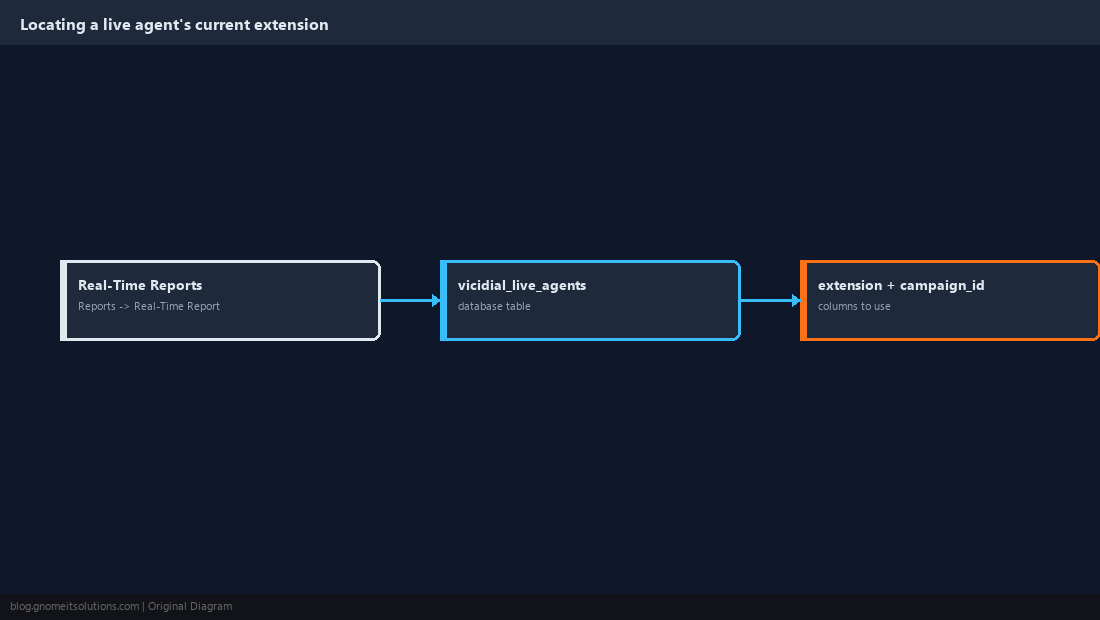
Before you can barge anyone you need their current live extension and campaign, and both change every time an agent logs in or moves between queues. The fastest path is the Real-Time Reports screen under Reports → Real-Time Report, which lists every logged-in agent with status (INCALL, PAUSED, READY), campaign ID, and the extension column you’ll need next — see our real-time reports guide for what each column actually means. The same data lives directly in the vicidial_live_agents table, so a query like this gets you every agent on a live call along with the extension to type into the Monitor box:
SELECT user, campaign_id, extension, status, callerid
FROM vicidial_live_agents
WHERE status='INCALL';
Extensions are ephemeral — an agent who logs out and back in, or gets bounced by a dropped SIP registration, often comes back on a different extension, so re-pull this immediately before every monitor session rather than reusing a number from an hour ago.
Step 4: Start a Silent Monitor Session
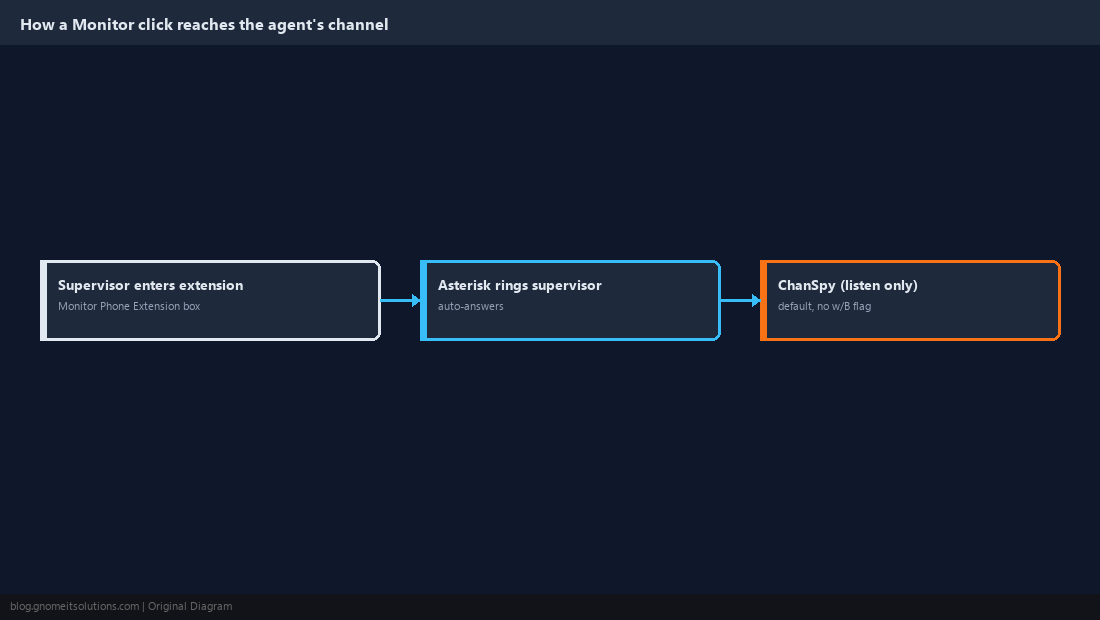
With the target extension in hand, go to your own agent/supervisor screen, type it into the Monitor Phone Extension box in the header, and submit. Asterisk immediately places an outbound call to your own registered phone — the same one behind your logged-in agent session — auto-answers it, and drops you straight into a ChanSpy listen-only stream against the target channel, so you hear the agent and customer mixed together with essentially no ring delay. There’s no on-screen confirmation dialog, so the first sound you hear is live call audio; if you get dead air instead, the agent has probably already hung up or transferred before the ChanSpy bridge finished connecting. Keep a second browser tab open on Real-Time Reports while you listen so you can see the moment the call status flips to DISPO or the extension recycles to a different agent, which tells you your monitor session is now attached to nothing.
Step 5: Escalate to Whisper Coaching Without the Customer Hearing You
When silent listening isn’t enough and you need to correct the agent mid-call — a wrong price quoted, a missed required disclosure — switch to the Barge box and enter the same extension; ViciDial routes this through ChanSpy’s whisper mode rather than a full three-way, so only the agent’s earpiece carries your voice while the customer continues to hear just the agent. Keep instructions short and directive (“mention the early termination fee now”) rather than explanatory, since the agent still has to carry the live conversation with the customer while processing what you’re telling them. This is what most QA teams actually mean when they say “barge in” during a live call, and it’s the safest coaching option because there’s zero risk of the customer hearing a second voice and getting confused. If the agent doesn’t react, verify you typed the current extension from Step 3 and not a stale one — a whisper session pointed at the wrong or dead extension fails silently, with no audio in either direction and no error on screen.
Step 6: Join a Full Three-Way Conversation When Coaching Alone Won’t Fix It
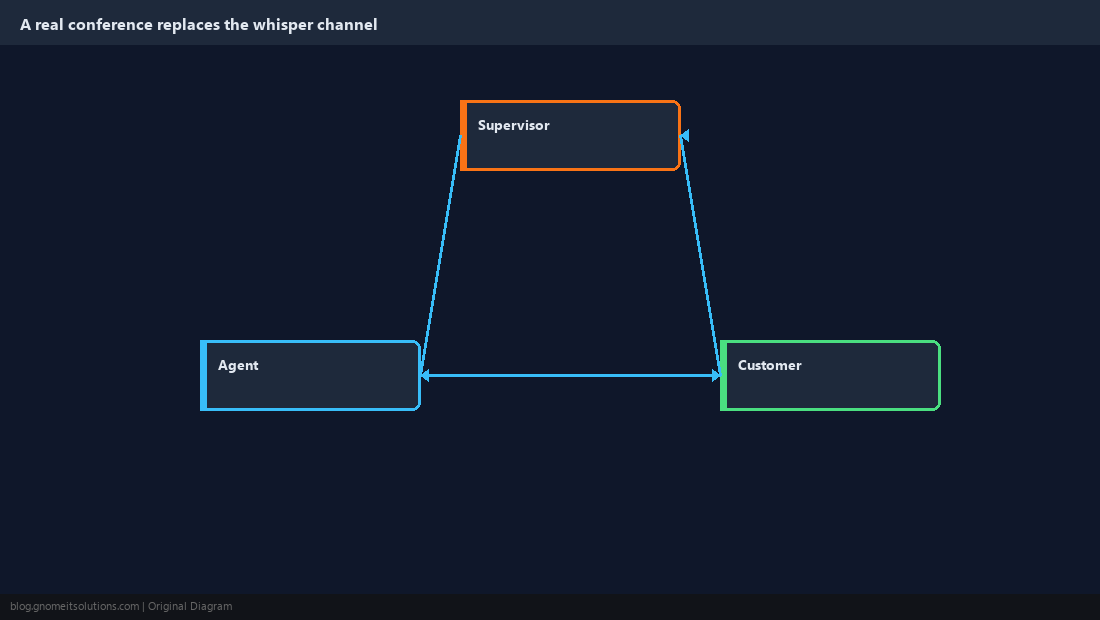
Sometimes a call needs a supervisor talking to the customer directly — an escalated complaint, a compliance question the agent can’t answer — and that requires a true three-way bridge, not ChanSpy’s one-directional whisper. The clean way to do this in ViciDial is to have the agent trigger their own three-way/conference feature from the agent screen and dial your extension (or an agreed park/conference extension), which uses Asterisk’s native conferencing rather than the spy mechanism, so all three legs can hear and speak to each other. Don’t try to force it by leaving a Barge session open and talking louder — the whisper channel is intentionally one-way and the customer’s leg was never built to hear it, so you’ll just talk over the agent while the customer hears nothing from you. Log these escalations immediately after the call, referencing the campaign and the extension pulled in Step 3, since three-way joins are the events compliance teams ask about most during an audit.
Step 7: Script Monitor Sessions from the Asterisk Manager Interface for a QA Dashboard
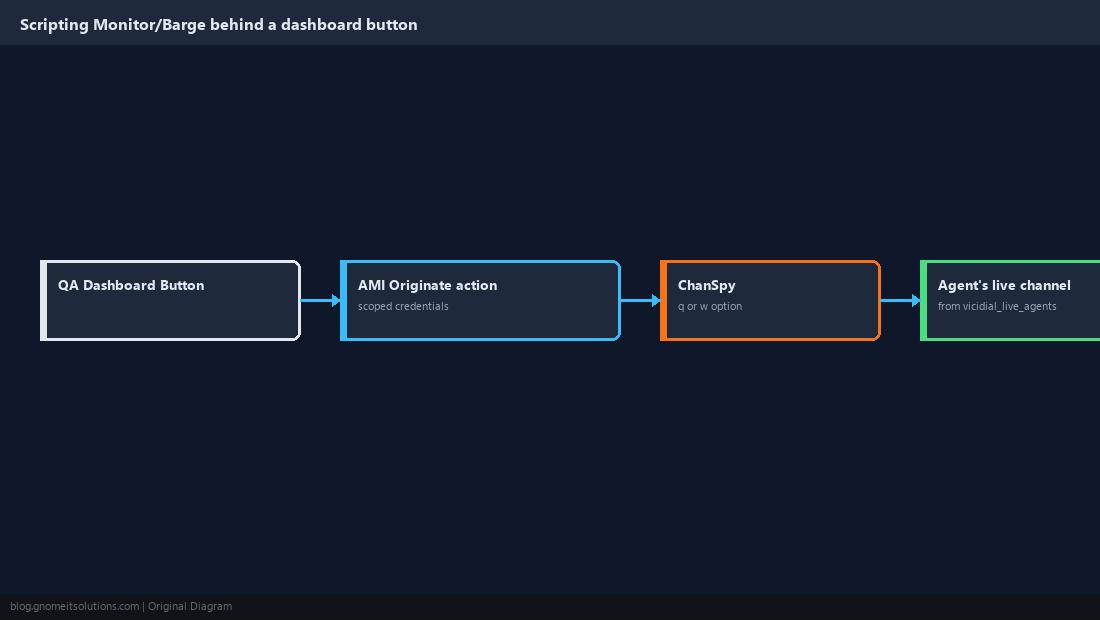
If your QA team wants a one-click “listen” button on an internal dashboard instead of typing extensions into the agent screen by hand, you can trigger the same behavior programmatically through the Asterisk Manager Interface instead of the ViciDial web UI — see our companion guide on AMI commands for ViciDial for the connection and authentication basics. An Originate action pointed at the supervisor’s own channel, with Application set to ChanSpy and Data set to the target agent’s live channel plus options, reproduces exactly what clicking Monitor or Barge does in the browser:
# Silent monitor
Action: Originate
Channel: SIP/<supervisor_extension>
Application: ChanSpy
Data: SIP/8452,q

# Whisper coaching
Action: Originate
Channel: SIP/<supervisor_extension>
Application: ChanSpy
Data: SIP/8452,w
Use the actual channel technology and extension pulled from vicidial_live_agents, not a placeholder like the example above. Building this as a small wrapper script that pulls the live extension straight from vicidial_live_agents in the same call means the dashboard button always targets whoever is actually staffing that campaign right now, not a hardcoded extension. Scope the AMI credentials used for this to Originate and Command actions only in manager.conf, since a broader permission set on a dashboard-facing account is more blast radius than the feature needs.
Step 8: Troubleshoot the Failures You’ll Actually Hit
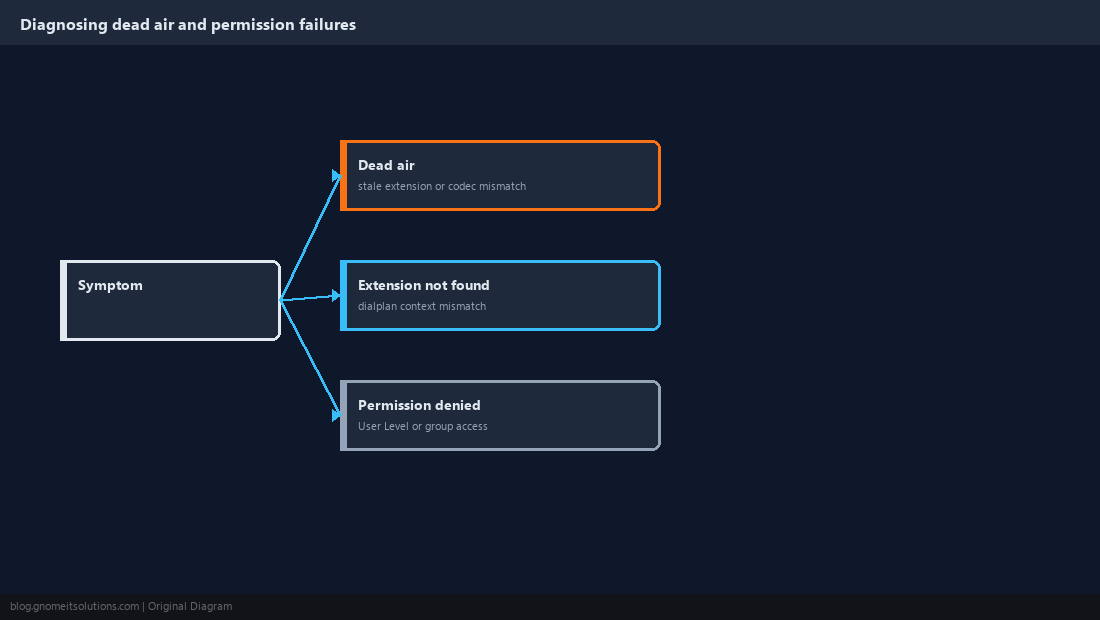
Dead air after clicking Monitor or Barge almost always traces to one of three causes: a stale extension (re-pull it per Step 3), a User Level or group permission that dropped during a permissions cleanup (Step 2), or a codec mismatch between your softphone and the ChanSpy leg producing a connected-but-silent channel — check for one-way audio with core show channels verbose at the Asterisk CLI. An “extension not found in context” error when you submit the Barge box means the target extension doesn’t exist in the dialplan context ViciDial is spying into at that moment, usually because the agent already hung up, transferred, or their channel got renamed by a DID/trunk failover; our post on the extension-not-found error covers the underlying dialplan-context mismatch in detail. A “permission denied” response, or a missing box on the agent screen entirely, means the account never got the User Level or group access from Step 2 — that’s an account problem, not a feature bug. Finally, if Monitor works but Barge doesn’t, check that a copy-pasted extensions.conf context didn’t drop the w option, since that would make the Barge button behave exactly like Monitor with no coaching audio ever reaching the agent.
Quick reference: which mode do you actually want?
- Monitor — silent listen only (ChanSpy’s default mode, often paired with
qto suppress the announcement beep), nobody hears you; use for routine QA scoring. - Barge (whisper) — ChanSpy option
w, only the agent hears you, the customer hears nothing extra; use for live coaching. - Conference (three-way) — native Asterisk conferencing initiated by the agent, everyone hears everyone; use for escalations and compliance questions.
Confirm which mode a request is actually asking for before you act — “barge in and listen” and “barge in
and talk to the customer” are two different button clicks in ViciDial.
Related tutorials
- Real-Time Reports Guide
- Asterisk AMI Commands for ViciDial
- “Extension Not Found in Context” Error Fix
Image credits: All illustrations are original terminal/config mockups created for
Gnome IT Solutions — not screenshots from any third-party site. Tutorial text © Gnome IT Solutions.