
Historical reports tell you what happened yesterday; ViciDial’s real-time reports tell
you what’s happening on the floor right now — who’s on a call, how deep the inbound queue is, and
whether a campaign is about to run out of leads. Reading them correctly is a different skill from reading
historical CDR reports, and misreading a status column is a common way to make a bad staffing call mid-shift.
This guide walks through every real-time screen that matters — agent status, campaign display, inbound
queue stats — how to put them on a wallboard, and how to actually act on what you see.
Step 1: Where Real-Time Reports Live
In the ViciDial admin, real-time views are separate from the historical Reports menu — look for Real-Time Reports in the main menu, which links to the Agent Status screen, Campaign Display, and Inbound Group stats. These pull live from the database and the Asterisk manager interface rather than from completed-call logs, so what you see updates within seconds, not after a nightly rollup.

Step 2: Reading the Real-Time Agent Status Screen
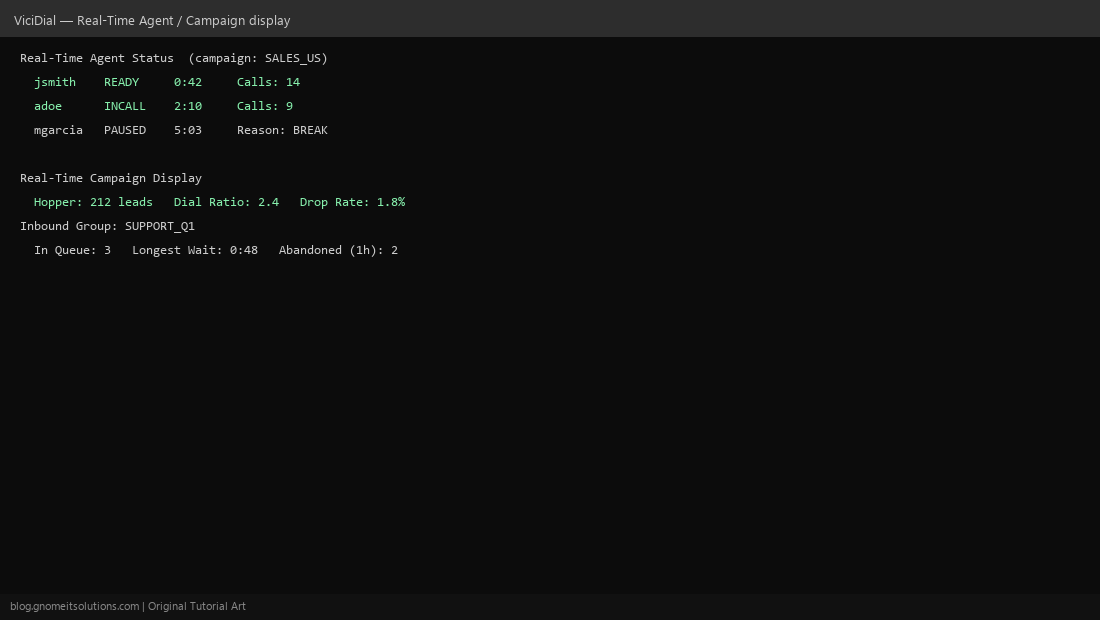
Each row is one logged-in agent, with a status column that’s the single most important thing to watch: READY (waiting for a call), INCALL (currently talking), PAUSED (not taking calls — check the pause reason code), DISPO (wrapping up after a call). The timer next to the status shows how long they’ve been in that state — a long PAUSED duration is worth a quick check-in.
Step 3: Reading the Real-Time Campaign Display
This screen aggregates a whole campaign instead of one agent: hopper size (leads loaded and ready to dial), dial ratio (calls placed per available agent — too high risks abandoned calls, too low wastes agent idle time), and drop rate (percentage of answered calls that got no agent in time, a compliance-relevant number in many jurisdictions). Watch hopper size specifically — a campaign burning through its list faster than expected needs more leads loaded before agents run dry.
Step 4: Reading Inbound Group Real-Time Stats
For inbound campaigns, the equivalent view shows calls in queue right now, longest current wait (the caller who’s been holding the longest — the number that actually matters for service level, not an average), and abandoned calls in a recent window. A climbing “in queue” count with no agents in READY status on that inbound group is the clearest signal you’re understaffed right now, not five minutes ago.
Step 5: Setting Up a Wallboard Display
For a physical monitor on the call center floor, open the real-time screen you want in a dedicated browser tab, use the browser’s fullscreen mode, and disable auto-lock / screensaver on that machine. Some ViciDial installs support a dedicated wallboard template with larger fonts and auto-refresh built in — check Admin → Wallboard Settings if your version includes it; otherwise a plain fullscreen browser tab on the standard real-time screen works fine.
Step 6: Refresh Interval and Performance
Real-time screens poll the database on an interval — very short intervals (every 1-2 seconds) feel snappier but add continuous load to the dialer database, noticeable on busy systems with many simultaneous wallboard viewers. A 5-10 second refresh is usually indistinguishable in practice for staffing decisions and considerably lighter on the server — tune this if you notice the dialer database getting sluggish with several wallboards open at once.
Step 7: Acting on Live Numbers
The point of real-time data is to change something now, not just observe: if inbound wait time is climbing, pull an agent off outbound dialing onto the inbound group; if a campaign’s hopper is running low, load more leads before it starves; if one agent has been PAUSED far longer than their break policy allows, check in with them directly rather than waiting for an end-of-day report to flag it.
Step 8: Common Misreadings to Avoid
PAUSED is not the same as DEAD (the agent’s phone disconnected without logging out — different problem, different fix). A high dial ratio on its own isn’t automatically bad — it depends on your campaign’s answer rate; the number to actually watch is the drop rate it produces. And an empty inbound queue doesn’t mean staffing is fine right now — check the longest wait too, since a queue can drain right as you look and still have had a caller wait far too long moments earlier.
Quick reference: what to watch
- Agent status — long PAUSED durations, DEAD vs PAUSED distinction
- Campaign display — hopper size trending down, drop rate trending up
- Inbound queue — longest current wait, not just queue count
Related tutorials
Image credits: All illustrations are original terminal/config mockups created for
Gnome IT Solutions — not screenshots from any third-party site. Tutorial text © Gnome IT Solutions.