Many good leads say the same thing: “call me back at three.” A scheduled callback turns that sentence into a commitment the dialer keeps,
so the lead is not lost in the hopper and the agent who built rapport can be the one to call back.
This guide enables callbacks on a campaign, wires them to the callback disposition from our dispositions guide,
and shows how to keep the callback list clean. Timing rules from the compliance guide still apply.
Note: exact option labels can differ between ViciDial versions; the settings below live on the campaign detail screen in current builds.
The Callback Lifecycle
The agent records a date and time during disposition; ViciDial stores it, and when the time arrives the callback is offered to the right agent.
  customer: 'call me Thursday 3pm'
     --> agent dispositions CALLBK + picks date/time
     --> callback stored (vicidial_callbacks)
     --> at due time: callback offered to the agent / group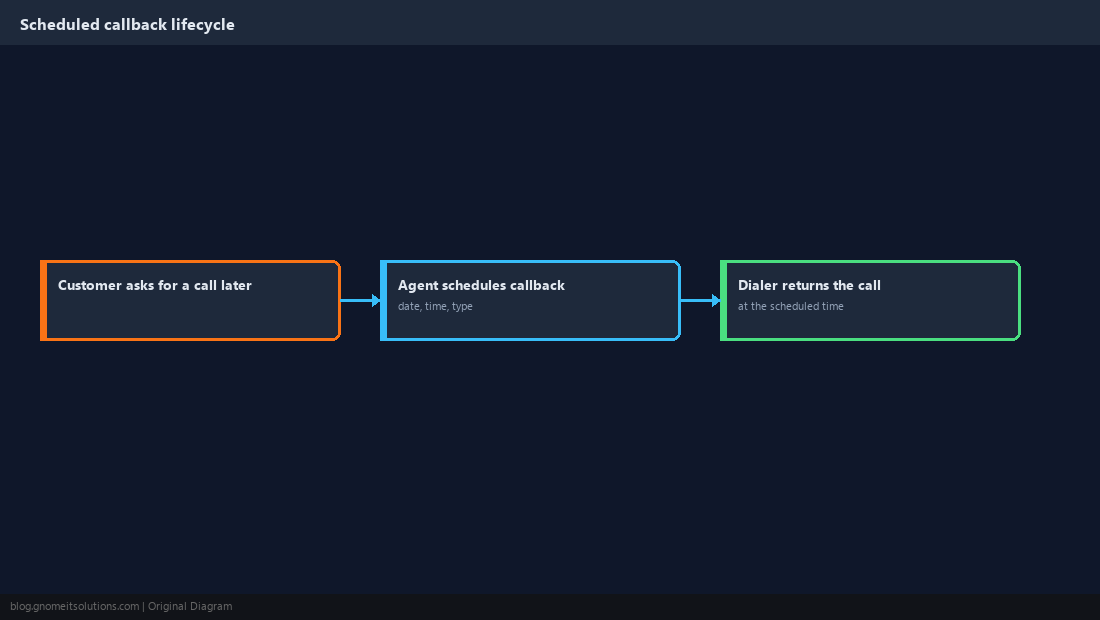
Enable Scheduled Callbacks on the Campaign
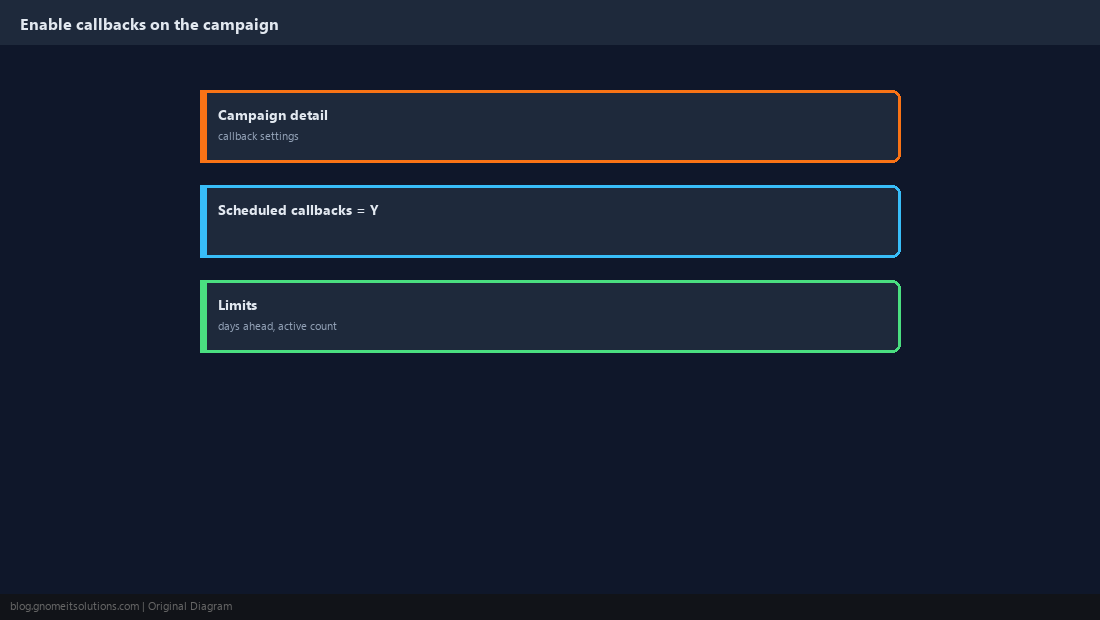
Open Admin → Campaigns → [campaign] → Detail and enable scheduled callbacks. Set sensible limits for how far ahead callbacks may be booked and how many one agent can hold.
Configure the CALLBK Status
Callbacks are triggered by a status that carries the callback flag. Confirm CALLBK exists, is enabled for this campaign, and is selectable by agents.
SELECT status, status_name, selectable, scheduled_callback FROM vicidial_statuses WHERE status = 'CALLBK';DESCRIBE vicidial_statuses; and adjust the query.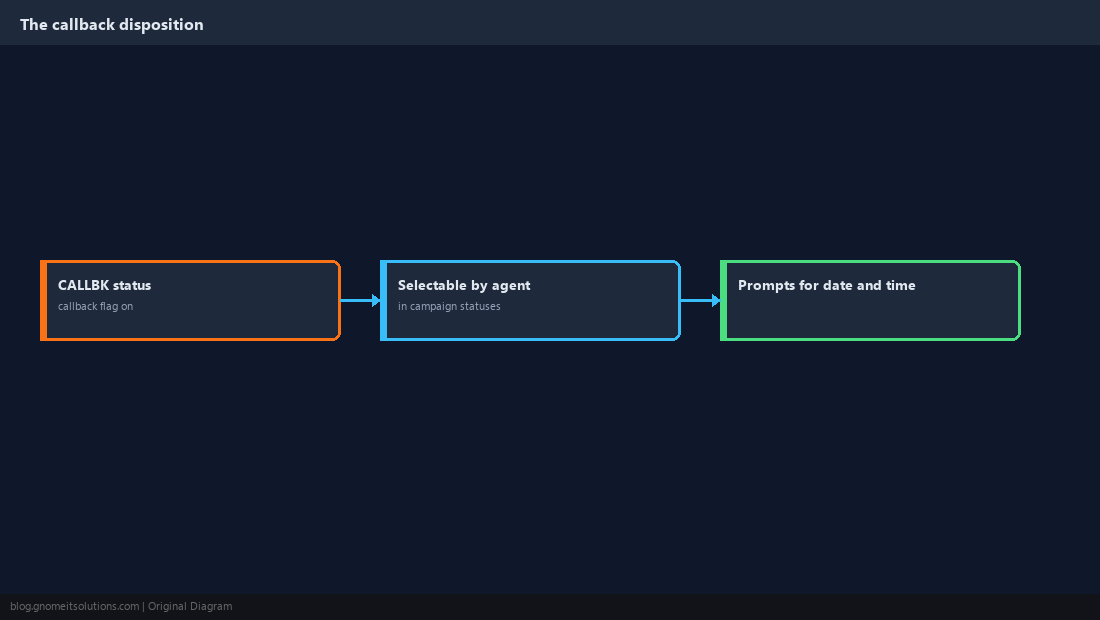
Choose ANYONE or USERONLY
USERONLY keeps the callback for the agent who booked it, which suits relationship-driven sales. ANYONE lets any available agent take it, which suits high-volume queues where the original agent may be off shift.
USERONLY callback for an agent who is on leave or gone will never be called. Review and reassign them regularly.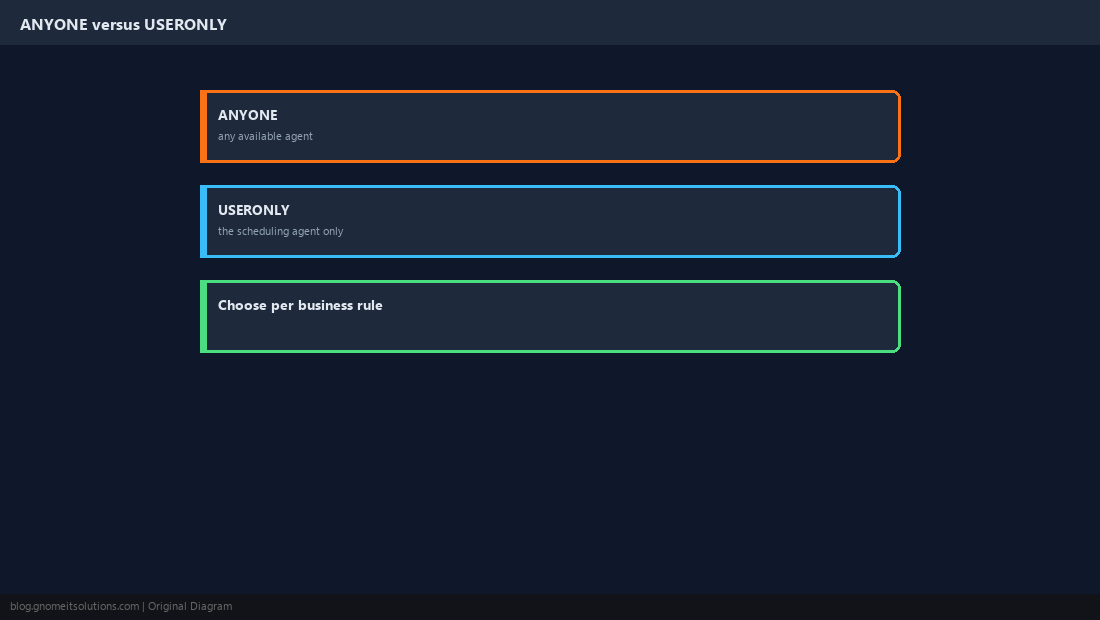
Train the Agent Workflow
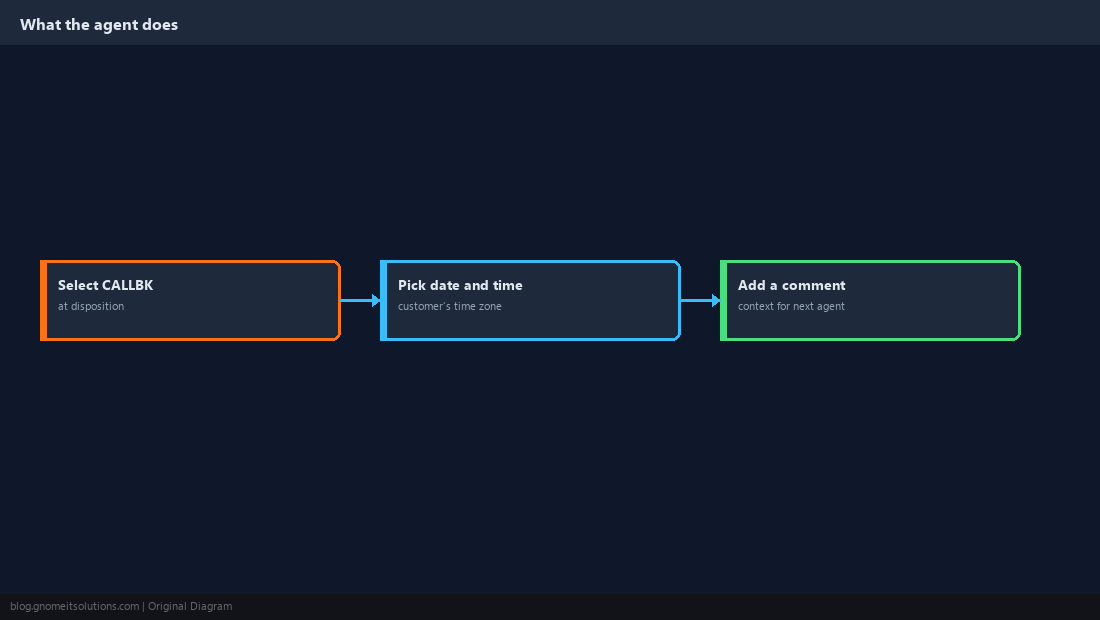
At the end of the call the agent selects the callback status, picks the date and time in the customer’s time zone, and adds a comment so whoever calls back knows the context.
Alerts and the Callbacks List
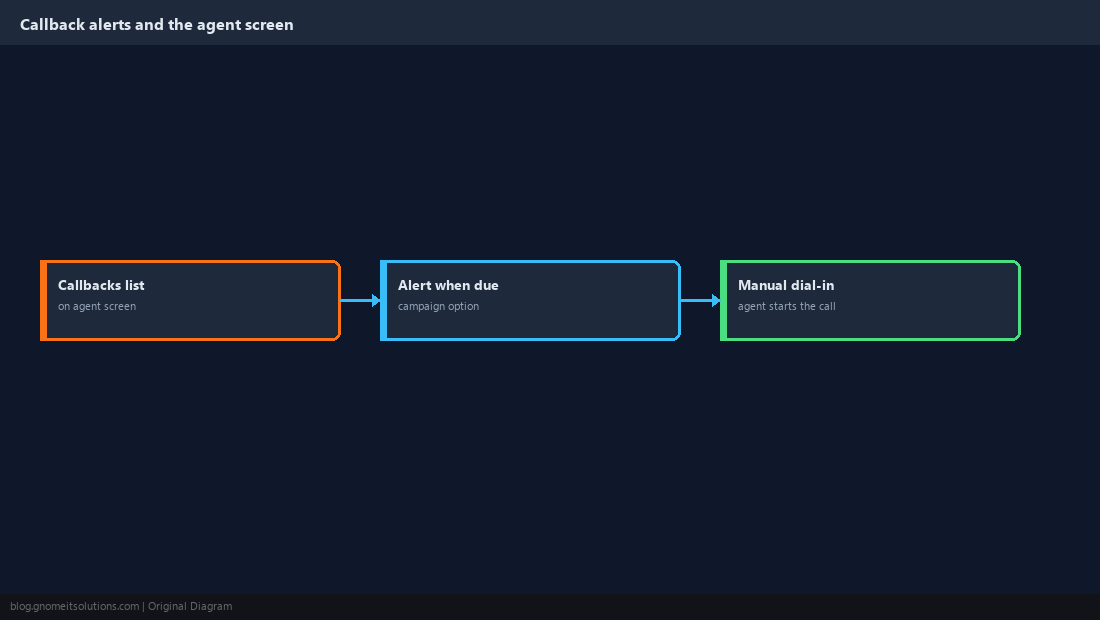
Agents see their pending callbacks on the agent screen, and the campaign can alert when one is due. Confirm agents know how to open the list and start the call from it.
Report on Callbacks and Clean Up
Look at pending and past callbacks regularly. Stale callbacks that were never called back are lost revenue and a customer-experience risk.
SELECT callback_time, user, lead_id, campaign_id, recipient FROM vicidial_callbacks WHERE status = 'ACTIVE' AND callback_time < NOW() ORDER BY callback_time LIMIT 50;DESCRIBE vicidial_callbacks; first.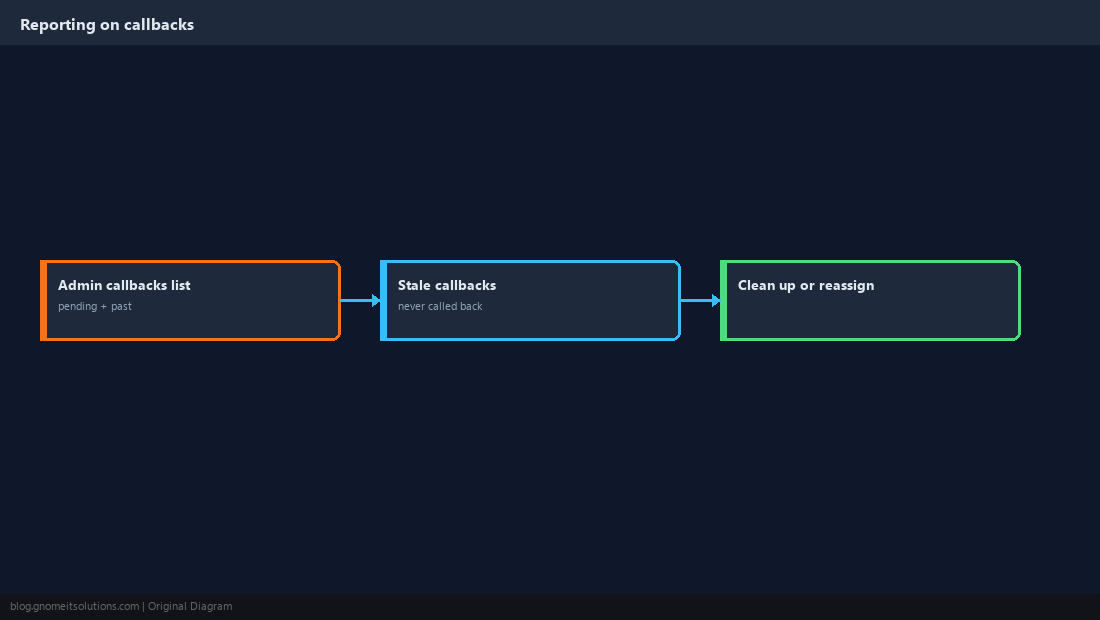
Keep Compliance Rules in Force
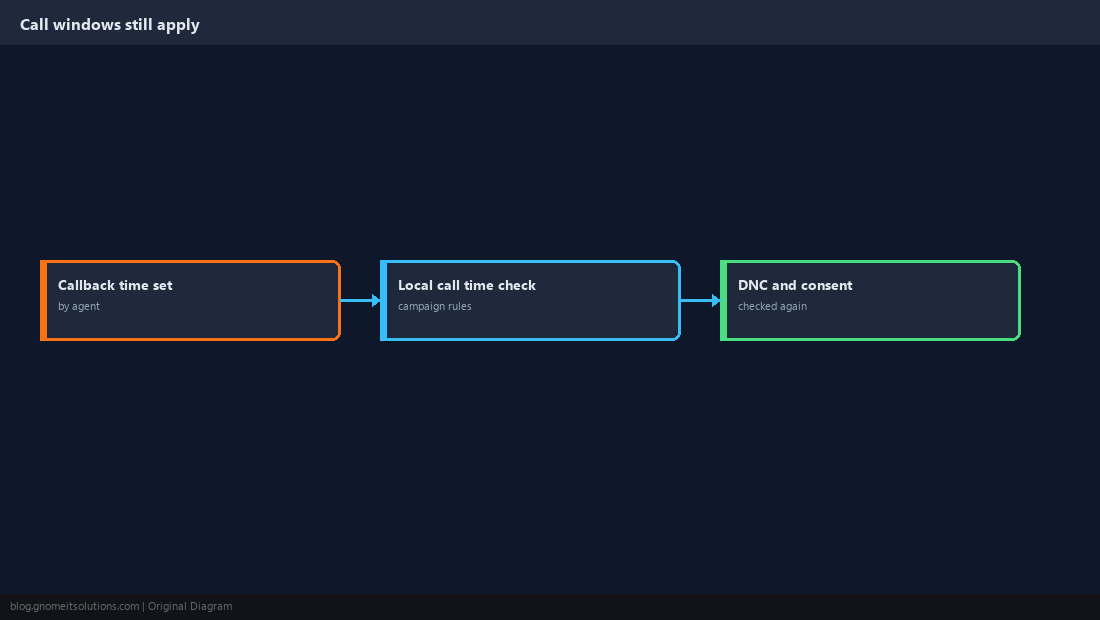
A callback does not override calling-hour limits, DNC listing or consent rules. Make sure the time chosen falls inside the allowed window for the customer’s location, and re-check DNC before the return call.
Quick Reference
- Enable on campaign;
CALLBKstatus flagged and selectable; choose ANYONE vs USERONLY deliberately - Agents add comments; review overdue callbacks; call windows and DNC still apply
Related tutorials
Diagrams are original illustrations by Gnome IT Solutions. Tutorial text © Gnome IT Solutions.