Two settings do more for both compliance and actual contact rate than almost anything else in a
ViciDial campaign: making sure you never dial a number on a Do Not Call list, and only
calling within a local call-time window appropriate to where the lead actually lives.
Getting either wrong risks regulatory exposure; getting them right also means fewer wasted dial attempts on
numbers that were never going to convert.
This guide sets up ViciDial’s built-in DNC list, wires it into campaign dial rules, and configures
local call-time restrictions based on the lead’s timezone.
Step 1: Why Both Settings Matter Together
DNC scrubbing prevents calling numbers that have explicitly opted out — a legal requirement in most jurisdictions, not just good practice. Local call-time windows prevent calling someone outside acceptable hours in their timezone, which matters distinctly from your own office hours on a list spanning multiple time zones. Both are dial-list hygiene, but they solve different compliance problems and are configured separately.
Step 2: Access ViciDial’s Built-In DNC List
Admin → DNC List gives you a searchable, editable list of scrubbed phone numbers stored directly in the ViciDial database. Numbers can be added manually one at a time, or in bulk — the manual view is mainly useful for spot-checking or handling a single opt-out request that comes in outside your normal list-import process.
Step 3: Upload a DNC List in Bulk
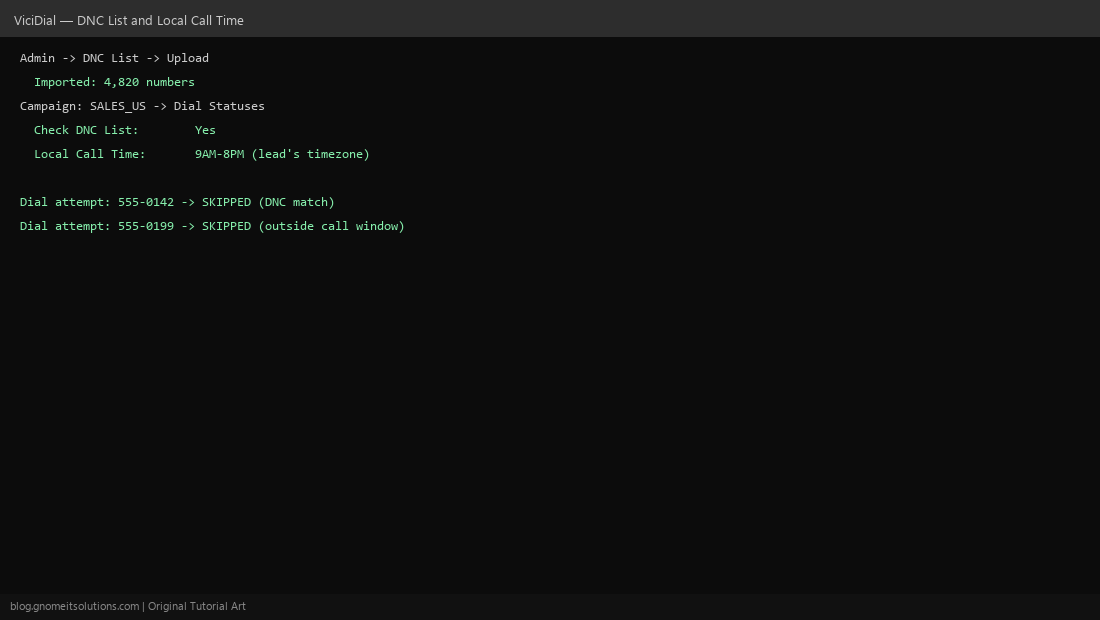
Admin → DNC List → Upload File accepts a plain text or CSV list of numbers — useful for importing a state or federal do-not-call registry export, or a list of previously collected opt-outs from another system. Confirm the import count matches your source file’s row count before trusting the upload completed correctly.
Step 4: Enforce DNC Checking on the Campaign
Having numbers in the DNC list does nothing by itself — the campaign must actually be configured to check against it. In the campaign’s Dial Statuses settings, confirm Check DNC List is enabled. This check runs before a lead is dialed, skipping it entirely rather than dialing and then hanging up, which matters for keeping your own outbound call logs clean of DNC-violating attempts.
Step 5: Configure Local Call-Time Windows
ViciDial can restrict dialing to a window (commonly 8 AM–9 PM, adjust to your jurisdiction’s actual rule) based on the lead’s own timezone, derived from their phone number’s area code or an explicit timezone field on the lead record. This is set at the campaign or list level under local call-time settings — a lead in a different timezone than your call center genuinely won’t be dialed outside their own local window.
Step 6: Set Campaign-Level Hopper Restrictions
Beyond the daily window, review the campaign’s overall dial schedule settings — some operations further restrict certain lead segments (e.g. no calls on weekends for residential numbers) at the hopper level. Layer these deliberately rather than relying on a single blanket rule if different lead sources genuinely need different handling.
Step 7: Test That Both Rules Actually Apply
Add a known DNC-listed test number and a number with a timezone outside the current call window to a small test list, run the campaign briefly, and confirm both are skipped rather than dialed — check the dial log/hopper status directly rather than assuming the settings took effect just because you saved them.
Step 8: Maintain the DNC List Over Time
A DNC list is only as good as its last update — schedule a recurring process to re-import updated registry exports and to add opt-out requests received through any other channel (email, a callback where the person asks to be removed) promptly rather than batching them indefinitely. Treat DNC list maintenance as an ongoing compliance task, not a one-time setup step.
Quick checklist
- DNC list populated and Check DNC List enabled on every relevant campaign
- Local call-time window configured by lead timezone, not office timezone
- Test numbers confirmed skipped in the actual dial log, not just settings saved
- Recurring process in place to keep the DNC list current
Related tutorials
Image credits: All illustrations are original terminal/config mockups created for
Gnome IT Solutions — not screenshots from any third-party site. Tutorial text © Gnome IT Solutions.