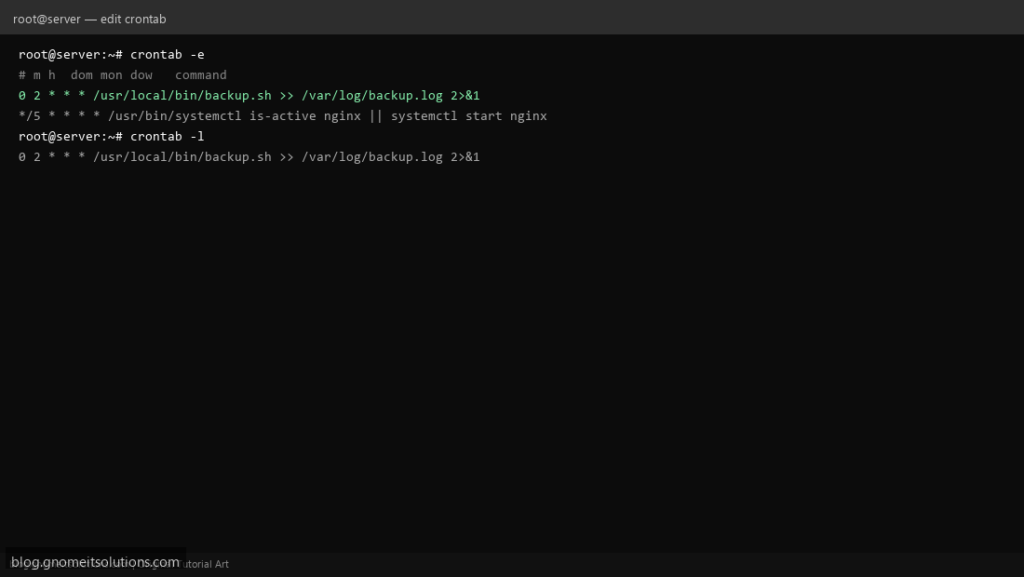
Cron is the Linux scheduler almost every server relies on: nightly backups, log rotation, certificate renewal checks, health monitors. It runs quietly
in the background, and it only causes trouble when a schedule is misread or a script fails silently with no one watching.
This guide covers the five-field syntax, editing your own crontab safely, the minimal environment cron jobs run in (a common source of “works when I run it
by hand, fails from cron” bugs), and when a systemd timer is the better tool instead.
Quick answer: crontab -e to edit your jobs, five fields are minute hour day month weekday, and always use full paths to commands.
How Cron Actually Runs a Job
The cron daemon wakes up every minute, checks every crontab on the system, and runs any job whose schedule matches. Output that isn’t redirected is mailed to the job’s owner if a mail system is configured — otherwise it is silently dropped.
crontab entry --> cron daemon (checks every minute) --> job runs --> output mailed or redirected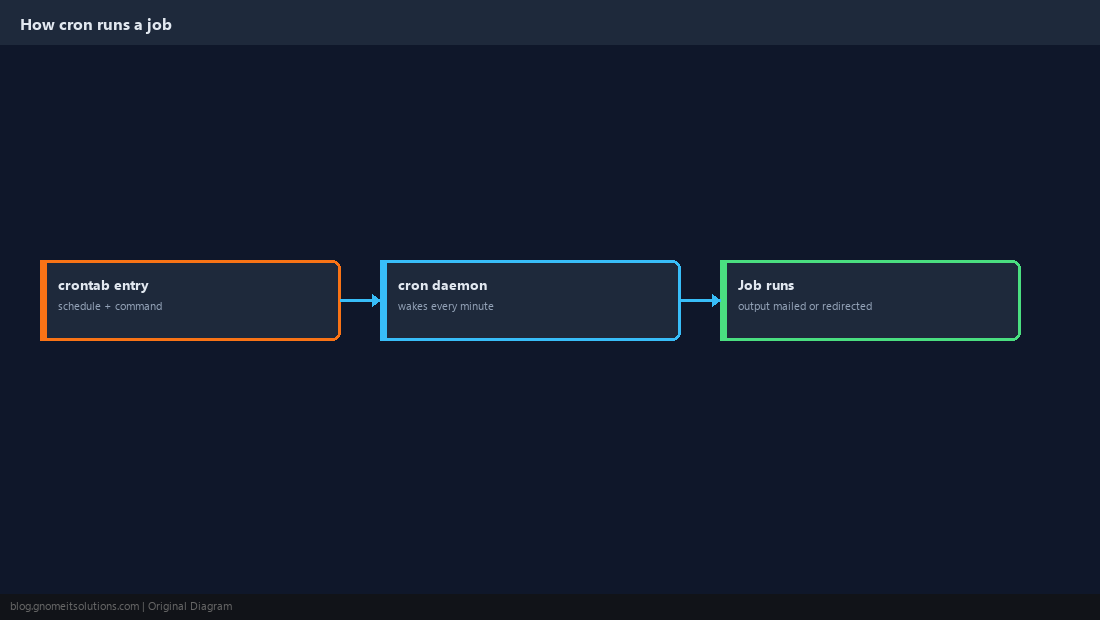
The Five Time Fields
Every line has five schedule fields before the command: minute (0-59), hour (0-23), day of month (1-31), month (1-12), and day of week (0-6, where both 0 and 7 mean Sunday depending on the implementation).
# m h dom mon dow   command
0 2 * * * /usr/local/bin/backup.sh* means “every value.” */15 means “every 15 units.” A comma list like 1,15 means those exact values.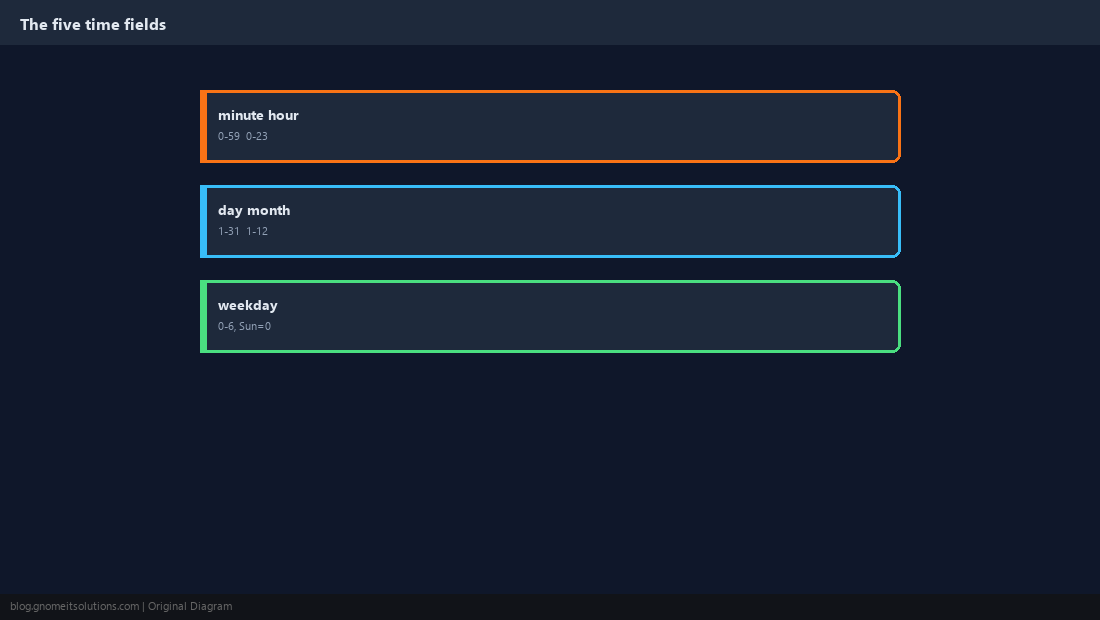
Edit Your Own Crontab
Each user has their own crontab. crontab -e opens it in your default editor, -l lists it, and -r deletes it entirely without confirmation.
crontab -e
crontab -l
# crontab -r # deletes ALL your jobs, no undocrontab -r removes every job for that user with no confirmation prompt. Use crontab -l > backup.txt first if you are not sure.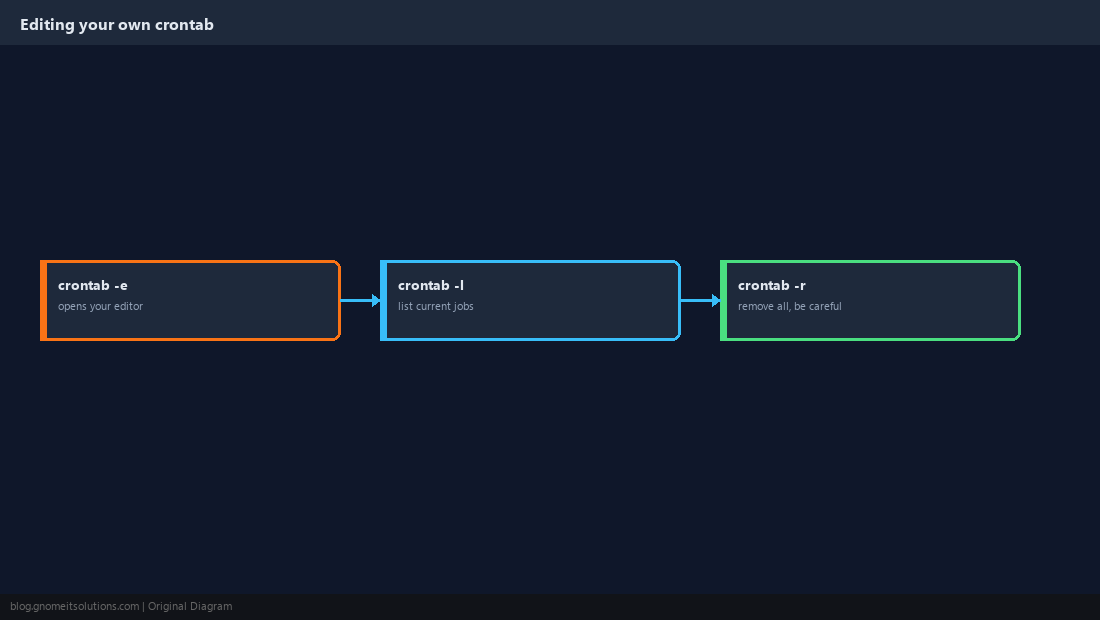
Common Schedules Worth Memorising
A handful of patterns cover most real jobs.
*/15 * * * *   run every 15 minutes
0 2 * * *      run at 2:00 AM every day
0 0 * * 0      run at midnight every Sunday
0 9 1 * *      run at 9:00 AM on the 1st of each month
@reboot        run once when the system boots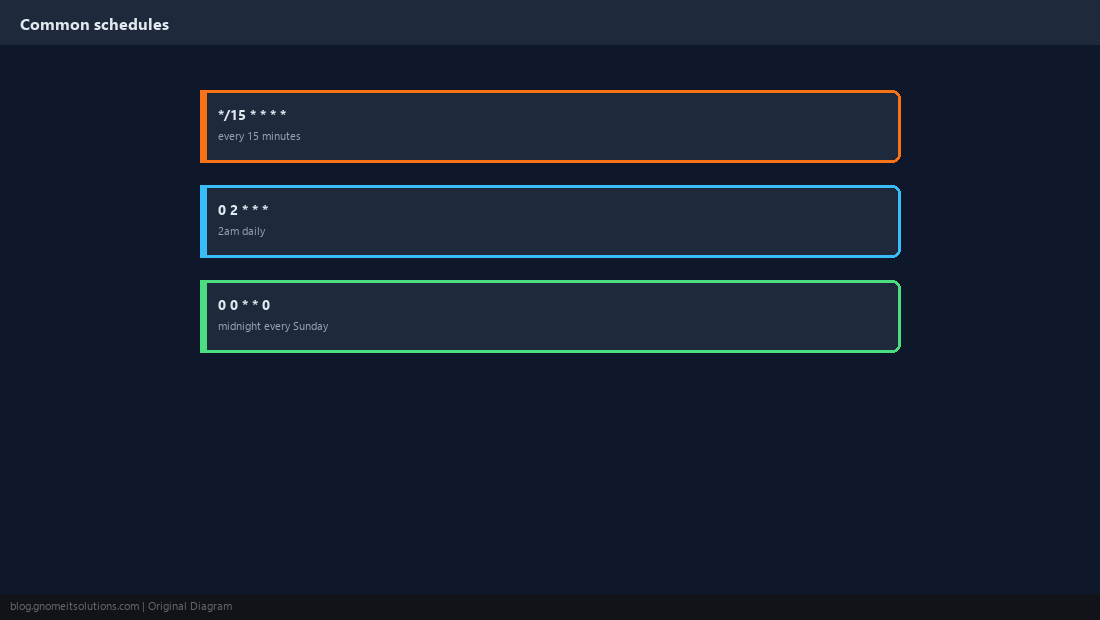
Cron’s Environment Is Not Your Shell
This is the single most common cause of “it works when I run it manually but fails from cron.” Cron jobs run with a minimal environment: no .bashrc, a short PATH, and no assumptions about your current directory.
# Fragile:
0 2 * * * rsync -a /data /backup

# Reliable:
0 2 * * * /usr/bin/rsync -a /data /backupPATH=/usr/local/sbin:/usr/local/bin:/usr/sbin:/usr/bin:/sbin:/bin
0 2 * * * backup.sh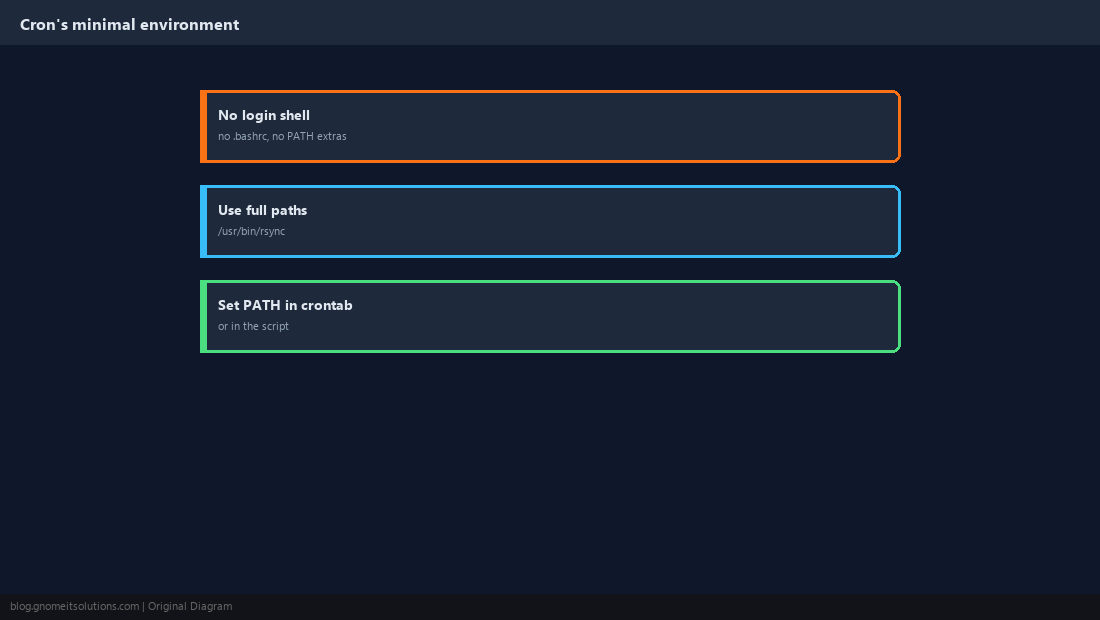
Capture Output Instead of Losing It
A job that fails with no output anywhere is invisible until someone notices the thing it was supposed to do never happened. Redirect output to a log file, or set MAILTO if local mail delivery works on the host.
0 2 * * * /usr/local/bin/backup.sh >> /var/log/backup.log 2>&1[email protected]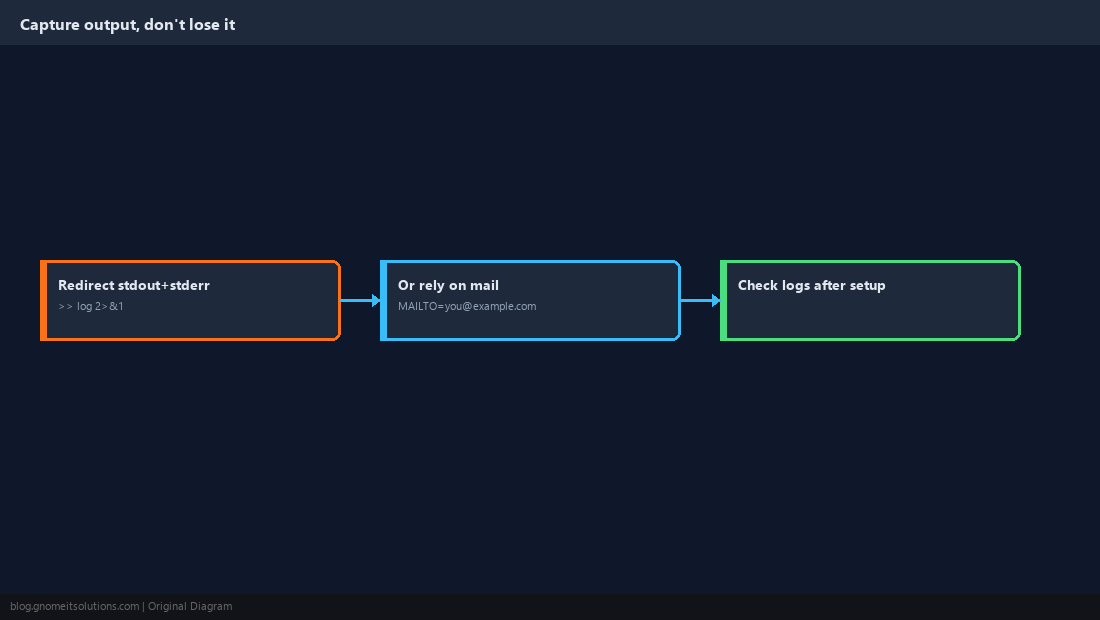
System-Wide Cron vs Your User Crontab
crontab -e edits jobs that run as you. /etc/crontab and files in /etc/cron.d/ are system-wide and require an extra username field. /etc/cron.daily, .hourly and similar directories hold scripts run by run-parts on that schedule.
# m h dom mon dow  user    command
  0 3 *   *   *     root    /usr/local/bin/cleanup.sh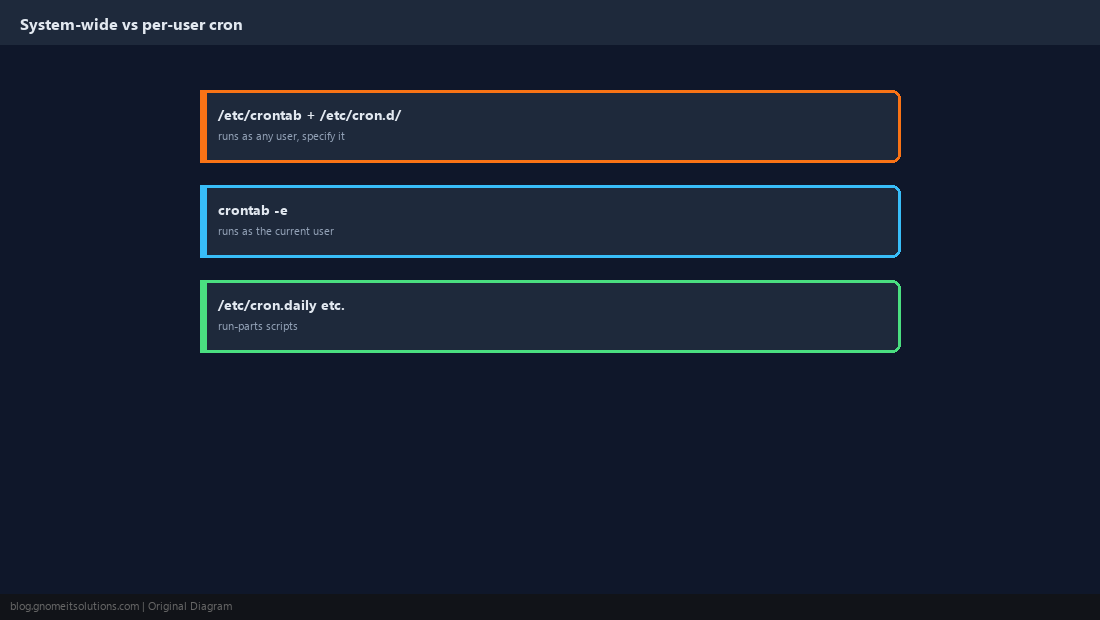
When to Reach for a systemd Timer Instead
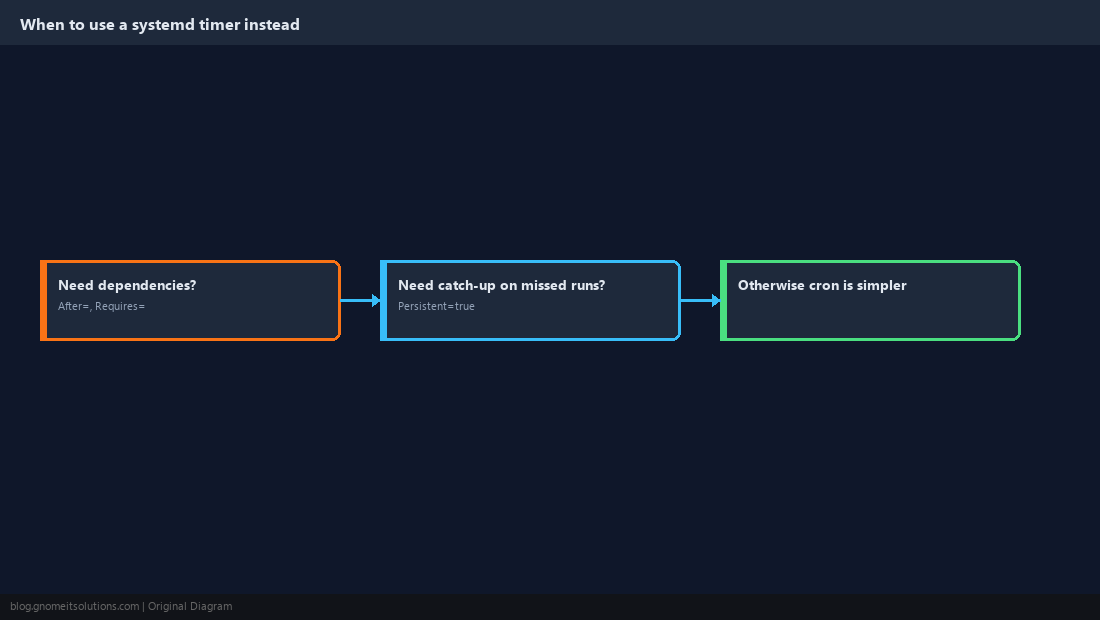
Cron is simple and that is its strength. A systemd timer is worth the extra setup when a job needs to run only after another service is up, needs to catch up on a run that was missed while the machine was off, or needs its own resource limits. See our systemd timers vs cron comparison.
How do I run a cron job every 5 minutes?
Use */5 * * * * as the schedule, which matches the 0th, 5th, 10th minute and so on of every hour.
Why isn’t my cron job running?
Check three things first: the command uses full paths (cron’s PATH is minimal), the schedule fields are in the right order (minute hour day month weekday), and the crontab was saved without a syntax error — check with crontab -l.
Where does cron send job output?
To the job owner’s local mail, if a mail transfer agent is configured, otherwise it is discarded. Redirect to a log file with >> file 2>&1 to be sure you see it.
What does @reboot do?
It runs the command once, each time the system boots, instead of on a normal five-field schedule.
What is the difference between crontab -e and /etc/crontab?
crontab -e edits a per-user crontab that runs as that user. /etc/crontab and files in /etc/cron.d/ are system-wide and include an explicit username field for each line.
Cheat Sheet
crontab -e/-l/-r— edit, list, remove your jobs- Fields:
minute hour day month weekday; use full command paths - Redirect output with
>> log 2>&1so failures are visible
Related tutorials
Diagrams are original illustrations by Gnome IT Solutions. Tutorial text © Gnome IT Solutions.