When systemctl start myapp returns failed, the one-line error is rarely the full story. The real reason is almost always in
journalctl -u myapp — missing binary, wrong working directory, or a dependency that never became active.
Build on systemctl basics and
writing custom units.
Read status and Exit Code
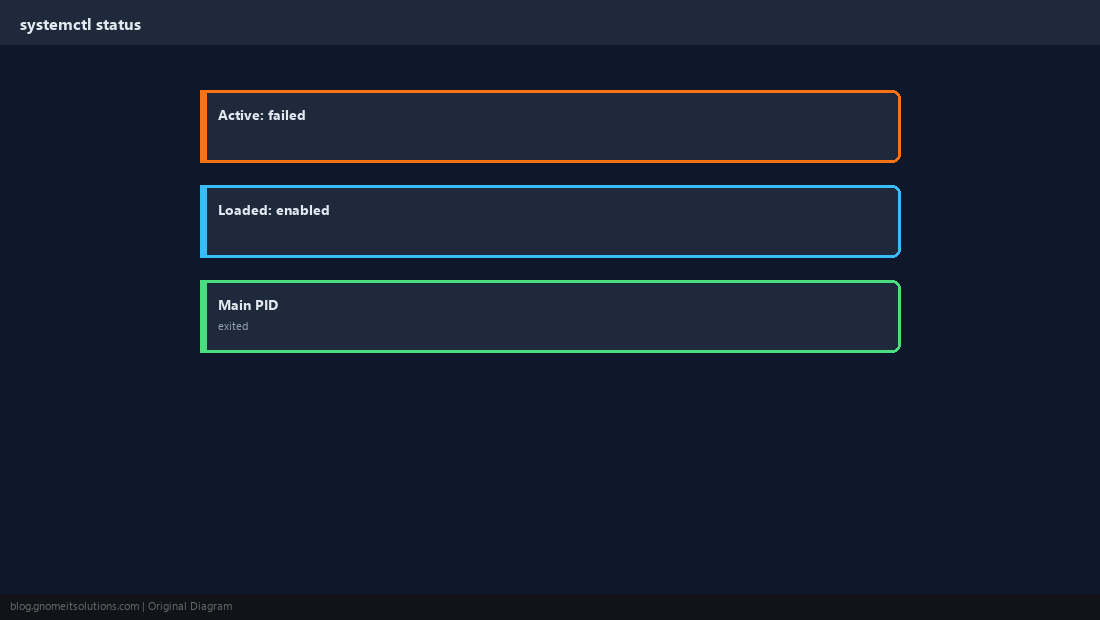
systemctl status shows the main PID, last few log lines, and whether the unit is enabled.
sudo systemctl status myapp.service --no-pager
sudo systemctl start myapp.service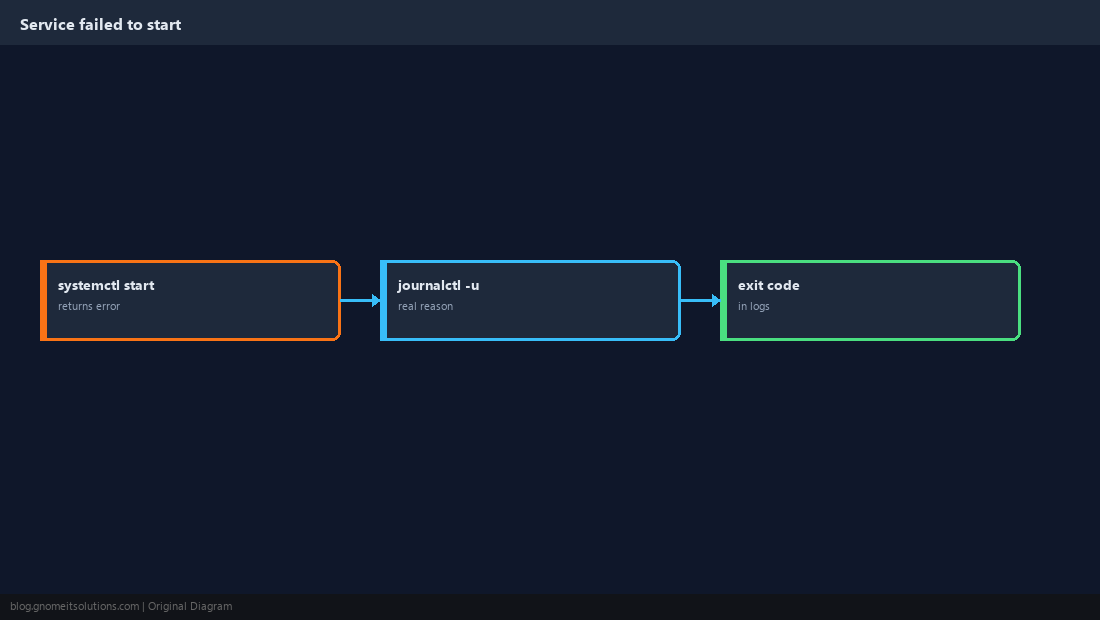
Decode Active: failed
Note whether it failed immediately (bad ExecStart) or after running (app crash).
Full Logs with journalctl
Always pull the complete unit log for the current boot.
sudo journalctl -u myapp.service -b --no-pager | tail -80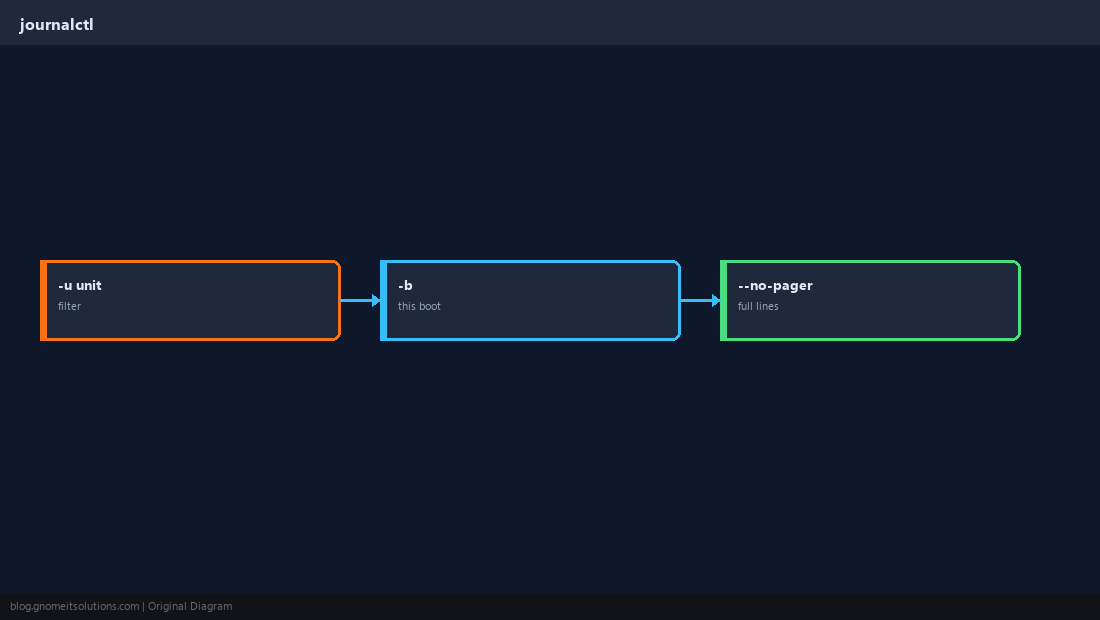
ExecStart and Permissions
Typos in paths, scripts without execute bit, or User= that cannot read files cause instant failure.
ls -l /usr/local/bin/myapp
sudo -u appuser /usr/local/bin/myapp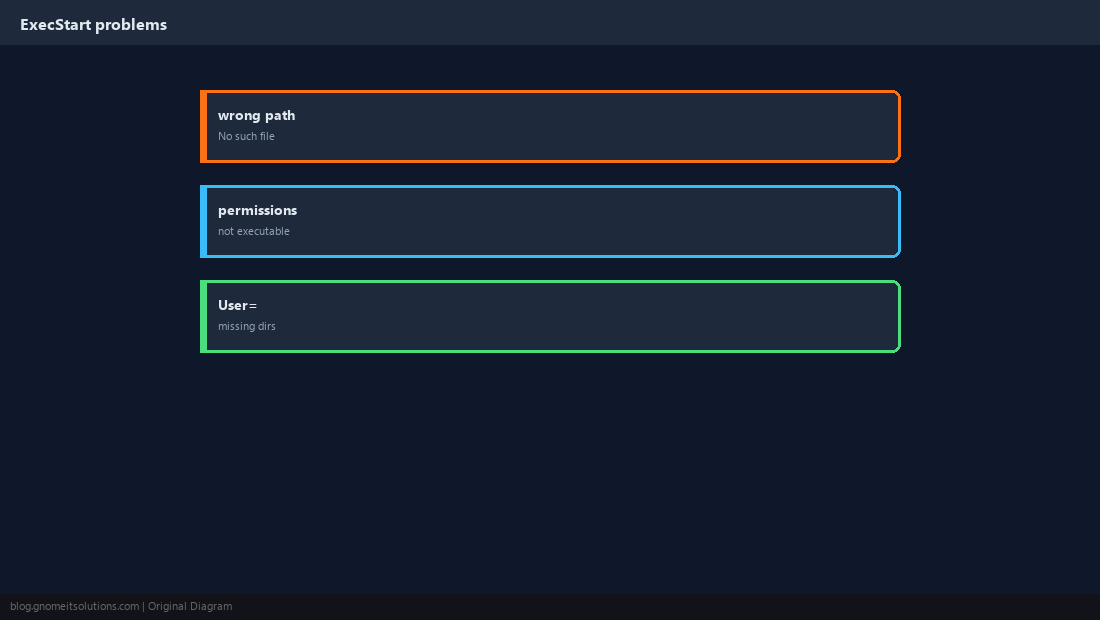
Dependencies and Ordering
If After=network-online.target is set but network is not ready, the service may fail or flap.
systemd-analyze verify /etc/systemd/system/myapp.service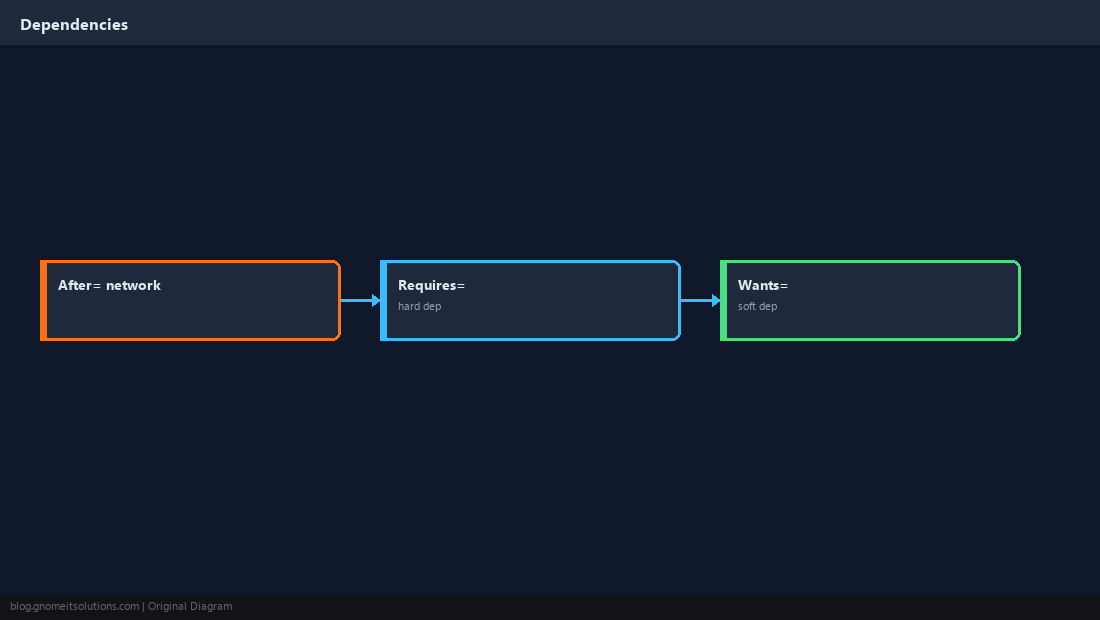
After Editing the Unit
Run daemon-reload before restart.
sudo systemctl daemon-reload
sudo systemctl restart myapp.service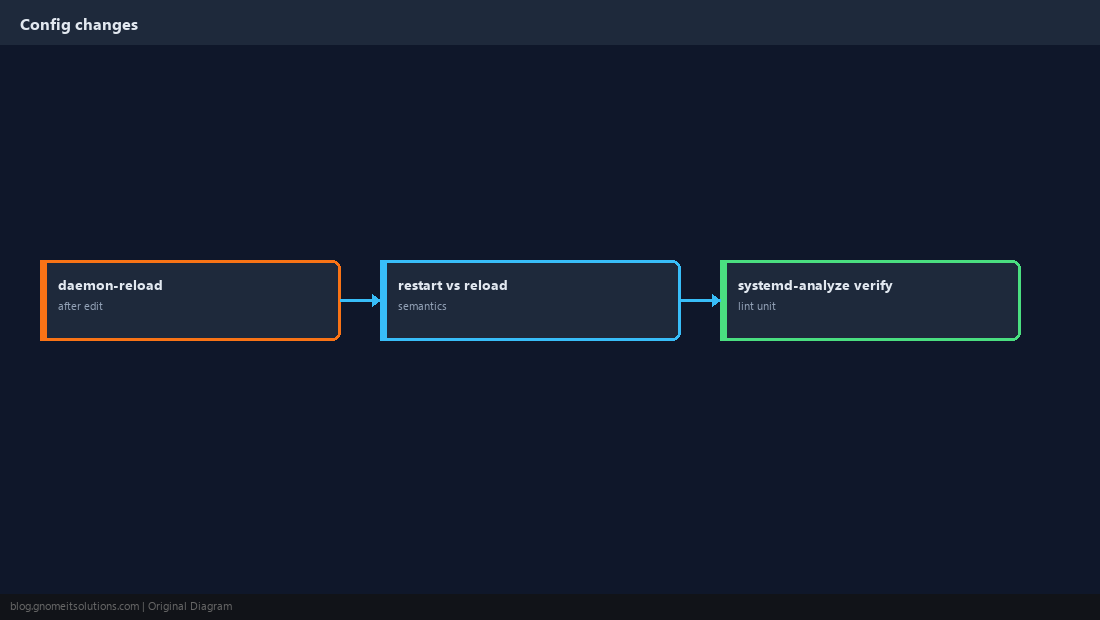
Confirm Healthy
Check active state and your app health endpoint.
systemctl is-active myapp.service
systemctl is-enabled myapp.service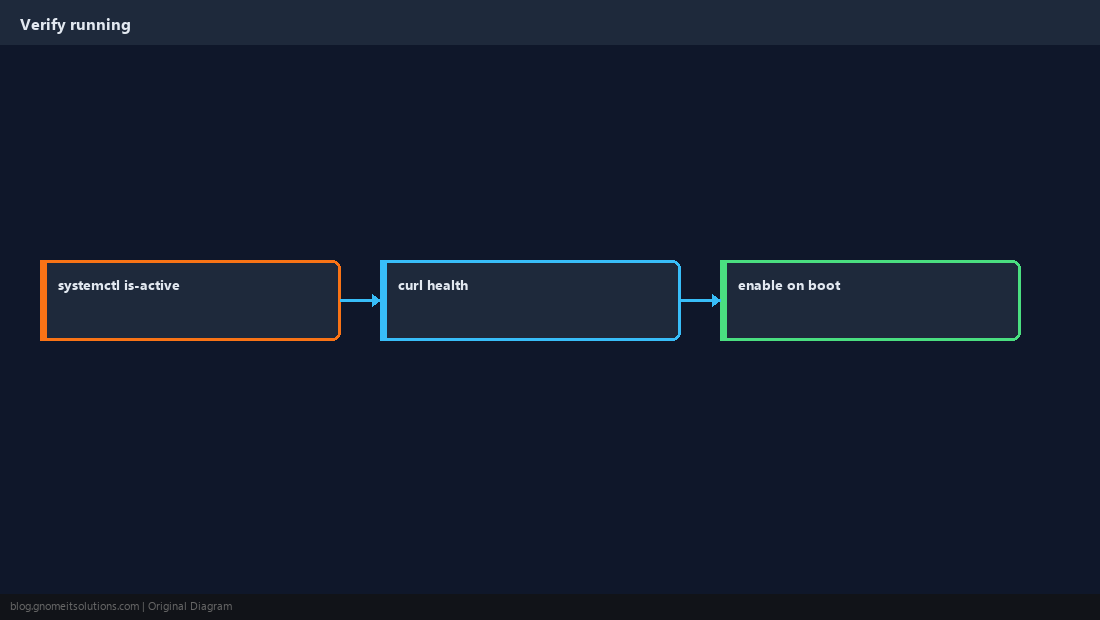
Quick Reference
journalctl -u NAME -bhas the real error- Check
ExecStartpath, +x, andUser= daemon-reloadafter unit edits
Related tutorials
Diagrams are original illustrations by Gnome IT Solutions. Tutorial text © Gnome IT Solutions.