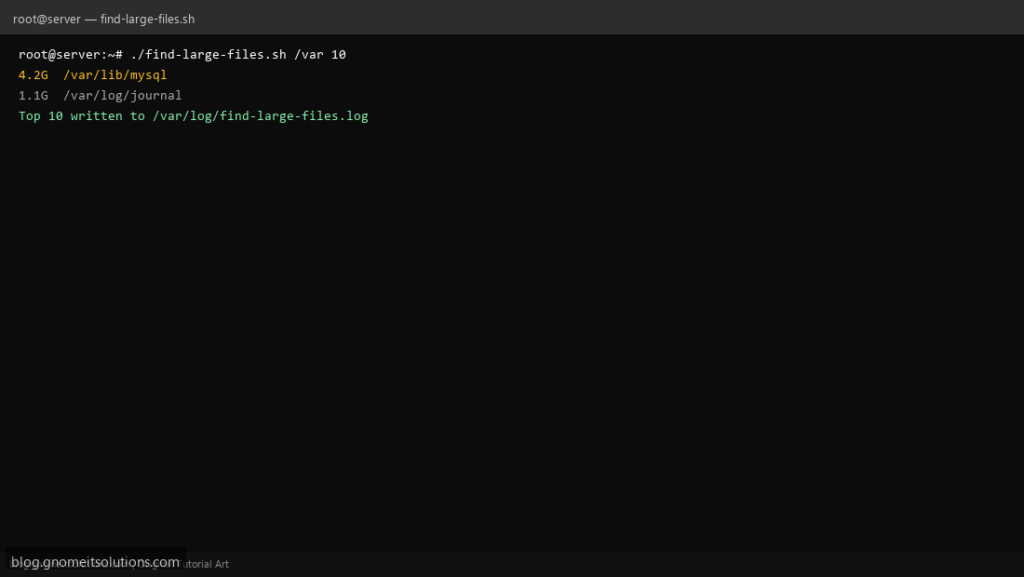
When df shows 95% full, admins search for a find large files shell script — not a one-liner they forget, but a saved report under /var/log that lists the top offenders by size.
What this script does
- Scans one or more paths (default
/varand/home) - Uses
du -ahxon a single filesystem to avoid NFS noise - Sorts human-readable sizes and prints top N lines
- Optional minimum size filter (e.g. files over 500M)
- Logs timestamped output for trending
Prerequisites
- coreutils du and sort
- Read access on scanned paths
- Run as root for full visibility under /var/lib
Step 1: Save the script
sudo nano /usr/local/bin/find-large-files.sh
sudo chmod +x /usr/local/bin/find-large-files.sh
Step 2: Full script (scroll to read)
find-large-files.sh
#!/usr/bin/env bash
set -euo pipefail

TOP_N="${TOP_N:-20}"
MIN_SIZE="${MIN_SIZE:-}"   # optional: 100M, 1G
LOG="/var/log/find-large-files.log"

log(){ echo "[$(date '+%F %T')] $*" | tee -a "$LOG"; }

scan(){
  local path="$1"
  local n="${2:-$TOP_N}"
  [[ -d "$path" ]] || { log "SKIP missing $path"; return; }
  log "=== Top $n under $path ==="
  if [[ -n "$MIN_SIZE" ]]; then
    find "$path" -xdev -type f -size "+${MIN_SIZE}" -printf '%s %p\n' 2>/dev/null \
      | sort -nr | head -n "$n" \
      | awk '{ printf "%.1fM\t%s\n", $1/1024/1024, $2 }' | tee -a "$LOG"
  else
    du -ahx "$path" 2>/dev/null | sort -hr | head -n "$n" | tee -a "$LOG"
  fi
}

if [[ $# -ge 1 && "$1" != -* ]]; then
  paths=("$@")
  # last arg may be number if numeric
  if [[ "${paths[-1]}" =~ ^[0-9]+$ ]]; then
    TOP_N="${paths[-1]}"
    unset 'paths[-1]'
  fi
else
  paths=("/var" "/home")
fi

for p in "${paths[@]}"; do
  scan "$p" "$TOP_N"
done
Scroll inside the box to read the full script.
Step 3: Configure settings
- Complements disk space email alert
- See /tmp cleanup script for quick wins
- Avoid scanning entire
/on busy file servers without-x
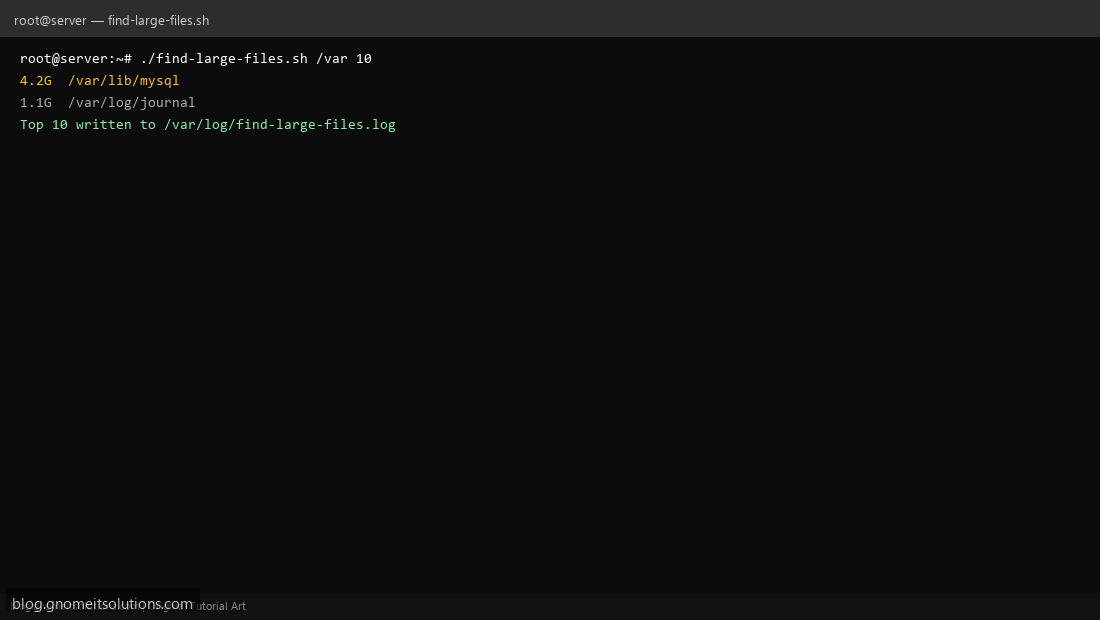
Step 4: Test manually
sudo ./find-large-files.sh /var 15sudo ./find-large-files.sh /home 10 500MSchedule with cron
sudo crontab -eAdd:
0 7 * * 1 /usr/local/bin/find-large-files.sh /var /home 25 >> /var/log/find-large-files.log 2>&1Related tutorials
- Linux Backup Shell Script: Files & Database to Remote Server
- Cron Jobs in Linux: Schedule Tasks with crontab
- SSH Key Authentication on Linux Servers
Terminal screenshot is an original illustration created for Gnome IT Solutions (blog.gnomeitsolutions.com).