
ViciDial ships with a workable set of default statuses, and our
campaign creation
guide deliberately leaves them in place for a first launch. Most campaigns eventually outgrow the
defaults, though — a collections floor needs a promise-to-pay code, a survey campaign needs partial-completion
tracking, an appointment-setting campaign needs its own confirmed/rescheduled/no-show codes. Custom
dispositions in ViciDial live in Admin → Statuses, and getting the underlying
flags right the first time matters more than the code names themselves, because those flags decide how a
call counts in reporting and whether the lead comes back into the hopper at all.
This guide covers designing a disposition set from scratch: the difference between a status’s display
code and its behavioral flags, sale versus no-sale classification, callback-type statuses that requeue a
lead instead of closing it out, and how a poorly chosen flag combination quietly breaks reporting or
re-dials a lead that should have been marked done.
Step 1: Understand What a Status Actually Controls
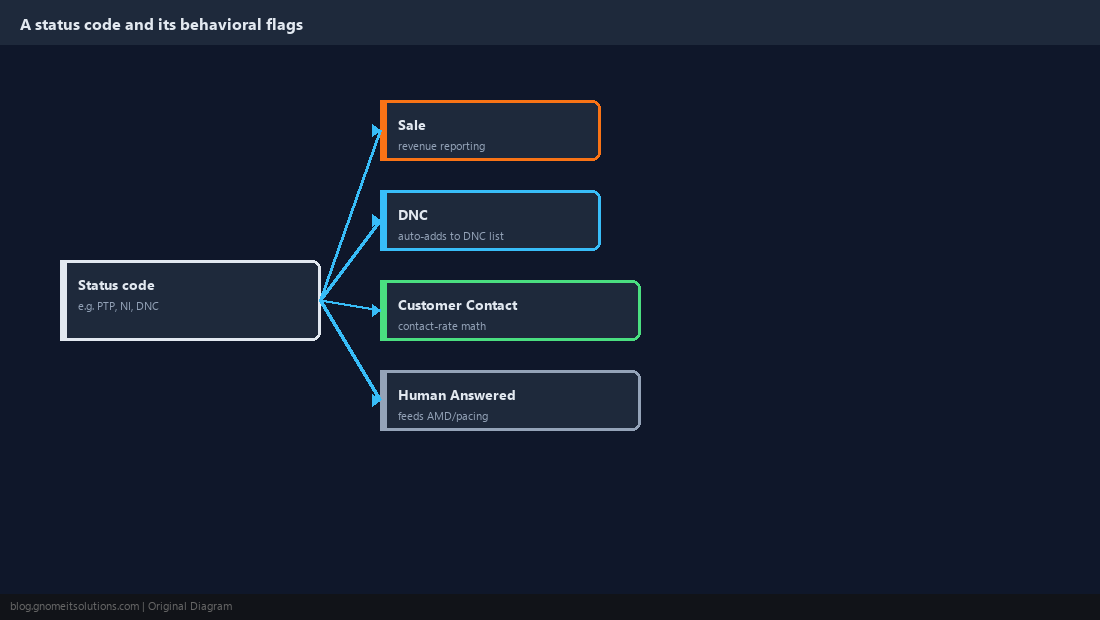
Each row in Admin → Statuses is a code, up to 3 characters, paired with a set of behavioral flags stored in the vicidial_statuses table — the code itself (PTP, NI, DNC) is just a label agents see and reports group by, but the flags next to it decide what actually happens to the lead afterward. The most consequential flags are Sale (marks the call a completed sale for revenue-style reporting), DNC (adds the number to the do-not-call list automatically), Customer Contact (counts as a live human reached for contact-rate math), and Human Answered (feeds AMD and pacing calculations). Get these flags wrong and the code name being sensible doesn’t save you — a status meant to represent a completed sale that forgot to check Sale will never show up in sales reporting no matter how it’s labeled.
Step 2: Design Sale and No-Sale Codes First
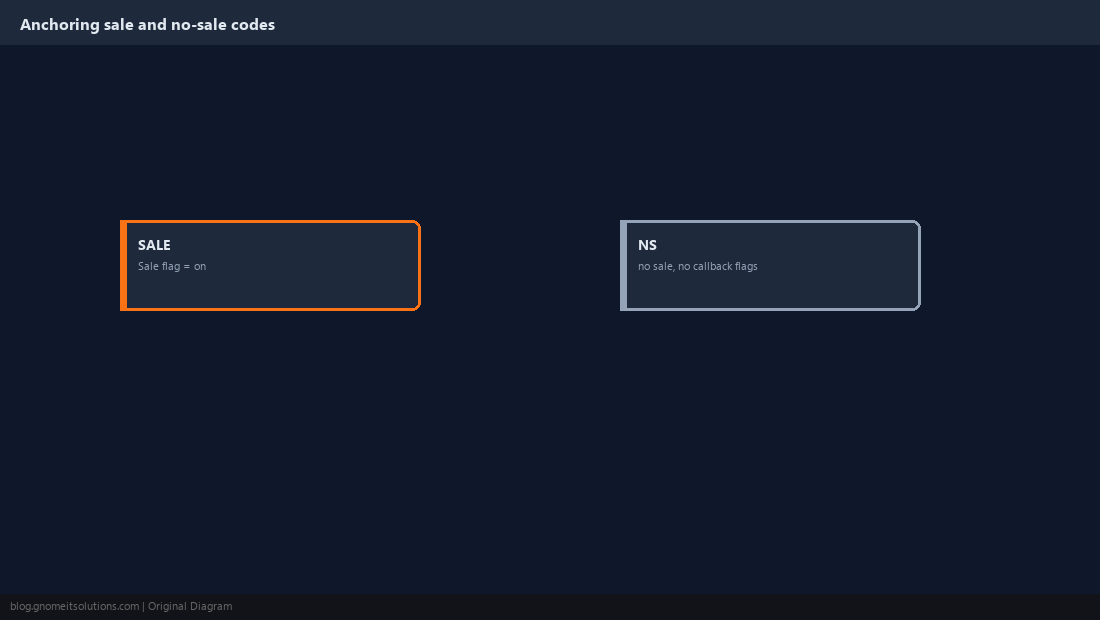
Start with the outcomes that matter most for reporting: at least one clear Sale-flagged status (SALE) and one clear final no-sale status (NS or similar) with neither the sale nor callback flags set. Resist creating multiple near-duplicate sale codes early on — SALE1, SALEA, SALEB — since every extra code fragments the revenue report into rows that then need to be manually summed back together. If the business genuinely needs to distinguish sale types (upsell versus base product, for example), track that distinction in a separate custom field on the lead rather than splitting the sale disposition itself, so the core sale-rate math still comes from a single flagged status.
Step 3: Add Callback Statuses That Requeue Instead of Closing
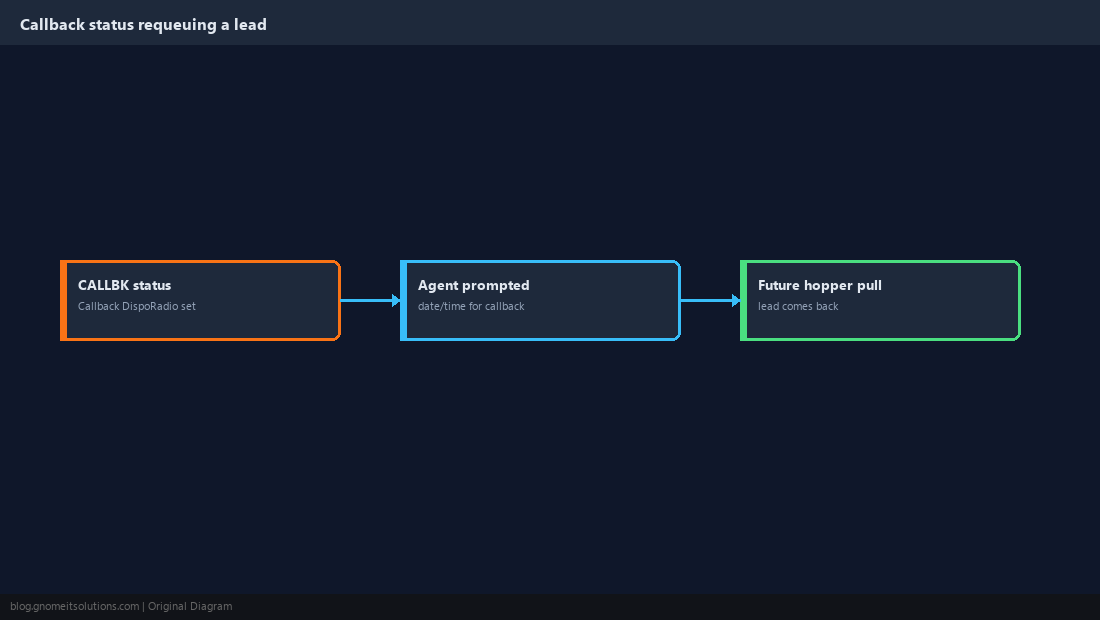
For any status meant to bring a lead back for another attempt — CALLBK for a scheduled callback, NA for no answer — set the Callback DispoRadio Selection and, where the disposition should force a specific future contact time, pair it with a callback-type entry so the agent is prompted for a date and time when selecting it. A status intended for a callback that is left without the requeue behavior configured just parks the lead in a dead no-status state instead of bringing it back into a future hopper pull, which quietly leaks leads out of the campaign without anyone noticing until someone audits the list weeks later and finds it stalled at a strange completion rate.
Step 4: Wire DNC and Compliance-Sensitive Codes Carefully
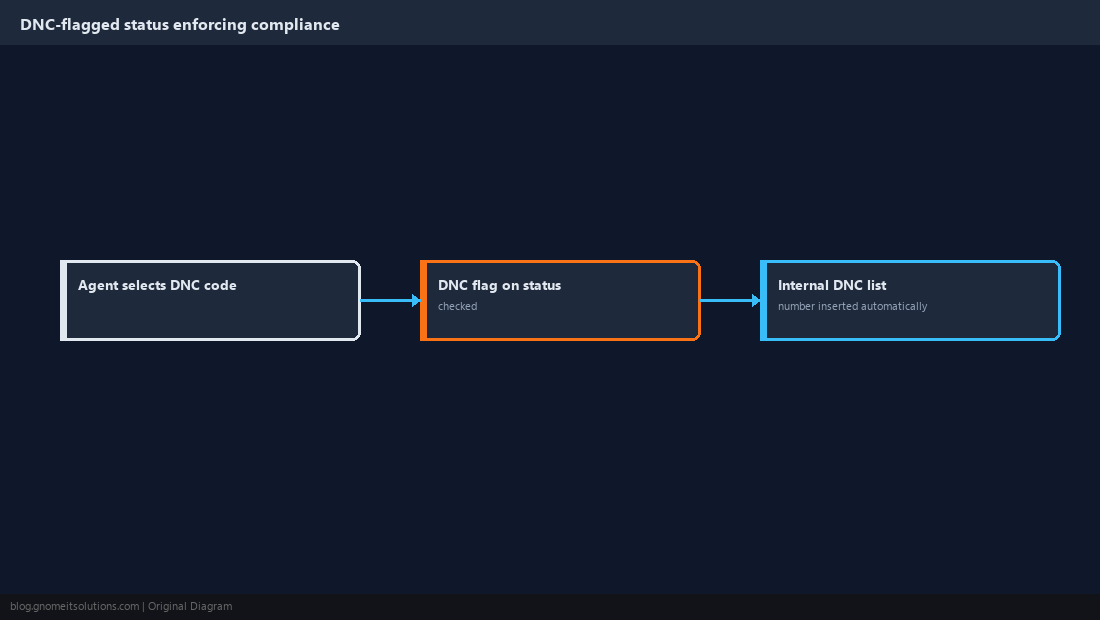
A status meant to represent a do-not-call request must have the DNC flag checked so ViciDial automatically inserts the number into the internal DNC list the moment the disposition is selected — this is the enforcement mechanism our DNC scrubbing guide covers from the campaign side. Never repurpose an existing DNC-flagged status’s code for something unrelated later, since historical dispositions already recorded against old calls keep whatever flag was active on the status definition at the time it was used, but current-day reporting and re-dial logic reads the status definition as it stands today — changing what a code means retroactively muddies both. Add a dedicated internal note or comment field in your documentation recording exactly which codes carry compliance weight so nobody edits one casually during a later cleanup pass.
Step 5: Scope Statuses to the Campaigns That Actually Use Them
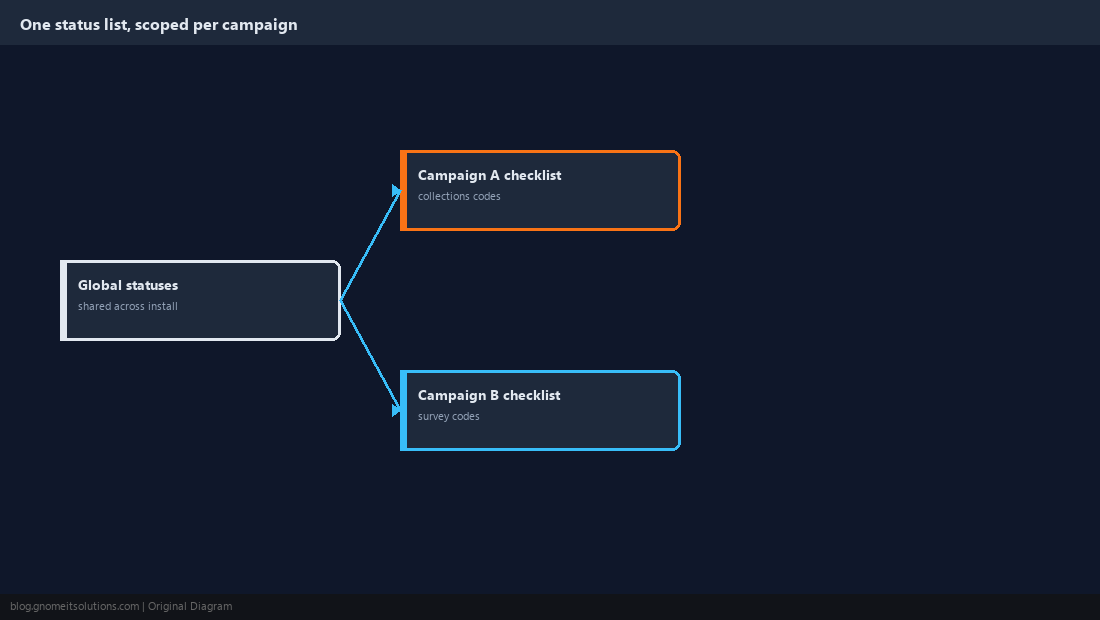
Not every status needs to appear on every campaign — a collections-specific PTP (promise to pay) code has no place on a healthcare survey campaign’s disposition list. On each campaign’s detail screen, use the STATUSES checklist to enable only the codes relevant to that campaign’s workflow; a shorter, relevant list is faster for agents to scan mid-call and reduces the odds of a mis-click landing on the wrong disposition. Statuses themselves are global and shared across the install, so this scoping step is what actually prevents cross-contamination between campaigns rather than duplicating the status definitions per campaign.
Step 6: Set the Agent-Facing Category Grouping
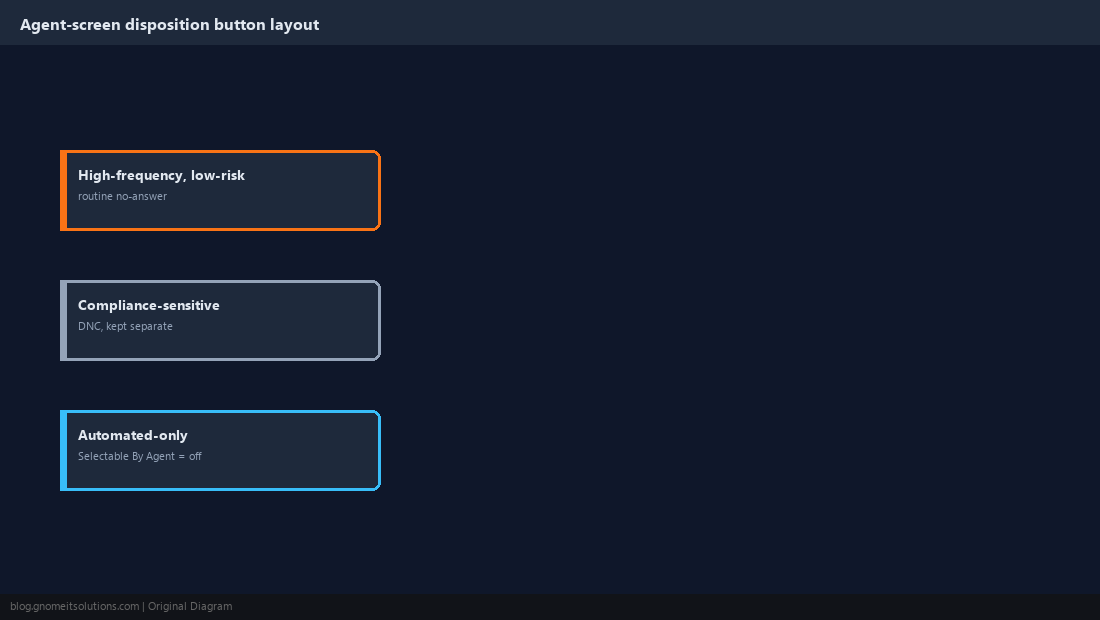
ViciDial groups statuses into on-screen categories (like SALE, NO CONTACT, CALLBACK) using the Selectable By Agent flag and the ordering fields on the status record, which controls how the disposition buttons are laid out on the agent screen. Put the highest-frequency, lowest-risk-of-misclick statuses (a routine no-answer, for example) somewhere agents won’t fat-finger into a compliance-sensitive code sitting right next to it — grouping DNC away from a routine no-contact code, rather than adjacent to it, measurably reduces accidental DNC entries reported by QA teams. Statuses not meant for agent selection at all — ones only ever set by an automated process like AMD detecting a machine — should have Selectable By Agent unchecked so they never appear as a manual option in the first place.
Step 7: Test Every New Status Against a Real Lead Before Rollout
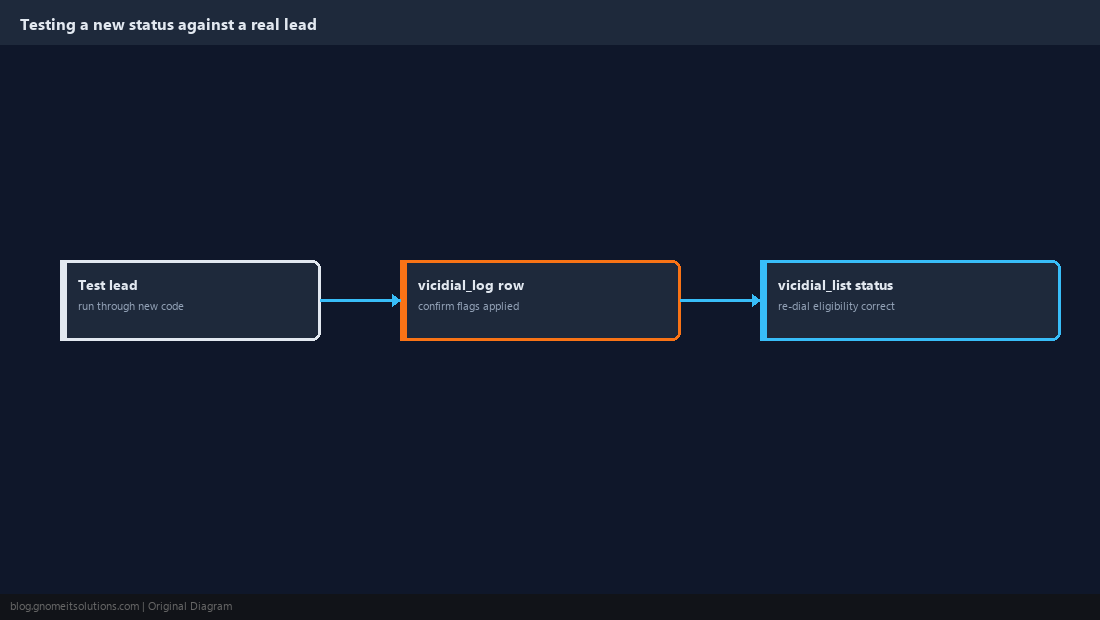
Before releasing a new or edited status set to live agents, run a test lead through each new code from the agent screen and confirm the resulting row in vicidial_log shows the expected flags, and that a callback-type status actually produces a future callback entry rather than closing the lead. Also confirm the lead’s status in vicidial_list updates the way the flags imply — a final no-sale code should leave the lead ineligible for re-dial in that list, while a callback code should not. Catching a misconfigured flag here, against one test lead, is far cheaper than discovering it after a full shift of agents used the wrong flag combination on real customers.
Step 8: Review the Status Set Periodically as the Campaign Evolves
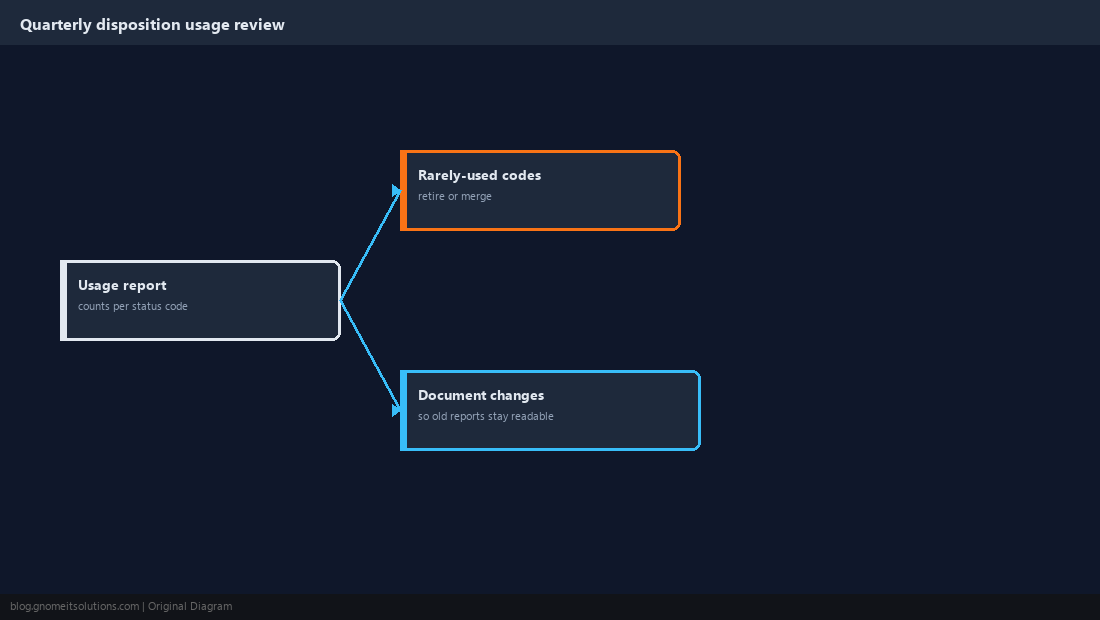
A disposition set that made sense at campaign launch tends to accumulate rarely-used or ambiguous codes over months of ad-hoc additions, and each one adds friction to reporting and agent decision-making. On a quarterly cadence, pull a report of disposition usage counts per status and retire or merge codes that see near-zero use, documenting the change so historical reports referencing a retired code still make sense to whoever reads them later. Treat the disposition set the same way you’d treat a database schema — changes are cheap early, and increasingly expensive to unwind once months of reporting and agent habit have built up around a messy set of codes.
Flags That Matter Most on a New Status
Sale               marks the call a completed sale for revenue reporting
DNC                auto-adds the number to the internal DNC list
Customer Contact   counts as a live human reached (contact-rate math)
Human Answered     feeds AMD and pacing calculations
Selectable By Agent  whether this code appears as a manual disposition option
Callback DispoRadio  whether choosing this code prompts a future contact time
Related tutorials
Image credits: All illustrations are original terminal/config mockups created for
Gnome IT Solutions — not screenshots from any third-party site. Tutorial text © Gnome IT Solutions.