
Predictive dialer pacing is the ratio math that decides how many outbound lines ViciDial
opens for every agent sitting available in a campaign. It lives in the dial_method and
auto_dial_level fields on Admin → Campaigns → Detail, and it is the actual
engine behind the numbers everyone stares at on the dialer floor — calls per hour, drop percentage, agent
wait time. Most ViciDial troubleshooting guides cover the pieces around this engine: how
answering
machine detection filters out voicemail, or how to read the numbers on the real-time reports screen —
but almost none of them explain the ratio algorithm itself, which is the setting that actually decides how
many phones ring at once.
Get the ratio wrong in either direction and it shows up fast. Set it too conservatively and agents sit
idle between calls, burning payroll while the hopper has plenty of dialable leads sitting untouched. Set it
too aggressively and the dialer connects more live humans than there are agents to answer them, which shows
up as abandoned calls — a compliance exposure under U.S. telemarketing abandonment rules as well as a bad
first impression for whoever picked up the phone. Because AMD, agent staffing, and average handle time all
move the math at the same time, pacing is not a set-it-once value — it is a live system that has to be
watched and adjusted the same way you would watch
the real-time reports
screen during a shift.
This guide walks through the actual fields that drive predictive pacing in ViciDial: choosing between
manual ratio and adaptive dial methods, setting the drop-percentage target the adaptive algorithm chases,
sizing the dial timeout and hopper so the dialer never runs dry, and reading the live stats that tell you
whether a change helped or hurt. Every field referenced here lives in the vicidial_campaigns
table and is editable from the campaign detail screen — no cron jobs or manual SQL required to tune pacing
day to day.
Step 1: Choose the Right Dial Method for the Campaign
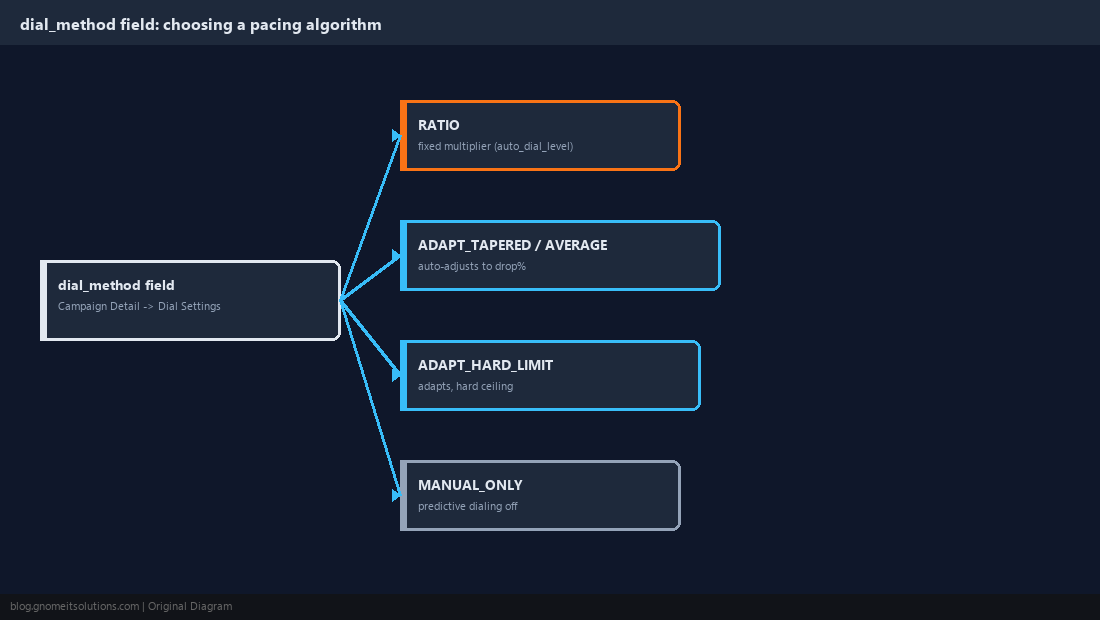
ViciDial’s dial_method field (set on Admin → Campaigns → Detail in the DIAL SETTINGS section) controls which pacing algorithm a campaign runs, and the options behave very differently. RATIO uses a fixed multiplier you set by hand in auto_dial_level — if that value is 2.0 and eight agents are logged in and available, the dialer targets roughly sixteen simultaneous call attempts. ADAPT_HARD_LIMIT, ADAPT_TAPERED, and ADAPT_AVERAGE all let the system recalculate the live dial_level on its own based on the measured drop percentage, with auto_dial_level instead acting as a ceiling the adaptive math is not allowed to exceed. MANUAL_ONLY and INBOUND_MAN disable predictive dialing entirely, which is worth knowing about if you ever need to drop a campaign back to click-to-dial while diagnosing a pacing problem elsewhere. For a brand new campaign or one with fewer than ten agents, start on RATIO so you can watch the direct relationship between the number you set and the calls that go out before handing control to an adaptive method.
Step 2: Set a Conservative Manual Ratio Baseline
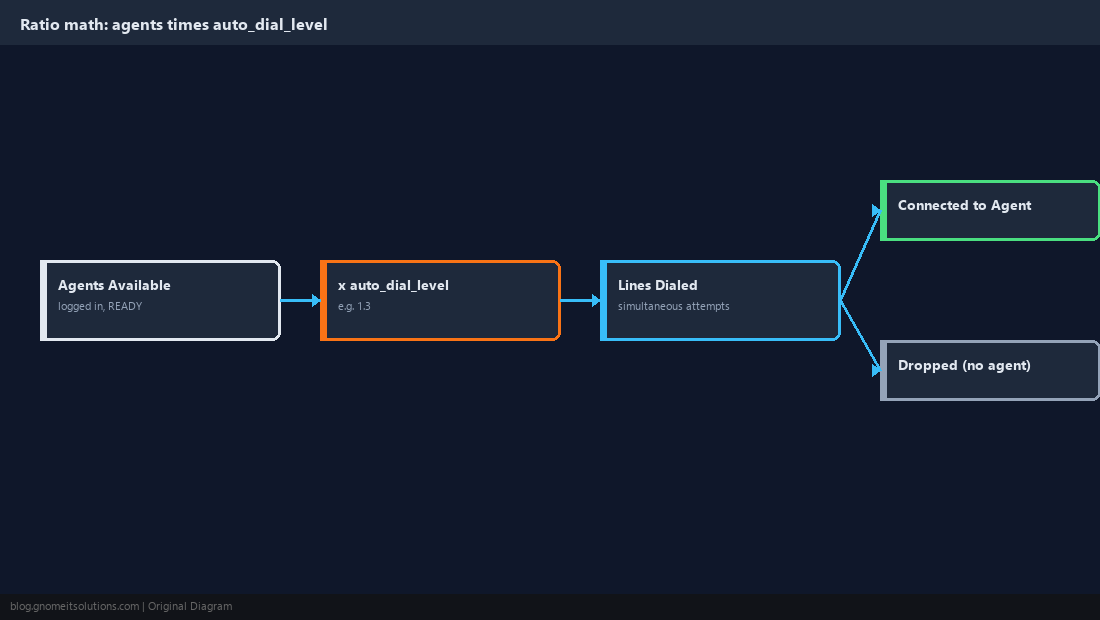
With dial_method set to RATIO, the only number that matters is auto_dial_level, and the safest way to find a starting value is to work backward from agents’ average talk-plus-wrap time versus how long it takes the dialer to get a definitive answer on a call. If agents average 4 minutes of talk and wrap time and a typical call takes about 20 seconds to connect or time out, a ratio near 1.3–1.5 is a reasonable opening bid rather than guessing at something aggressive like 3.0 on day one. Push the value up in increments of 0.1–0.2 directly in the campaign detail screen, save, and give the change five to ten minutes to show up in the live stats before nudging it again — ViciDial does not need a process restart to pick up a changed auto_dial_level on a RATIO campaign. Watch for the point where agents stop reporting idle time between calls but the drop percentage has not meaningfully climbed; that value is your working baseline until staffing or list quality changes enough to revisit it.
Step 3: Configure the Adaptive Algorithm’s Target Drop Percentage
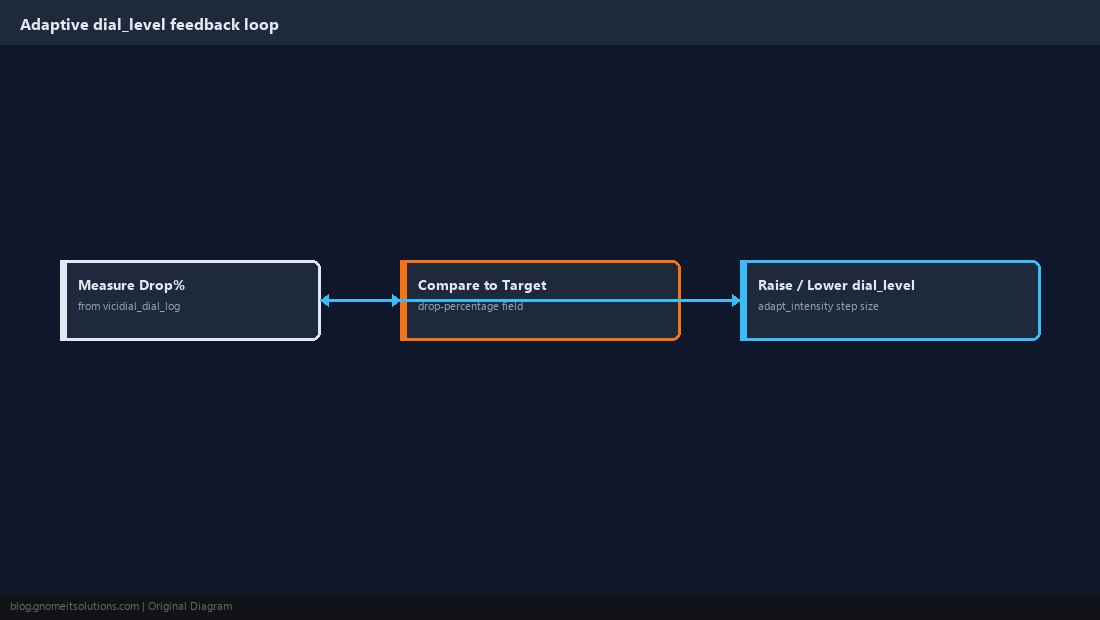
Switching dial_method to ADAPT_TAPERED or ADAPT_AVERAGE hands the ratio decision to the backend AST_VDauto_dial.pl process, which recalculates dial_level on every pacing cycle by comparing the campaign’s recent drop percentage, pulled from outcomes logged in vicidial_dial_log, against the target set in the campaign’s drop-percentage field. When live drop percentage sits below target, the process nudges dial_level up; when it climbs above target, the process pulls it back down, all without anyone touching the campaign screen. The adapt_intensity field controls how big each of those nudges is — a low value like 10–20 produces smooth, slow-moving adjustments appropriate for a stable blended campaign, while a higher value like 40–50 reacts fast enough for a campaign where agent headcount swings sharply through the day but will also overshoot more visibly after a burst of no-answers. Leave auto_dial_level populated even under an adaptive method since it still functions as the hard ceiling the algorithm cannot cross, which is the safety net if the adaptive math ever tries to run away.
Step 4: Tune Dial Timeout to Match Ring Behavior
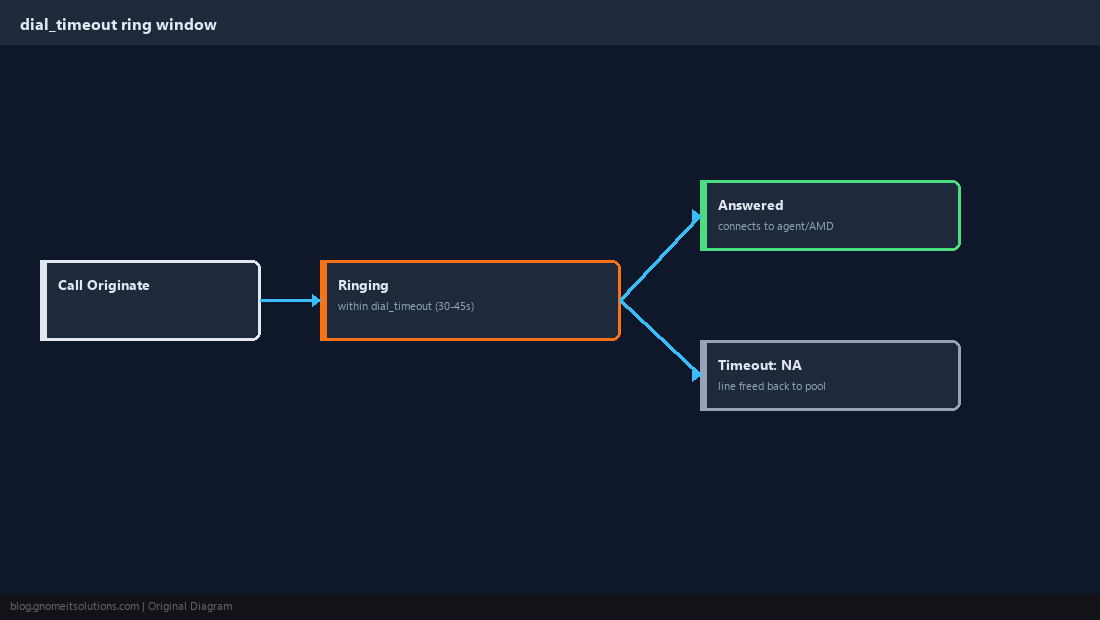
The dial_timeout field sets how many seconds the dialer lets a call ring before Asterisk gives up and logs it as a no-answer, freeing that line back into the pacing pool for the next attempt. Set it too short — under 20 seconds against a carrier with a slow ring cadence — and you will mark genuinely live calls as NA before the person reaches the phone, which quietly inflates the number of attempts the ratio math thinks it needs to make. Set it too long and lines sit open doing nothing productive, which lowers effective throughput per line and can mask a ratio that is actually too high because the dialer never gets to place as many concurrent attempts as the setting implies. A value between 30 and 45 seconds fits most SIP trunk configurations; if you are seeing an unusually high count of NA statuses relative to answered calls in the campaign’s stats, check dial_timeout against actual carrier ring behavior before touching the ratio at all.
Step 5: Size the Hopper and Lead Feed to Avoid Starvation or Overload
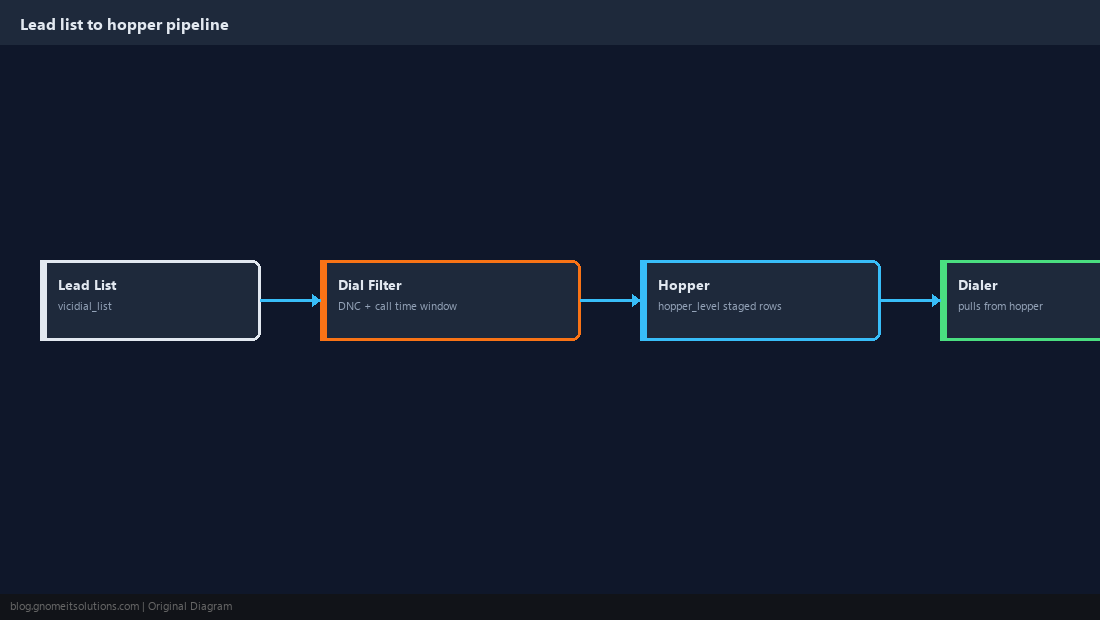
Predictive pacing can only dial what is sitting in the vicidial_hopper table, and the hopper_level field on the campaign detail screen controls how many leads stay staged there ahead of actual need. Set it too low and a campaign running an aggressive ratio can outrun its own hopper, showing gaps in dialing activity that look like a pacing problem but are actually a lead-feed problem — the fix is raising hopper_level, not lowering the ratio. Set it too high on a campaign with a tight local call-time window or a lot of numbers filtered out by DNC scrubbing and you waste database churn reloading a hopper full of leads that get skipped anyway when the dialer actually tries to place them. As a working rule, size hopper_level to somewhere around three to five times the dial level expected during the busiest hour, then confirm the hopper is refilling steadily rather than sitting empty by watching the campaign’s lead statistics over a full shift.
Step 6: Watch Live Stats While Adjusting Ratio
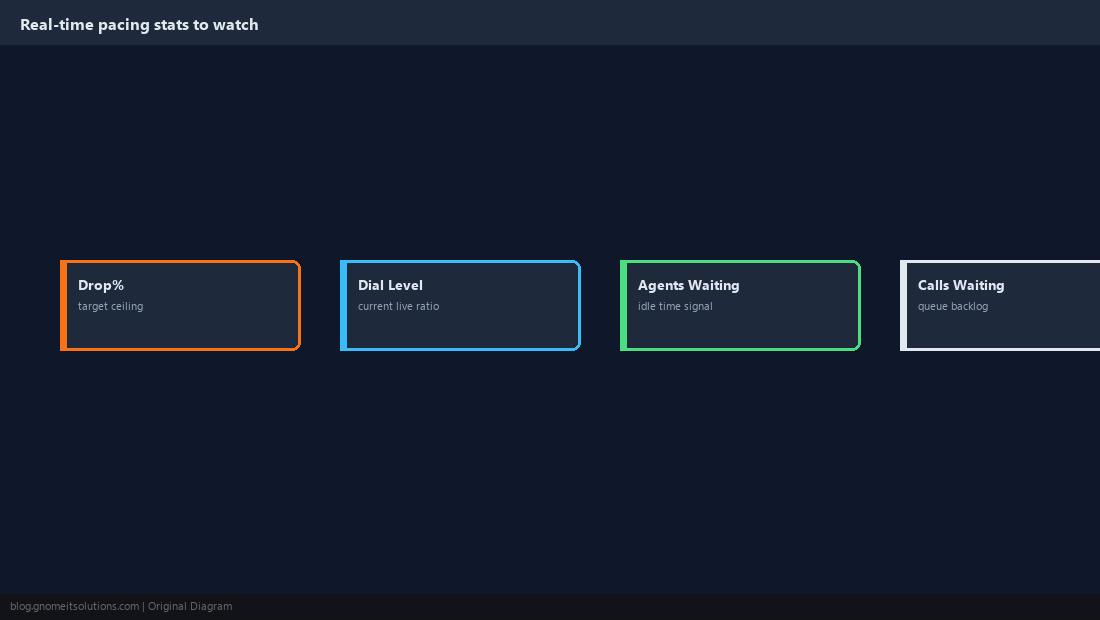
Every ratio or adapt_intensity change needs to be judged against live numbers, not gut feel, and the real-time campaign monitor is where those numbers live — watch the Drop%, Dial Level, Agents Waiting, and Calls Waiting columns for the specific campaign just touched rather than the system-wide summary. Make one change at a time: bump auto_dial_level by 0.1–0.2, or nudge adapt_intensity by five to ten points, then leave it alone for five to ten minutes so several pacing cycles can run before drawing a conclusion. A live Dial Level that is climbing while Agents Waiting stays near zero and Drop% stays flat means there is room to push further; a Drop% that climbs the moment the ratio goes up means the ceiling for current staffing has been found. Resist the urge to stack multiple changes in the same few minutes — it makes it impossible to tell which field actually caused the shift in the stats being watched.
Step 7: Factor AMD’s Filtering Effect into the Ratio Math
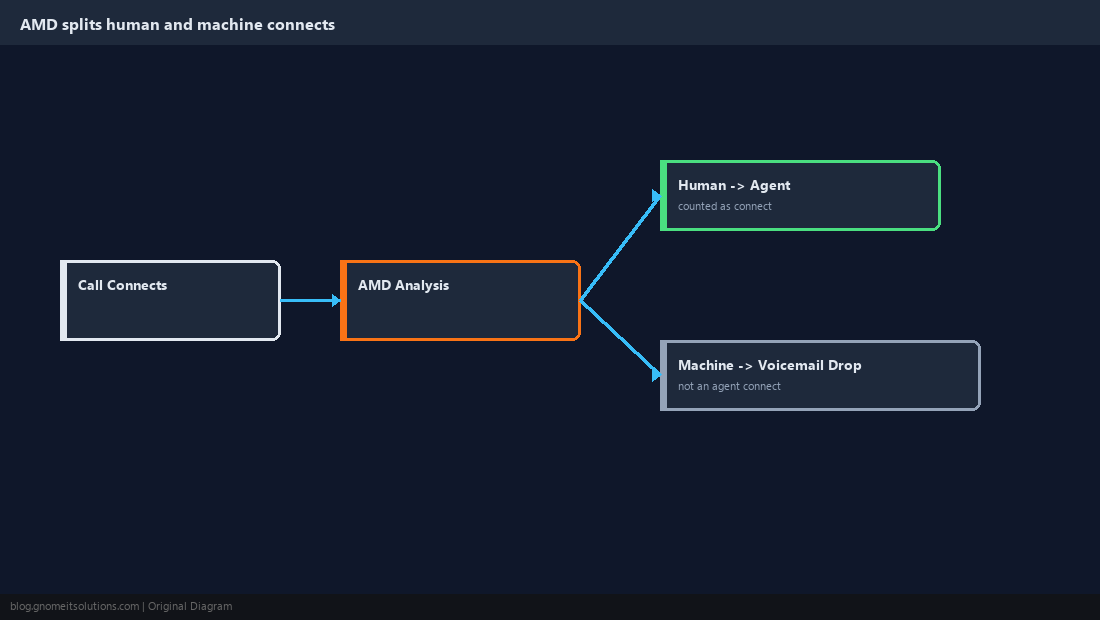
Turning answering machine detection on for a campaign changes the math the adaptive algorithm is working with, because a share of connects that used to reach an agent now get diverted to a voicemail drop or hangup before vicidial_dial_log ever records them as an agent connect. If a campaign was tuned with AMD off and someone enables it later, the effective human-connect rate the adaptive method is chasing drops, and dial_level often creeps higher than it would have otherwise as the algorithm tries to compensate for what looks like a lower connect rate. Re-baseline the ratio any time AMD settings change on a campaign that has already been tuned — drop auto_dial_level back toward a conservative starting point and let an adaptive method re-climb, or manually re-test a RATIO campaign the same way described in Step 2. Treat AMD sensitivity and pacing ratio as two settings that always move together rather than two unrelated tuning exercises on the same campaign.
Step 8: Enforce Abandonment Compliance Limits and Ongoing Monitoring
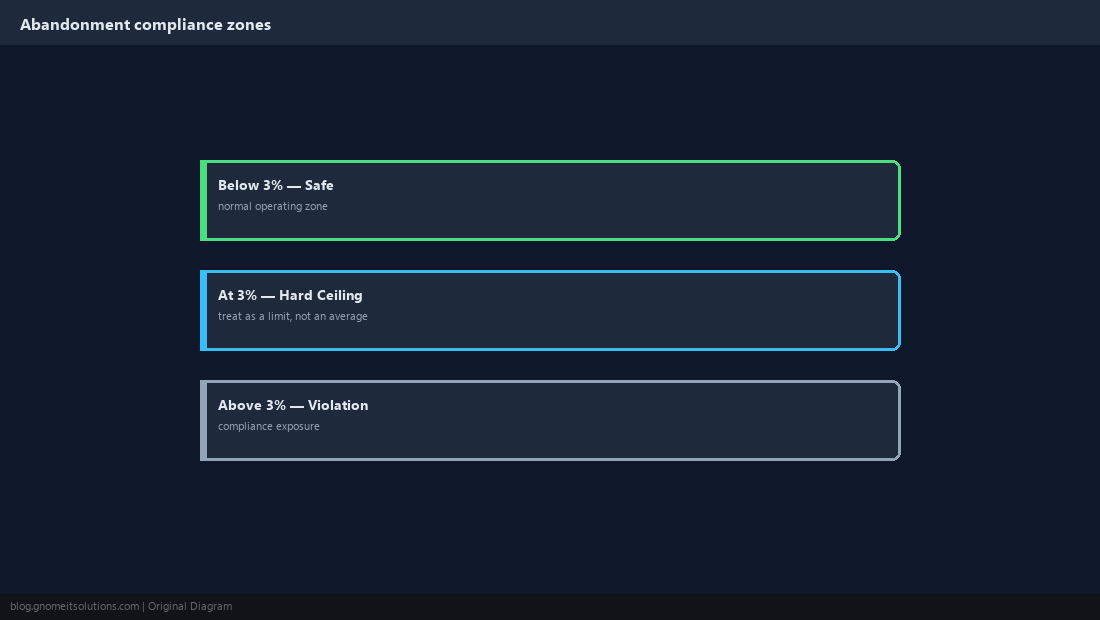
Whatever dial method a campaign runs, set its drop-percentage target at or below 3% and treat that number as a hard ceiling rather than a goal to average out to — U.S. telemarketing abandonment rules are commonly enforced against sustained violations, not a single bad minute, but a dialer that regularly spikes past 3% on a busy campaign is running too hot regardless of the average. Build a habit of pulling drop-percentage history from vicidial_dial_log on a schedule rather than only when someone complains, looking specifically for spikes tied to a particular hour of day, a particular lead list, or a sudden drop in logged-in agents that the pacing algorithm did not react to fast enough. On ADAPT_HARD_LIMIT campaigns, if repeated compliance violations show up even with the drop-percentage target configured correctly, lower the auto_dial_level ceiling itself — the adaptive math cannot fix a campaign where the ceiling it was given is already too aggressive for actual staffing. Document whatever ratio or intensity values a campaign lands on, since the next admin tuning that campaign six months from now needs the reasoning, not just the current number in the field.
Safe Starting Values for a New Campaign
dial_method             = RATIO
auto_dial_level         = 1.3
dial_timeout            = 35
hopper_level            = 200
adapt_intensity         = 15        (only used once dial_method is switched to an ADAPT_* method)
drop-percentage target  = 3.0       (hard ceiling, not an average to aim for)
Before increasing ratio on a live campaign, confirm:
- Hopper is refilling steadily and not running empty between dialer cycles
- Dial timeout matches actual carrier ring behavior, not a guessed value
- AMD settings have not changed since the ratio was last tuned
- Real-time Drop% has been flat for at least one full pacing cycle before the last change
- A change log entry exists noting old value, new value, and who made the change
Related tutorials
Image credits: All illustrations are original terminal/config mockups created for
Gnome IT Solutions — not screenshots from any third-party site. Tutorial text © Gnome IT Solutions.