
Our
AMD configuration guide covers how ViciDial tells a live human apart from an answering machine, but
detection alone only saves an agent from talking to dead air — it doesn’t do anything productive with the
calls AMD correctly identifies as machines. Voicemail drop closes that gap: instead of just
hanging up or logging a machine detection, ViciDial plays a pre-recorded message onto the line the moment
AMD confirms a beep, so a percentage of your machine-detected calls turn into a delivered message rather
than a wasted connection.
This guide covers the full chain: recording and uploading the message audio in the format Asterisk
expects, wiring it into the campaign’s AMD settings so it only plays on genuine machine detections, choosing
between agent-initiated and fully automated drop, and the compliance notes that matter before you turn this
on for a real campaign.
Step 1: Record the Voicemail Message in the Right Format
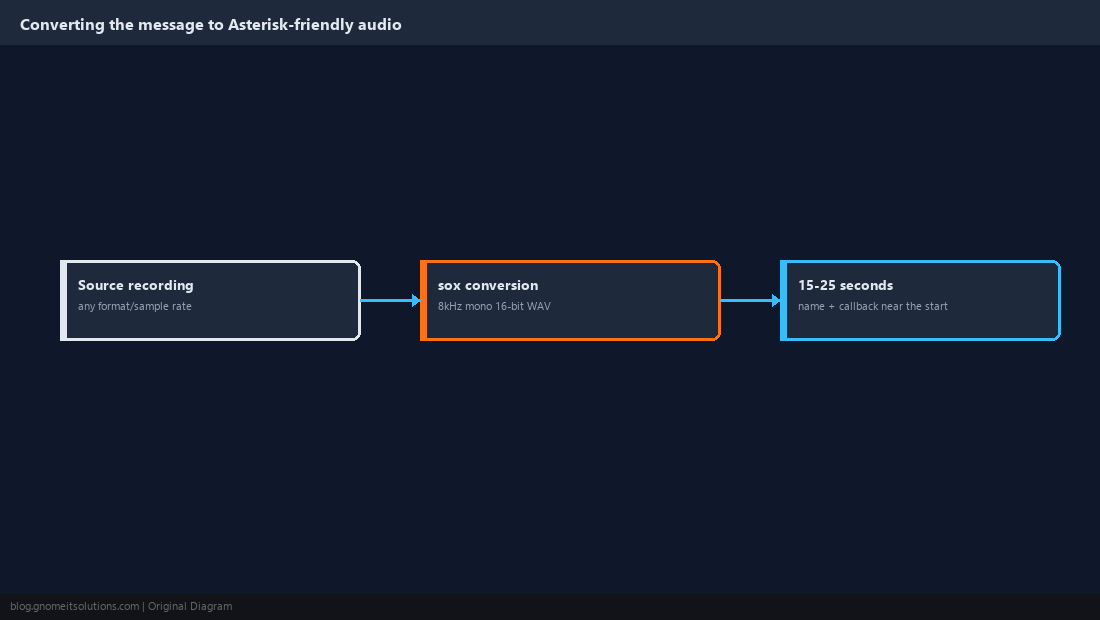
Asterisk plays back .wav audio most reliably in 8kHz mono 16-bit PCM (sometimes labeled GSM 6.10 or plain “CCITT u-law” depending on your recording tool), so export or convert the message to that format before uploading rather than leaving it at whatever sample rate a phone or laptop microphone recorded by default. If you’re converting from another format, sox handles it cleanly on the command line:
sox input.mp3 -r 8000 -c 1 -b 16 voicemail_drop.wavKeep the message itself short — 15 to 25 seconds — since a long recording increases the odds it gets cut off by the answering machine’s own recording time limit before the callback number is even mentioned. Always identify the caller and business by name near the start of the message, not only at the end, since some answering machines truncate the tail of a long incoming message.
Step 2: Upload the Recording Through Admin -> Recordings/Audio
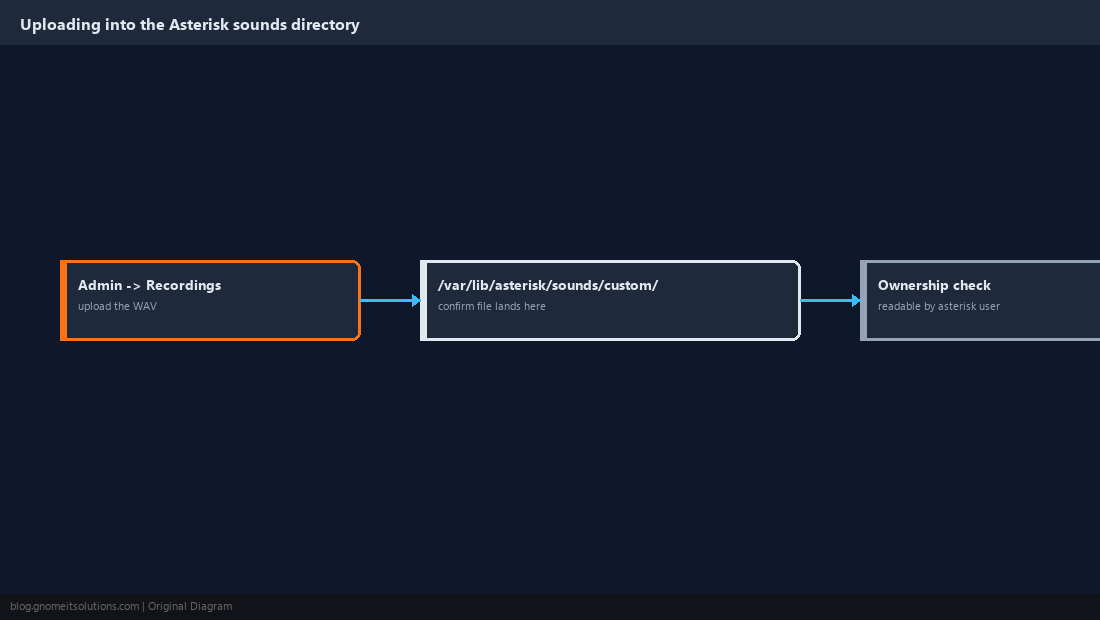
In the admin UI, use the audio/recording upload screen (labeled Admin → Recordings or Admin → Audio Store depending on your ViciDial version) to upload the converted .wav file, which copies it into the server’s sounds directory that Asterisk’s dialplan can reference. Confirm the file actually lands under /var/lib/asterisk/sounds/custom/ (or whichever custom sounds directory your install uses) with correct read permissions for the asterisk user — a recording that uploaded through the web UI but has the wrong file ownership will fail silently at playback time rather than throwing a visible error in the admin screen.
Step 3: Confirm AMD Is Correctly Detecting Machines on This Campaign
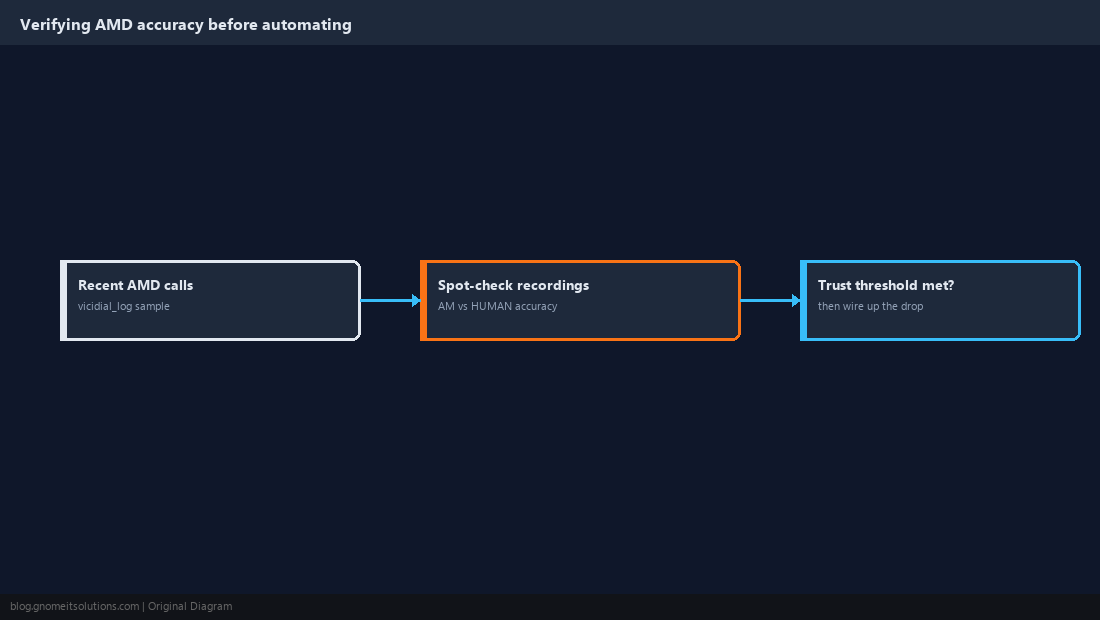
Voicemail drop is only as good as the machine detection feeding it, so before wiring up the drop itself, confirm the campaign’s AMD settings (covered in full in our AMD guide) are already tuned and producing a reasonable ratio of AM (answering machine) to HUMAN classifications against a real batch of calls. Dropping a voicemail onto a call AMD misclassified as a machine when a live human actually answered plays a canned message straight into a real person’s ear mid-greeting, which is a worse experience than the dead air voicemail drop is meant to fix. Pull a sample of recent AMD classifications from vicidial_log and spot-check a handful of the actual recordings before trusting the detection enough to attach an automated action to it.
Step 4: Choose Agent-Initiated or Fully Automated Drop
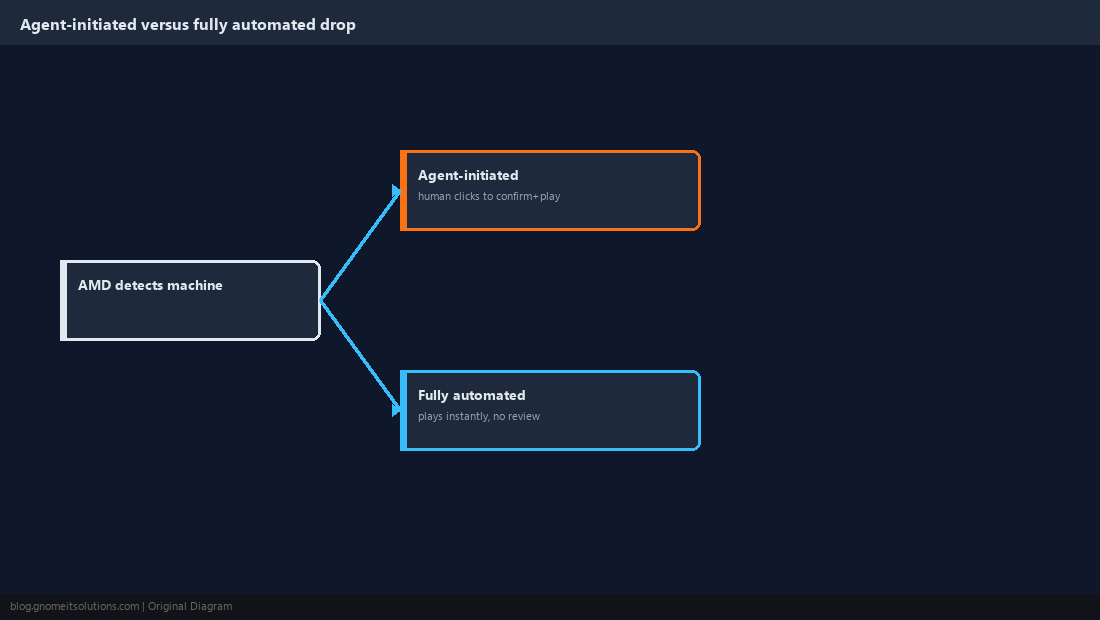
ViciDial supports two drop styles, and they carry very different agent experiences. Agent-initiated drop routes the AMD-flagged call to the agent first with a visible “machine detected” indicator and a one-click button that plays the recording and then hangs up, keeping a human in the loop to catch an AMD misclassification before the message plays. Fully automated drop skips the agent entirely and plays the message the instant AMD confirms the beep, which maximizes agent talk-time efficiency but removes the safety check a human reviewer provides. Start any new voicemail drop rollout on agent-initiated mode for at least the first few hundred calls so you can catch AMD accuracy problems by watching agents click through live, then move to fully automated once the misclassification rate has proven low enough to trust unattended.
Step 5: Wire the Recording Into the Campaign’s AMD Action
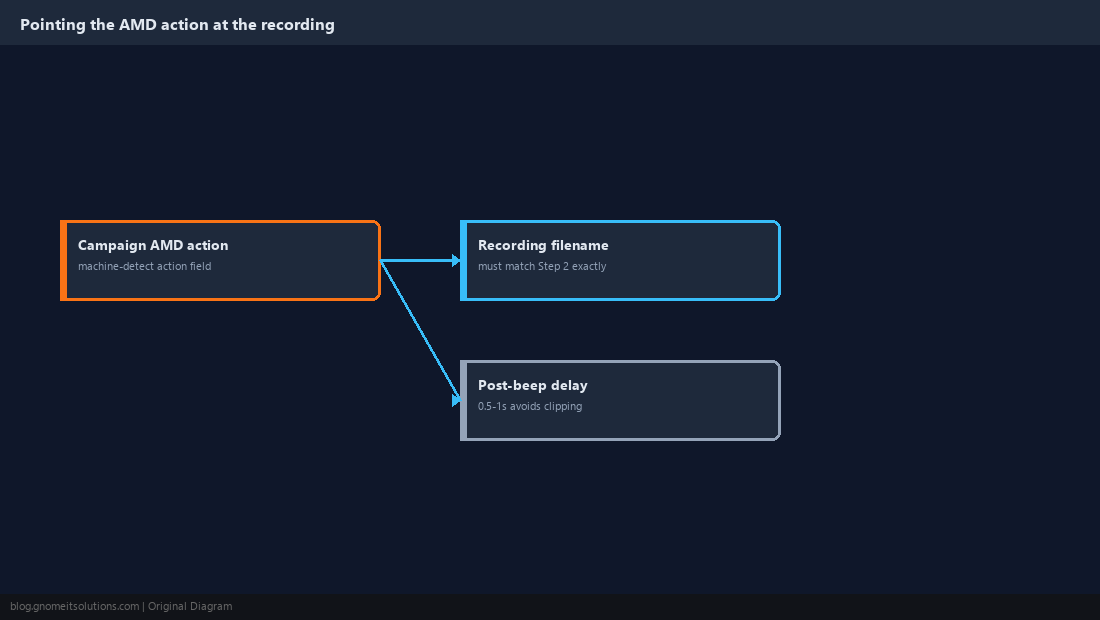
On the campaign detail screen’s AMD section, set the machine-detection action field to point at the voicemail drop behavior rather than the default hangup-or-requeue behavior, and reference the uploaded recording’s filename in the drop-message field exactly as it was saved in Step 2 — a mismatched filename here is the single most common reason a configured voicemail drop plays silence instead of the message. If your build exposes it, also set a brief delay of half a second to one second after the detected beep before playback starts, since playing immediately on the beep sometimes clips the first syllable of the message on machines with a slow beep-to-recording transition.
Step 6: Test With a Real Answering Machine Before Going Live
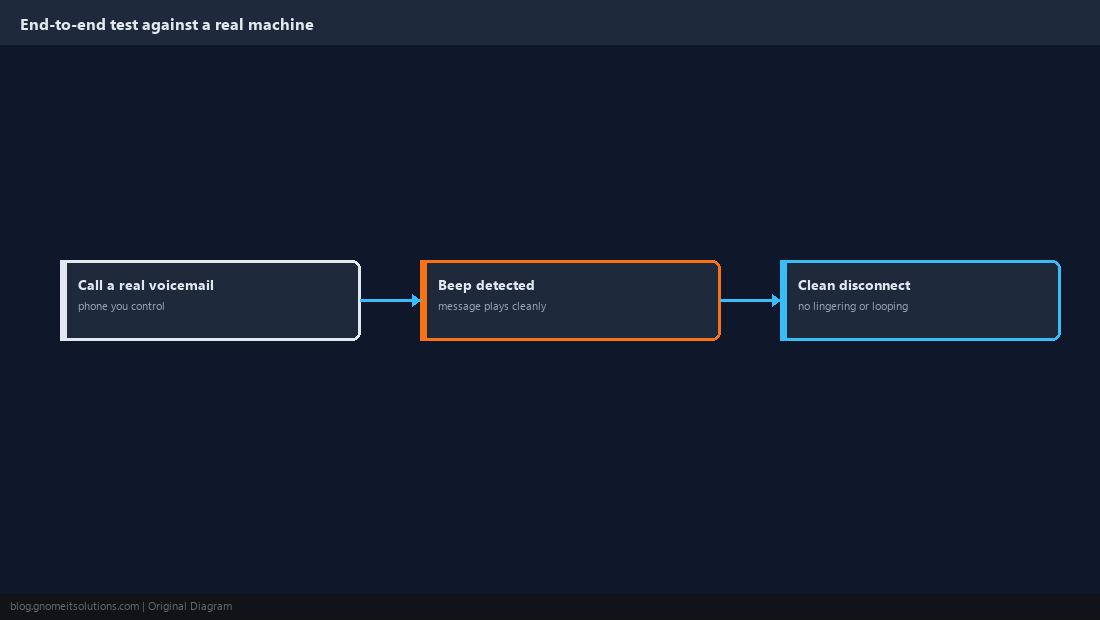
Call a phone you control that is set to go to voicemail, and confirm three things end to end: AMD correctly detects the beep and triggers the action, the message plays cleanly at a normal volume with no clipping at the start, and the call disconnects cleanly afterward rather than lingering on the line or looping the recording. Test at different phones from at least two different carriers if possible, since machine beep timing and voicemail greeting length vary enough between carriers that a drop tuned against one provider’s voicemail system can clip badly against another’s.
Step 7: Track Drop Success Rate and Adjust
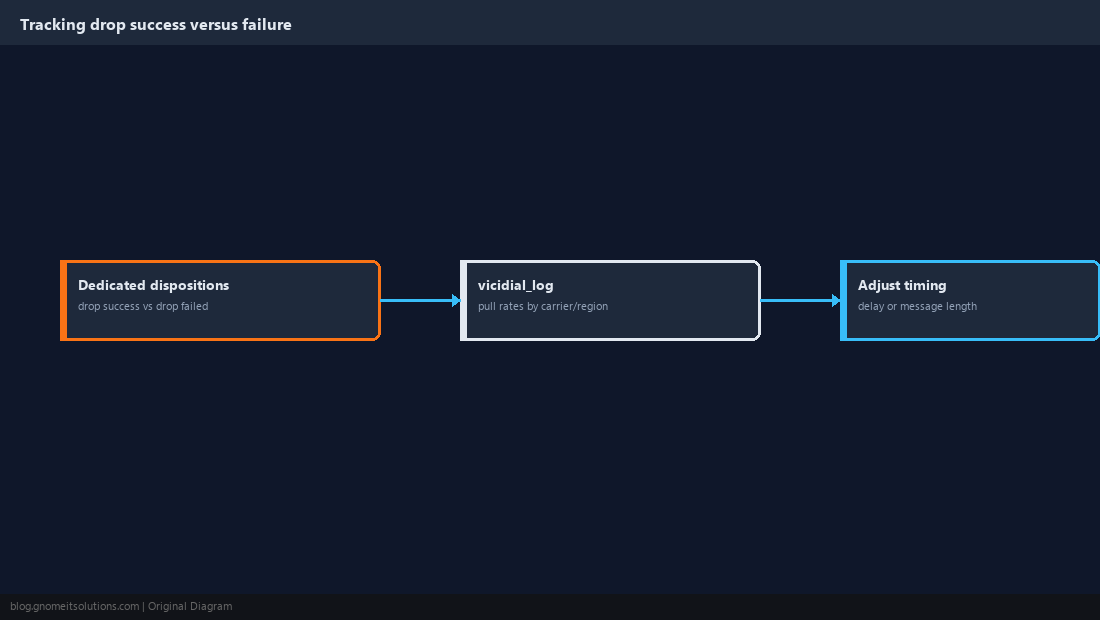
Once live, tag or log every voicemail-drop event distinctly from a plain AMD machine detection so you can measure how many actually completed successfully versus how many were cut off mid-message by the machine hanging up early — a dedicated disposition code for “voicemail dropped successfully” versus “machine detected, drop failed” makes this trivial to pull from vicidial_log later. If the failure rate against a specific carrier or region stays high, shorten the message further or adjust the post-beep delay from Step 5 rather than assuming the feature is broken outright — voicemail drop timing is one of the settings that benefits most from real production data instead of guesswork.
Step 8: Review Compliance Requirements Before Scaling Up
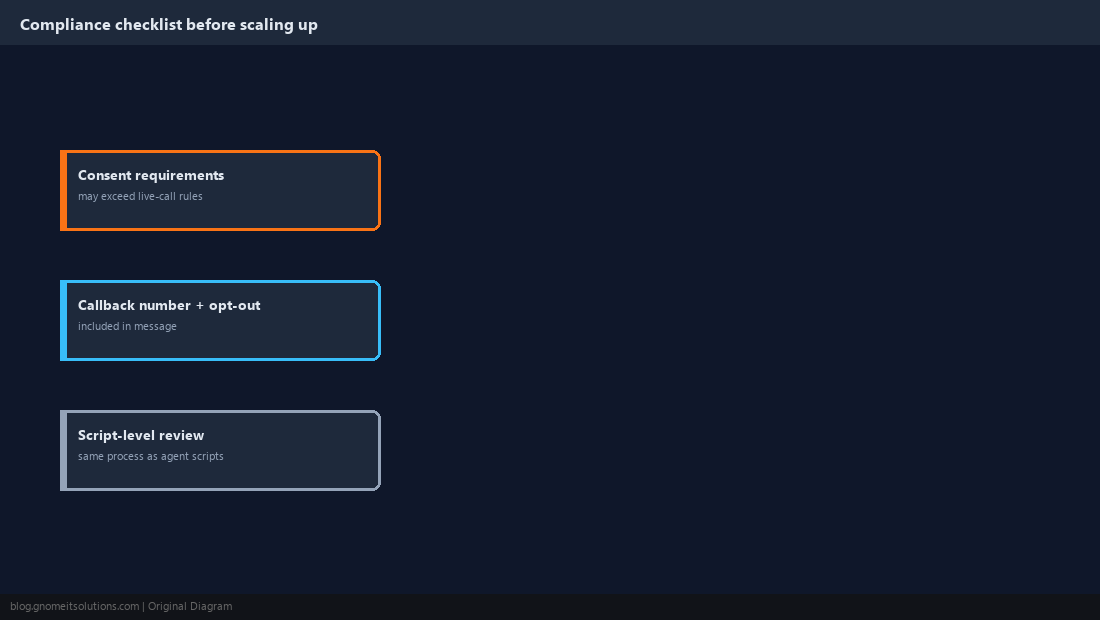
Automated pre-recorded messages left on voicemail are subject to the same U.S. telemarketing and robocall rules that govern the rest of an outbound campaign, and in some jurisdictions carry additional consent requirements specific to pre-recorded messages beyond what applies to a live agent call — confirm this with whoever handles compliance for the campaign before scaling voicemail drop past a small pilot. Always include a real callback number and, where required, an opt-out instruction in the message itself, and keep the message content itself under the same review process as any other outbound script rather than treating it as a technical detail exempt from compliance review.
Voicemail Drop Rollout Order
1. Record message   8kHz mono 16-bit WAV, 15-25 seconds
2. Upload            Admin -> Recordings, confirm file ownership on disk
3. Verify AMD        confirm AM/HUMAN accuracy before automating on top of it
4. Pick mode         agent-initiated first, fully automated once proven
5. Wire AMD action   point campaign's machine-detect action at the recording
6. Test live         real answering machines, multiple carriers
7. Track metrics     dedicated disposition for drop success vs. failure
8. Compliance review before scaling past a small pilot
Related tutorials
Image credits: All illustrations are original terminal/config mockups created for
Gnome IT Solutions — not screenshots from any third-party site. Tutorial text © Gnome IT Solutions.