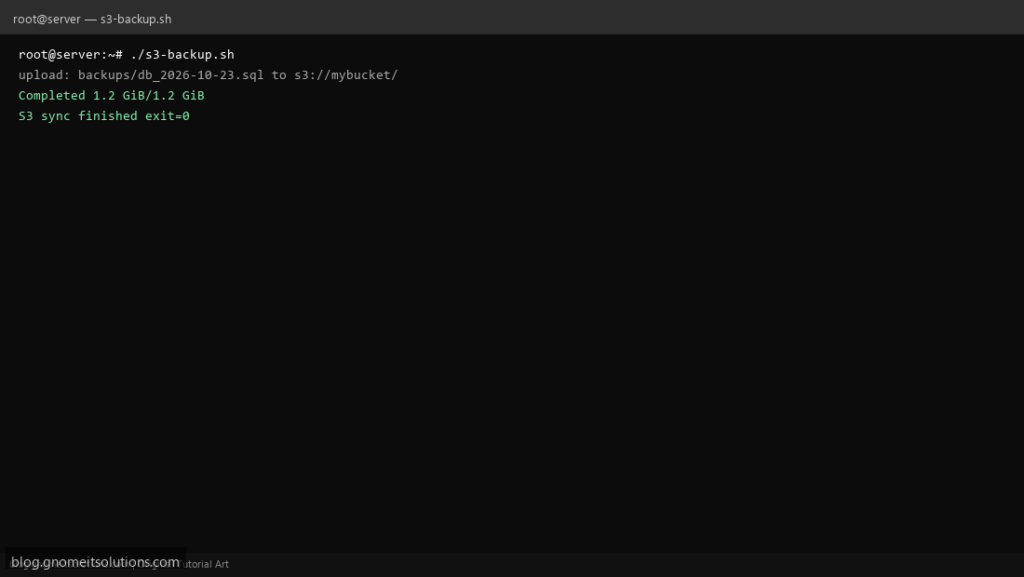
aws s3 sync in a shell script is the standard pattern for offsite backups without mounting object storage — highly searched alongside rsync tutorials. This script syncs a local path to a bucket prefix with logging and safe defaults.
What this script does
- Uses
aws s3 syncwith explicit source ands3://destination - Supports
AWS_PROFILEor instance IAM role - Optional
--deletemirror mode (commented by default) - Verifies
awsCLI is installed before run - Logs start/end and exit code for cron mail
Prerequisites
- AWS CLI v2 installed and configured
- IAM permission s3:PutObject/ListBucket on target prefix
- Enough bandwidth for backup window
Step 1: Save the script
sudo nano /usr/local/bin/s3-backup.sh
sudo chmod +x /usr/local/bin/s3-backup.sh
Step 2: Full script (scroll to read)
s3-backup.sh
#!/usr/bin/env bash
set -euo pipefail

SRC="${SRC:-/var/backups}"
DEST="${DEST:-s3://my-backup-bucket/prod/}"
AWS_PROFILE="${AWS_PROFILE:-default}"
LOG="/var/log/s3-backup.log"
DRY_RUN="${DRY_RUN:-0}"

log(){ echo "[$(date '+%F %T')] $*" | tee -a "$LOG"; }

command -v aws >/dev/null 2>&1 || { log "aws CLI not found"; exit 1; }
[[ -d "$SRC" ]] || { log "SRC not found: $SRC"; exit 1; }

export AWS_PROFILE

OPTS=(s3 sync "$SRC" "$DEST" --only-show-errors)
# Uncomment to mirror deletions (dangerous if SRC wrong):
# OPTS+=(--delete)

log "START ${OPTS[*]}"
if [[ "$DRY_RUN" == "1" ]]; then
  log "DRY_RUN=1 — would run: aws ${OPTS[*]}"
  exit 0
fi

if aws "${OPTS[@]}" >>"$LOG" 2>&1; then
  log "DONE s3 sync OK"
else
  ec=$?
  log "FAIL s3 sync exit=$ec"
  exit "$ec"
fi
Scroll inside the box to read the full script.
Step 3: Configure settings
- Local rsync pattern: rsync backup script
- Rclone alternative: rclone offsite script
- Never commit access keys — use IAM roles on EC2 or
~/.aws/credentialspermissions 600
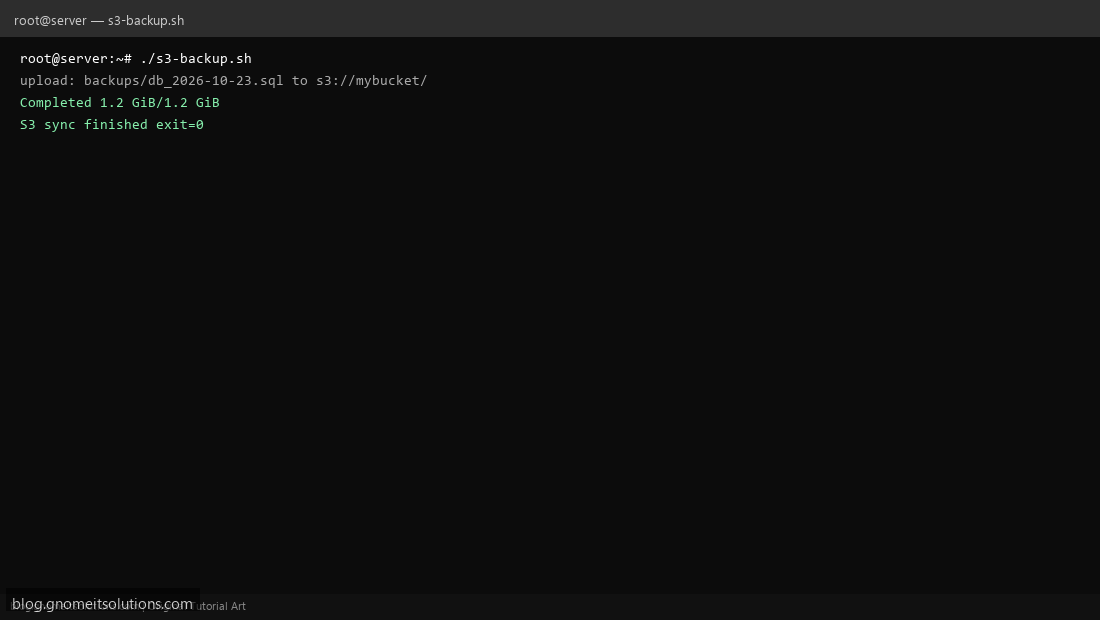
Step 4: Test manually
aws sts get-caller-identityDRY_RUN=1 /usr/local/bin/s3-backup.shSchedule with cron
sudo crontab -eAdd:
0 3 * * * /usr/local/bin/s3-backup.sh >> /var/log/s3-backup.log 2>&1Related tutorials
- Linux Backup Shell Script: Files & Database to Remote Server
- Cron Jobs in Linux: Schedule Tasks with crontab
- SSH Key Authentication on Linux Servers
Terminal screenshot is an original illustration created for Gnome IT Solutions (blog.gnomeitsolutions.com).