NFS is the simplest way to give every node in a Proxmox cluster the same storage: one NAS or Linux server exports a directory, and each node mounts it. That shared
access is what makes fast live migration possible and gives you a central place for ISOs and backups.
This guide prepares the export, tests it before Proxmox touches it, adds it with sensible content types, and covers performance and troubleshooting. To build the
server side from scratch, see NFS server setup on Linux.
Quick answer: Datacenter → Storage → Add → NFS, enter the server and export, pick content types.
How NFS Fits Into Proxmox
The NFS server exports a directory; Proxmox mounts it under /mnt/pve/<storage-id> on every selected node and stores disk images, ISOs or backups there.
NAS / NFS server:/srv/pve --(storage network)--> pve1, pve2, pve3 mount /mnt/pve/nfs-store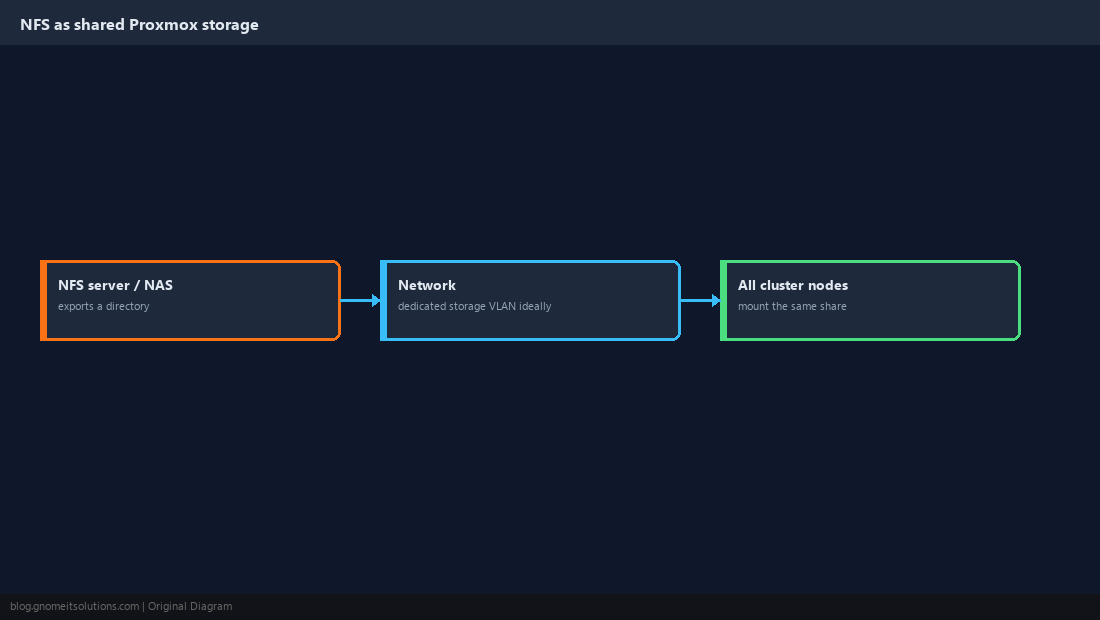
Prepare the Export on the Server
Allow only the Proxmox nodes’ addresses. Proxmox writes as root, so the export needs no_root_squash; keep it restricted to the node IPs for that reason.
/srv/pve 10.10.20.11(rw,sync,no_subtree_check,no_root_squash) 10.10.20.12(rw,sync,no_subtree_check,no_root_squash)sudo exportfs -ra
sudo exportfs -vno_root_squash trusts root on the listed clients. Never export it to a whole subnet you don’t control.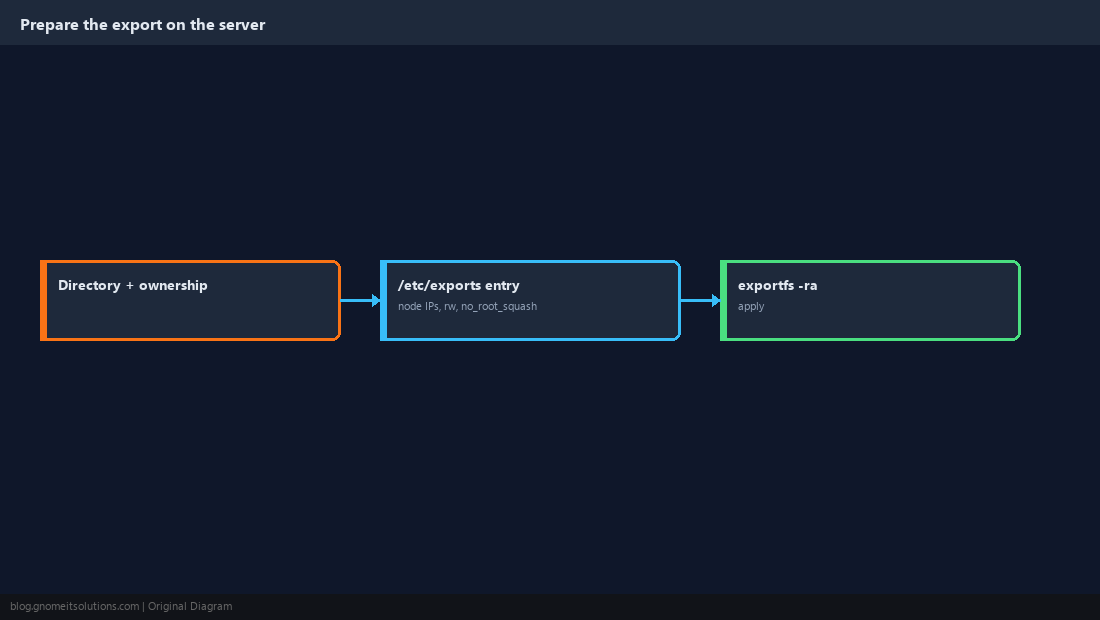
Test From a Node Before Adding It
Confirm the node can see the export and write to it. This isolates network and permission problems from Proxmox configuration.
showmount -e 10.10.20.5
mkdir -p /mnt/test && mount -t nfs 10.10.20.5:/srv/pve /mnt/test
touch /mnt/test/ok && ls -l /mnt/test && rm /mnt/test/ok
umount /mnt/test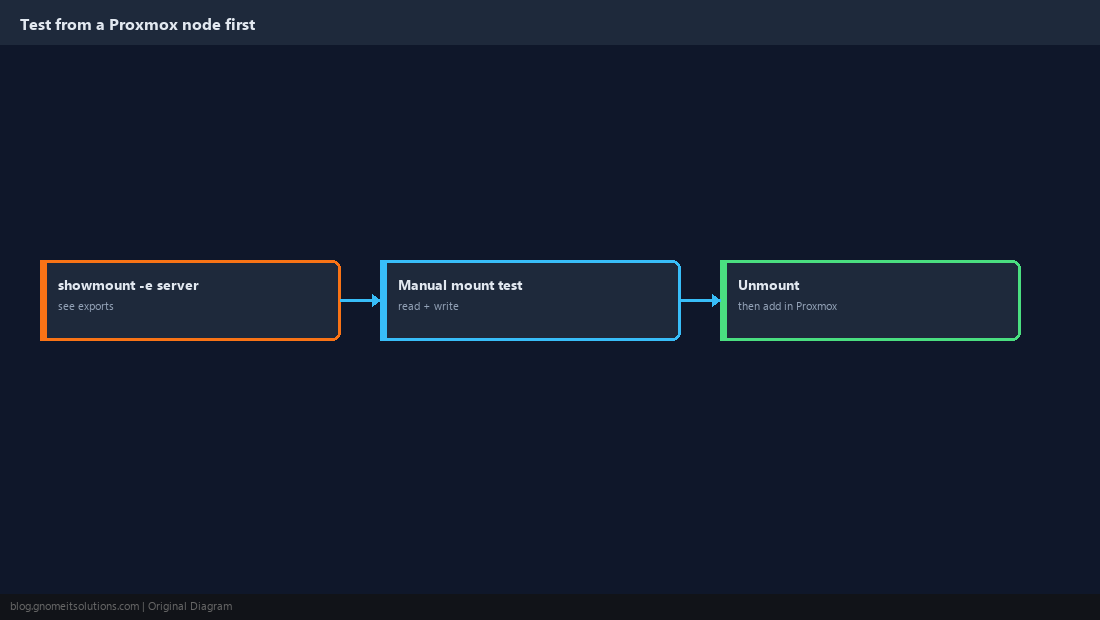
Add the Storage in Proxmox
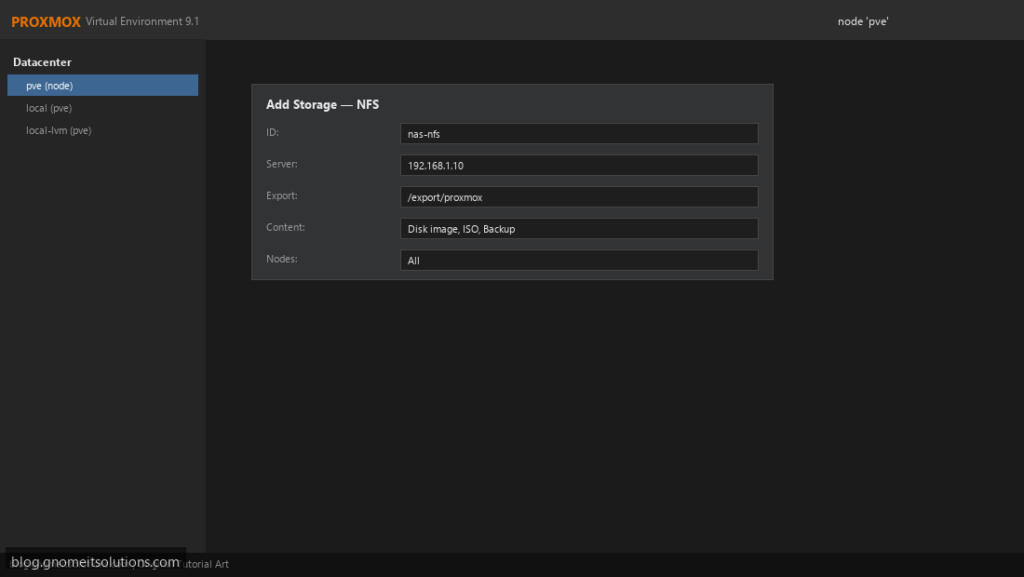
In Datacenter → Storage → Add → NFS, give it an ID, the server address and the export path. Proxmox mounts it on every node you select.
pvesm add nfs nfs-store --server 10.10.20.5 --export /srv/pve \
  --content images,iso,vztmpl,backup --options vers=4.2
pvesm status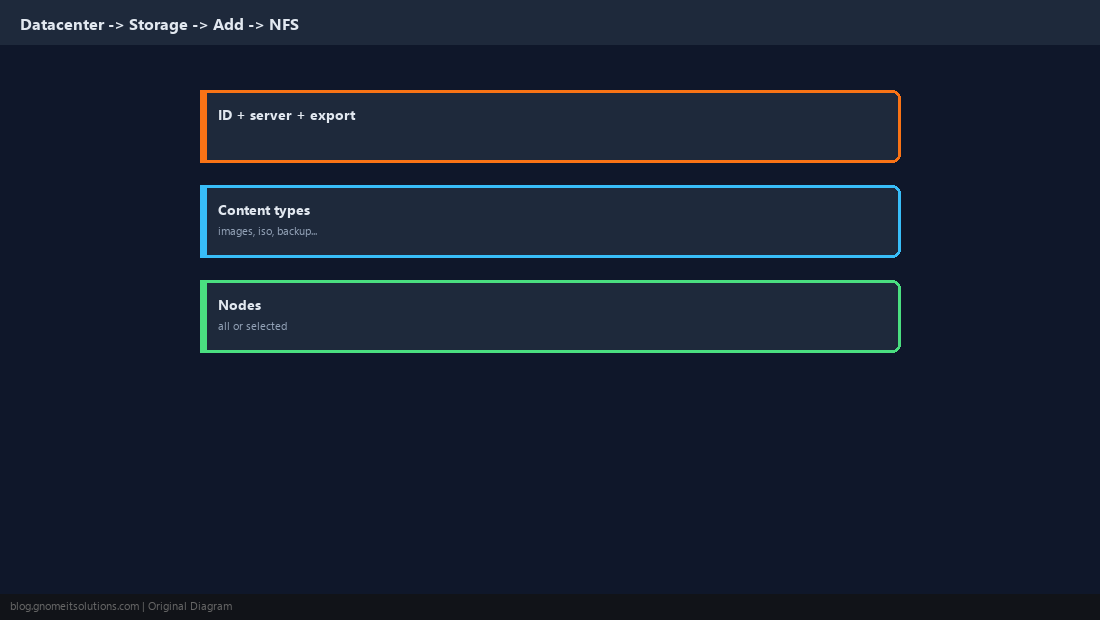
Choose Content Types Deliberately
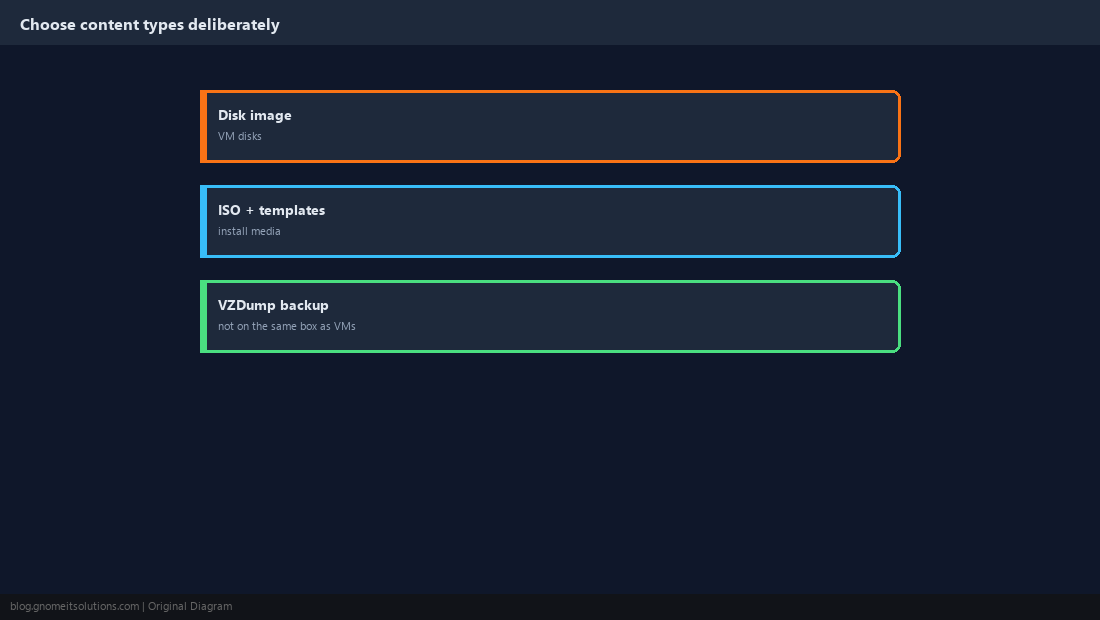
Content types control what Proxmox will store there. Keep VM disks and backups on different physical systems where possible: a backup on the same NAS as the disks it protects does not survive that NAS failing.
Mount Options That Matter
Use NFS 4.2 where the server supports it. Proxmox mounts hard by default, which makes I/O wait during an outage instead of returning errors that could corrupt guest filesystems; keep that. Put NFS on its own VLAN or network for predictable latency.
pvesm set nfs-store --options vers=4.2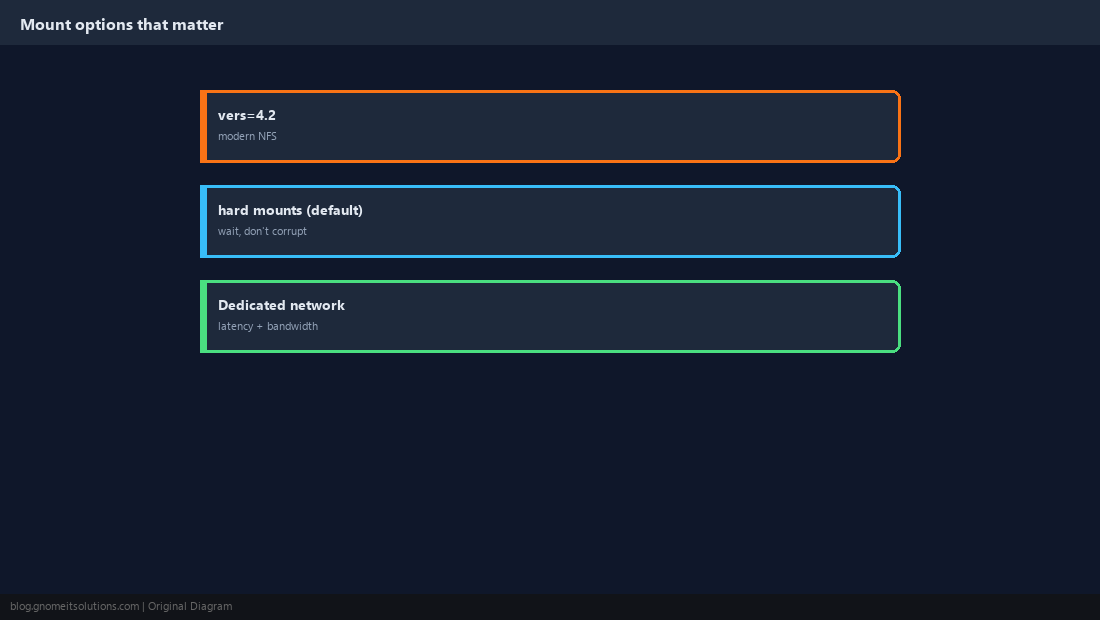
Know What Performance to Expect
NFS speed is bounded by the network (roughly 110 MB/s on 1 GbE) and by how the server handles synchronous writes. Measure from inside a VM rather than guessing.
fio --name=randw --filename=/var/tmp/t --size=1G --rw=randwrite --bs=4k --direct=1 --iodepth=16 --runtime=30 --time_based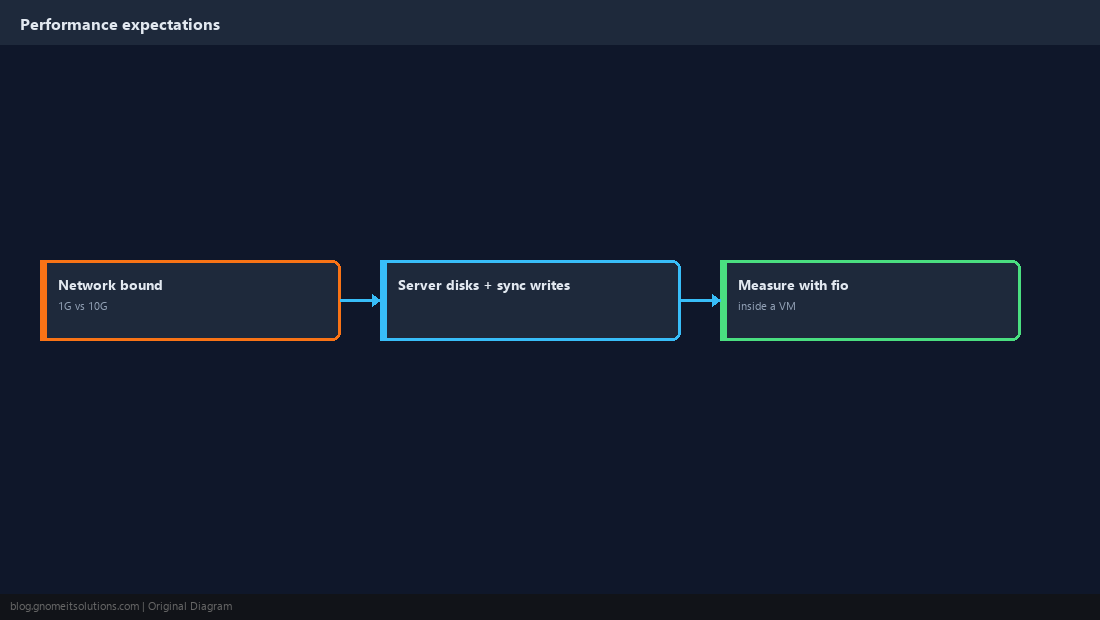
Troubleshoot a Storage With a Question Mark
A grey question mark in the tree means the node cannot reach or mount the storage. Check reachability, the export’s allowed hosts, and Proxmox’s own status output.
pvesm status
showmount -e 10.10.20.5
mount | grep /mnt/pve
journalctl -u pvestatd --since '10 min ago' --no-pager | tail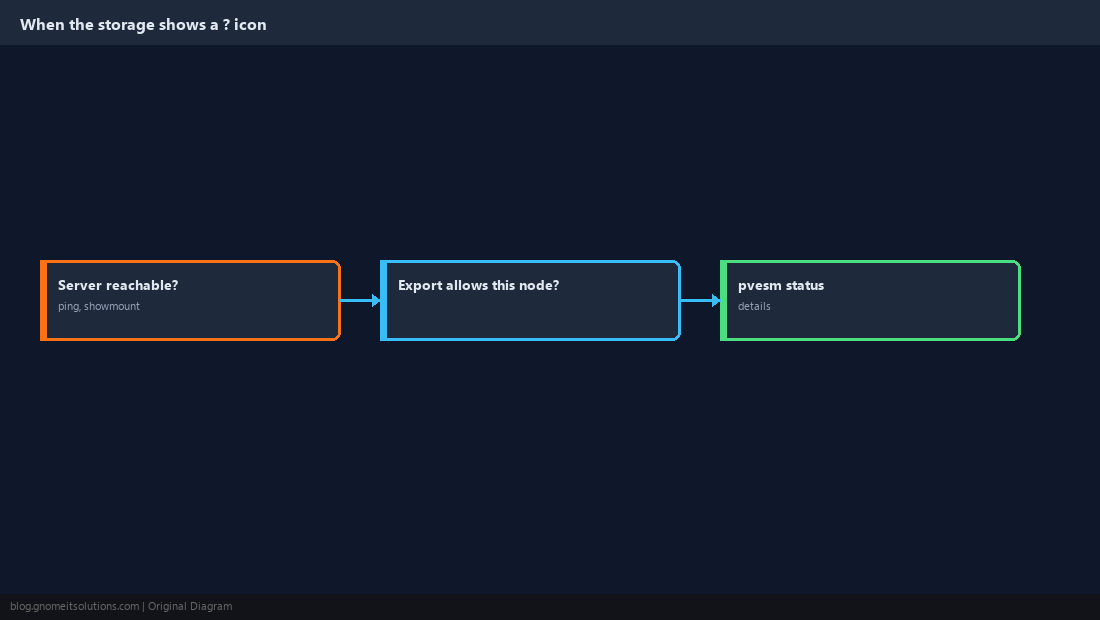
How do I add NFS storage to Proxmox?
Go to Datacenter → Storage → Add → NFS, enter an ID, the server address and the export path, and pick the content types. Or use pvesm add nfs.
Why does Proxmox NFS need no_root_squash?
Proxmox services write to the share as root. With root squashing, those writes are mapped to an unprivileged user and fail. Restrict the export to the node IPs.
Can I run VMs from NFS storage?
Yes, and it enables fast live migration. Performance depends heavily on the network and the server’s disks; 10 GbE is recommended for busy VMs.
Why does my NFS storage show a question mark in Proxmox?
The node cannot mount or reach it. Check network connectivity, that the export allows that node’s IP, and pvesm status.
Should backups go on the same NFS share as VM disks?
Preferably not. If that NAS fails you lose both the VMs and their backups; keep backups on a different system.
Cheat Sheet
- Export to node IPs with
no_root_squash; test withshowmount+ manual mount pvesm add nfs ... --options vers=4.2; keep backups off the VM-disk NAS
Related tutorials
Diagrams are original illustrations by Gnome IT Solutions. Tutorial text © Gnome IT Solutions.