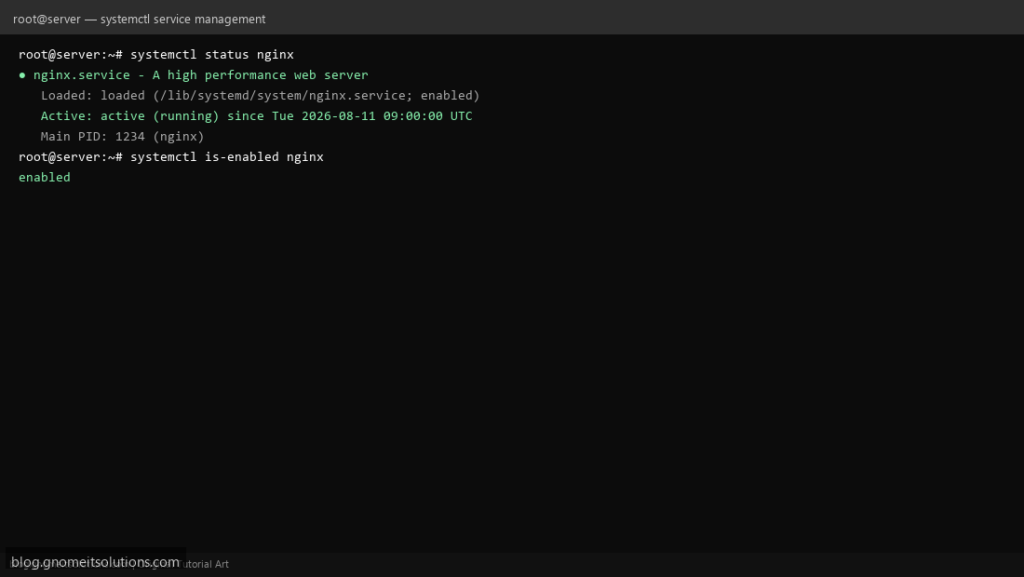
systemctl is how you talk to systemd, the init system and service manager on essentially every current Linux distribution. Every web server, database
and background daemon on the box is a systemd unit, and systemctl starts, stops, enables and inspects all of them the same way.
This guide covers the commands you will use daily, the difference between start and enable (a very common point of confusion), reading
logs for a specific unit, and editing a unit safely without your changes disappearing on the next package update.
Quick answer: systemctl status name to check, enable --now name to turn on permanently and start it immediately.
What systemctl Actually Controls
Every managed service, timer, socket and mount point is a unit file. systemctl reads and writes their state and talks to the systemd daemon (PID 1) to act on them.
unit file (myapp.service) --> systemd (PID 1) --> the running process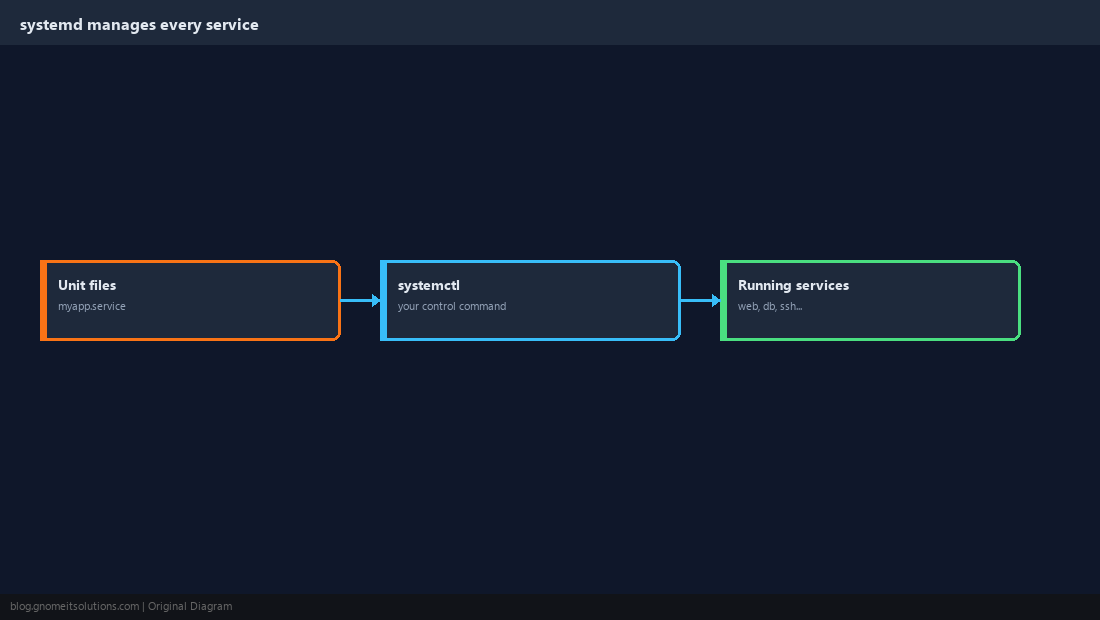
Check a Service’s Status
This is the single most useful command. It shows whether the service is active, when it last started or failed, and a tail of its recent log lines in one view.
systemctl status nginxactive (running) is healthy. failed means it tried and gave up — read the log lines shown, or go straight to journalctl -xe.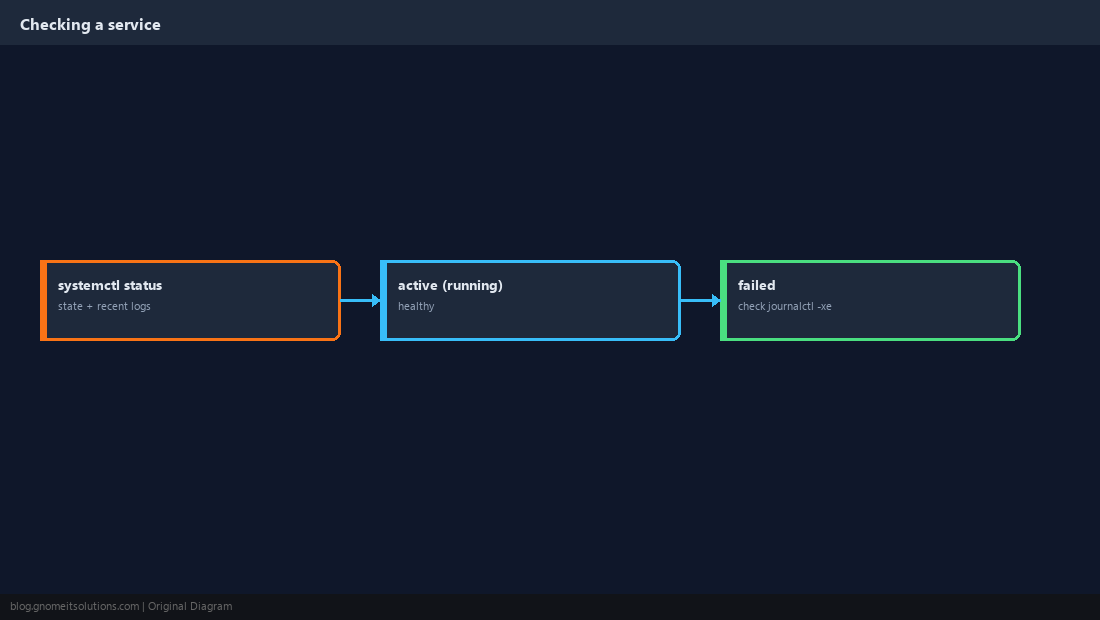
Start, Stop, Restart, Reload
restart stops the process and starts a new one, which drops any live connections. reload asks a well-behaved service to re-read its configuration without dropping connections — use it when the service supports it.
sudo systemctl start nginx
sudo systemctl stop nginx
sudo systemctl restart nginx
sudo systemctl reload nginx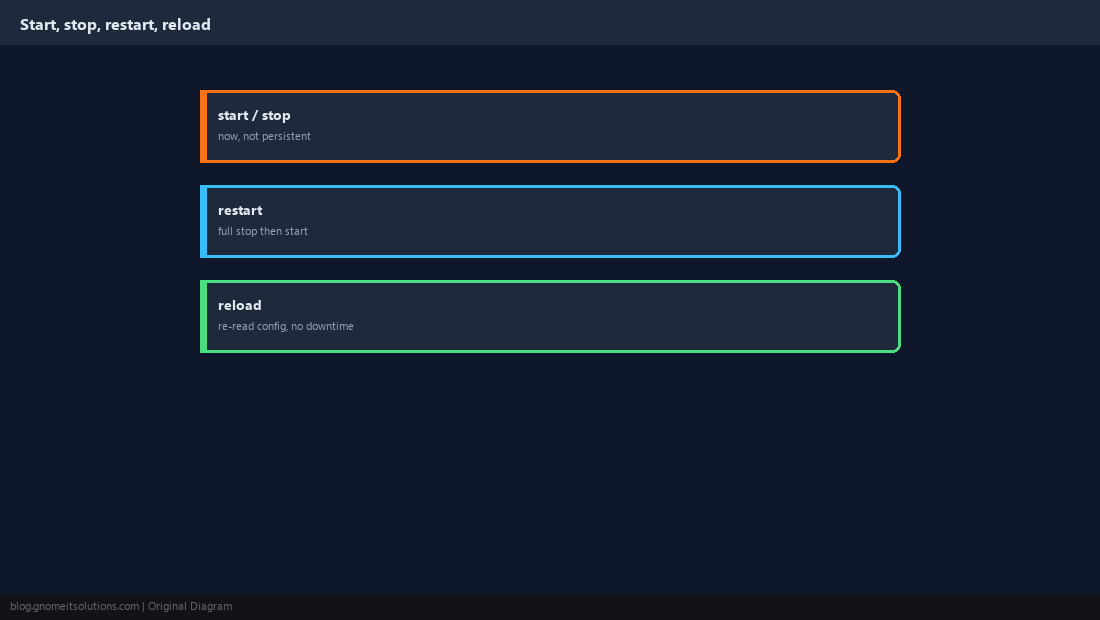
enable Is Not the Same as start
start runs a service right now, but it will not come back after a reboot unless it is also enabled. This mismatch is one of the most common “it worked yesterday” surprises after a server restart.
sudo systemctl enable --now nginxsystemctl is-enabled name and systemctl is-active name answer the two questions independently.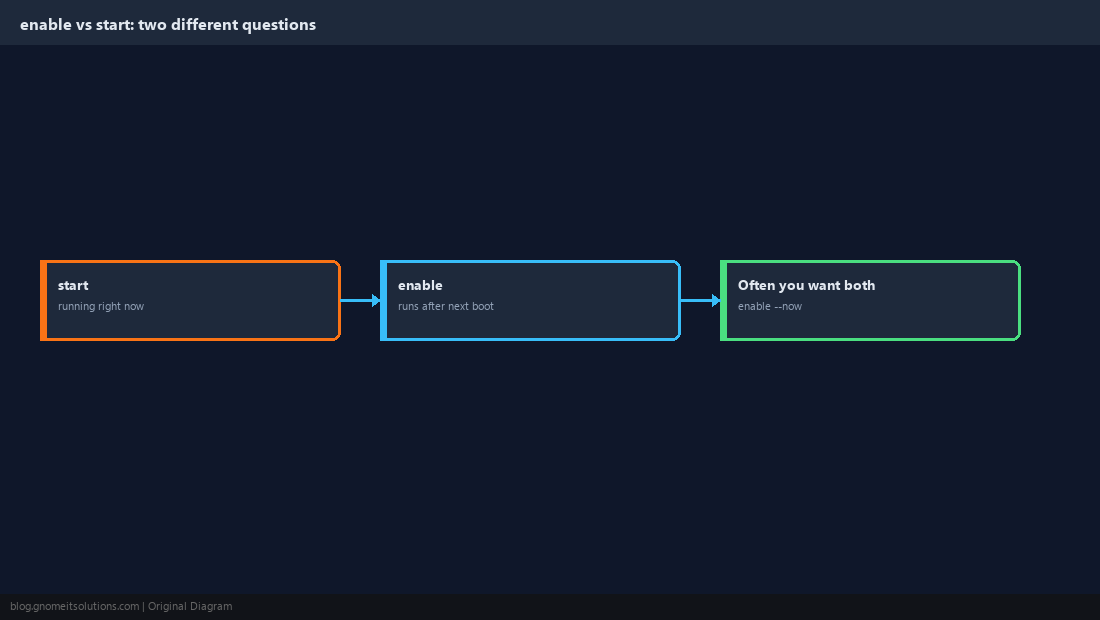
Find Services You Don’t Already Know the Name Of
List everything running, or filter to just the ones that failed, when you are not sure exactly what a service is called.
systemctl list-units --type=service
systemctl list-units --type=service --all
systemctl --failed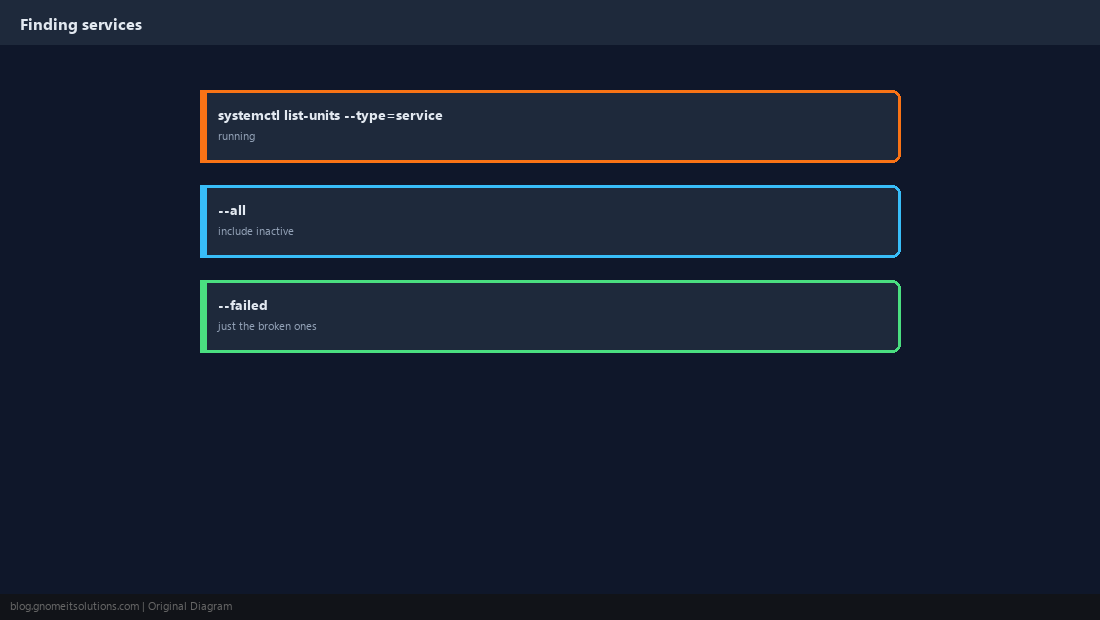
Read Logs for One Specific Unit
journalctl -u filters to a single unit’s log lines, which is far faster than scrolling through the entire system journal (see our journalctl guide).
journalctl -u nginx --no-pager | tail -30
journalctl -u nginx -f
journalctl -u nginx --since today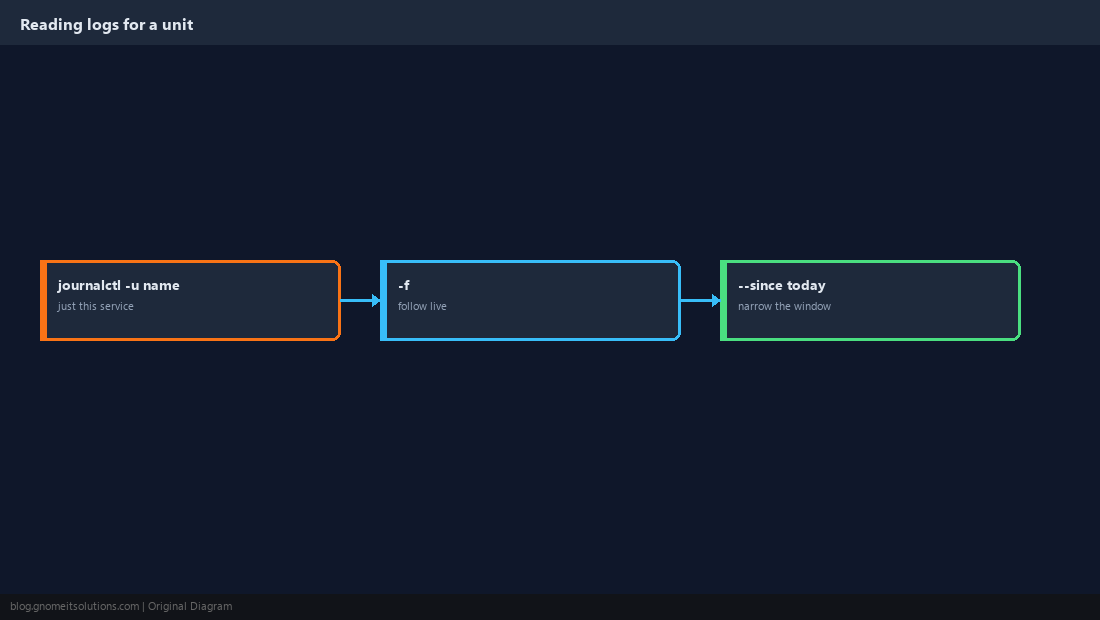
disable vs mask
disable stops a service from autostarting at boot but still allows a manual start later. mask is stronger: it symlinks the unit to /dev/null, so it cannot be started at all, even by hand or as a dependency, until unmasked.
sudo systemctl disable apache2   # won't autostart, can still be started manually
sudo systemctl mask apache2      # cannot be started at all until unmasked
sudo systemctl unmask apache2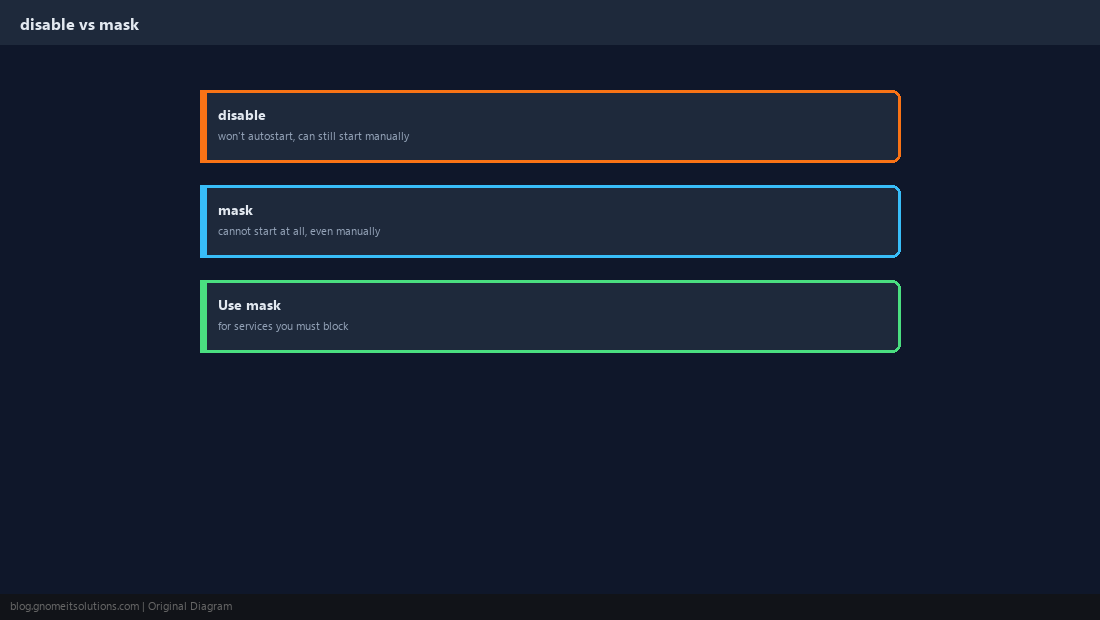
Edit a Unit Without Losing Changes
Editing the vendor unit file directly is fragile — a package update overwrites it. systemctl edit creates a drop-in override file instead, which survives updates.
sudo systemctl edit nginx.service
# add your override lines, save, then:
sudo systemctl daemon-reload
sudo systemctl restart nginxdaemon-reload after changing any unit file, or systemd keeps using the old definition in memory.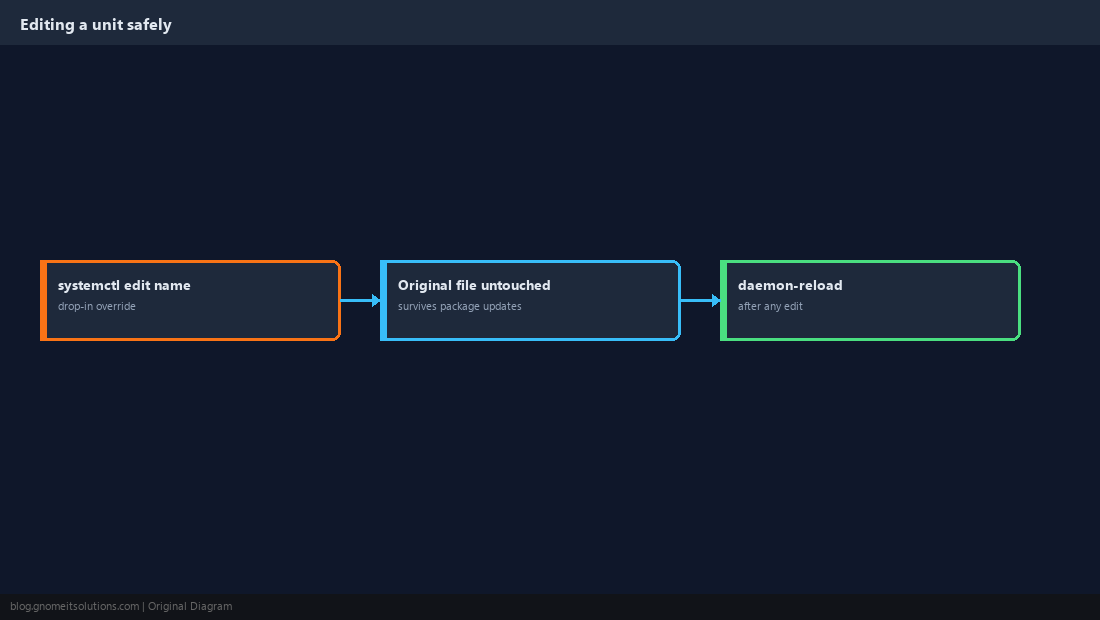
What is the difference between systemctl start and systemctl enable?
start runs the service immediately but only for the current session; it will not survive a reboot. enable configures it to start automatically at every future boot but does not start it right now. Use enable –now to do both.
How do I check if a service is running?
Run systemctl status servicename and look for active (running), or use systemctl is-active servicename for a plain yes/no in scripts.
What is the difference between restart and reload?
restart fully stops then starts the process, briefly dropping any active connections. reload asks the running process to re-read its configuration in place, which many services (like nginx) support without any downtime.
How do I stop a service from starting at boot?
systemctl disable servicename stops it from autostarting but still allows manual starts. For a harder block that prevents any start at all, use systemctl mask servicename.
How do I see why a service failed to start?
Run journalctl -u servicename -xe to see the detailed log entries around the failure, or systemctl status servicename for a shorter summary with the most recent lines.
Cheat Sheet
status/start/stop/restart/reloadenable --nowfor permanent + immediate;maskto block manual startsjournalctl -u namefor that unit’s logs;systemctl editfor safe overrides
Related tutorials
Diagrams are original illustrations by Gnome IT Solutions. Tutorial text © Gnome IT Solutions.