Every Proxmox VE admin eventually asks: should I use built-in vzdump to my NAS, or deploy
Proxmox Backup Server (PBS)? Both are first-party tools. The answer depends on VM count,
storage budget, restore requirements, and whether you need incremental deduplicated backups.
This guide compares both methods side by side with real-world scenarios — so you pick the right tool before ”
building your backup infrastructure.
What vzdump Does
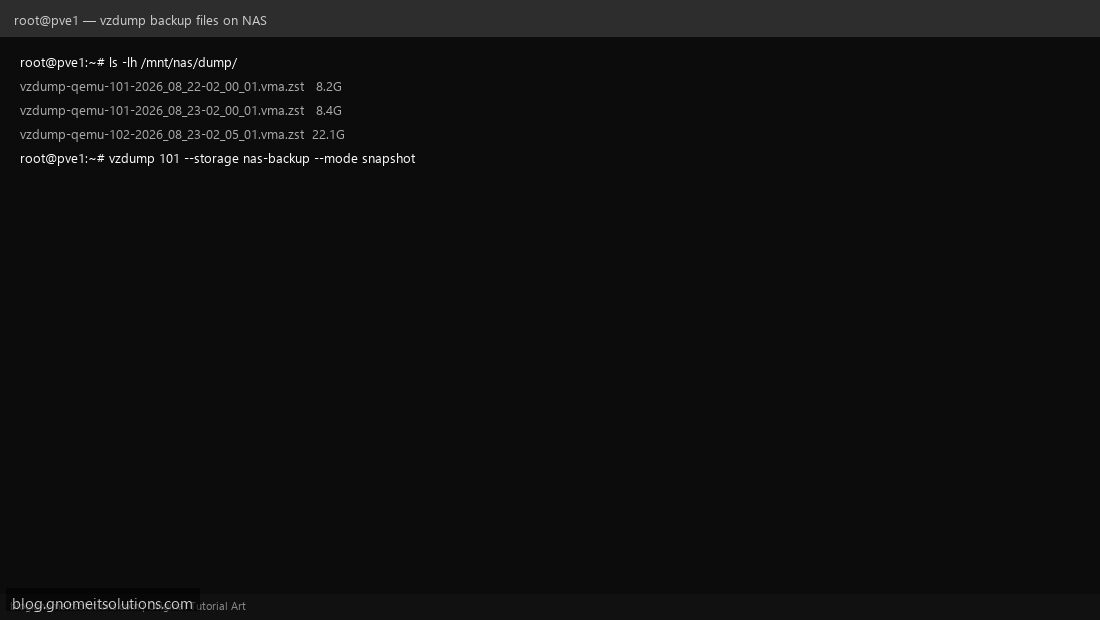
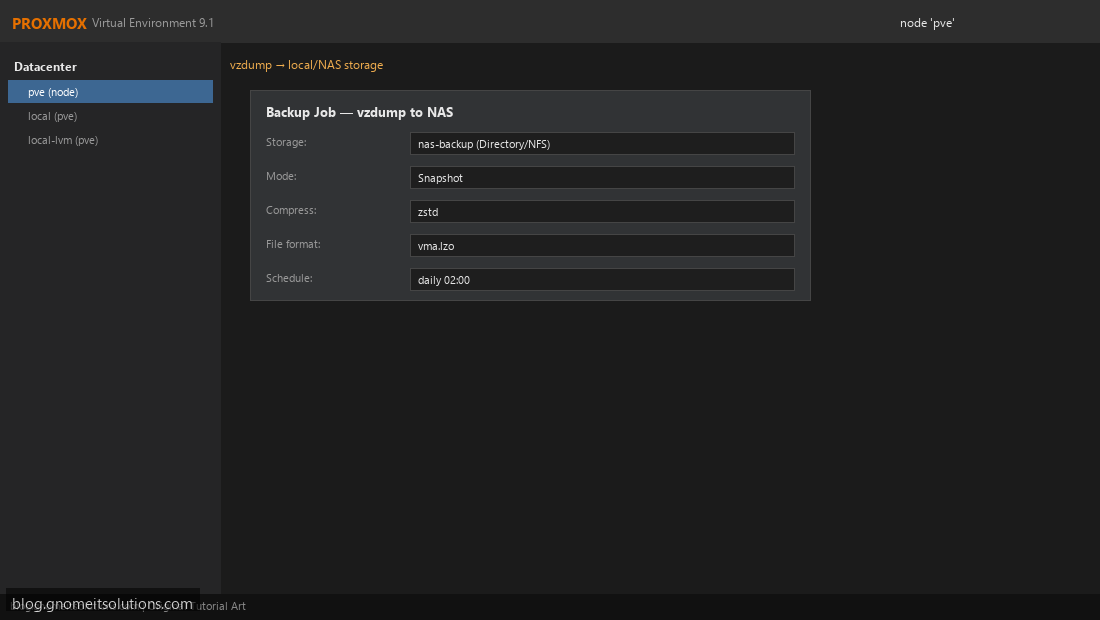
vzdump is Proxmox VE’s built-in backup tool. Scheduled from Datacenter → Backup, it creates .vma or .vma.zst files on directory-based storage (local, NFS, CIFS). Each job typically writes a full backup file per VM per run (snapshot mode minimizes downtime but does not deduplicate across days). Simple, reliable, and works with any NAS that speaks NFS.
What Proxmox Backup Server Does
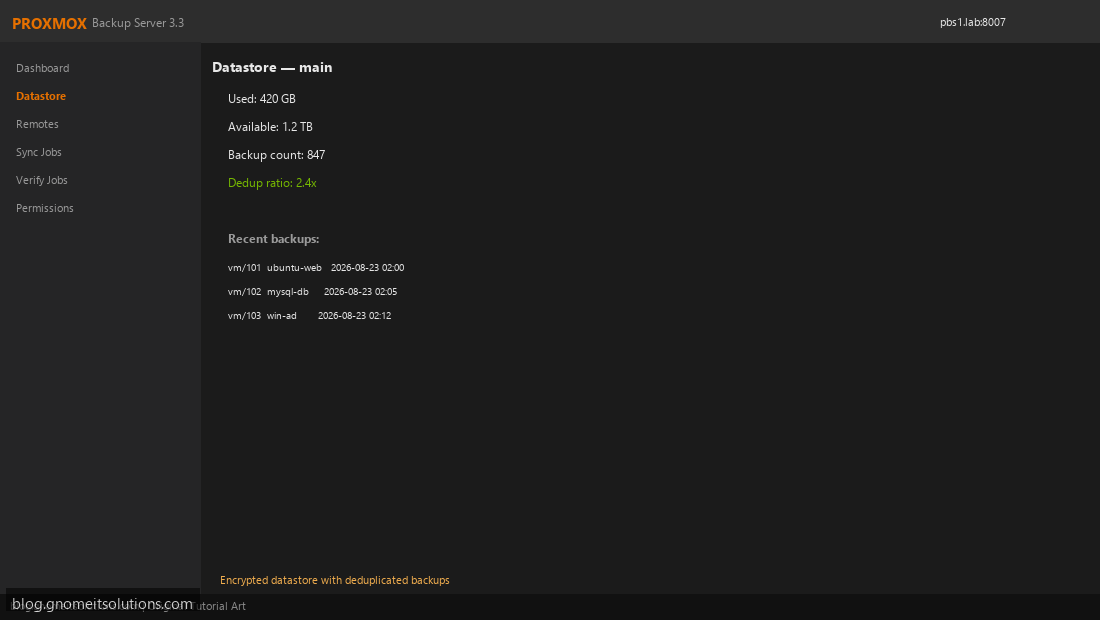
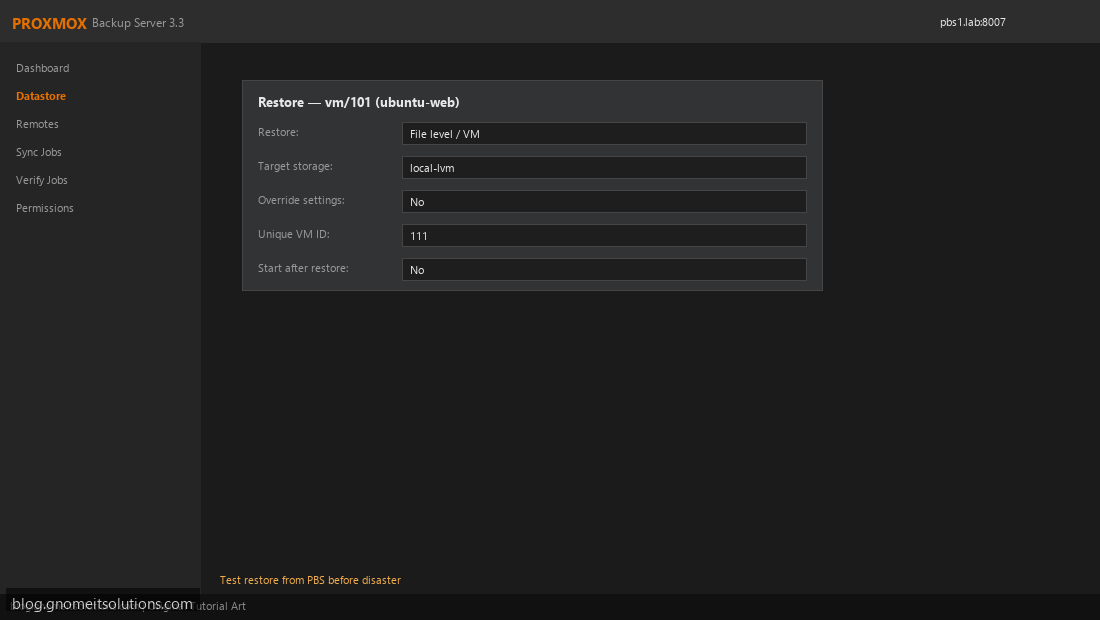
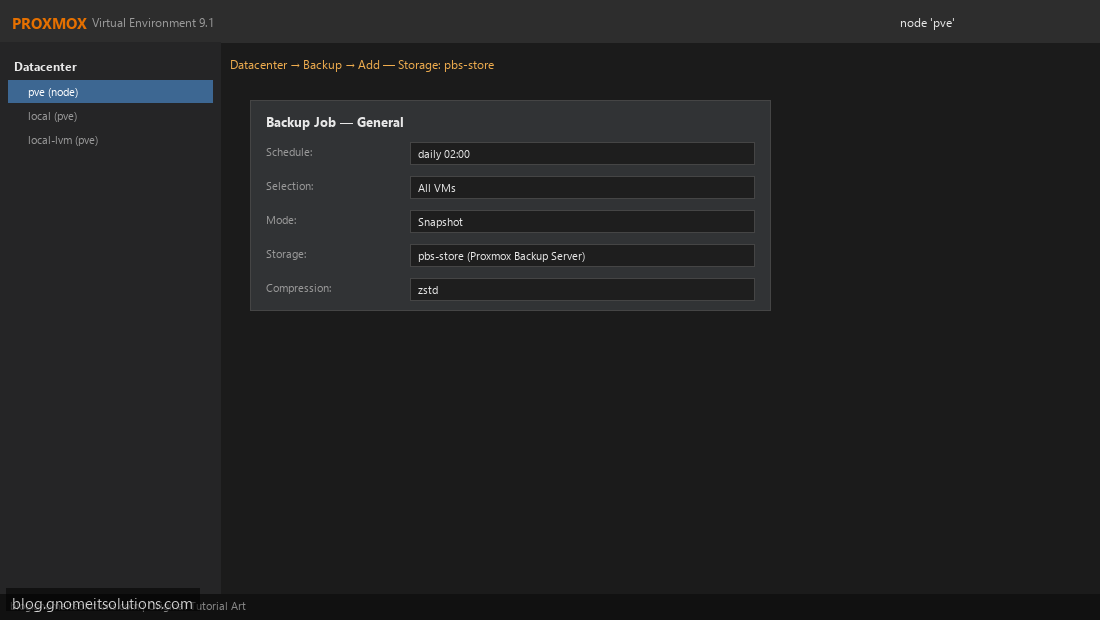
PBS is a separate product that receives backups over the Proxmox backup protocol (port 8007). It stores data in an encrypted, deduplicated datastore — only changed blocks are sent after the first full backup. Restore supports full VM, single disk, or file-level browse. Verify and sync jobs are built in.
Side-by-Side Feature Comparison
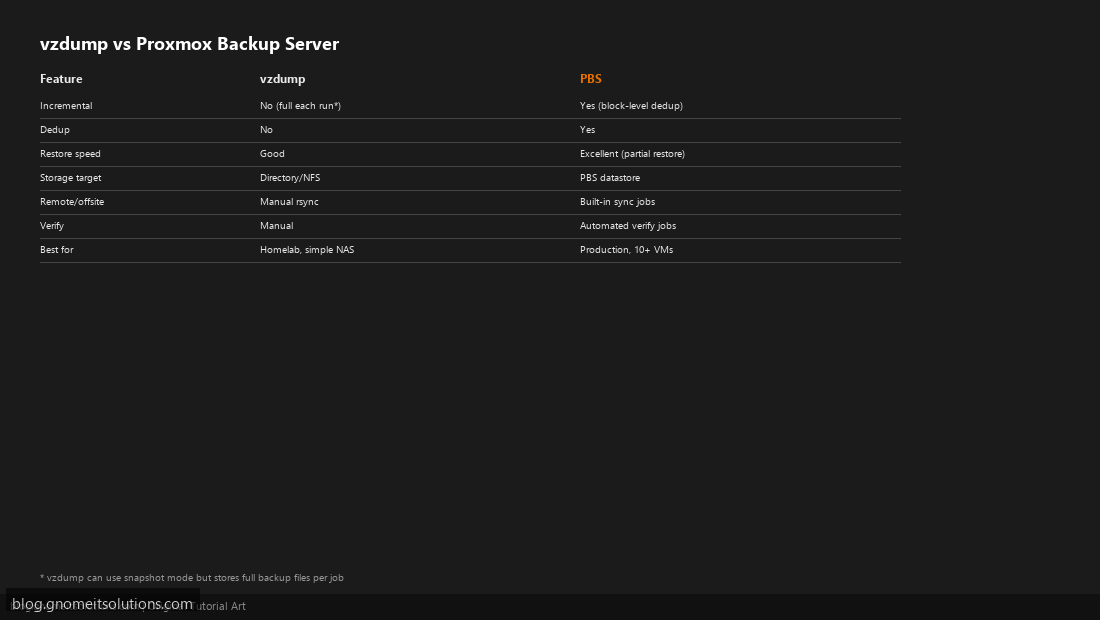
Use this table when presenting options to management or planning storage purchases.
Storage and Bandwidth Impact
A 100 GB VM with 5% daily change: vzdump snapshot mode still stores ~100 GB per nightly file (minus compression). PBS stores ~5 GB incremental after the seed backup. Over 30 days, vzdump may consume 3 TB on NAS (with retention pruning); PBS might use 250–400 GB. Initial PBS seed is large; plan maintenance window for first backup of big VMs.
Restore Experience
vzdump restore: select .vma.zst file in Proxmox UI or use qmrestore — full VM only, fast for small VMs. PBS restore: pick any backup snapshot, restore to new VMID, optionally map individual files via FUSE mount or file-restore API. For ransomware recovery where you need one database file, PBS wins clearly.
Decision Matrix: When to Use Each
Use vzdump when: homelab with 1–8 VMs, existing Synology/QNAP NFS share, minimal budget, comfortable with full-file restores. Use PBS when: 10+ VMs, production SLA, need offsite sync and verify jobs, storage cost matters at scale, or compliance requires encrypted deduplicated backups. Many shops run both — PBS for production VMs, vzdump for templates and LXCs on local storage.
Can you use both?
Yes. Common pattern: PBS for all production VMs nightly; weekly vzdump of golden templates to NFS for ”
long-term archive. Do not point two backup jobs at the same VM to the same schedule without reason — ”
pick one primary method per VM.
Migration path: vzdump → PBS
- Deploy PBS and add storage in Proxmox VE
- Create new backup job targeting PBS with same schedule
- Wait for first full PBS backup to complete
- Disable old vzdump job for that VM after 7 days of successful PBS backups
- Optionally keep vzdump archives on NAS until retention expires
CLI quick reference
# vzdump manual run
vzdump 101 102 --storage nas-backup --mode snapshot --compress zstd --maxfiles 7

# PBS manual run (PBS storage must be configured)
vzdump 101 --storage pbs-main --mode snapshot

# Restore vzdump
qmrestore /mnt/nas/dump/vzdump-qemu-101-2026_08_23-02_00_01.vma.zst 201

# Restore from PBS — use Proxmox VE GUI backup browser or:
# pct/qm restore via API with PBS snapshot ID
Related tutorials
Image credits: All illustrations use original Proxmox VE and Proxmox Backup Server
branded artwork created for Gnome IT Solutions — not copied from vendor marketing assets or third-party
screenshots. Tutorial text © Gnome IT Solutions.
Image credits: Screenshots are from the official
Proxmox VE documentation
(Proxmox GmbH), used under open documentation terms for educational purposes.
Tutorial text and layout © Gnome IT Solutions.