auditd is the Linux kernel’s auditing framework. Ordinary logs tell you what a service chose to
report; audit rules tell you what actually happened — who edited /etc/sudoers, which account ran a command as root,
when the system clock was changed. It is the evidence layer behind most compliance frameworks and a strong companion to
failed-login reporting and journald.
This guide installs auditd, writes focused rules (not a firehose), makes them persistent, and shows how to search the result.
How Auditing Works
The kernel generates audit events for watched files and system calls. auditd writes them to /var/log/audit/audit.log, and ausearch/aureport turn that into answers. Rules are the whole game: too few and you learn nothing, too many and the log becomes noise.
  kernel audit hooks --> auditd --> /var/log/audit/audit.log
                                     |
                            ausearch / aureport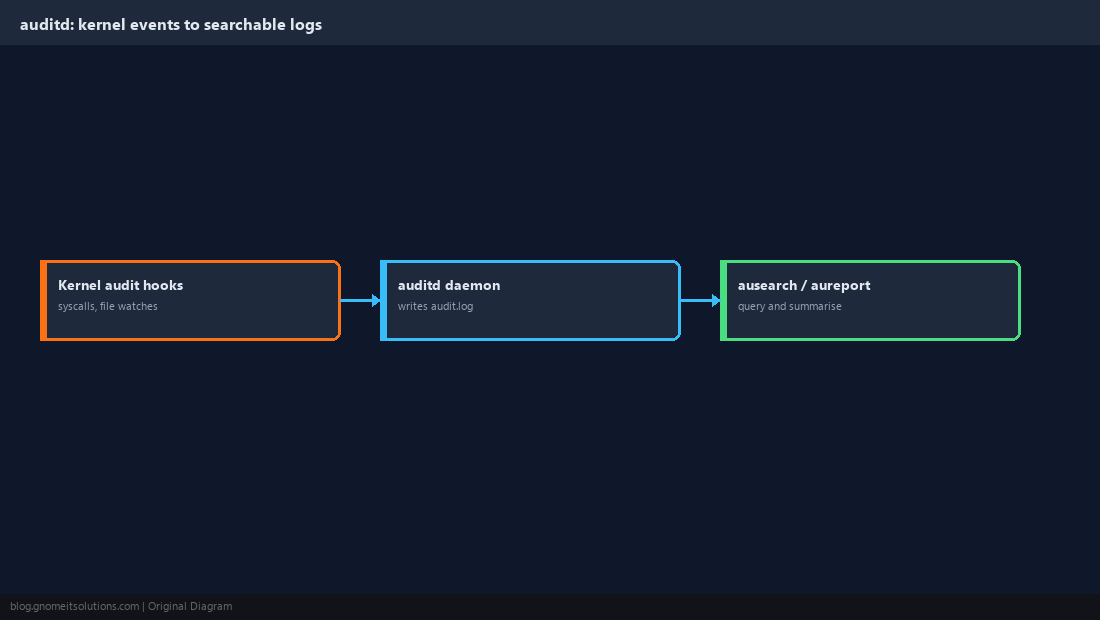
Install and Start auditd
Most server images include it or offer it in the base repositories.
sudo apt install -y auditd audispd-plugins   # Debian/Ubuntu
sudo dnf install -y audit # AlmaLinux/Rockysudo systemctl enable --now auditd
sudo auditctl -s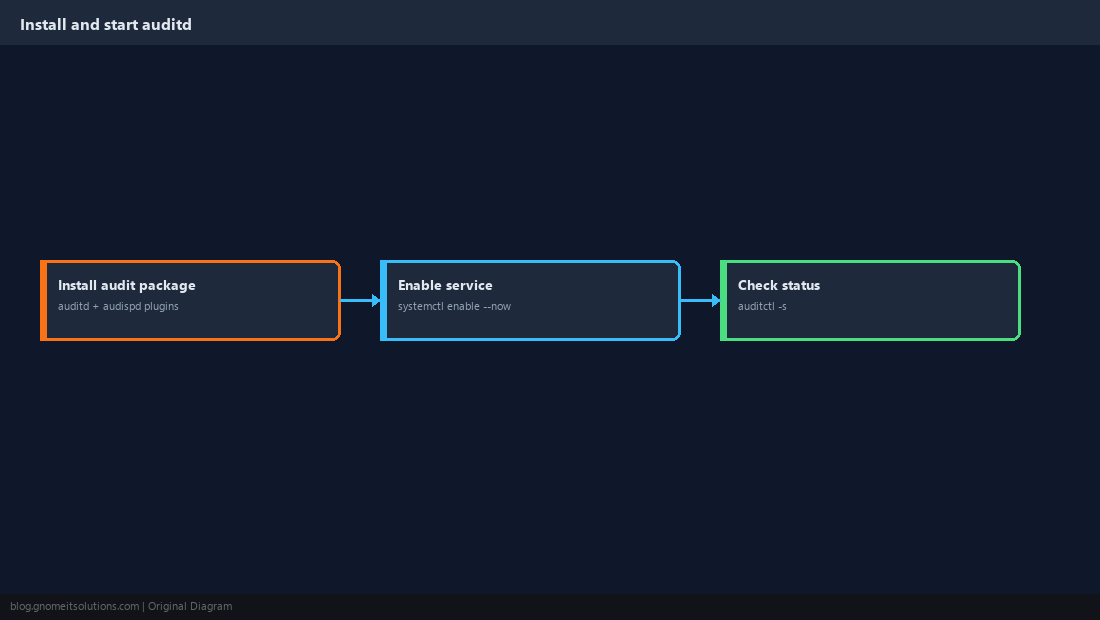
Write a File Watch Rule
A watch has three parts: the path (-w), the access types (-p: read, write, execute, attribute change) and a key (-k) you will search by later. Watching for wa (write and attribute change) is usually enough for config files.
sudo auditctl -w /etc/passwd -p wa -k identity
sudo auditctl -l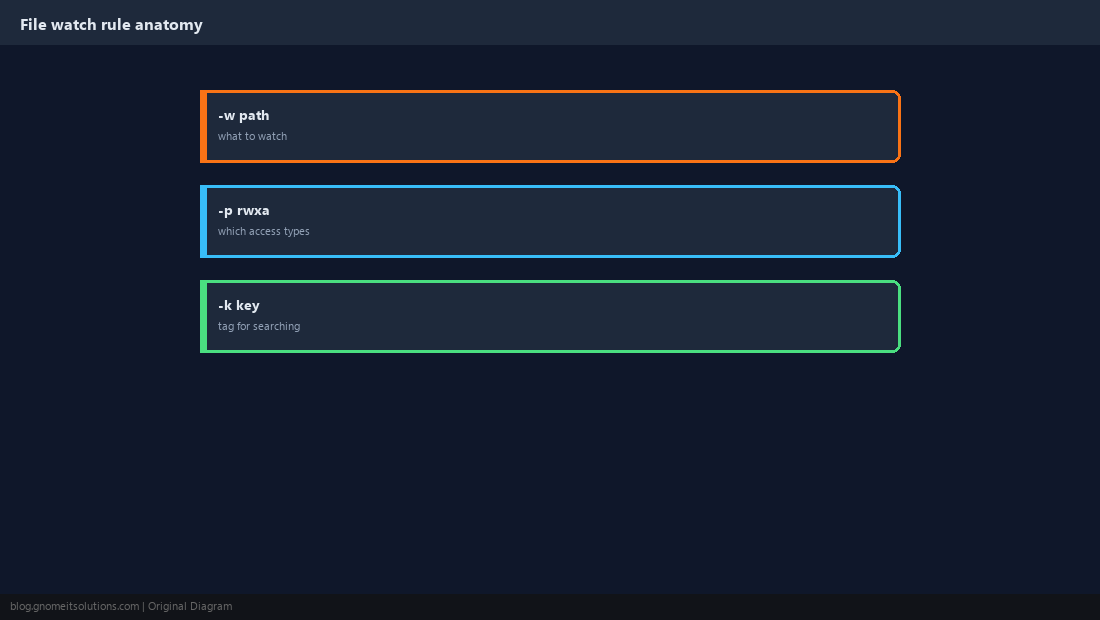
Choose Files Worth Watching
Focus on files where an unexpected change means compromise or a policy violation: identity and privilege files, SSH configuration and keys, and persistence locations such as cron and systemd units.
-w /etc/passwd -p wa -k identity
-w /etc/group -p wa -k identity
-w /etc/sudoers -p wa -k privilege
-w /etc/sudoers.d/ -p wa -k privilege
-w /etc/ssh/sshd_config -p wa -k sshconfig
-w /root/.ssh/ -p wa -k sshkeys
-w /etc/crontab -p wa -k persistence
-w /etc/cron.d/ -p wa -k persistence
-w /etc/systemd/system/ -p wa -k persistenceidentity, privilege, persistence) so a single ausearch -k answers a whole question.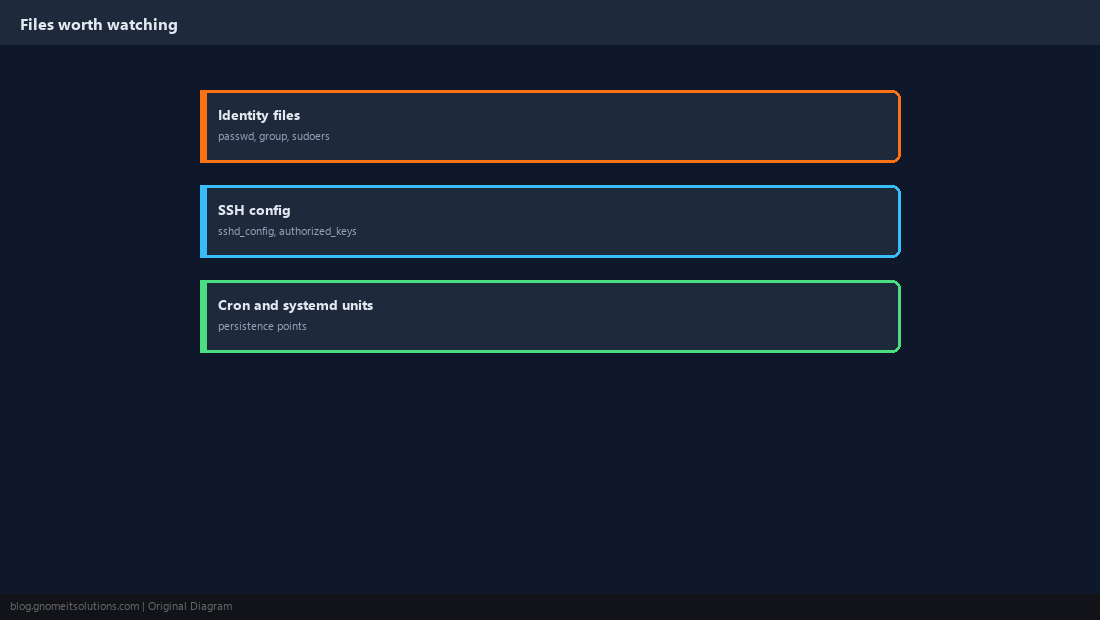
Audit Privileged System Calls
File watches miss actions that leave no file trace. Syscall rules record commands executed with root privileges, mounts, and clock changes.
-a always,exit -F arch=b64 -S execve -F euid=0 -F auid>=1000 -F auid!=-1 -k rootcmd
-a always,exit -F arch=b64 -S mount,umount2 -k mounts
-a always,exit -F arch=b64 -S adjtimex,settimeofday,clock_settime -k time-changeauid is the original login UID, so root commands are attributed to the human who used sudo, not just to “root”.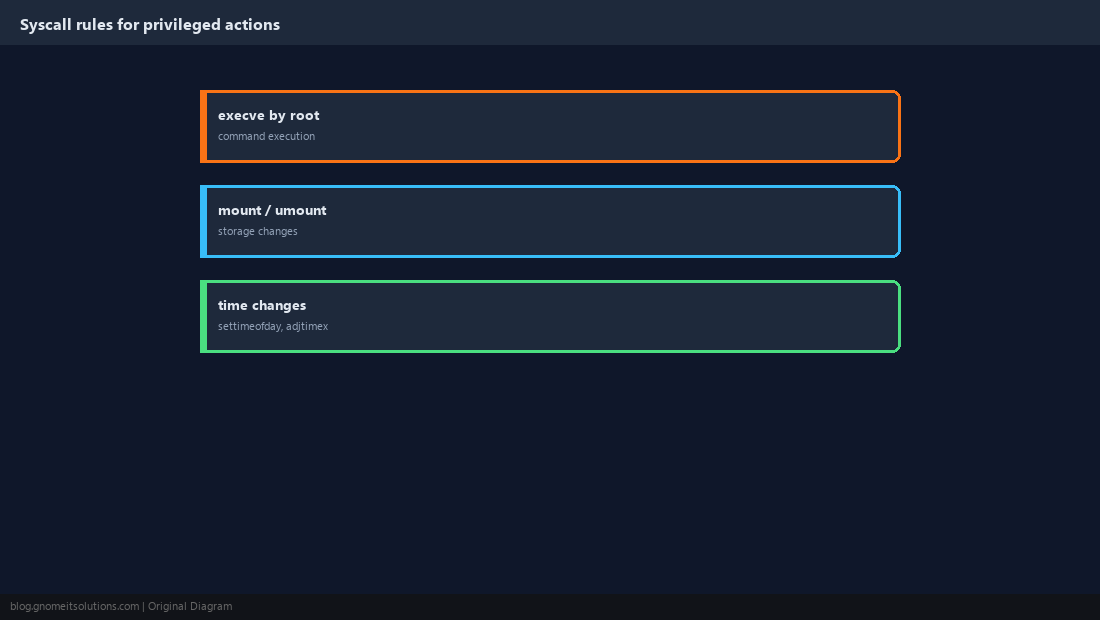
Persist the Rules
Rules added with auditctl vanish at reboot. Put them under /etc/audit/rules.d/ and let augenrules merge them. A final -e 2 makes the ruleset immutable until the next reboot, which stops an intruder from silently disabling auditing.
-e 2sudo augenrules --load
sudo auditctl -l | head-e 2 you must reboot to change rules. Test your ruleset without it first.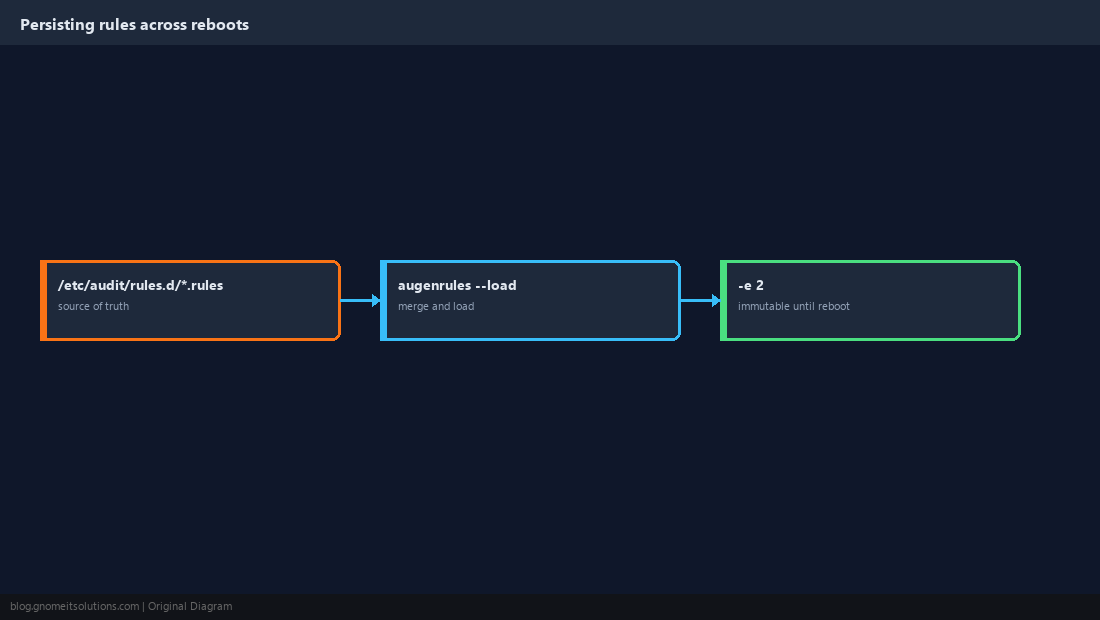
Search the Audit Log
ausearch filters by key and time; -i translates numeric IDs into names so the output is readable.
sudo ausearch -k identity --start today -i
sudo ausearch -k rootcmd --start recent -i | tail -30
sudo ausearch -m USER_LOGIN -sv no -i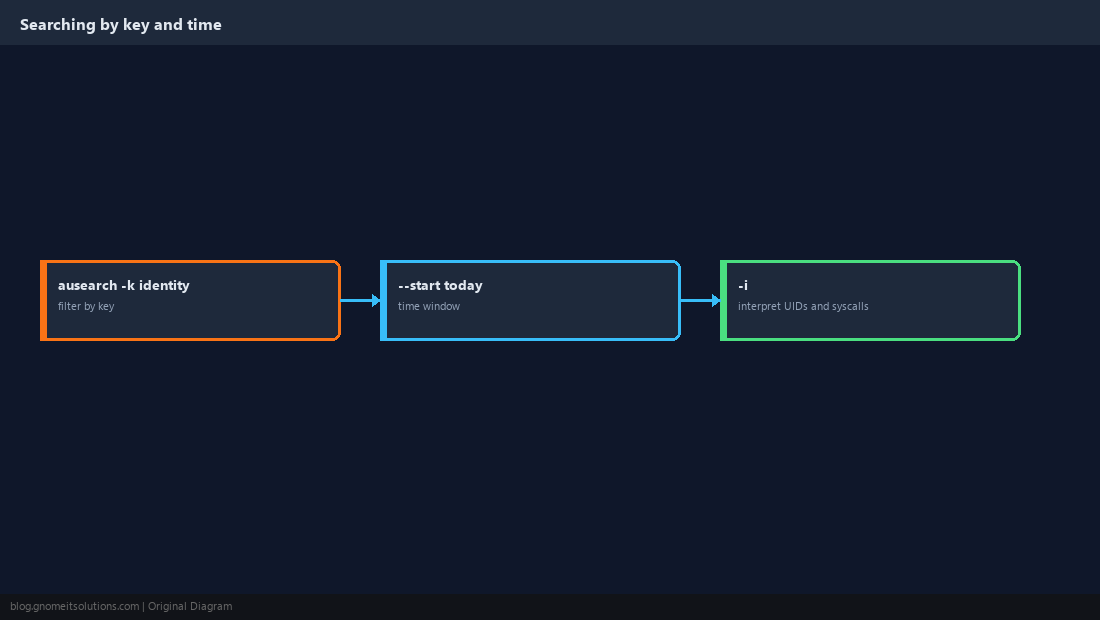
Summaries, Rotation and Forwarding
aureport gives management-friendly summaries. Bound disk use in auditd.conf, and forward events to a central log server so a compromised host cannot erase its own history (see our centralized logging guide).
sudo aureport --summary
sudo aureport -f --summary
sudo aureport --failedmax_log_file = 50
num_logs = 10
max_log_file_action = ROTATE
space_left_action = email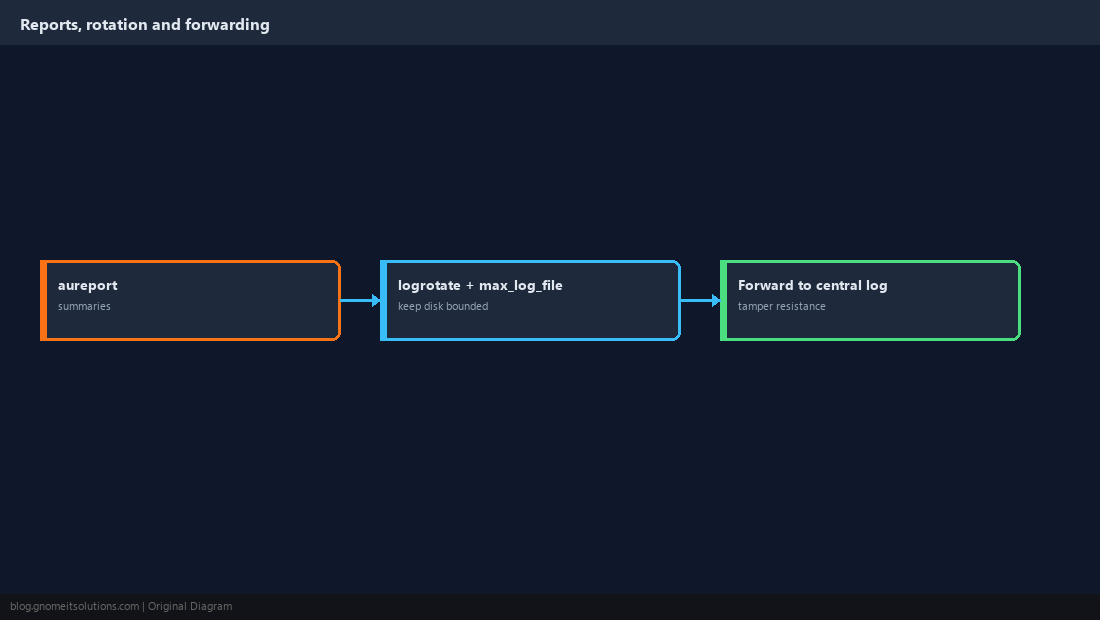
Quick Reference
- Watch identity, sudo, SSH and persistence paths; audit root
execve - Persist in
rules.d; finish with-e 2in production
Related tutorials
Diagrams are original illustrations by Gnome IT Solutions. Tutorial text © Gnome IT Solutions.