
SSH does more than give you a shell. It can carry any TCP connection inside its encrypted channel, which lets you reach a private database,
expose a service from behind NAT, or browse through a remote network — all without a VPN. That power cuts both ways, so this guide also covers
the server-side settings that control it.
It builds on SSH key authentication and
OpenSSH hardening. For full network-level access rather than single ports, see the
WireGuard guide.
What Tunneling Means
A forward tells SSH to listen on one side of the connection and relay whatever arrives to a destination on the other side. Three flavours cover almost every need: local, remote and dynamic.
  -L  local  : localhost:PORT  --ssh-->  destination reachable from the server
  -R  remote : server:PORT     --ssh-->  service reachable from your machine
  -D  dynamic: SOCKS proxy on localhost  --ssh-->  anywhere the server can reach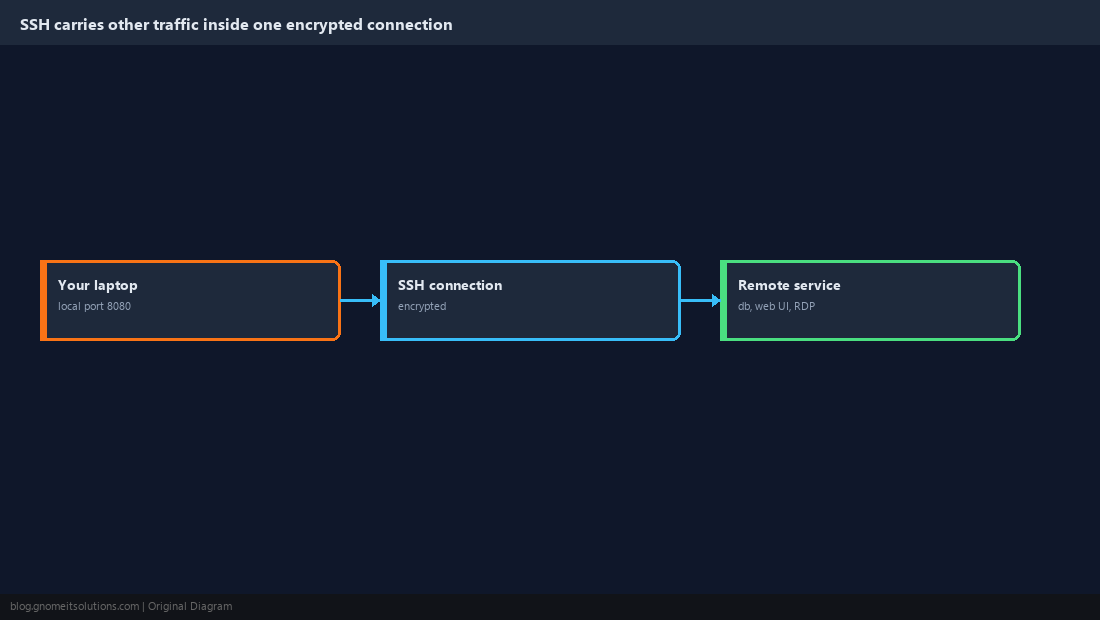
Local Forward (-L): Reach a Private Service
Open a port on your laptop that leads to a service only the bastion can see, such as a database on the internal network.
ssh -N -L 5433:db.internal:5432 [email protected]psql -h 127.0.0.1 -p 5433 -U appuser appdb-N means no remote command — the session only holds the tunnel open.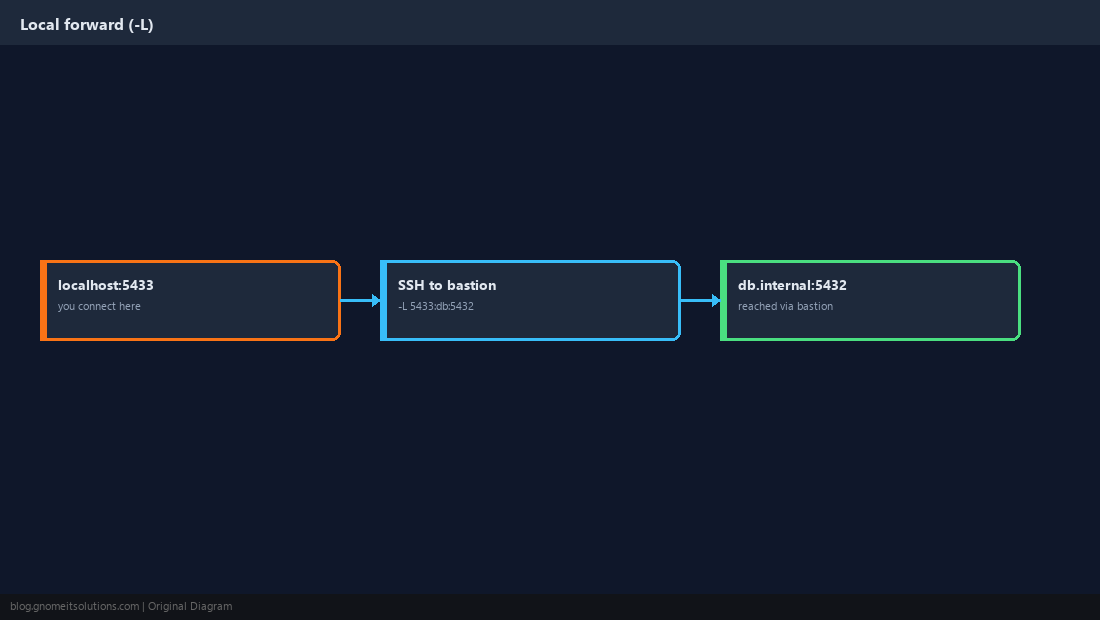
Remote Forward (-R): Expose a Service From Behind NAT
Publish a port on a remote server that leads back to something running on your machine. Handy for showing a dev site or reaching a home machine.
ssh -N -R 9000:localhost:3000 [email protected]GatewayPorts on the server — think twice before enabling it.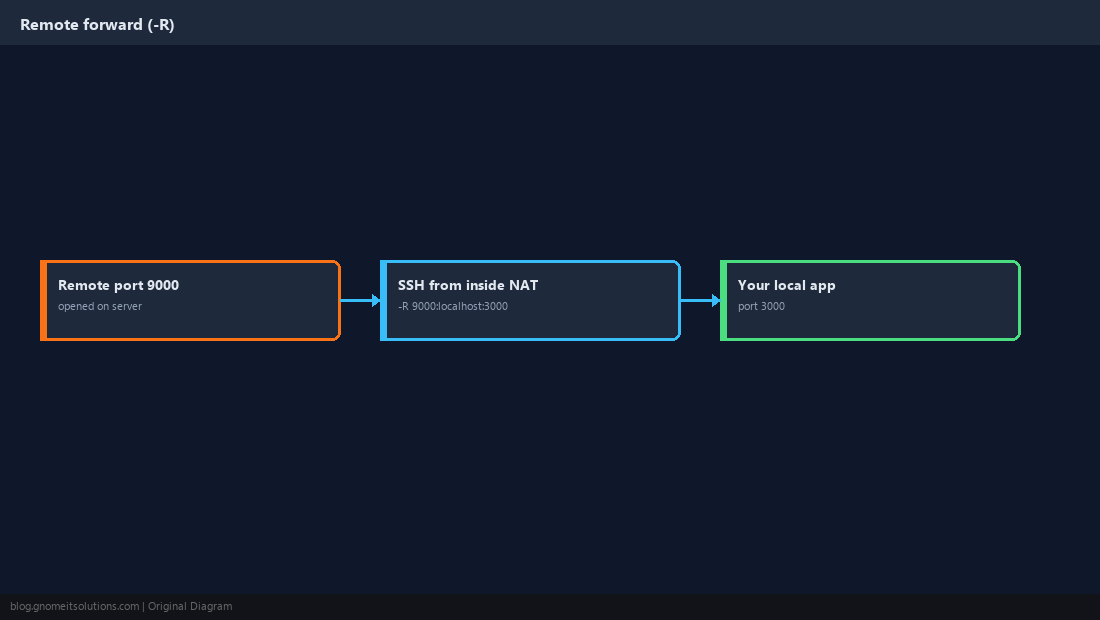
Dynamic Forward (-D): A SOCKS Proxy
One tunnel, any destination. Point a browser or tool at the local SOCKS port and its traffic exits from the remote network.
ssh -N -D 1080 [email protected]curl --socks5-hostname 127.0.0.1:1080 https://ifconfig.me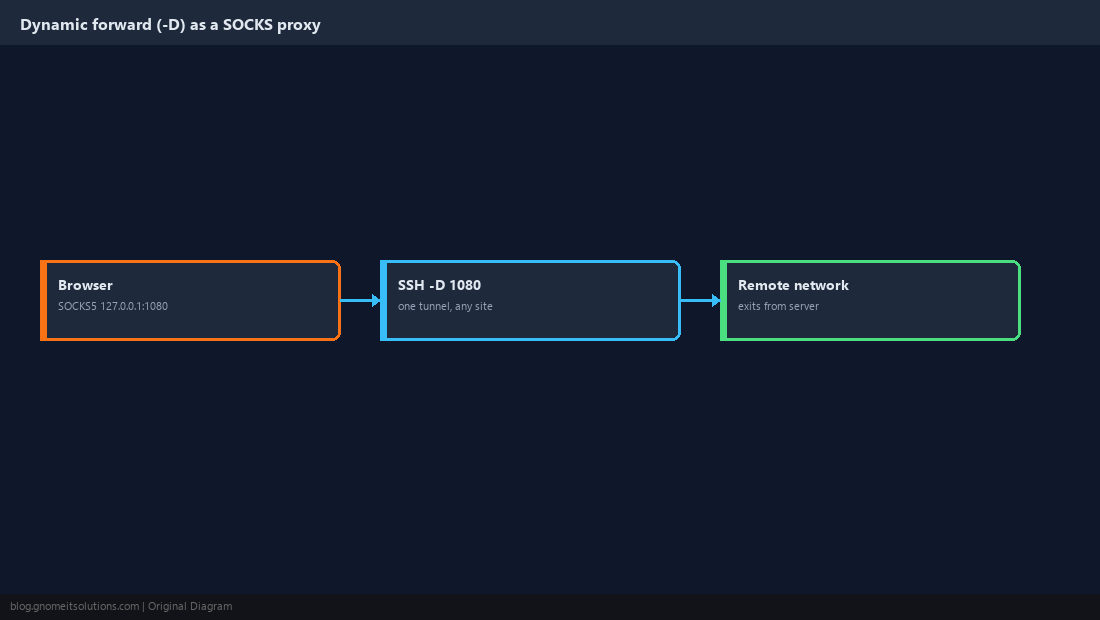
Reach Private Hosts with ProxyJump
When the target has no public address, hop through a bastion in one command. Your keys stay on your laptop; nothing is stored on the bastion.
ssh -J [email protected] [email protected]scp -J [email protected] backup.tar.gz [email protected]:/tmp/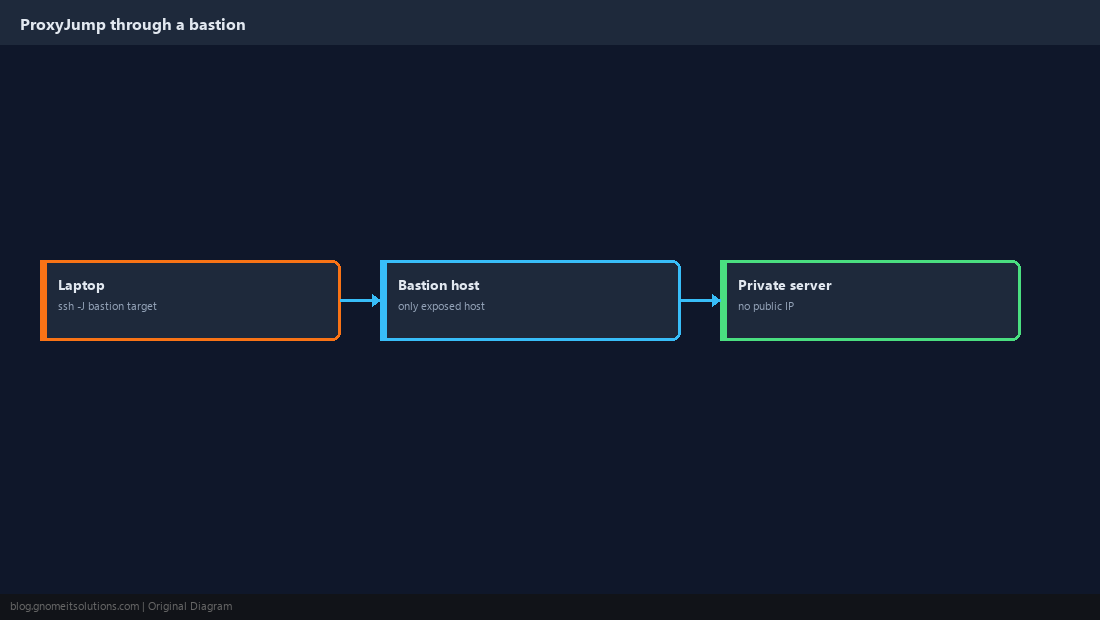
Store It in ~/.ssh/config
Give each destination an alias so the long flags disappear.
Host bastion
    HostName bastion.example.com
    User user
    IdentityFile ~/.ssh/id_ed25519

Host appdb
    HostName 10.0.0.20
    User admin
    ProxyJump bastion
    LocalForward 5433 127.0.0.1:5432
ServerAliveInterval 30ssh appdb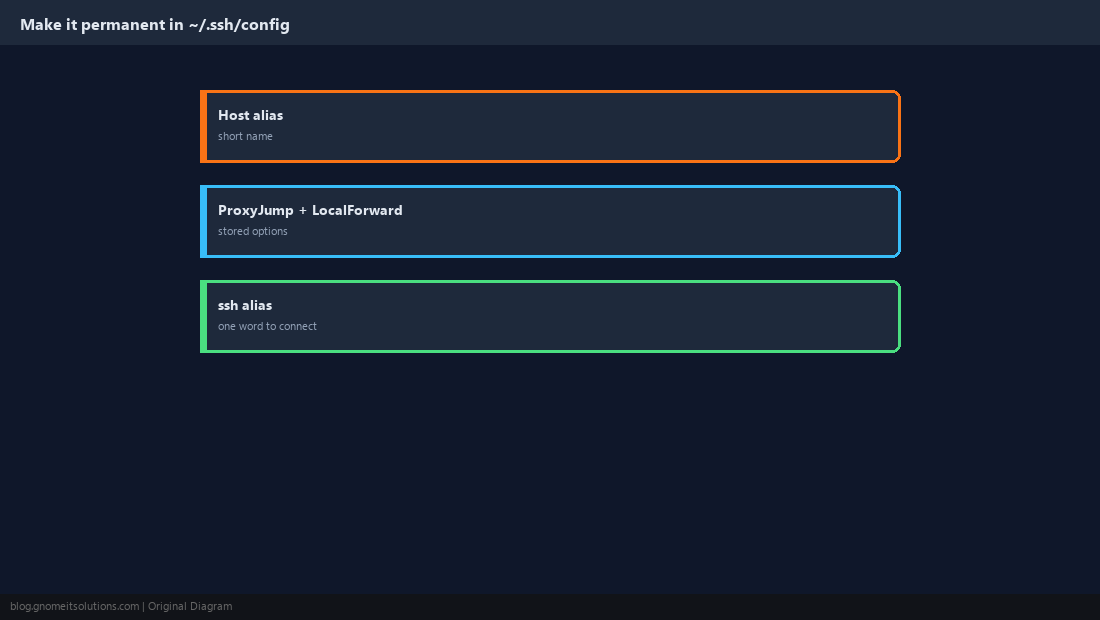
Keep a Tunnel Running with systemd
A tunnel that dies silently is worse than none. ExitOnForwardFailure makes SSH exit if the forward cannot be set up, and systemd restarts it.
[Unit]
Description=SSH tunnel to internal database
After=network-online.target
Wants=network-online.target

[Service]
User=tunnel
ExecStart=/usr/bin/ssh -N -o ExitOnForwardFailure=yes -o ServerAliveInterval=30 -o ServerAliveCountMax=3 -L 5433:db.internal:5432 [email protected]
Restart=always
RestartSec=10

[Install]
WantedBy=multi-user.targetsudo systemctl daemon-reload
sudo systemctl enable --now db-tunnel.service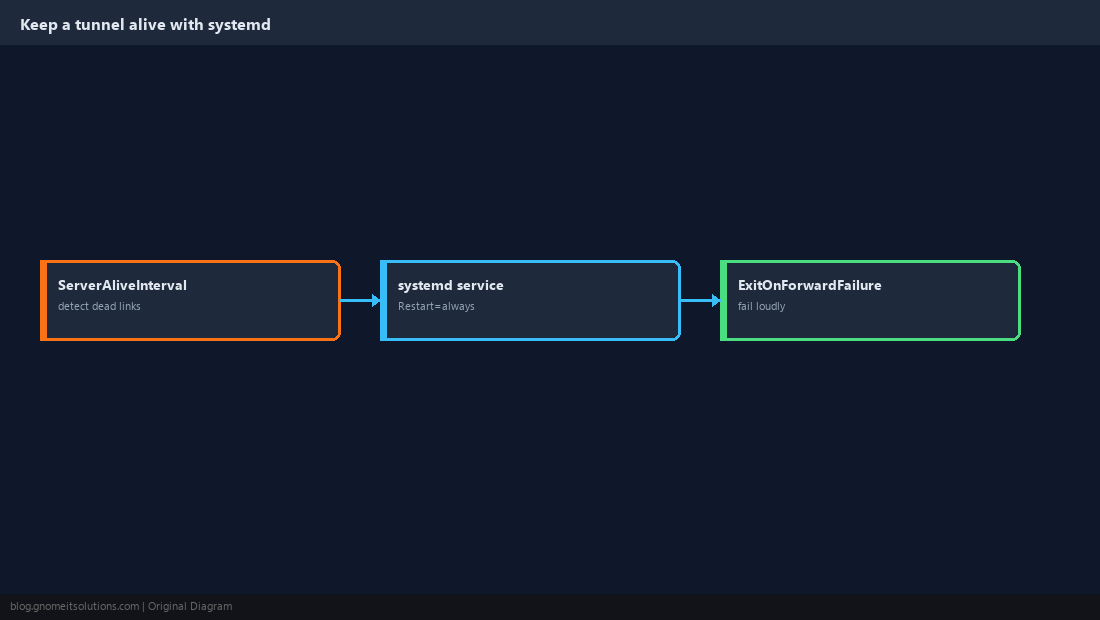
Lock Forwarding Down on the Server
Anyone with SSH access can create tunnels unless you say otherwise. Disable forwarding globally and allow it only for the accounts and destinations that need it.
AllowTcpForwarding no
GatewayPorts no

Match User tunnel
    AllowTcpForwarding local
    PermitOpen db.internal:5432
    X11Forwarding no
PermitTTY nosudo sshd -t && sudo systemctl reload sshd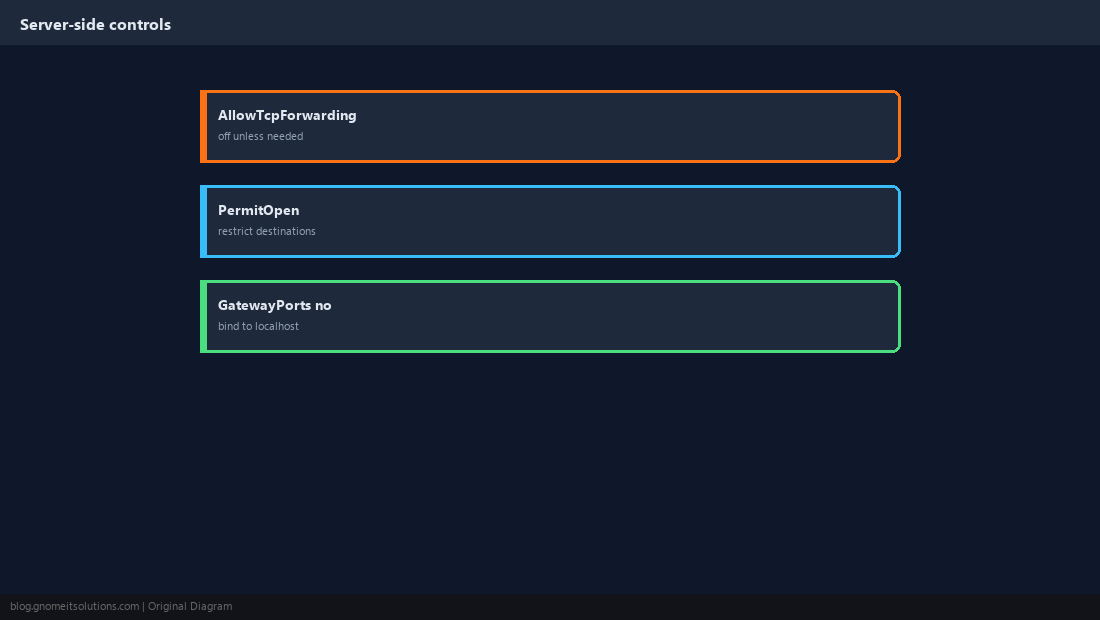
Quick Reference
-Lreach in,-Rpublish out,-DSOCKS,-Jbastion hop- Persist with systemd; restrict with
AllowTcpForwardingandPermitOpen
Related tutorials
Diagrams are original illustrations by Gnome IT Solutions. Tutorial text © Gnome IT Solutions.