Redis is fast, simple, and everywhere — which also means it is a frequent target when left on 0.0.0.0 with no password.
A default package install is fine for learning on a laptop; on a server you should assume port 6379 will be scanned.
This guide installs Redis from distribution packages, locks network access, enables authentication, and trims the commands that have no business on a production cache.
Pair it with your UFW baseline and application secrets stored outside the repo (see
Ansible Vault).
What You Are Protecting
Redis holds session data, job queues, rate-limit counters, and sometimes business-critical state. It is not a document database with rich ACLs by default — network exposure plus no AUTH equals full read/write for anyone who connects.
  app servers (private net) --> TCP 6379 --> redis (bind + AUTH)
  internet scanners ------------X (blocked by bind + firewall)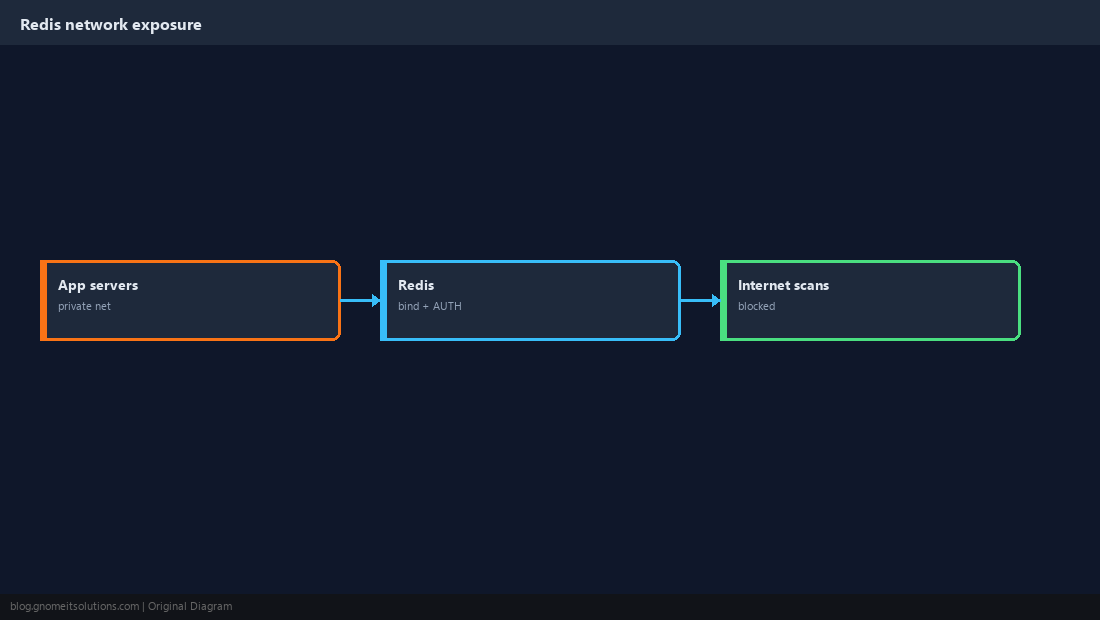
Install and Start Redis
Use the distribution package so you get a maintained unit file and config path. Enable the service before you tune it.
sudo apt install -y redis-server
sudo systemctl enable --now redis-serversudo dnf install -y redis
sudo systemctl enable --now redisredis-cli ping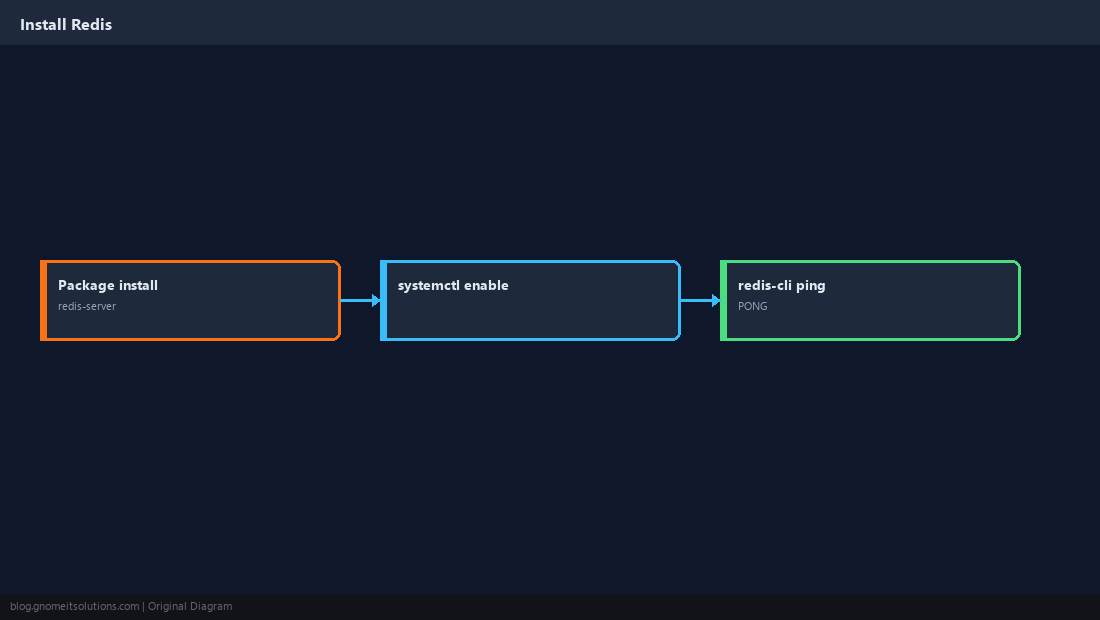
Bind to a Safe Address
Set bind to 127.0.0.1 if only local apps connect, or to a private NIC address if other hosts in the same VLAN need access. Avoid 0.0.0.0 unless you have a firewall that strictly limits source IPs.
bind 127.0.0.1 ::1
# or: bind 10.0.0.12
protected-mode yessudo systemctl restart redis
ss -lntp | grep 6379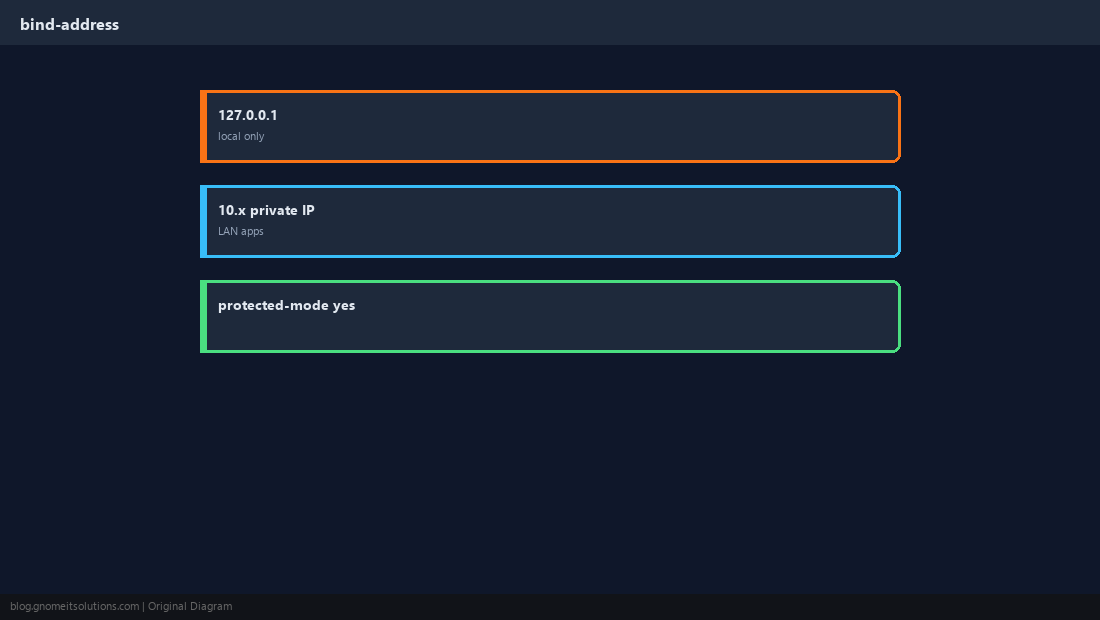
Enable Authentication
Redis 6+ supports ACL users; older setups use requirepass. Pick one model and rotate credentials like any database password.
requirepass YOUR_LONG_RANDOM_SECRETuser app on >APP_SECRET ~* +@all -@dangerousredis-cli -a YOUR_LONG_RANDOM_SECRET ping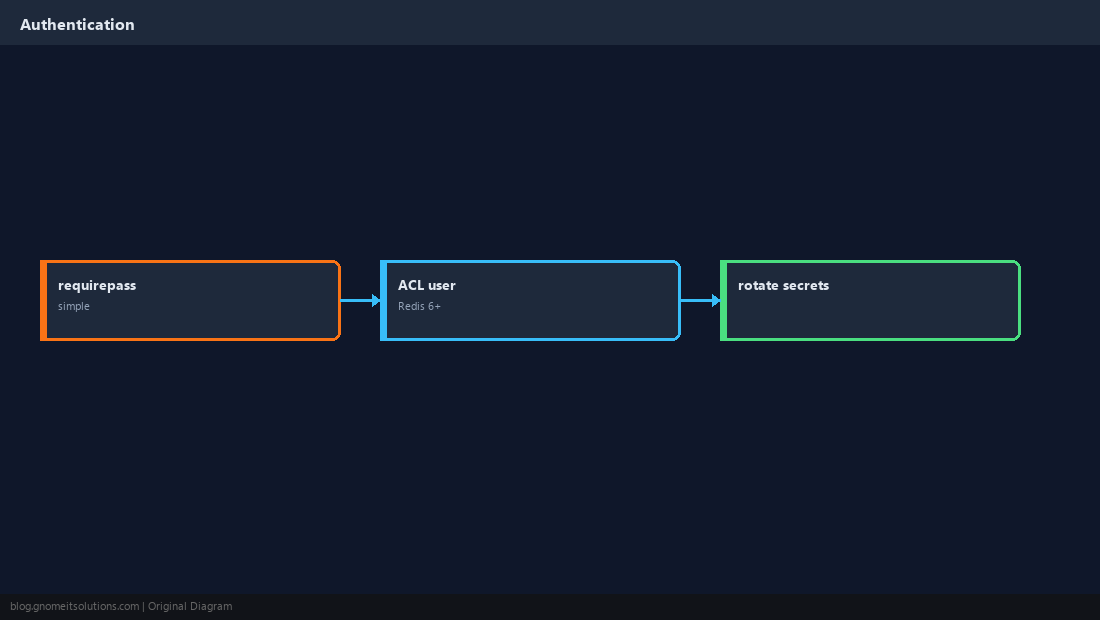
Firewall Port 6379
Even with bind and AUTH, allow only application subnets to reach Redis. Default-deny incoming on the host firewall.
sudo ufw allow from 10.0.0.0/24 to any port 6379 proto tcp
sudo ufw status numberedsudo firewall-cmd --permanent --add-rich-rule='rule family=ipv4 source address=10.0.0.0/24 port port=6379 protocol=tcp accept'
sudo firewall-cmd --reload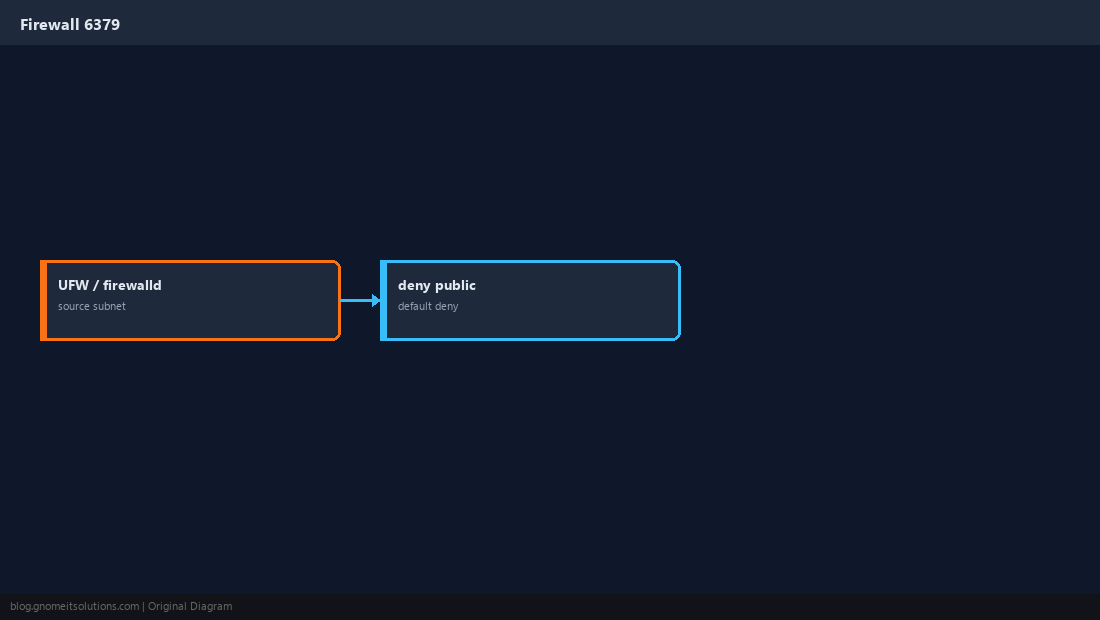
Disable or Rename Dangerous Commands
Commands such as FLUSHALL and CONFIG have caused outages when mistyped or abused. Rename them to long random names or disable them for application users via ACL.
rename-command FLUSHALL ""
rename-command CONFIG b840fc02d524045429941cc15f59e41cb7be6c52+@read +@write but not +@dangerous for app users.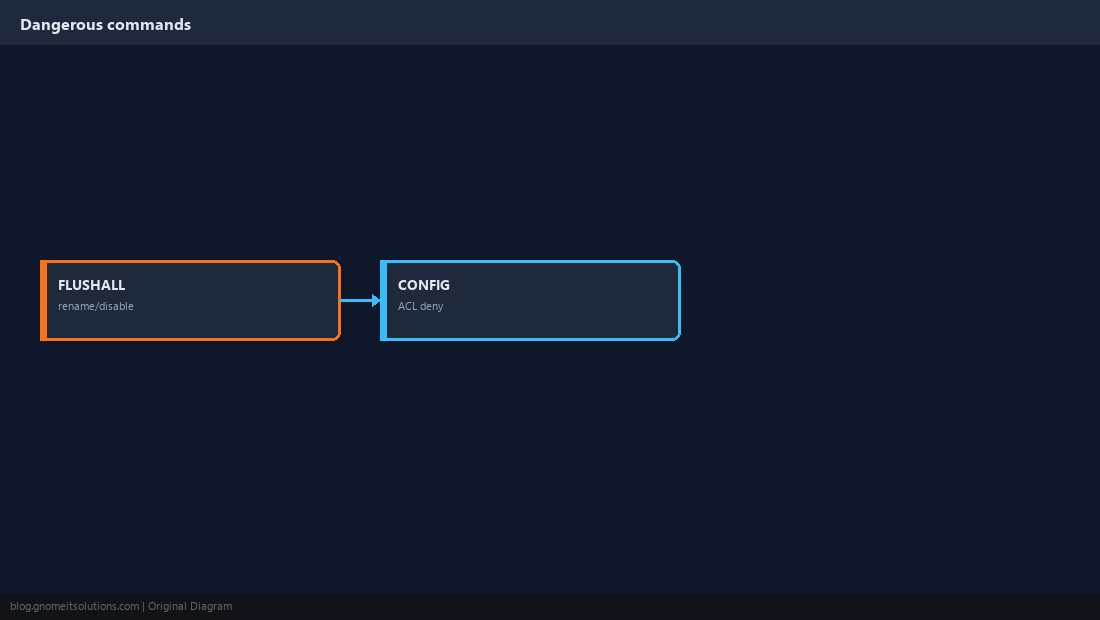
Persistence and Backups (Brief)
RDB snapshots and AOF logs trade durability for disk I/O. For cache-only use cases you may disable persistence; for queues and sessions keep AOF with a sane appendfsync and monitor disk.
appendonly yes
appendfsync everysecredis-cli -a SECRET --rdb /backup/redis-$(date +%F).rdb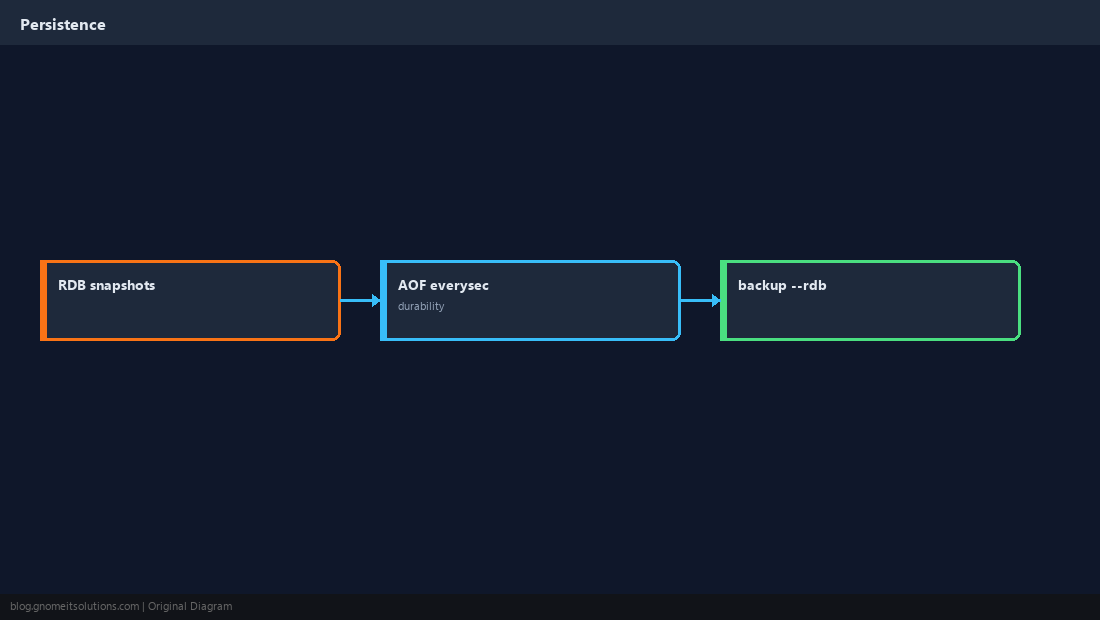
Verify From an App Host
From a machine that should have access, confirm connectivity and AUTH. From the internet (or a wrong subnet), confirm the port is closed.
redis-cli -h 10.0.0.12 -a SECRET pingnc -zv public-ip 6379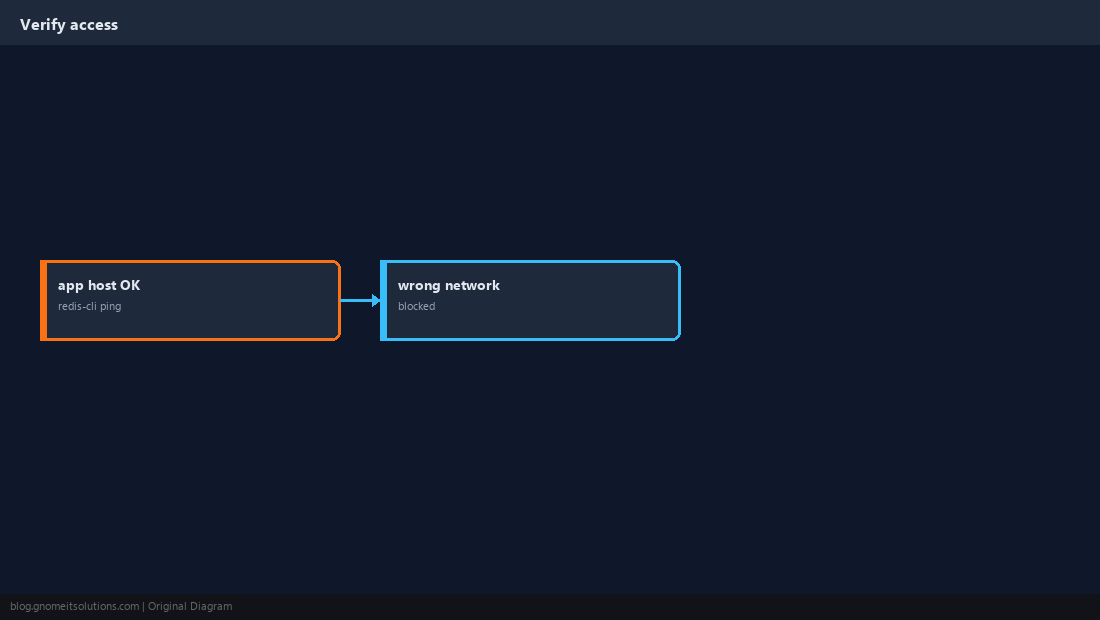
Quick Reference
- Bind to localhost or a private IP;
protected-mode yes - AUTH via ACL or
requirepass; firewall 6379 by source subnet - Rename/disable dangerous commands for app users
Related tutorials
Diagrams are original illustrations by Gnome IT Solutions. Tutorial text © Gnome IT Solutions.