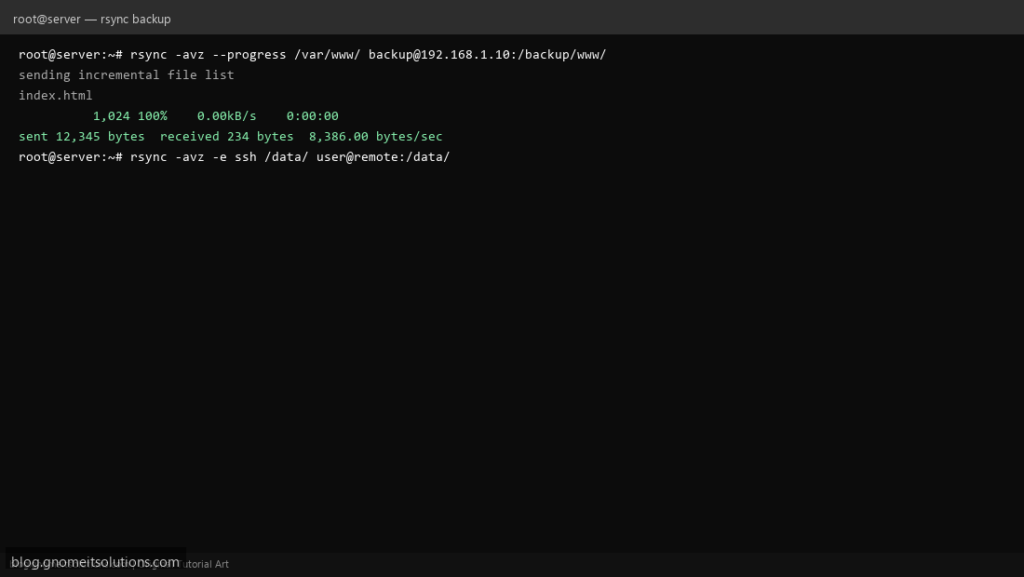
rsync copies files by comparing source and destination first, then transferring only what actually changed. That single idea is why it remains
the standard tool for backups: a nightly sync of a mostly-unchanged directory takes seconds, not the time of a full copy.
This guide covers the flags that matter, the trailing-slash trap that catches almost everyone at least once, syncing over SSH, safely mirroring with
--delete, and wrapping it in a script you can schedule. For an alternative with built-in encryption and deduplicated snapshots, see our
restic guide.
Quick answer: rsync -avh --dry-run source/ destination/ first, always, before running it for real.
Why rsync Instead of cp
cp copies everything, every time. rsync’s delta-transfer algorithm compares files by size and modification time (or content, with -c) and only sends the difference, which is what makes repeated backups of large, mostly-static directories fast.
source files --> rsync compares against destination --> only changed data is transferred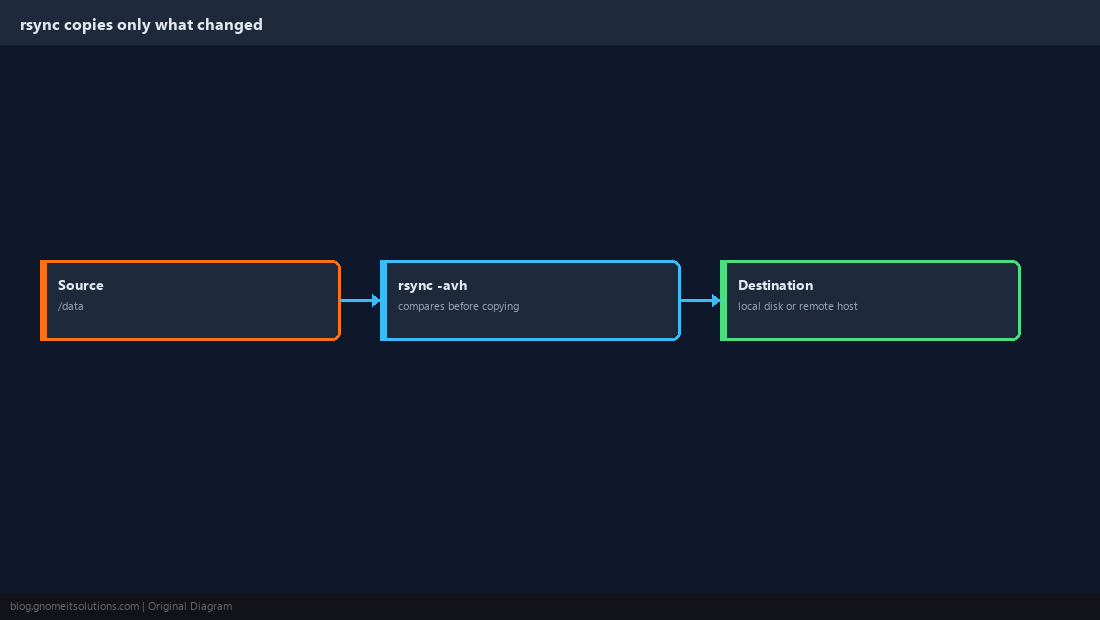
The Flags Worth Knowing
-a (archive) is really a bundle of options: recursive, preserves permissions, timestamps, symlinks and ownership where possible. Combine it with -v for output and -h for human-readable sizes.
rsync -avh source/ destination/
The Trailing Slash Changes the Result
This is the single most common rsync mistake. A trailing slash on the source means “copy the contents of this directory”; no trailing slash means “copy the directory itself, into the destination.”
rsync -avh backup/ /mnt/usb/        # contents of backup/ land directly in /mnt/usb/
rsync -avh backup /mnt/usb/ # creates /mnt/usb/backup/ and copies into that--dry-run first when you are not 100% sure which behaviour you will get.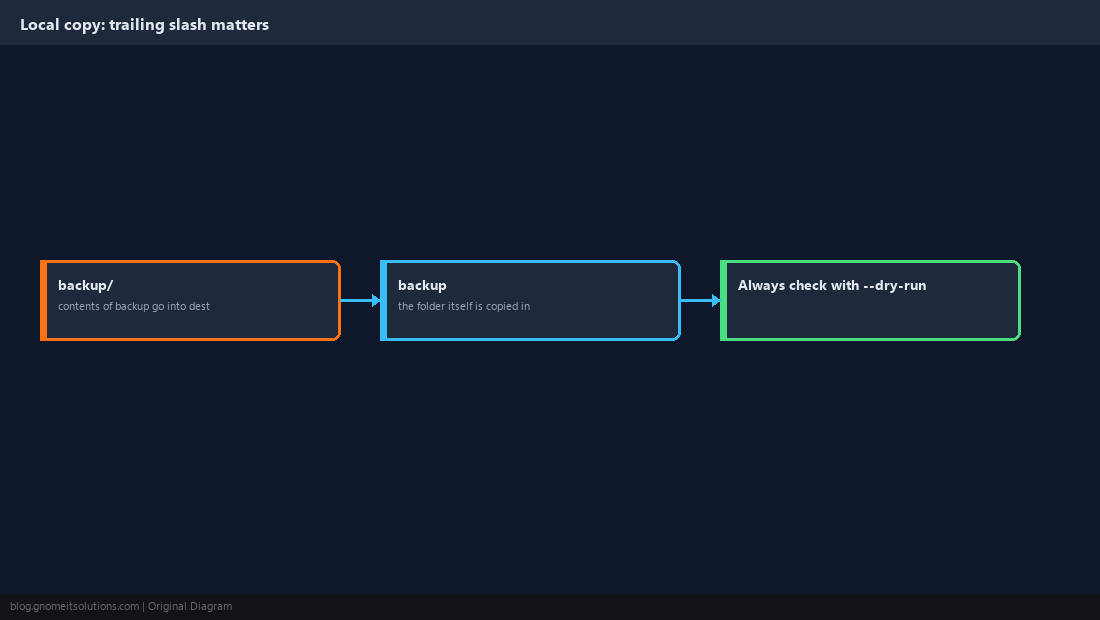
Sync to a Remote Server Over SSH
rsync tunnels through SSH by default when a destination includes a hostname, so the transfer is encrypted with no extra setup beyond working SSH key access (see our SSH key guide).
rsync -avz -e ssh /data/ user@backup-server:/srv/backups/data/-z compresses data in transit, which helps over a slow link and costs little on a fast one.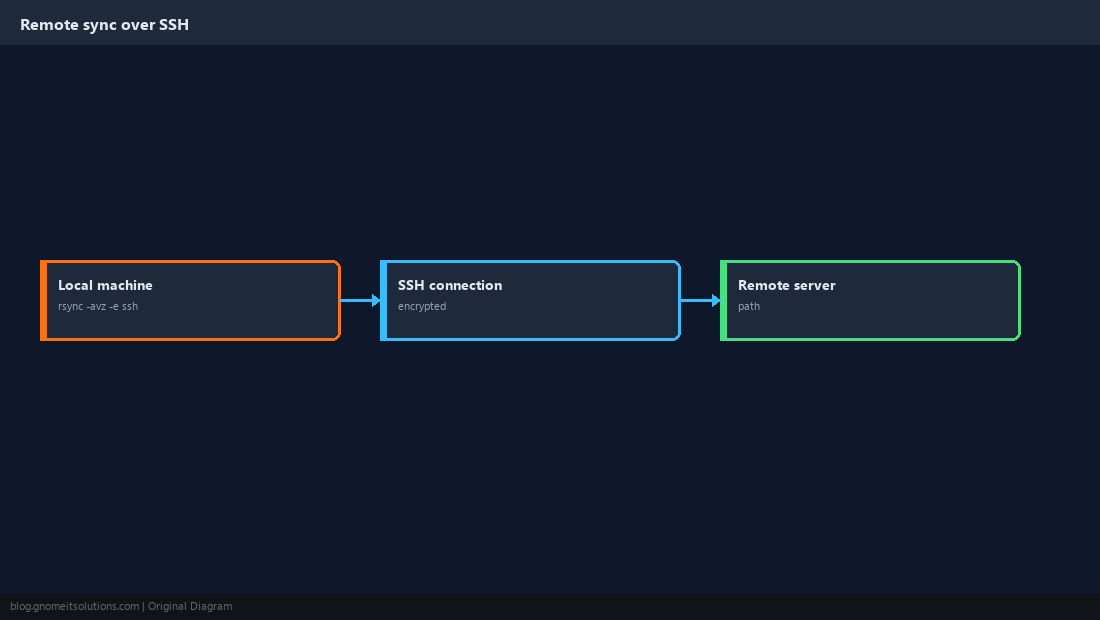
Exclude What You Don’t Need to Copy
Cache directories, temporary files and build artifacts bloat a backup for no benefit. Exclude them by pattern, or keep a reusable list in a file.
rsync -avh --exclude='*.tmp' --exclude='node_modules/' source/ destination/
rsync -avh --exclude-from=/etc/rsync-excludes.txt source/ destination/
Mirror Exactly with –delete
By default rsync only adds and updates files; it never removes anything from the destination, even if the source no longer has it. --delete makes the destination an exact mirror, which is powerful and destructive in the wrong direction.
rsync -avh --delete --dry-run source/ destination/
# only after reviewing the output:
rsync -avh --delete source/ destination/--delete and you can wipe out the copy you meant to keep. The dry run is not optional here.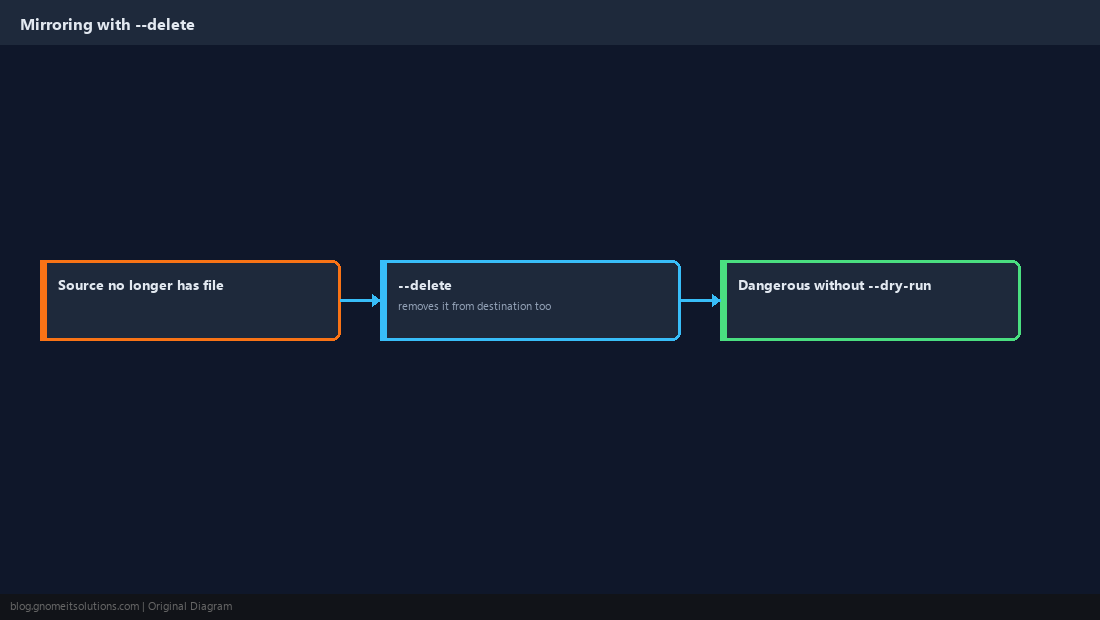
Wrap It in a Script You Can Schedule
A bare rsync command scheduled in cron with no logging or failure detection is a backup you cannot trust. Log the run and check the exit code.
#!/bin/bash
set -euo pipefail
LOG=/var/log/rsync-backup-$(date +%F).log

rsync -avh --delete /data/ user@backup-server:/srv/backups/data/ >> "$LOG" 2>&1

if [ $? -ne 0 ]; then
    echo "rsync backup FAILED, see $LOG" | mail -s "Backup failed" [email protected]
fi0 2 * * * /usr/local/bin/rsync-backup.sh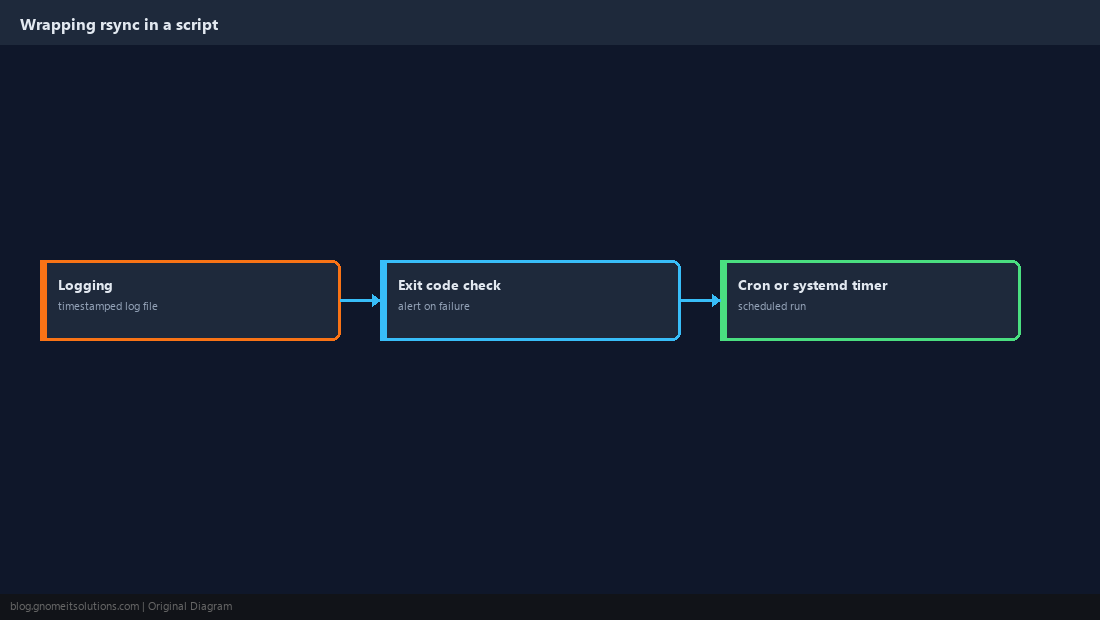
Verify the Backup, Don’t Just Trust the Log
A clean exit code means rsync did not error, not that the data is actually restorable. Compare file counts periodically and, for anything critical, actually restore a sample.
diff <(cd /data && find . | sort) <(ssh user@backup-server 'cd /srv/backups/data && find . | sort')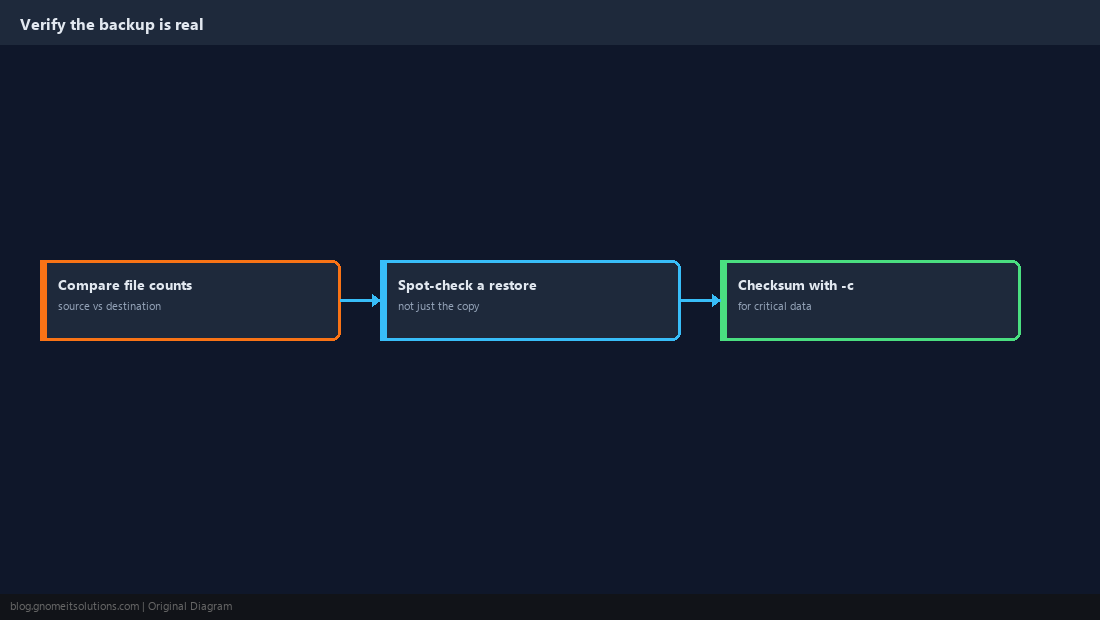
What does the trailing slash do in rsync?
A trailing slash on the source path means copy the directory’s contents into the destination. No trailing slash means copy the directory itself as a subfolder of the destination. This single detail changes where your files end up.
How do I copy files to a remote server with rsync?
Give a destination in the form user@host:/path. rsync automatically uses SSH for the transfer, so it is encrypted as long as SSH access to that host already works.
Does rsync delete files that no longer exist in the source?
Not unless you pass –delete. Without it, rsync only adds and updates files at the destination and never removes anything, even if the source file is gone.
How do I preview what rsync will do without changing anything?
Add –dry-run to any rsync command. It prints exactly what would be copied, updated or deleted without touching the destination, which is essential before using –delete.
Is rsync a full backup solution?
It copies files efficiently but has no built-in encryption at rest, versioning or retention policy on its own. For those, either wrap it with your own scripting or use a purpose-built tool like restic.
Cheat Sheet
rsync -avh --dry-run src/ dst/before every real run- Trailing slash on source = contents only; no slash = the folder itself
--deletemirrors exactly; always dry-run it first
Related tutorials
Diagrams are original illustrations by Gnome IT Solutions. Tutorial text © Gnome IT Solutions.