Our crashed
MySQL table repair guide covers the emergency response when something has already gone wrong with
ViciDial’s database. This guide covers the preventive half of that same problem: a proper
automated backup and restore setup so a corrupted table, a bad migration, or a failed disk
doesn’t cost more than a few hours of call data. The vicidial_log, vicidial_list,
and campaign configuration tables in a live install are exactly the kind of data that’s expensive to lose
and cheap to back up, provided the backup job is actually running and actually tested.
This guide covers a mysqldump-based backup script, a systemd timer to run it nightly instead
of relying on cron, retention pruning so backups don’t quietly fill the disk, and a restore script with a
built-in confirmation guard so a restore never runs by accident against a live production database.
Write the Backup Script
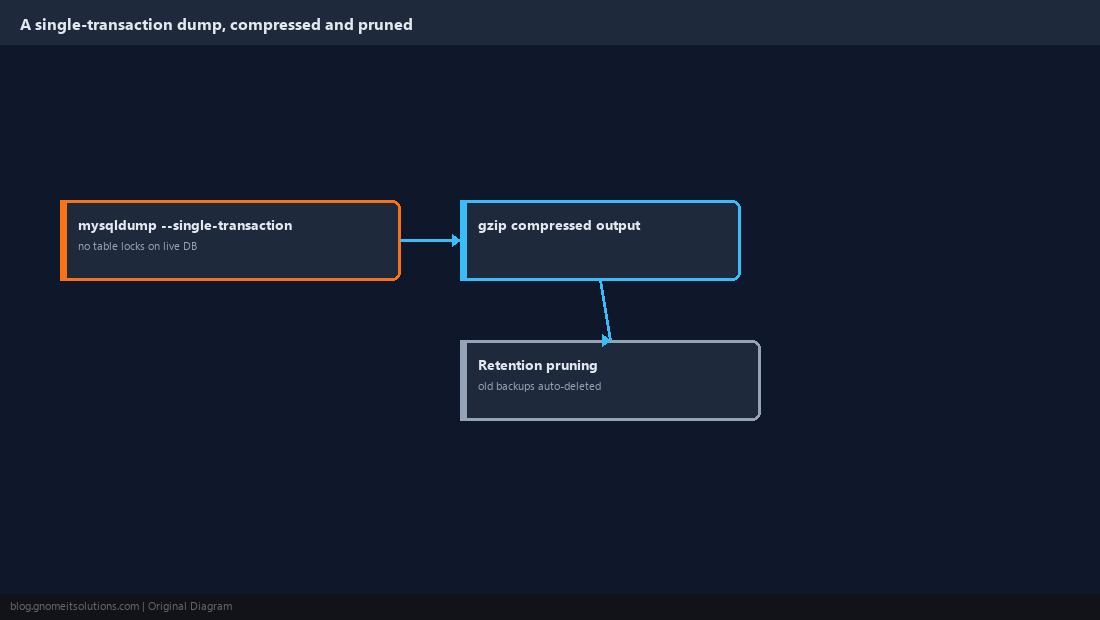
Use mysqldump with --single-transaction so the backup doesn’t need to lock tables on a live system — this matters specifically for ViciDial since locking vicidial_log or vicidial_live_agents during a backup would stall live call logging for however long the dump takes. Compress the output as it’s written rather than compressing afterward, and prune anything older than a retention window so the backup directory doesn’t grow unbounded:
#!/bin/bash
# vicidial-mysql-backup.sh -- dumps the asterisk DB and prunes old backups.
set -euo pipefail

BACKUP_DIR="/var/backups/vicidial"
DATE=$(date +%Y%m%d-%H%M)
RETENTION_DAYS=14

mkdir -p "$BACKUP_DIR"

mysqldump --single-transaction --quick --routines \
  -u backup_user -p"$(cat /etc/vicidial-backup.pass)" \
  asterisk | gzip > "$BACKUP_DIR/asterisk-$DATE.sql.gz"

find "$BACKUP_DIR" -name "asterisk-*.sql.gz" -mtime +$RETENTION_DAYS -delete

echo "Backup complete: asterisk-$DATE.sql.gz"
Store the backup MySQL user’s password in a root-only-readable file like /etc/vicidial-backup.pass rather than embedding it directly in the script, and create that backup user with only SELECT, LOCK TABLES, and SHOW VIEW privileges — it never needs write access to the database it’s backing up.
Schedule It With a Systemd Timer Instead of Cron
A systemd timer paired with a oneshot service gives you built-in logging through journalctl, automatic retry behavior, and a Persistent=true option that runs a missed backup on next boot if the server happened to be down at 2:30am — none of which plain cron gives you without extra scripting:
# /etc/systemd/system/vicidial-mysql-backup.timer
[Unit]
Description=Nightly ViciDial MySQL backup

[Timer]
OnCalendar=*-*-* 02:30:00
Persistent=true

[Install]
WantedBy=timers.target
# /etc/systemd/system/vicidial-mysql-backup.service
[Unit]
Description=ViciDial MySQL backup

[Service]
Type=oneshot
ExecStart=/usr/local/bin/vicidial-mysql-backup.sh
Enable and start the timer, then confirm it’s actually scheduled rather than assuming the unit files alone are enough:
systemctl daemon-reload
systemctl enable --now vicidial-mysql-backup.timer
systemctl list-timers | grep vicidial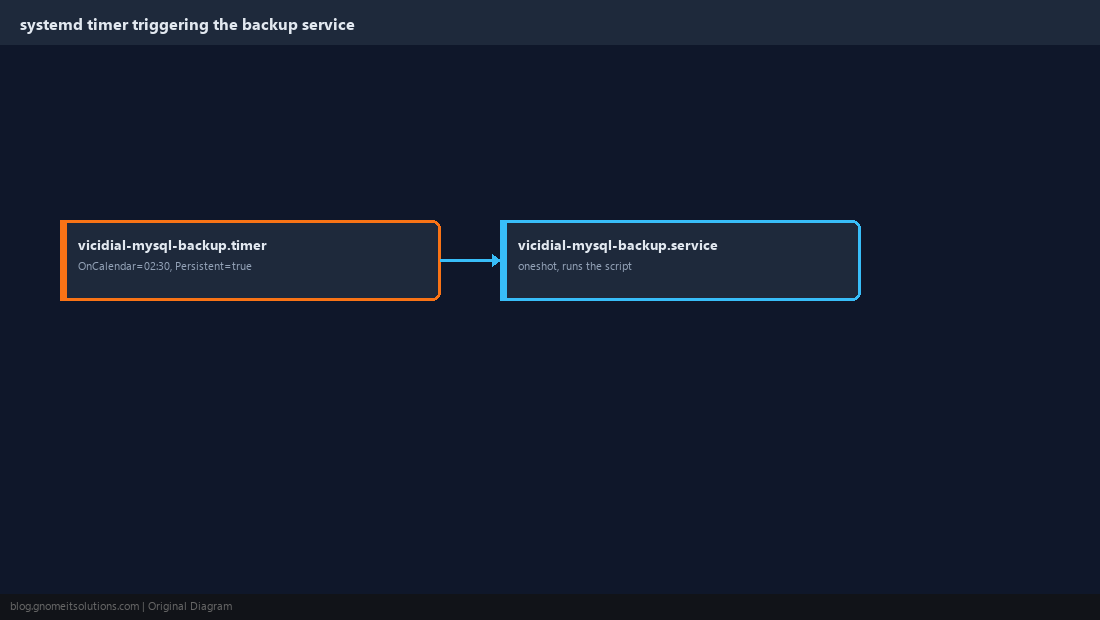
Write a Restore Script That Refuses to Run by Accident
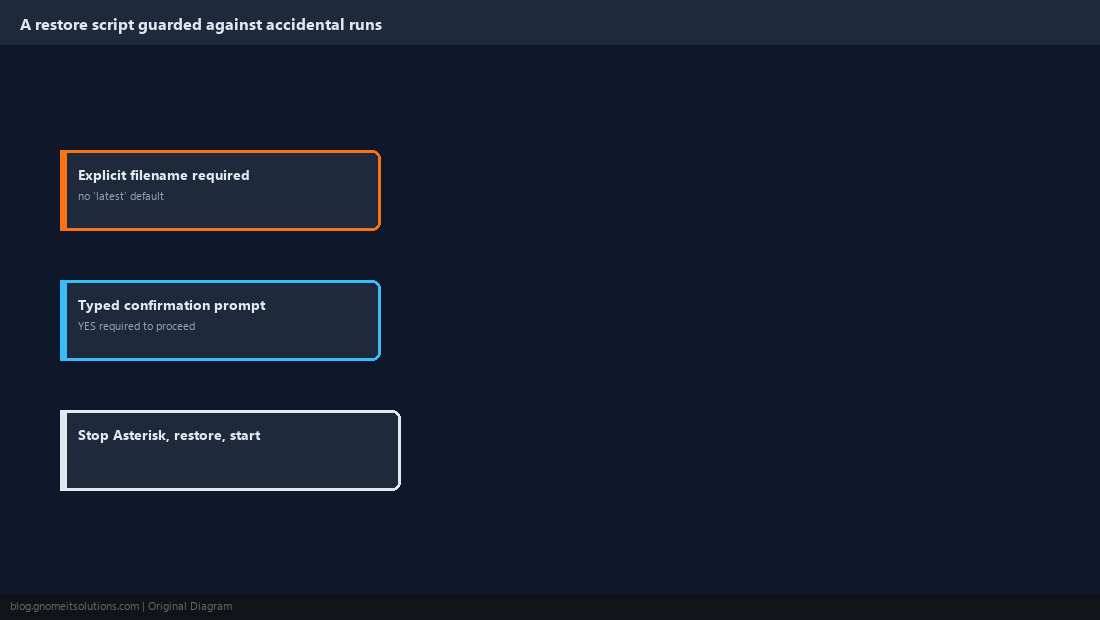
A restore script is the single most dangerous script on a ViciDial server — run it against the wrong environment and you’ve just overwritten live production data with an old backup. Require the backup filename as an explicit argument rather than defaulting to “latest,” and force a typed confirmation before anything destructive happens:
#!/bin/bash
# vicidial-mysql-restore.sh -- restores a named backup file after confirmation.
set -euo pipefail

FILE="$1"
if [ -z "$FILE" ] || [ ! -f "$FILE" ]; then
  echo "Usage: $0 /var/backups/vicidial/asterisk-YYYYMMDD-HHMM.sql.gz"
  exit 1
fi

read -p "This will overwrite the live asterisk database. Type YES to continue: " CONFIRM
if [ "$CONFIRM" != "YES" ]; then
  echo "Aborted."
  exit 1
fi

systemctl stop asterisk
gunzip -c "$FILE" | mysql -u backup_user -p"$(cat /etc/vicidial-backup.pass)" asterisk
systemctl start asterisk

echo "Restore complete from $FILE"
Stopping Asterisk before the restore and starting it again afterward avoids a window where live calls are being logged against a database mid-restore, which would produce a corrupted mix of old and new data rather than a clean point-in-time recovery.
Store Backups Off the Server They Were Taken From
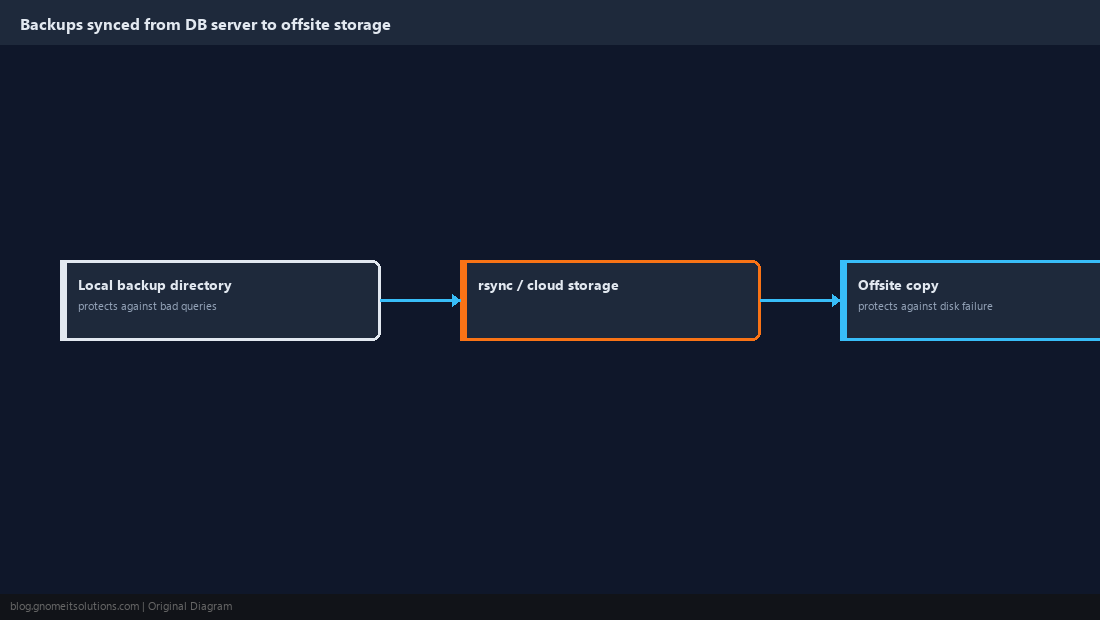
A backup sitting on the same disk as the database it backs up survives a bad DELETE statement but not a disk failure, so sync the backup directory to a separate host or object storage on a schedule — the same offsite-archiving habit our call recording storage guide recommends for recordings applies just as directly to database backups. A simple rsync or cloud-storage CLI call appended to the end of the backup script, run after the local dump succeeds, is enough for most single-cluster setups; a larger operation may want a dedicated backup server pulling from multiple sources instead.
Test the Restore Path, Not Just the Backup Job
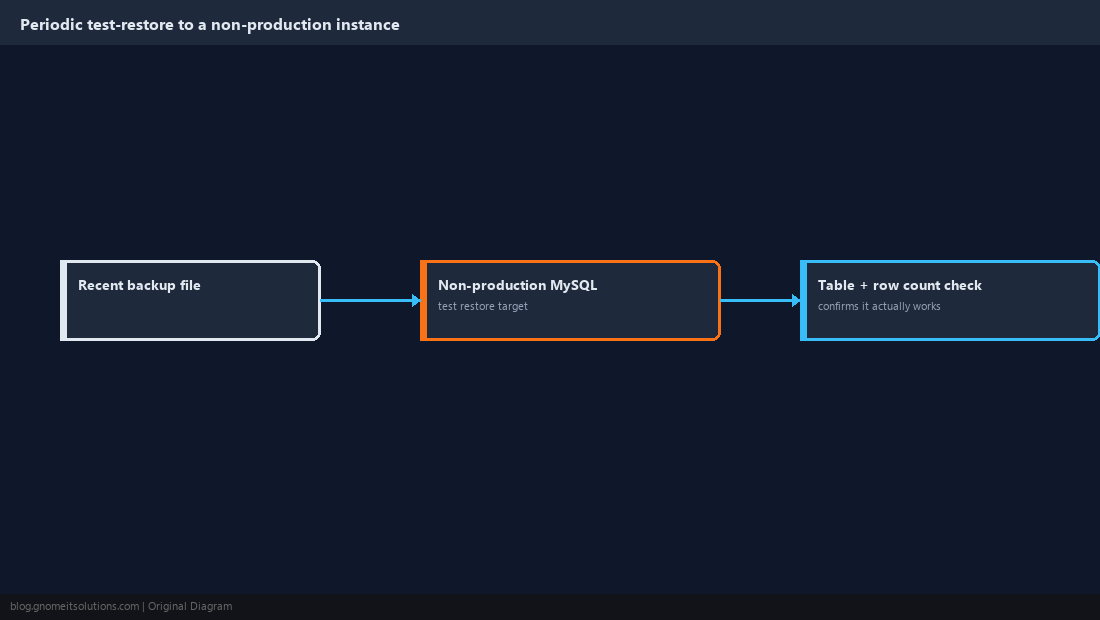
A backup job that’s been running successfully every night for a year tells you nothing about whether the resulting file can actually be restored — test the restore script against a separate, non-production MySQL instance on a recurring schedule, confirming the restored database has the expected tables and a row count in the right ballpark for when the backup was taken. Treat a backup you’ve never successfully restored from as an untested one, no matter how long the backup job itself has been running without errors — the actual value of a backup strategy is proven at restore time, not at backup time.
Coordinate Backup Timing With Cluster Maintenance
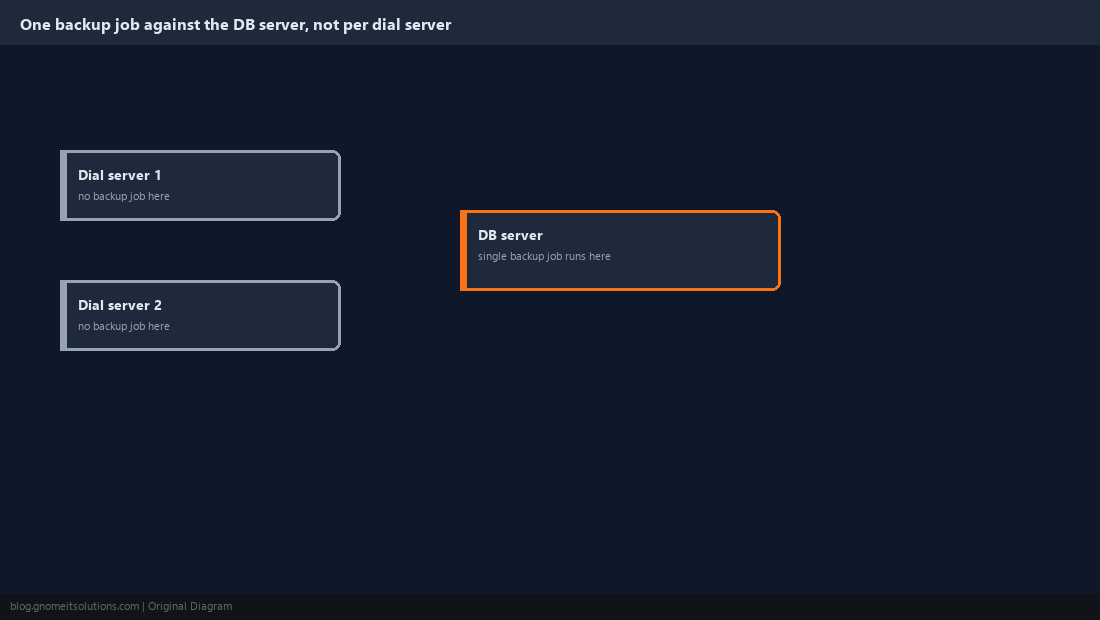
If running the multi-server cluster architecture from our companion guide, schedule the nightly backup during the same quiet dial-window hours used for planned maintenance, and confirm the backup job runs against the central DB server directly rather than being duplicated on every dial server pointed at the same database — a backup job accidentally scheduled on multiple servers against the same DB produces redundant dumps and wastes both database load and disk space for no additional safety.
Alert on Backup Failure, Don’t Assume Silence Means Success
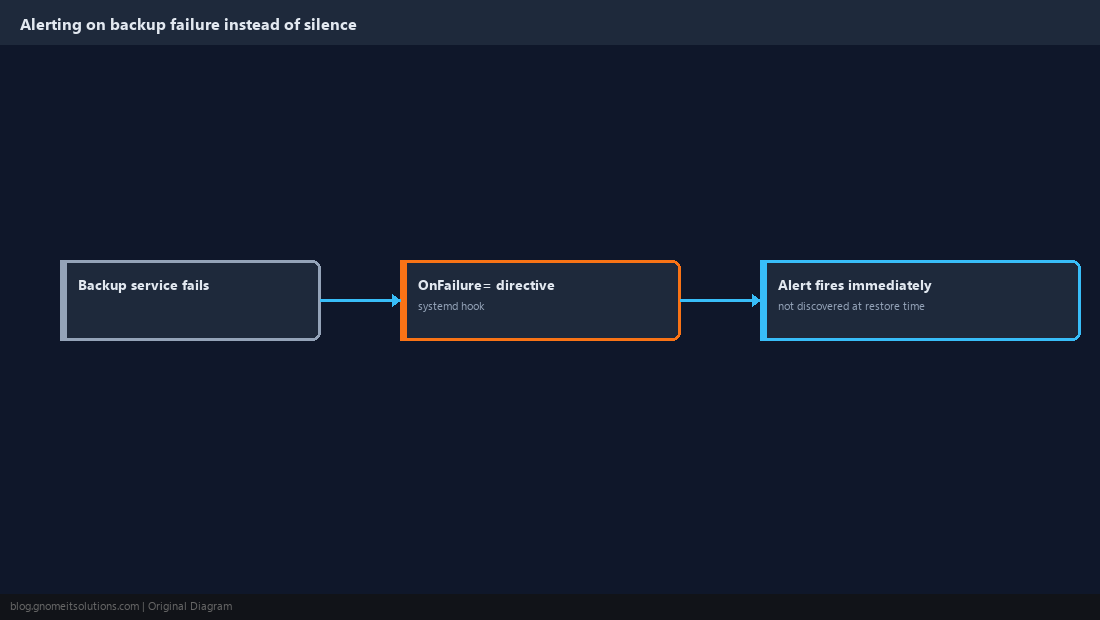
Wire the backup service’s failure state into whatever alerting the rest of the infrastructure already uses — a simple systemd OnFailure= directive pointed at a notification script is enough for most setups — so a failed backup surfaces immediately rather than being discovered the day someone actually needs to restore from one. A backup job that fails silently for weeks is functionally identical to having no backup at all, just with a false sense of security attached to it.
Document the Recovery Procedure Alongside the Scripts
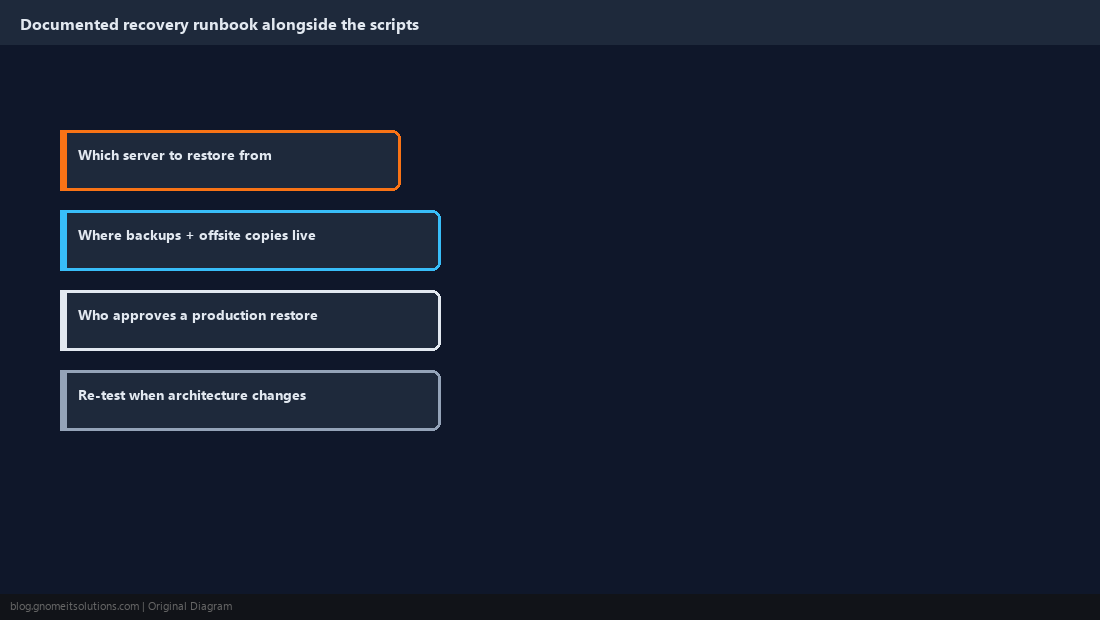
Keep a short, current runbook next to the backup and restore scripts covering exactly which server to run the restore from, where the backup files and offsite copies live, and who needs to approve a production restore before it runs — the systemd units and scripts in this guide are only half the plan without the human process wrapped around them. Review and re-test that runbook whenever the cluster architecture changes, since a runbook written for a single-server install quietly goes stale the moment the database moves to its own dedicated server in a cluster setup.
Backup Automation Checklist
Dump          mysqldump --single-transaction, compressed, retention-pruned
Schedule      systemd timer + oneshot service, not plain cron
Restore       requires explicit filename + typed confirmation, stops Asterisk first
Offsite       synced to a separate host/object storage, not left local-only
Test restore  run against a non-production instance on a recurring schedule
Alerting      OnFailure= wired to notifications, not silent failure
Runbook       documented and kept current alongside the scripts
Related tutorials
- Repairing a Crashed MySQL Table in ViciDial
- Call Recording Storage and Archiving
- Multi-Server Cluster Architecture
Image credits: All illustrations are original terminal/config mockups created for
Gnome IT Solutions — not screenshots from any third-party site. Tutorial text © Gnome IT Solutions.